
You open Command Prompt, type ping 8.8.8.8, and every line returns “Request timed out.” Yet your browser loads pages without a hitch, YouTube streams fine, and downloads run at full speed. This contradiction — ping request timed out but internet working — is one of the most confusing network issues Windows 10 and 11 users encounter. It suggests a connectivity failure that clearly is not there.
The disconnect between a failed ping and a functioning internet connection is not random. It traces back to specific, diagnosable causes involving firewalls, ICMP protocol handling, ISP-level restrictions, or misconfigured Windows network settings. This guide walks you through every layer of the problem, from understanding the error itself to applying targeted fixes that resolve it permanently.
If your ping error displays “Transmit Failed – General Failure” instead of “Request timed out,” follow our complete step-by-step guide here:
How to Fix Ping Transmit Failed General Failure in Windows 11/10
What Does “Ping Request Timed Out” Mean When the Internet Is Working?
When you run a ping command, your computer sends a small data packet called an ICMP Echo Request to a target IP address or hostname. The target is expected to reply with an ICMP Echo Reply. If that reply never arrives within the default wait period (typically 4 seconds in Windows), Command Prompt displays Request timed out.
Here is the critical distinction most users miss: ping uses the ICMP protocol, while your browser, streaming apps, and most internet services use TCP and UDP. These are entirely different communication protocols. A firewall, router, or ISP can block ICMP packets while leaving TCP/UDP traffic completely untouched. When that happens, your cmd ping request timed out message appears even though every other internet function works normally.
So “Request timed out” does not necessarily mean your connection is broken. It means ICMP traffic specifically is being dropped or blocked somewhere between your machine and the target.
If your ping command returns a “Destination Host Unreachable” message instead of a normal reply, the issue usually involves routing or gateway connectivity on your local network. See our detailed guide on destination host unreachable to understand the causes and fixes.
In some cases, the response may even come from another device on the network instead of the intended target. See our detailed guide on ping reply from different IP address to understand why this happens.
In some cases, the response may even come from another device on the network instead of the intended target. See our detailed guide on ping reply from different IP address to understand why this happens.
The challenge is identifying exactly where.
If the failure occurs at the very first network hop — your router — the issue may involve the local gateway itself. See our guide on cannot ping default gateway to diagnose gateway-level connectivity problems.
If your system instead returns a routing-based response generated locally — such as a destination host unreachable error — the problem lies in path resolution rather than packet blocking, and the troubleshooting process is entirely different.
Why Does Ping Request Timed Out Appear? (Most Common Causes)
Three primary culprits account for the vast majority of cases where ping timed out but browser works without issues. Each operates at a different layer of your network stack.
Firewall or Antivirus Blocking ICMP
This is the single most frequent cause on Windows 10 and 11 machines. The Windows Defender Firewall, by default, blocks inbound ICMP Echo Requests in many network profiles. Third-party antivirus suites — including Norton, Kaspersky, Bitdefender, and ESET — often apply their own firewall rules that silently suppress ICMP traffic in both directions.
What makes this tricky is that these rules can activate silently after a Windows update, a firewall policy change, or the installation of a new security tool. The user changes nothing deliberately, yet ping suddenly stops working. The firewall does not generate a visible notification when it drops an ICMP packet — it simply discards it, causing the timeout.
Windows NCSI Reporting Internet Status Incorrectly
Windows uses a background service called NCSI (Network Connectivity Status Indicator) to determine whether your machine has internet access. NCSI works by attempting to reach a specific Microsoft probe URL. If a registry misconfiguration, group policy edit, or third-party optimization tool has altered NCSI behavior, Windows may report network status inconsistently. In certain edge cases, this can interfere with how the operating system handles outbound ICMP traffic, contributing to intermittent ping timeout behavior even when the underlying connection is stable.
Router or ISP Blocking Ping (ICMP Requests)
Many ISPs — particularly regional providers like PTCL, BSNL, and certain fiber-optic carriers — deliberately block ICMP traffic at the network edge. Some consumer-grade routers from Huawei, TP-Link, and ZTE also ship with ICMP response disabled by default in their firmware.
When ICMP is blocked at the router or ISP level, pinging external addresses like 8.8.8.8 will time out, but pinging your own router’s gateway IP (e.g., 192.168.1.1) may still succeed. This pattern is a strong diagnostic indicator that the block exists upstream, not on your local machine.
Quick Checks You Can Do in 5 Minutes
Before diving into advanced fixes, a few rapid diagnostic tests will help you pinpoint whether the problem originates on your local machine, your router, or further upstream. These checks take under five minutes and immediately narrow down the cause.
Test Ping on Different Targets (Router IP, 8.8.8.8, Local IP)
Open Command Prompt (press Win + R, type cmd, hit Enter) and run the following three pings in sequence:
1. Ping your own machine (loopback test):
ping 127.0.0.1This tests whether the TCP/IP stack on your computer is functioning. If this fails, your network configuration is fundamentally broken and needs a full reset (covered in Phase 3).
2. Ping your default gateway (router):
ping 192.168.1.1Replace 192.168.1.1 with your actual gateway IP. To find it, run ipconfig and look for the Default Gateway value. If this ping succeeds but external pings fail, the block exists beyond your local network — either at the router’s WAN interface or your ISP.
3. Ping an external public DNS server:
ping 8.8.8.8If ping 8.8.8.8 timed out here but the first two tests succeeded, ICMP is being blocked somewhere between your router and Google’s DNS server. This points toward ISP-level blocking or a firewall rule on your machine filtering outbound ICMP.
Read the pattern carefully. A failure only on step 3 means something very different from a failure on step 2. The combination tells you exactly which section of this guide to prioritize.
Run Windows Network Troubleshooter
Windows 10 and 11 include a built-in diagnostic tool that can detect and sometimes auto-repair common network misconfigurations:
- Open Settings → System → Troubleshoot → Other troubleshooters
- Click Run next to Network and Internet
- Follow the on-screen prompts and let the tool complete its scan
This troubleshooter checks adapter status, DNS resolution, and default gateway reachability. It will not specifically diagnose ICMP blocking, but it can catch underlying issues like a disabled adapter, corrupted DNS cache, or incorrect IP assignment that may contribute to ping request timed out on Windows 11.
Firewall and Security Fixes (Most Effective Solutions)
Since firewall interference is the most common reason ping timed out but browser works, this section deserves your attention first — especially if the loopback and gateway pings succeeded but external pings failed.
If your system instead shows a transmit failure before the packet leaves your machine, refer to our detailed General Failure troubleshooting guide.
How to Allow ICMP in Windows Firewall (Inbound Rules)
Windows Defender Firewall can be configured to explicitly permit ICMP Echo Requests through an inbound rule. Here is the exact process:
- Use the Windows search bar (Win + S), type Windows Defender Firewall with Advanced Security, and launch it from the results.
- In the left panel, click Inbound Rules
- Locate the inbound rules labeled File and Printer Sharing (Echo Request – ICMPv4-In) in the list.
- You will typically find multiple entries — one for Domain, Private, and Public profiles
- Right-click each relevant rule and select Enable Rule
- Verify that the Action column for that rule is configured to permit the connection.
After enabling these rules, open a new Command Prompt window and test ping 8.8.8.8 again. If pings now succeed, the firewall was the sole cause.
For users who prefer a one-line command, run this in an elevated Command Prompt (Admin mode):
netsh advfirewall firewall add rule name="Allow ICMPv4" protocol=icmpv4:8,any dir=in action=allowThis command creates a new inbound rule that permits ICMPv4 Echo Requests across all network profiles simultaneously.
Temporarily Disable Antivirus/Firewall and Test Again
If enabling the Windows Firewall rule did not resolve the issue, a third-party security suite may be imposing its own ICMP restrictions. To test this:
- Open your antivirus application (Norton, Kaspersky, Bitdefender, etc.)
- Locate the Firewall or Network Protection module
- Temporarily disable it for 5–10 minutes
- Immediately run
ping 8.8.8.8from Command Prompt
If pings succeed with the third-party firewall disabled, the problem is confirmed. Re-enable the firewall and look within its settings for an ICMP or “ping” exception option. Most modern security suites allow you to whitelist ICMP traffic without disabling the entire firewall permanently.
Important: Do not leave your firewall disabled. This test is purely diagnostic. Once you identify the blocking rule, re-enable protection and add a targeted exception instead.
Powerful CMD Fixes (Network Reset Commands)
When firewall adjustments alone do not resolve the issue, the problem may stem from a corrupted DNS cache, stale IP lease, or damaged TCP/IP configuration. Windows accumulates network state data over time, and any corruption in these layers can cause cmd ping request timed out errors even on an otherwise healthy connection. The following commands reset these components cleanly.
Flush DNS, Release/Renew IP, and Reset TCP/IP (Step-by-Step)
Open Command Prompt as Administrator — press Win + S, type cmd, right-click Command Prompt, and select Run as administrator. Then execute these commands one at a time, waiting for each to complete before running the next:
Step 1 — Flush the DNS resolver cache:
ipconfig /flushdnsThis clears all cached DNS entries stored locally. A corrupted cache can cause resolution failures that indirectly affect ping behavior when targeting hostnames.
Step 2 — Release your current IP address:
ipconfig /releaseThis tells your network adapter to give up its current DHCP-assigned IP address. The adapter temporarily loses its IP configuration.
Step 3 — Renew the IP address:
ipconfig /renewThis requests a fresh IP lease from your router’s DHCP server. If the previous lease was malformed or conflicting with another device, this resolves it.
Step 4 — Reset the TCP/IP stack:
netsh int ip resetThis rewrites the registry keys that control the TCP/IP stack behavior. These netsh commands modify advanced Windows networking parameters. It eliminates corruption that accumulated from failed updates, driver issues, or improper shutdowns. A restart is required after this command.
Step 5 — Reset Winsock catalog:
netsh winsock resetWinsock handles how Windows applications access network services. Resetting it clears any third-party LSP (Layered Service Provider) entries that may interfere with ICMP traffic flow.
Restart your computer after running all five commands. Then test with ping 8.8.8.8 to check whether the intermittent ping timeout issue has cleared.
Complete Netsh Command List (Run in Admin Mode)
For convenience, here is the full sequence you can paste into an elevated Command Prompt in order:
ipconfig /flushdns
ipconfig /release
ipconfig /renew
netsh int ip reset
netsh winsock reset
netsh int tcp reset
The additional netsh int tcp reset command resets TCP-specific tuning parameters — including auto-tuning level and chimney offload settings — back to their defaults. These parameters occasionally interfere with packet handling on certain network adapters, particularly after major Windows updates.
After restarting, confirm that your IP configuration is intact by running ipconfig /all and verifying that your adapter shows a valid IP address, subnet mask, default gateway, and DNS server.
Fix Hidden Network Issues (NCSI and MTU Problems)
If ping request timed out on Windows 11 persists after firewall and CMD resets, two less obvious culprits deserve investigation: the Windows NCSI service and your connection’s MTU size. Both can silently disrupt ICMP without producing visible error messages.
How to Fix the Windows NCSI Detection Bug
NCSI (Network Connectivity Status Indicator) periodically probes Microsoft’s servers to confirm internet access. When NCSI’s configuration becomes corrupted — through registry edits, Group Policy changes, or third-party “privacy” tools that disable Microsoft telemetry — Windows may misreport connectivity status. This can cascade into inconsistent ICMP behavior.
To verify and reset NCSI through the Registry:
- Press Win + R, type
regedit, and press Enter - Navigate to:
HKEY_LOCAL_MACHINE\SYSTEM\CurrentControlSet\Services\NlaSvc\Parameters\Internet - Confirm these values exist and are set correctly:
- EnableActiveProbing →
1(DWORD) - ActiveWebProbeHost →
www.msftconnecttest.com(String) - ActiveWebProbePath →
connecttest.txt(String) - ActiveWebProbeContent →
Microsoft Connect Test(String)
- If any value is missing or modified, correct it manually
- Restart the Network Location Awareness service by running these commands in an admin Command Prompt:
net stop NlaSvc
net start NlaSvc
This restores the default NCSI probing mechanism without requiring a full reboot.
How to Adjust MTU Size If Packets Are Failing
MTU (Maximum Transmission Unit) defines the largest packet size your connection can transmit without fragmentation. If your MTU is set higher than what your ISP or router supports, oversized packets — including ICMP Echo Requests — get silently dropped, causing ping timeouts.
First, find your current MTU by running:
netsh interface ipv4 show subinterfacesThis displays the MTU value for each network adapter. The default is typically 1500 bytes.
Next, test the optimal MTU using ping with the “do not fragment” flag:
ping 8.8.8.8 -f -l 1472The -f flag prevents fragmentation, and -l 1472 sets the payload size. If this times out, reduce the value by 10 (try 1462, then 1452) until pings succeed. Once you find the highest value that works, add 28 bytes (for the IP and ICMP headers) to get your optimal MTU.
Set the new MTU with:
netsh interface ipv4 set subinterface "Wi-Fi" mtu=1450 store=persistentReplace "Wi-Fi" with your adapter name and 1450 with your calculated MTU. This change persists across reboots and can immediately eliminate packet-level failures that cause intermittent ping timeout patterns.
Router and ISP-Level Fixes (Especially for PTCL/Huawei Users)
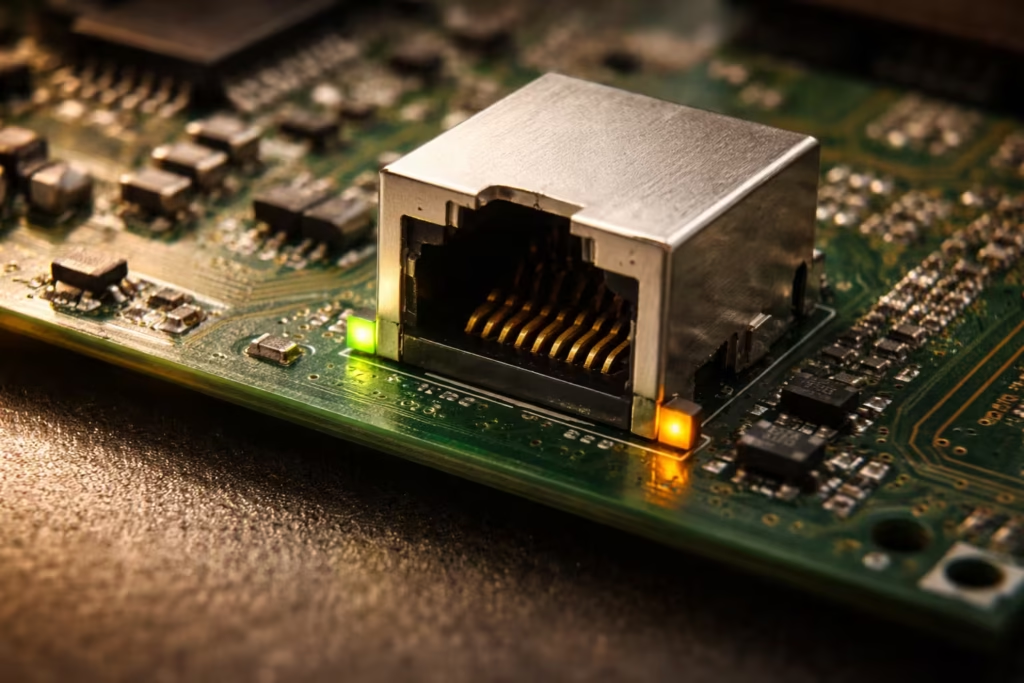
When every local fix has been applied and ping request timed out but internet working remains the situation, the block almost certainly exists outside your computer. Routers and ISPs operate their own packet filtering policies, and ICMP is frequently the first protocol they restrict.
Check If Your ISP Is Blocking ICMP Requests
Some ISPs block ICMP at the network edge as a basic security measure against ping flood attacks. This is especially common with providers like PTCL, BSNL, Airtel fiber, and several regional carriers using Huawei or ZTE backbone equipment. When ISP-level blocking is active, no amount of local configuration will make external pings succeed.
To confirm ISP-level ICMP blocking, run this diagnostic sequence:
1. Ping your router’s gateway:
ping 192.168.1.12. Ping your ISP’s first hop (found via tracert):
tracert 8.8.8.8Note the IP address listed at hop 2 or 3 — this is typically your ISP’s nearest routing node. If ping succeeds to your router but consistently fails at the ISP hop, ICMP is very likely being filtered or deprioritized at the ISP level.
3. Compare results using a mobile hotspot.
Switch your computer to a phone’s hotspot connection and run ping 8.8.8.8 again. If pings succeed over mobile data but fail on your broadband, your ISP is definitively filtering ICMP on your fixed-line connection.
In this case, contact your ISP’s technical support and specifically request that ICMP Echo Requests be unblocked on your connection. Some providers will accommodate this request; others maintain the restriction as a blanket policy.
Enable ICMP in Router Settings + Try Custom DNS (8.8.8.8 / 1.1.1.1)
Many consumer routers ship with ICMP response disabled in their firmware. Accessing your router’s admin panel allows you to change this directly:
Note: Some routers only control WAN-side ICMP replies. This does not affect outbound ping requests from your device.
- Open a browser and navigate to your router’s admin IP (commonly
192.168.1.1or192.168.0.1) - Log in with your admin credentials (check the label on the router if you have not changed them)
- Look under Security, Firewall, or Advanced Settings for an option labeled ICMP Ping, WAN Ping, or Respond to Ping
- Enable this option and save the configuration
On Huawei HG8245H routers (widely deployed by PTCL), the setting is located under Security → Firewall Level Configuration. Setting the firewall level to Low or creating a custom rule that permits ICMP often resolves the issue immediately.
While in the router panel, switch your DNS servers to public alternatives. Navigate to DHCP Settings or WAN Configuration and set:
- Primary DNS:
8.8.8.8(Google Public DNS) - Secondary DNS:
1.1.1.1(Cloudflare DNS)
Although DNS settings do not directly control ICMP, DNS changes will not affect ICMP directly, but switching to public DNS helps rule out hostname resolution delays when testing domains instead of raw IP addresses. when testing hostnames instead of raw IP addresses.
What to Do If the Problem Still Persists (Advanced Steps)
If you have worked through firewall rules, CMD resets, MTU adjustments, and router configuration without success, advanced diagnostic tools can reveal exactly where packets are being lost along the route.
Use Tracert and Pathping to Identify Routing Problems
Two built-in Windows utilities provide hop-by-hop visibility into your packet’s journey:
Tracert shows each router your packet passes through on the way to the destination:
tracert 8.8.8.8Each line displays a hop number, three round-trip time measurements, and the hop’s IP address. Look for the exact hop where responses change from successful replies to Request timed out or asterisks (* * *). That hop — or the one immediately before it — is where the ICMP block or packet loss occurs.
Pathping combines tracert with sustained packet loss analysis over a longer sampling window:
pathping 8.8.8.8This command runs for approximately 5–7 minutes. After completing its trace, it displays per-hop packet loss percentages. A hop showing significant loss (above 5–10%) indicates a congested or misconfigured router along the path. If heavy loss appears only at the final hop, the destination itself may be filtering ICMP. If loss appears at an intermediate hop owned by your ISP, the issue is on their infrastructure.
Test on Another Device or Mobile Hotspot
The most conclusive isolation test requires removing your computer from the equation entirely:
- Connect a different device (another laptop, phone, or tablet) to the same network and run a ping test. On Android or iOS, use a free terminal app like Termux or PingTools. If the second device also experiences timeouts, your computer is not the problem — the router or ISP is.
- Connect your original computer to a different network — a mobile hotspot, a neighbor’s Wi-Fi, or a public network. If pings succeed on the alternate connection, the issue is definitively tied to your home network or ISP rather than your Windows configuration.
This cross-testing approach eliminates ambiguity. Once you know whether the fault lies with your machine, your router, or your ISP, you can direct your remaining troubleshooting effort — or your support call — precisely where it belongs.
Final 10-Minute Diagnostic Checklist
Use this structured checklist to systematically resolve ping request timed out but internet working scenarios. Work through each item in order — most users find their fix within the first six steps.
| Step | Action | Expected Result |
|---|---|---|
| 1 | Run ping 127.0.0.1 | Confirms TCP/IP stack is functional |
| 2 | Run ping 192.168.1.1 (your gateway) | Confirms local network connectivity |
| 3 | Run ping 8.8.8.8 | Tests external ICMP reachability |
| 4 | Enable ICMP inbound rule in Windows Firewall | Removes most common local block |
| 5 | Temporarily disable third-party antivirus firewall | Identifies security suite interference |
| 6 | Run full CMD reset sequence (flush DNS, reset TCP/IP, reset Winsock) | Clears corrupted network state |
| 7 | Verify NCSI registry values are at defaults | Restores proper connectivity detection |
| 8 | Test MTU with ping 8.8.8.8 -f -l 1472 and adjust downward | Eliminates packet fragmentation drops |
| 9 | Check router admin panel for ICMP/WAN ping setting | Removes router-level ICMP block |
| 10 | Test ping from a different device or mobile hotspot | Isolates fault to machine, router, or ISP |
If every step passes without resolving the timeout, the block exists at your ISP’s infrastructure level and requires direct contact with their technical support team.
FAQ – Ping Request Timed Out But Internet Is Working
Why does ping request timed out appear while the browser and internet still work?
Ping uses the ICMP protocol, while browsers and apps use TCP/UDP — these are completely separate protocols. A firewall, router, or ISP can block ICMP while leaving TCP/UDP untouched, causing ping request timed out but internet working normally.
Does “Request Timed Out” always mean the internet is disconnected?
No. It only means the ICMP Echo Reply was not received in time. Firewall rules, ISP filtering, or MTU mismatches can all cause this without affecting your actual internet connectivity.
Can Windows Firewall cause ping request timed out?
Absolutely. Windows Defender Firewall blocks inbound ICMP Echo Requests by default on certain network profiles. This is one of the most common causes of ping request timed out on Windows 11 and Windows 10. Enabling the File and Printer Sharing (Echo Request – ICMPv4-In) inbound rule in Windows Firewall with Advanced Security resolves this in most cases.
Why does ping to 8.8.8.8 time out but websites still load?
When ping 8.8.8.8 timed out but websites function normally, ICMP is being blocked somewhere along the path — either by your local firewall, your router’s WAN ping setting, or your ISP’s edge filtering. Google’s DNS server at 8.8.8.8 does respond to ICMP under normal conditions, so a timeout indicates a block between your machine and Google rather than a problem at Google’s end.
Why does ping time out intermittently every few seconds?
Intermittent ping timeout patterns — where some pings succeed and others fail — typically indicate one of three issues: network congestion at a specific hop along the route, MTU fragmentation causing occasional packet drops, or wireless signal instability if you are connected over Wi-Fi. Running pathping 8.8.8.8 identifies the exact hop where packet loss occurs, while testing over a wired Ethernet connection rules out Wi-Fi as the cause.
Did this issue start after a Windows update?
Many users report that ping timed out but browser works began immediately after a cumulative or feature update for Windows 10 or 11. Windows updates can reset firewall rules to defaults, re-enable previously disabled ICMP blocks, alter NCSI registry values, or update network adapter drivers with new default configurations. If the timing aligns with an update, re-check your Windows Firewall inbound rules and re-apply the ICMP exception as your first step.
Can incorrect MTU size cause ping timeouts?
Yes. If your MTU is set higher than what your router or ISP supports, packets that exceed the limit are silently dropped when the “do not fragment” flag is active. ICMP Echo Requests can fall victim to this, especially at the default 1500-byte MTU on connections that require a lower value (common with PPPoE connections, which typically need an MTU of 1492 or lower). Testing with ping 8.8.8.8 -f -l 1472 and reducing the payload until pings succeed reveals your connection’s true MTU ceiling.
When should I contact my ISP?
Contact your ISP when all of the following are true: your local firewall permits ICMP, your CMD network resets are complete, your router’s ICMP settings are enabled, your MTU is correctly configured, and pings still fail from multiple devices on your network but succeed on a mobile hotspot. This combination confirms that ICMP filtering is occurring at the ISP’s infrastructure level — something only they can modify from their end.
Resolution Summary
Ping request timed out but internet working is not a connectivity failure. It is an ICMP-specific filtering issue that exists at one of four layers: your Windows firewall, your third-party security software, your router’s firmware settings, or your ISP’s network edge. The fix path is straightforward — enable ICMP through your firewall, reset your network stack, verify MTU compatibility, and check router-level ping settings. If all local and router fixes are exhausted and the problem persists across multiple devices, the block is at your ISP and requires a support call requesting ICMP unblocking.
If your system shows “Transmit Failed – General Failure” instead of a timeout, follow our complete troubleshooting guide for that specific error.
Do not rely on ping alone to judge your connection health. Use tracert and pathping for hop-level diagnosis, and always cross-test on a secondary network to isolate the fault layer before escalating.