Why a Website Works on Mobile Data but Not Home WiFi — DNS Fix for Windows 11
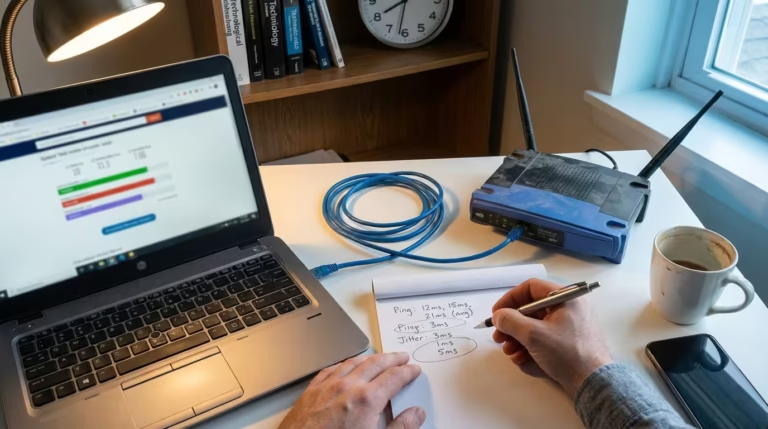
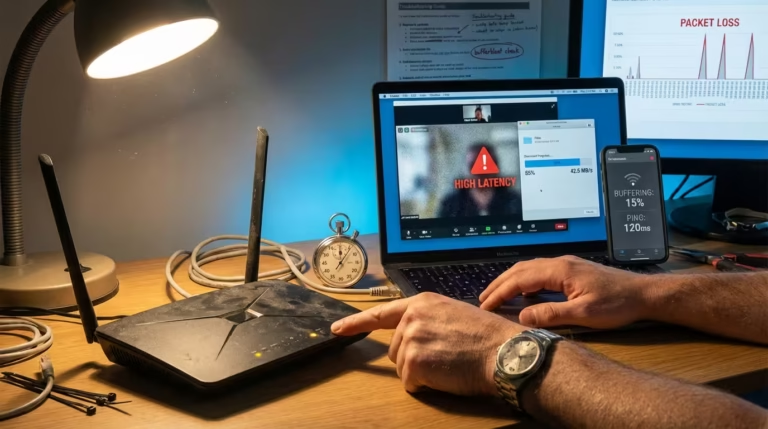
You open a website on your laptop connected to your home WiFi, and the page refuses to load. The browser spins, times out, or throws an error. You try refreshing — same result. Then you disconnect from WiFi, turn on your phone’s mobile hotspot, connect the same laptop to it, and that exact website loads instantly. Nothing changed except the network. The website is clearly online. Your home internet works for everything else. So what is going on?
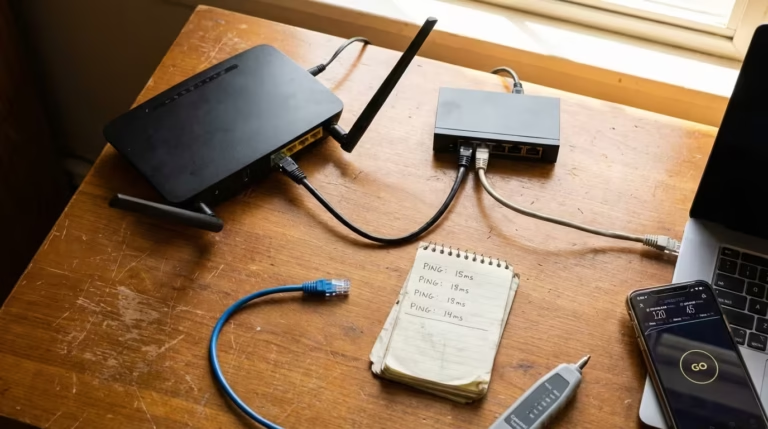
I have faced this exact issue many times on my Windows 11 laptop — a website that loads instantly on mobile data but refuses to open on home WiFi. Speed tests showed full bandwidth, yet only one or two sites remained broken until I diagnosed the DNS layer.
In this guide, I’m sharing the exact diagnostic steps and fixes that permanently resolved it for me.
This is one of the most disorienting problems a Windows 11 user can face, because everything seems to point in a contradictory direction. Your internet is working, the website is working, yet they will not work together — but only on your home WiFi. The root cause, in the overwhelming majority of cases, is DNS. Your home network and your mobile data connection use entirely different DNS servers to translate website names into IP addresses. When one of those DNS servers returns a wrong, outdated, or blocked result for a specific domain, that one website breaks — while every other site continues loading normally.
One thing most guides miss in 2026 is that Windows 11 background services and automatic updates often silently refresh DNS cache entries in a way that conflicts with ISP DNS servers, making the problem appear even more random than it actually is.
This article walks through exactly why this happens, how to verify DNS is the cause, and how to fix it permanently on Windows 11.
Why This Happens — The Short Explanation Before the Fix
What Your Home WiFi Uses to Find Websites — and What Mobile Data Uses
Every time you type a website address into your browser, your device needs to contact a DNS server to convert that name into a numeric IP address. When your laptop is connected to your home WiFi, the router assigns it a DNS server automatically — and in most home setups, that DNS server belongs to your ISP. Every domain lookup your device performs travels through your internet service provider’s DNS infrastructure before a connection to the actual website is even attempted.
When you switch to mobile data or connect through a phone hotspot, the DNS server changes entirely. Your mobile carrier provides its own DNS servers, which are managed by a completely different organization, running on separate hardware, with separate cached records and separate filtering rules. Your device does not carry DNS settings from one network to another — it uses whatever the current network provides.
From my own repeated testing, I noticed that simply switching to Cloudflare 1.1.1.1 or Google 8.8.8.8 at the router level fixed the issue for every device in the house at once — no more per-device troubleshooting needed.
Why the Two Networks Look Up the Same Website Differently
Both networks ultimately connect you to the same global internet, but the DNS resolution path is not the same. Your ISP’s DNS server may hold a stale or expired cached entry for the domain you are trying to visit. It might even be intentionally blocking that domain or failing to resolve it due to filtering policies. Meanwhile, your mobile carrier’s DNS has no such problem — it resolves the domain correctly, hands back a valid IP address, and the website loads without hesitation.
This is precisely why a website works on mobile data but not home WiFi on Windows 11. The website has not changed. Your internet speed is not the issue. The DNS server your home network is using is simply returning the wrong answer — or no answer at all — for that one specific domain. Every fix covered in this guide targets exactly this problem.

What DNS Is and Why It Controls Which Websites Load on Your Network
How DNS Works in Plain Language — No Technical Background Needed
DNS stands for Domain Name System. Its job is straightforward — it translates human-readable website names like example.com into numeric IP addresses like 93.184.216.34 that computers actually use to locate servers on the internet. Without DNS, you would need to memorize the IP address of every website you wanted to visit.
Here is what happens every time you open a website. Your browser sends the domain name to a DNS server. That DNS server looks up the domain in its records, finds the corresponding IP address, and sends it back to your device. Only after your device receives that IP address does it actually connect to the website’s server and begin loading the page. If the DNS server returns a wrong IP address, an expired address, or no address at all, the website will not load — even though your internet connection is perfectly functional. This is why DNS problems look so confusing. Everything else works, but one website simply will not open. The connection itself is fine. The failure happens before the connection is even attempted.
Why Your Home Router Has Its Own DNS Server
Most home routers act as a middleman for DNS. When your laptop sends a DNS request, it does not go straight to your ISP’s DNS server. Instead, it goes to your router first. The router maintains its own small DNS cache — a temporary list of domain-to-IP mappings it has already looked up recently. If the domain is in the router’s cache, the router replies immediately without contacting the ISP at all.
This caching speeds things up under normal conditions, but it creates a problem when a website changes its IP address or when a cached entry becomes corrupted. Your router keeps serving the old, incorrect IP address because it does not know the record has changed. Your device connects to the wrong server, or to no server at all, and the website fails to load. Understanding how your router handles DNS separately from your device is important because sometimes the DNS server itself stops responding, and the fix requires addressing both your Windows cache and the router cache independently.
Why Mobile Data Uses a Completely Different DNS Than Your Home WiFi
When your phone provides a mobile hotspot, devices connected to it use the mobile carrier’s DNS servers — not your home ISP’s. These DNS servers are maintained on entirely separate infrastructure. They cache records independently, update at different intervals, and operate under different filtering policies. Your home ISP’s DNS might hold a stale record for a domain that your carrier’s DNS resolved correctly hours ago. This is also why your private IP address on your home network differs from what the outside internet sees — each network has its own configuration stack, and DNS is a core part of that stack. Two networks, two DNS servers, two potentially different answers for the same domain — that is why a specific website not loading on your home network WiFi while working fine on mobile data is almost always a DNS discrepancy.
The Three Most Common Reasons a Website Works on Mobile Data But Not WiFi
Reason 1 — Your Home DNS Cache Has a Stale or Broken Entry
Windows 11 maintains its own local DNS cache separate from your router. Every time you visit a website, the resolved IP address gets stored in this cache so your system does not have to look it up again the next time. This cache has a time-to-live value for each entry, but in practice, entries can become stale or even corrupted before they expire. When that happens, your device keeps trying to reach the website at an old or invalid IP address. The browser hangs, times out, or displays an error — and you are left wondering why the website will not load when every other site opens fine. The DNS cache on your Windows machine is one of the first things to check because it is the easiest to fix and the most common cause of this exact behavior.
Reason 2 — Your ISP DNS Is Blocking or Failing to Resolve That Domain
Your ISP controls the DNS servers your home network uses by default. Some ISPs filter or block specific domains due to legal requirements, regional content policies, or even misconfigured records on their end. When a domain is blocked at the ISP DNS level, your computer receives either no response or a redirect to an error page. From your perspective, the website simply does not load. Meanwhile, your mobile carrier operates under different policies and resolves the same domain without issue. This is also why a website that works on a VPN but not without one often points to ISP-level DNS filtering — the VPN bypasses your ISP’s DNS entirely, just like mobile data does.
Reason 3 — Your Router DNS Cache Is Outdated After a Website Moved
Websites change their hosting servers more often than most users realize. When a website migrates to a new server, its IP address changes. Public DNS servers around the world update their records to reflect this change, but your home router’s DNS cache may still be holding onto the old IP. Every device on your home network that relies on the router for DNS lookups will then try to connect to a server that no longer hosts that website. The result is the same — the page does not load, the browser shows an error, and yet the site opens perfectly on any network that has already updated its DNS records. This is why even users with fast internet still experience slow or broken website loading — raw speed means nothing if DNS is pointing your traffic to the wrong destination.
How to Confirm DNS Is the Real Problem Before Fixing Anything
Before applying any fix, it is worth spending two minutes confirming that DNS is actually the cause. Jumping straight to fixes without diagnosis can waste time if the issue turns out to be something else entirely. Windows 11 includes built-in network diagnostic tools that make this verification quick and straightforward.
Step 1 — Try Opening the Website by Its Direct IP Address
Every website has an IP address behind its domain name. If you can access the website by entering its IP address directly into the browser but not by its domain name, DNS is confirmed as the problem. You can find a website’s IP address by running nslookup from a device that can resolve the domain — such as your phone on mobile data, or by using an online DNS lookup tool from a working connection. Paste the IP address into your browser’s address bar on the affected laptop. If the page loads, your internet connection to the website’s server is fine. The failure is happening at the name-to-address translation step — which is DNS.
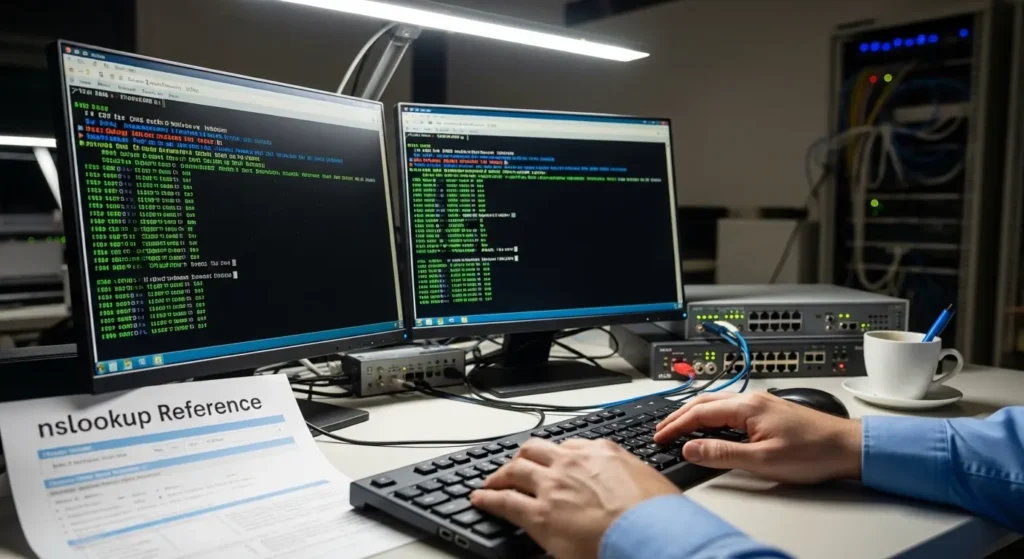
Step 2 — Run nslookup to See What Your Home DNS Returns
Open Command Prompt or Windows Terminal on your Windows 11 machine. Type the following command, replacing the domain with the website that is not loading:
nslookup example.com
This command asks your currently configured DNS server to resolve the domain and return its IP address. Look at the output carefully. If the result says “server can’t find” the domain, or if it returns a completely different IP address than expected, your DNS server is either failing to resolve the domain or returning an incorrect record. This single command is often enough to confirm DNS is the issue. You can also use the ping command to test reachability to that IP address once you have it.
Step 3 — Compare the Result Against Google DNS 8.8.8.8
Now run the same lookup but force it through a public DNS server instead of your ISP’s:
nslookup example.com 8.8.8.8
This tells nslookup to bypass your local and ISP DNS entirely and query Google’s public DNS at 8.8.8.8. Compare the IP address returned here with the one from the previous step. If Google DNS returns a valid IP address and your ISP DNS returns a different one, an error, or no response at all — the diagnosis is complete. Your home network’s DNS is returning a bad result for that specific domain. Every fix that follows in this guide directly addresses this confirmed problem.
Fix 1 — Flush Your DNS Cache on Windows 11
How to Run ipconfig /flushdns on Windows 11
The fastest way to clear a stale DNS entry on Windows 11 is to flush the local DNS resolver cache. This removes every cached domain-to-IP mapping stored on your machine and forces your system to perform fresh lookups the next time you visit any website.
Open Windows Terminal or Command Prompt as administrator. Right-click the Start button, select Terminal (Admin), and type the following command:
ipconfig /flushdns
Press Enter. You should see a confirmation message that says “Successfully flushed the DNS Resolver Cache.” This command does not change any settings — it simply empties the local cache so your system stops relying on old records. If the problem was a stale or corrupted cache entry for that specific domain, this alone can fix the issue immediately. For situations where the network stack itself needs a deeper reset, you may also want to understand what the netsh int ip reset command actually does and whether it applies to your case.
How to Clear the DNS Cache in Chrome and Edge as Well
What many users do not realize is that web browsers maintain their own separate DNS caches, independent from the Windows system cache. Even after running ipconfig /flushdns, Chrome or Edge might still be holding onto the old DNS record internally.
To clear the DNS cache in Google Chrome, open a new tab and navigate to:
chrome://net-internals/#dns
Click Clear host cache. Then navigate to chrome://net-internals/#sockets and click Flush socket pools to ensure no old connections persist.
For Microsoft Edge, the process is identical — just use:
edge://net-internals/#dns
Follow the same steps. This ensures both the operating system and the browser start fresh with no cached DNS data for any domain.
How to Test If the Flush Fixed the Problem
After flushing both caches, open a new browser tab — do not use the tab where the website previously failed — and type the website address again. If the website loads, the problem was a stale local cache entry and is now resolved. If the website still does not load, move to the next fix. The DNS cache on your Windows machine was not the only layer caching the old record.
Fix 2 — Restart Your Router to Clear Its DNS Cache
Why a Simple Router Restart Flushes the Router DNS Cache
Your home router stores its own DNS cache in volatile memory — meaning it only persists while the router is powered on. When you restart the router, this cache is completely wiped. After the router powers back up, it builds a fresh cache by performing new DNS lookups as devices on your network request websites. If the problem was an outdated record stuck in your router’s cache — particularly after a website migrated to a new server — a restart forces the router to fetch the current, correct IP address from your ISP’s upstream DNS server.
How Long to Wait Before Turning the Router Back On
Power off your router completely. Wait at least 30 seconds before turning it back on. This wait is not arbitrary — some routers have capacitors that hold residual charge, keeping the memory briefly active even after the power cable is removed. Waiting 30 seconds ensures the volatile memory fully clears. Once the router finishes rebooting and your WiFi network reappears, reconnect your laptop and try loading the website again. If it loads, the router’s stale DNS cache was the cause. If it still fails, the issue is not with cached records — it is with the DNS server itself, which is addressed in the next fix.
Fix 3 — Switch Your DNS Away From Your ISP to Google or Cloudflare
If flushing caches and restarting the router did not fix the problem, the issue is not with cached records — it is with the DNS server itself. Your ISP’s DNS is either blocking the domain, returning an incorrect record, or failing to resolve it entirely. The permanent fix is to stop using your ISP’s DNS and switch to a reliable public DNS provider.
How to Change DNS on Windows 11 Settings
Open Settings on Windows 11. Go to Network & internet, then click on Wi-Fi. Click on your connected network’s Hardware properties. Scroll down to the DNS server assignment section and click Edit. Change the dropdown from Automatic (DHCP) to Manual. Toggle IPv4 on and enter your preferred DNS addresses.
For Google DNS, enter:
- Preferred DNS:
8.8.8.8 - Alternate DNS:
8.8.4.4
For Cloudflare DNS, enter:
- Preferred DNS:
1.1.1.1 - Alternate DNS:
1.0.0.1
Click Save. Your laptop will now bypass your ISP’s DNS entirely and send all domain lookups to the public DNS provider you selected. This change only affects the device you configured it on — other devices on your home network will continue using the ISP’s DNS unless you change them individually or apply the fix at the router level.
Which DNS to Use — Cloudflare 1.1.1.1 vs Google 8.8.8.8
Both are excellent choices, but they differ slightly. Cloudflare’s 1.1.1.1 is widely regarded as the fastest public DNS resolver in terms of response time. It also emphasizes privacy by not logging your queries for advertising purposes. Google’s 8.8.8.8 has been the most widely used public DNS for over a decade and is known for its reliability and extensive global infrastructure. For the specific problem of a website not loading on your home network, either one will resolve the issue equally well. The important thing is moving away from your ISP’s DNS, not which public alternative you choose.
How to Confirm the New DNS Is Working With nslookup
After changing your DNS settings, open Command Prompt or Windows Terminal and run:
nslookup example.com
Replace example.com with the domain that was not loading. The output should now show your new DNS server — either 1.1.1.1 or 8.8.8.8 — as the responding server, and it should return a valid IP address. If the website loads after this change, your ISP’s DNS was the confirmed cause.
Fix 4 — Change DNS on the Router So All Devices Are Fixed at Once
How to Log Into Your Router and Change the DNS Server
Changing DNS on individual devices works, but if every device in your household is affected, configuring DNS at the router level is more efficient. Open a browser and navigate to your router’s admin panel — usually 192.168.0.1 or 192.168.1.1. Log in with your router credentials. Navigate to the WAN or Internet settings section. Look for DNS settings — this is where your router is configured to use your ISP’s DNS servers by default. Replace the primary and secondary DNS addresses with 8.8.8.8 and 8.8.4.4, or 1.1.1.1 and 1.0.0.1. Save the settings and restart the router.
Why This Fix Is Better Than Changing DNS on Each Device
When DNS is configured at the router level, every device that connects to your home WiFi automatically uses the new DNS servers — laptops, phones, tablets, smart TVs, and any other connected device. You do not need to modify settings on each one individually. If your ISP’s DNS was the reason a specific website was not loading, this single change eliminates the problem across your entire home network permanently.
When DNS Is Not the Problem — Other Reasons a Website May Not Load on WiFi
In rare cases, DNS is not the cause. If you have changed your DNS, flushed all caches, restarted the router, and the website still does not load on your home WiFi while working on mobile data, consider these possibilities. Your router’s firewall or parental controls might be blocking the domain. Some routers have built-in content filtering that restricts access to certain websites — check your router’s admin panel for any active blocklists. Your ISP might also be performing deep packet inspection and blocking the website at a level beyond DNS, in which case a VPN would bypass the restriction while a DNS change would not.
Additionally, a browser extension such as an ad blocker or security plugin could be interfering with that specific domain. Test in a clean browser profile with no extensions to rule this out. MAC address filtering, IP conflicts, or IPv6 misconfigurations can also occasionally cause single-website failures, though these are far less common. For a broader understanding of how these network layers interact, the Internet Connectivity Explained guide covers the full stack in more detail.
Frequently Asked Questions
Why does a website open on mobile data but not on my home WiFi?
Your home WiFi uses your ISP’s DNS servers by default, while mobile data uses your carrier’s DNS. If your ISP’s DNS returns a stale, blocked, or incorrect record for that domain, the website fails to load — even though your internet connection is working normally.
Why does a website work on my phone hotspot but not my router WiFi?
A phone hotspot routes DNS queries through your mobile carrier’s DNS servers, which are completely separate from your home ISP’s DNS. If the ISP DNS has a problem resolving that specific domain, switching to the hotspot bypasses the faulty DNS entirely.
Why does only one specific website not load on my home network?
DNS issues are domain-specific. Your DNS server might have a corrupted or outdated cache entry for just one domain while resolving every other domain correctly. This is why the problem appears isolated to a single website.
How do I fix a website that only loads on mobile data?
Flush your Windows DNS cache using ipconfig /flushdns, clear your browser’s DNS cache, restart your router, and if the problem persists, switch your DNS server to a public provider like Google or Cloudflare.
How do I flush DNS on Windows 11 to fix a website not loading?
Open Terminal or Command Prompt as administrator and run ipconfig /flushdns. This clears every cached DNS record on your system and forces fresh lookups for all domains on the next visit.
Why does flushing DNS fix websites that won’t load?
Flushing DNS removes stale or corrupted domain-to-IP mappings from your local cache. Once cleared, your system queries the DNS server again for a fresh, current record — which often resolves the loading failure.
What is DNS and why does it affect which websites load?
DNS translates website names into IP addresses. If the DNS server your network uses returns a wrong or missing IP for a domain, your browser cannot connect to that website’s server, and the page will not load.
Is my ISP blocking a website on my home network?
It is possible. Some ISPs block domains through DNS filtering. If switching to a public DNS like 8.8.8.8 immediately fixes the problem, your ISP’s DNS was either blocking or failing to resolve that domain.
How do I check if DNS is causing a website to not load?
Run nslookup example.com followed by nslookup example.com 8.8.8.8 in Command Prompt. If your ISP DNS returns a different result or an error while Google DNS returns a valid IP, DNS is confirmed as the cause.
How do I use nslookup to test if DNS is working on Windows 11?
Open Command Prompt and type nslookup followed by the domain name. The output shows which DNS server responded and what IP address it returned. You can specify a different DNS server by adding its IP after the domain.
Should I change DNS to Cloudflare or Google to fix website loading?
Either works. Cloudflare is generally faster in response time and prioritizes privacy. Google DNS has a longer track record and massive global infrastructure. Both will resolve domains that your ISP DNS may be blocking or mishandling.
How do I change DNS on my router to fix all devices at once?
Log into your router’s admin panel, navigate to WAN or Internet settings, and replace the DNS server addresses with a public DNS provider. Save and restart. All devices on your network will automatically use the new DNS.
What is a DNS cache and why does it cause websites to stop loading?
A DNS cache stores recent domain-to-IP lookups to speed up future visits. When a website changes its IP address and the cache still holds the old one, your device connects to the wrong server and the page fails to load.
Why does the same website work on one network but not another?
Different networks use different DNS servers. Each DNS server maintains its own cache and follows its own filtering rules. A domain that resolves correctly on one DNS server can fail on another due to stale records, blocking policies, or resolution errors.
If you have flushed your Windows DNS cache, cleared your browser cache, restarted your router, and switched to a public DNS provider, the website should now load on your home WiFi without issues. In the vast majority of cases, one of these four fixes resolves the problem permanently.
If the website still does not load after all four fixes, the issue is likely beyond DNS. Check your router’s firewall settings and parental controls for any active domain blocking. If nothing is configured to block the site, contact your ISP directly and ask whether they are restricting access to that specific domain at a network level. Provide them with the nslookup results showing the discrepancy between their DNS and a public DNS — this gives their support team the exact evidence needed to investigate and resolve the issue on their end.
Before: Specific websites refused to load on home WiFi but opened instantly on mobile data, causing endless frustration and repeated troubleshooting.
After: After flushing DNS cache, restarting the router, and switching to public DNS (Cloudflare/Google), every website loads normally on home WiFi with no more network-specific failures.