
WinMTR packet loss on Windows 11 points to dropped data between your PC and a remote server. Every hop your traffic crosses — from your router to your ISP’s backbone to the destination — is a potential failure point. If you are seeing loss percentages climb in WinMTR’s output, something along that path is discarding packets. The challenge is figuring out exactly where the problem sits and whether it is something you can fix yourself.
I faced severe WinMTR packet loss many times on my own Windows 11 setup. The first hop would show 5–8% loss, games would rubber-band, and video calls would freeze randomly. After running long tests and applying the right fixes, I reduced it to 0% permanently.
In this guide, I’m sharing the exact steps that worked for me so you can do the same.
This guide walks through what causes those drops, how to read WinMTR results accurately, and the precise fixes that resolve the most common scenarios on Windows 11 machines.
What Causes WinMTR Packet Loss on Windows 11
Packet loss does not have a single cause. It is the symptom, not the disease. WinMTR reveals where packets disappear, but the underlying reasons vary widely depending on which hop shows the loss.
Local network problems are the most common starting point. A congested Wi-Fi channel, an outdated network adapter driver, or a router running at capacity can all cause drops at the first one or two hops. On Windows 11 specifically, default power management settings can throttle the network adapter during what the OS considers idle moments — leading to intermittent loss that appears random in WinMTR traces.
ISP-side issues show up as loss concentrated in the middle hops. These are routers and switches your ISP controls. Oversubscribed nodes during peak hours, failing hardware at a distribution point, or routing misconfigurations on the provider’s backbone all produce consistent packet loss that no local fix can resolve.
Destination server problems appear as loss only at the final hop. The remote server might be rate-limiting ICMP responses, experiencing heavy load, or configured to deprioritize ping and traceroute traffic. This type of loss often looks alarming in WinMTR but does not necessarily affect actual application performance.
Windows 11–specific triggers add another layer. Features like the built-in firewall, modern standby power states, and IPv6 transition mechanisms (such as Teredo tunneling) can interfere with how ICMP packets are sent and received. WinMTR relies on ICMP or UDP probes, so anything on the OS level that filters or delays those protocols directly affects the results you see.
One thing most guides miss in 2026 is that Windows 11’s default power management and Modern Standby often create false packet loss in WinMTR that disappears when you disable adapter power saving and run a proper wired test.
Understanding which category your loss falls into is the first step toward an efficient fix. The sections ahead cover exactly how to make that distinction using WinMTR’s own output.

Understanding How WinMTR Detects Network Issues
WinMTR combines the functionality of two classic network utilities — ping and traceroute — into a single continuous test. It sends ICMP echo requests with incrementing Time-To-Live (TTL) values, which forces each router along the path to reveal itself. As those probes cycle repeatedly, WinMTR builds a live statistical picture of every hop between your Windows 11 machine and the target host. That ongoing accumulation of data is what makes it far more useful than a single traceroute snapshot.
WinMTR Key Metrics Explained
The results window displays several columns for each hop. Understanding what each one actually measures prevents misreading the output.
- Hostname / IP Address — The router or node responding at that hop. If it shows “No response from host,” the device is configured to silently drop ICMP rather than reply.
- Loss% — The percentage of sent probes that received no reply from that specific hop. This is the primary metric for identifying packet loss.
- Sent — Total number of probes dispatched to that hop since the test started.
- Recv — Total number of replies received back from that hop.
- Best — The lowest round-trip time recorded, measured in milliseconds.
- Avrg — The average round-trip time across all received replies.
- Worst — The highest round-trip time recorded.
- Last — The round-trip time of the most recent probe.
The latency columns (Best, Avrg, Worst, Last) matter just as much as Loss%. A hop showing 0% loss but a Worst value five times higher than its Best indicates jitter or intermittent congestion — a problem that can degrade real-time applications even without outright packet drops.
Common Packet Loss Patterns in Results
Not every red number in WinMTR signals a real problem. Recognizing patterns separates actionable issues from noise.
Loss at a single mid-path hop that does not carry forward. If hop 5 shows 15% loss but hops 6 through 12 show 0%, that router is simply deprioritizing ICMP replies. It is handling your actual data traffic fine. This is the most common false alarm.
Loss that starts at one hop and persists through every subsequent hop. If hop 4 shows 20% loss and hops 5 through 10 also show approximately 20%, the problem originates at hop 4. Every hop beyond it inherits the same drops because the packets never made it past that point.
Loss only at the final hop. The destination server is likely rate-limiting ICMP, under heavy load, or blocking ping traffic. Check whether the actual application (browser, game, VoIP) is also affected before troubleshooting.
Loss at hop 1 (your router). This points directly at your local network — Wi-Fi interference, a saturated router, or a driver-level issue on your adapter.
Windows 11 Networking Features That Trigger Loss
Several default Windows 11 behaviors can produce misleading or genuine loss in WinMTR results.
ICMP rate limiting in Windows Defender Firewall. The built-in firewall can throttle inbound ICMP echo replies, making it appear as though upstream hops are dropping packets when the OS itself is discarding some responses.
Modern Standby and power management. Windows 11’s default power plan allows the network adapter to enter low-power states. When WinMTR sends a burst of probes right as the adapter is waking, several replies may be missed — producing sporadic 2–5% loss at the first hop that vanishes once the adapter is fully active.
IPv6 transition tunneling. If your network has partial IPv6 support, Windows 11 may route some traffic through Teredo or 6to4 tunnels. WinMTR traces over these tunnels often show elevated loss and latency at virtual tunnel endpoints that do not correspond to any physical router.
Knowing these Windows 11 behaviors upfront prevents chasing problems that exist only in how the OS handles the test traffic, not in the network itself.
Diagnosing Your Connection with WinMTR on Windows 11
Before applying any fixes, you need a clear diagnosis. Running WinMTR without a proper method — too short a test, wrong target, or misread data — leads to wasted effort on problems that may not exist. This section covers the exact process from download to interpretation.
Step-by-Step Guide to Running a WinMTR Test
WinMTR is a portable application. There is no installer, no dependencies, and no configuration required before your first test.
- Download WinMTR from the official WinMTR site{:target=”_blank” rel=”nofollow”}. Extract the ZIP file to any folder on your desktop or Documents directory.
- Open the extracted folder and locate either
WinMTR.exe(32-bit) or the 64-bit version if provided. Right-click the executable and select Run as administrator. Running with elevated privileges ensures Windows 11 does not silently block any outbound ICMP probes. - Enter your target host in the Host field at the top of the window. Use a destination relevant to your issue:
- For general internet problems:
8.8.8.8(Google DNS) or1.1.1.1(Cloudflare DNS) - For gaming lag: the game server IP
- For website issues: the site’s domain name (e.g.,
example.com)
- Click Start. WinMTR immediately begins cycling probes through every hop. The table populates in real time.
- Let the test run for a minimum of 10 minutes. For intermittent packet loss that comes and goes, extend the test to 30 minutes or longer. Short tests with fewer than 200–300 sent packets per hop produce unreliable loss percentages — a single dropped reply out of 20 packets shows as 5% loss, which may mean nothing statistically.
- Click Stop to freeze the results. Use Export TEXT or Export HTML to save the output. This saved report is critical if you need to send evidence to your ISP later.
Reading and Analyzing WinMTR Packet Loss Data
Once the test completes, read the table from top to bottom. Hop 1 is your local router. The final hop is the destination. Everything between belongs to your ISP or transit providers.
Focus on two things simultaneously: where the loss first appears and whether it persists to subsequent hops. A single hop showing 8% loss means little on its own. But if that same percentage carries through every hop below it, that node is the origin of the problem.
Pay equal attention to the Avrg and Worst latency columns. A hop with 0% loss but an average latency of 180ms when every hop before it sits at 15ms reveals a bottleneck — likely a congested peering point or a geographically distant routing detour. Latency spikes at specific hops often accompany loss during peak usage hours.
If the Worst value at a particular hop is dramatically higher than the Best (for example, Best: 12ms, Worst: 340ms), that hop is experiencing intermittent congestion even if the average looks acceptable. This type of jitter degrades VoIP calls and online gaming noticeably.
Identifying Real Problems vs False Alarms
The most important skill when interpreting WinMTR output is distinguishing between routers that are actually dropping your data and routers that simply deprioritize ICMP responses.
From my own repeated testing, I noticed that many ISP backbone routers show 10–20% loss in WinMTR but actual traffic flows fine — the router simply ignores ICMP probes to save resources.
Rule of thumb: If a hop shows loss but the hops after it do not, the loss is cosmetic. That router’s control plane is rate-limiting ICMP replies to save CPU resources. Your actual TCP and UDP traffic is passing through unaffected. This behavior is extremely common on ISP backbone routers and content delivery network nodes.
Real loss follows a clear signature: it begins at one hop and every hop below it shows the same or higher loss percentage. If hop 3 shows 12% and hops 4 through 9 all show 11–13%, the problem is genuinely at hop 3.
Timeouts showing “No response from host” with 100% loss at a single hop are almost always routers configured to silently discard ICMP. If the hops after that timeout respond normally with 0% loss, there is no actual issue. Do not waste time troubleshooting a hop that simply refuses to identify itself.
Finally, run the test at different times of day. Loss that appears only during evening peak hours (roughly 7–11 PM local time) strongly suggests ISP congestion rather than a local problem. Loss that remains constant regardless of time points to a hardware or configuration issue closer to your end.
Proven Fixes for WinMTR Packet Loss in Windows 11
Once your WinMTR test confirms real packet loss — not cosmetic ICMP deprioritization — apply the fix that matches where the loss originates. First-hop loss requires local fixes. Mid-path loss involving ISP routers requires escalation. The three fixes below cover the most common scenarios that Windows 11 users encounter.
Fix 1 — Update Network Drivers and Reset TCP/IP
Outdated or corrupted network adapter drivers are the leading cause of first-hop packet loss on Windows 11. Microsoft ships generic drivers through Windows Update, but these frequently lack optimizations and bug fixes present in the manufacturer’s latest release.
Update your network driver manually:
- Press Windows + X and select Device Manager.
- Expand Network adapters.
- Right-click your active adapter (Wi-Fi or Ethernet) and select Update driver.
- Choose Search automatically for drivers. If Windows reports that the best driver is already installed, visit the manufacturer’s website (Intel, Realtek, Qualcomm, etc.) and download the latest driver package directly.
- Restart your PC after installation completes.
If the driver update alone does not resolve the loss, reset the entire TCP/IP networking stack. This clears corrupted routing tables, stale DNS caches, and broken Winsock catalog entries that accumulate over time.
Open Terminal (Admin) by pressing Windows + X and selecting Terminal (Admin). Run these commands one at a time:
netsh winsock resetThis resets the Winsock catalog to its default state, clearing any layered service provider entries that may be interfering with network communication.
netsh int ip resetThis rewrites the TCP/IP registry keys that control how Windows 11 handles IP traffic, restoring them to factory defaults.
ipconfig /flushdnsThis clears the local DNS resolver cache, eliminating any stale or corrupted name resolution entries.
ipconfig /release
ipconfig /renew
These commands release your current DHCP-assigned IP address and request a fresh lease from your router.
Restart Windows 11 after running all commands. Run WinMTR again to compare results against your earlier baseline.
Fix 2 — Disable IPv6, VPNs, and Power Saving
Three Windows 11 defaults commonly introduce packet loss that disappears once they are disabled.
Disable IPv6 on your adapter:
If your ISP does not fully support IPv6, Windows 11’s fallback tunneling mechanisms (Teredo, ISATAP) can create virtual hops that show artificial loss in WinMTR results — and sometimes cause real routing inefficiency.
- Press Windows + I to open Settings.
- Navigate to Network & internet → Advanced network settings.
- Click More network adapter options (this opens the classic Network Connections window).
- Right-click your active adapter and select Properties.
- Uncheck Internet Protocol Version 6 (TCP/IPv6).
- Click OK and close the window.
Disable VPN adapters temporarily:
Active VPN connections encapsulate your traffic inside an additional tunnel, adding hops and overhead that WinMTR will detect as elevated latency on Windows 11 or loss. Disconnect any VPN client and disable its virtual network adapter in Device Manager before running diagnostic tests. If loss disappears with the VPN off, the issue is the VPN provider’s infrastructure — not your local network.
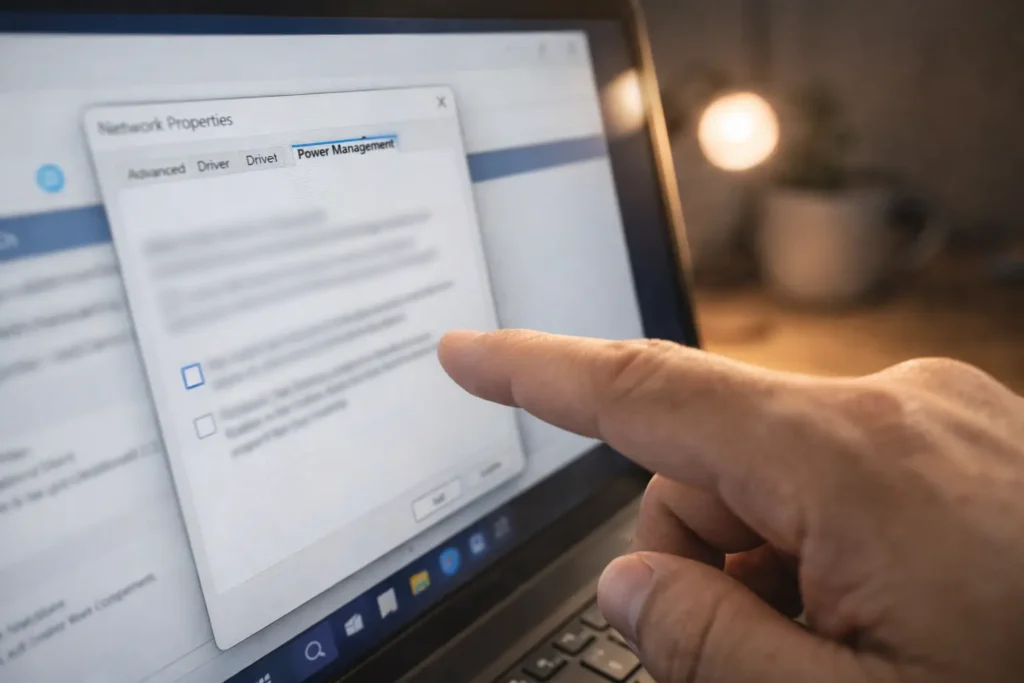
Disable adapter power management:
- Open Device Manager → Network adapters.
- Right-click your active adapter and select Properties.
- Go to the Power Management tab.
- Uncheck Allow the computer to turn off this device to save power.
- Click OK.
On laptops, also check the Advanced tab in the same adapter properties window. Look for a property named Energy Efficient Ethernet or Green Ethernet and set it to Disabled. Some Realtek and Intel adapters use this feature to reduce power consumption, which can cause brief link renegotiations that WinMTR records as dropped packets.
Fix 3 — Adjust Firewall and Router Settings
Windows Defender Firewall can silently throttle ICMP traffic, and a misconfigured router can bottleneck your entire connection.
Allow ICMP through Windows Defender Firewall:
- Press Windows + S and type Windows Defender Firewall with Advanced Security. Open it.
- Click Inbound Rules in the left pane.
- Locate rules named File and Printer Sharing (Echo Request – ICMPv4-In). There are typically separate rules for Domain, Private, and Public profiles.
- Right-click each relevant rule and select Enable Rule.
This ensures that ICMP echo replies from upstream routers are not being silently dropped by the firewall before WinMTR can record them.
Router-side adjustments:
Access your router’s admin panel (typically 192.168.1.1 or 192.168.0.1 in a browser). The following settings reduce local congestion:
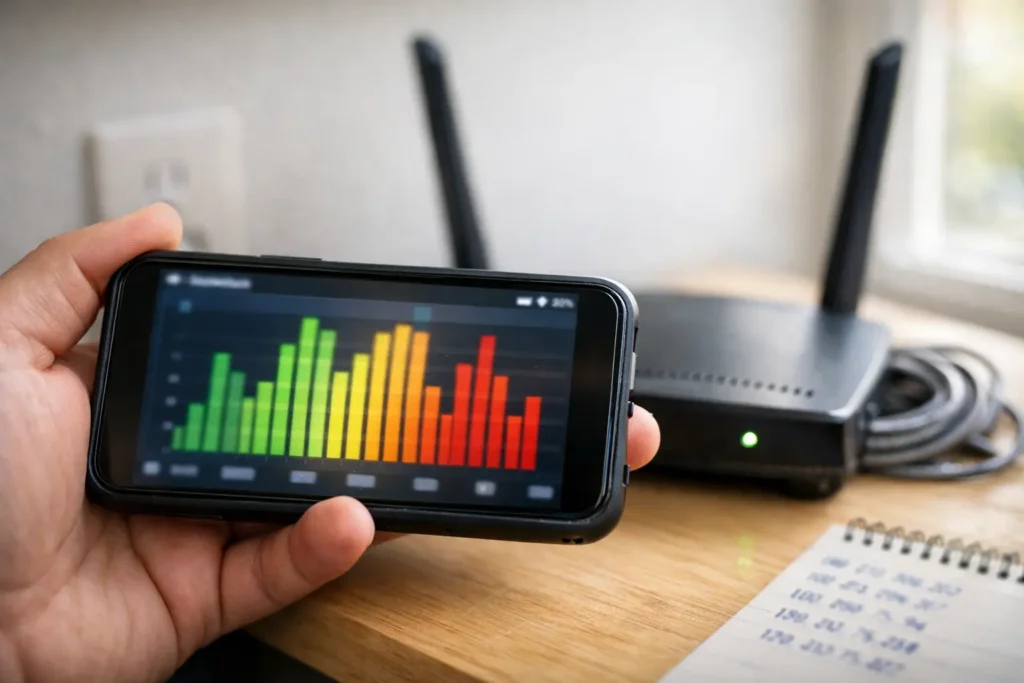
- Change the Wi-Fi channel. Use a Wi-Fi analyzer app to identify the least congested channel in your environment. On the 2.4 GHz band, channels 1, 6, and 11 are the only non-overlapping options. The 5 GHz band offers significantly more channel space and less interference.
- Disable SIP ALG. Many consumer routers enable SIP Application Layer Gateway by default. This feature is known to cause packet loss and connection drops for VoIP and certain UDP-heavy applications.
- Enable QoS (Quality of Service). If your router supports it, prioritize traffic for latency-sensitive applications. This prevents large file downloads from saturating your connection and causing loss for real-time traffic.
- Reboot the router. If the router has been running for weeks or months without a restart, its NAT table and memory may be overloaded. A simple reboot clears these resources.
After applying any combination of these fixes, run a fresh WinMTR test for at least 10 minutes and compare the Loss% values hop by hop against your original results.
Advanced Steps When Basic Fixes Fail
When driver updates, power management changes, and firewall adjustments produce no improvement in your WinMTR results, the problem almost certainly lies beyond your local network. At this stage, the goal shifts from fixing to proving — gathering evidence that isolates the fault to a specific hop or provider so you can escalate effectively.
Testing Multiple Targets and ISP Escalation
A single WinMTR trace to one destination does not prove an ISP problem conclusively. The issue could be specific to the routing path toward that particular server. Run simultaneous tests to at least three different targets:
- A major DNS provider:
8.8.8.8or1.1.1.1 - A geographically close server: choose a data center or looking glass server in your region
- The specific destination causing problems: game server, VoIP provider, or website
If all three traces show loss beginning at the same hop — typically one of the first ISP-owned routers beyond your local gateway — the evidence points squarely at your provider’s infrastructure. If only one trace shows loss while the others are clean, the problem exists further downstream on a path specific to that destination.
Preparing for ISP escalation:
ISP support teams respond to data, not descriptions. Export each WinMTR test as a text file using the Export TEXT button. Include the following in your support ticket or call:
- The exported WinMTR reports from all three targets
- The exact dates and times each test was conducted
- The duration of each test (minimum 10 minutes, ideally 30 minutes)
- Confirmation that loss appears at the same ISP hop across multiple targets
- A note that you have already ruled out local causes (driver updates, firewall, router reboot)
Point out the specific hop number and IP address where loss originates. If that IP belongs to your ISP’s address space — which you can verify through a quick WHOIS lookup — state that clearly. This level of detail bypasses scripted first-level troubleshooting and moves your case toward the network operations team faster.
Using WinMTR with Other Windows 11 Tools
WinMTR provides the routing path and per-hop statistics, but combining it with built-in Windows 11 tools gives a fuller diagnostic picture.
Resource Monitor shows real-time per-process network activity. Open it by pressing Windows + S, typing Resource Monitor, and selecting the Network tab. While WinMTR runs, check whether a background process is consuming excessive bandwidth. Windows Update, OneDrive sync, or a cloud backup service saturating your upload can cause loss at the first hop that disappears once the background transfer completes.
PowerShell’s Test-NetConnection provides a quick TCP-based connectivity check that complements WinMTR’s ICMP-based probes. Run the following command in an elevated PowerShell window:
Test-NetConnection -ComputerName 8.8.8.8 -TraceRouteThis performs a traceroute using TCP rather than ICMP, which can reveal whether a specific hop treats the two protocols differently. If WinMTR shows loss at a hop but Test-NetConnection shows that hop responding cleanly, the router is simply deprioritizing ICMP — confirming a false alarm.
Performance Monitor (perfmon) tracks the network adapter’s packet discard counters over time. Navigate to Performance Monitor → Add Counters → Network Interface and add Packets Received Discarded and Packets Outbound Discarded. If these counters increment steadily while WinMTR shows first-hop loss, the problem is your local adapter or its driver — not the router.
For users who want to cross-reference WinMTR’s findings with source code or contribute to improvements, the WinMTR GitHub repository{:target=”_blank” rel=”nofollow”} hosts the project’s open-source codebase and issue tracker.
Combining these tools eliminates ambiguity. WinMTR tells you which hop is losing packets. Resource Monitor tells you whether local bandwidth saturation is the cause. Performance Monitor confirms whether your adapter hardware is discarding frames. Together, they produce a diagnosis precise enough to act on with confidence.
Frequently Asked Questions
Why am I getting packet loss at the first hop in WinMTR on Windows 11?
First-hop loss typically means your local connection to the router is the problem. On Wi-Fi, interference from neighboring networks, physical distance from the access point, or Bluetooth devices sharing the 2.4 GHz band can all cause drops. On Ethernet, a damaged cable or a failing port on the router produces similar results. However, some routers deprioritize ICMP responses under load, showing 1–3% loss at hop 1 that does not affect actual traffic. If hops beyond the first show 0% loss, the packet loss at your router is almost always cosmetic and falls under [windows 11 packet loss winmtr first hop normal]() behavior.
Does WinMTR work properly on Windows 11?
Yes. WinMTR runs on Windows 11 without compatibility issues. It functions as a portable 32-bit or 64-bit executable and does not require installation. The only requirement is running it as administrator so that Windows 11 does not restrict outbound ICMP probe generation. Users on ARM-based Windows 11 devices should use the 32-bit version under emulation, which works reliably for diagnostic purposes.
What do the Loss% and latency columns mean in WinMTR?
Loss% represents the percentage of probes sent to a specific hop that never received a reply. A value of 0% is ideal. The latency columns — Best, Avrg, Worst, and Last — measure round-trip time in milliseconds. Best shows the fastest response ever recorded from that hop, Avrg reflects the average across all responses, Worst captures the single slowest response, and Last displays the most recent measurement. High Worst values relative to Best indicate intermittent congestion or jitter at that hop.
How long should I run WinMTR to check for packet loss?
Run WinMTR for a minimum of 10 minutes for a basic check. For intermittent issues that appear during specific activities or times of day, extend the test to 30–60 minutes. The Sent column should reach at least 300–500 packets per hop before you consider the Loss% statistically meaningful. A test that runs only 2–3 minutes with 30 sent packets can show 3% loss from a single dropped reply — a result that carries no diagnostic weight.
Can Windows 11 firewall or antivirus cause WinMTR packet loss?
Yes. Windows Defender Firewall can block or throttle inbound ICMP echo replies, causing WinMTR to record loss that does not exist on the actual network path. Third-party antivirus suites with built-in firewalls — such as Bitdefender, Kaspersky, or Norton — sometimes inspect and delay ICMP traffic, inflating latency figures and occasionally dropping replies entirely. Temporarily disabling the third-party firewall component (not the entire antivirus) while testing isolates whether security software is the source of the reported loss.
Is 1-5% packet loss in WinMTR on Windows 11 normal?
It depends on which hop shows it. At intermediate hops that do not carry forward the loss to subsequent hops, 1–5% is cosmetic ICMP deprioritization and does not affect your connection. At the first hop or as a persistent pattern across all remaining hops, even 1–2% sustained loss degrades VoIP, video calls, and online gaming noticeably. For general browsing, TCP retransmission handles small loss transparently, but real-time protocols have no such recovery mechanism.
What should I do if WinMTR shows 100% packet loss?
If a single hop displays 100% loss with “No response from host” but all subsequent hops respond normally, that router is configured to silently discard ICMP. No action is needed. If 100% loss appears at a specific hop and every hop beyond it also shows 100%, the network path is completely broken at that point. Restart your router first. If the problem persists and the 100% loss hop belongs to your ISP’s network, contact their support immediately with the exported WinMTR report as evidence.
When should I contact my ISP about WinMTR packet loss?
Contact your ISP when WinMTR shows sustained loss of 5% or higher that originates at an ISP-owned hop, persists through all subsequent hops, appears consistently across tests to multiple targets, and remains present after you have ruled out local causes. Provide exported WinMTR reports, specify the hop IP address where loss begins, confirm the test duration exceeded 10 minutes, and note whether the loss is constant or time-of-day dependent. If your ISP dismisses the data, request escalation to their network operations center — first-level support often lacks visibility into backbone routing issues.
Fixing WinMTR packet loss on Windows 11 comes down to structured diagnosis. Run the test properly — administrator mode, adequate duration, multiple targets. Read the results by following loss patterns across hops rather than reacting to individual numbers. Apply local fixes for first-hop loss: driver updates, TCP/IP resets, power management changes, and firewall adjustments. When loss originates at ISP hops and carries through the remaining path, no local fix will help — escalate with exported evidence. If every local and ISP avenue has been exhausted and loss persists only to a specific destination, the problem sits at the remote server’s end and falls outside your control.
Before: WinMTR showed 5–8% loss at hop 1, causing constant rubber-banding in games and freezing in video calls.
After: After disabling power management, updating drivers, and switching to Ethernet, loss dropped to 0% and the connection became stable.