
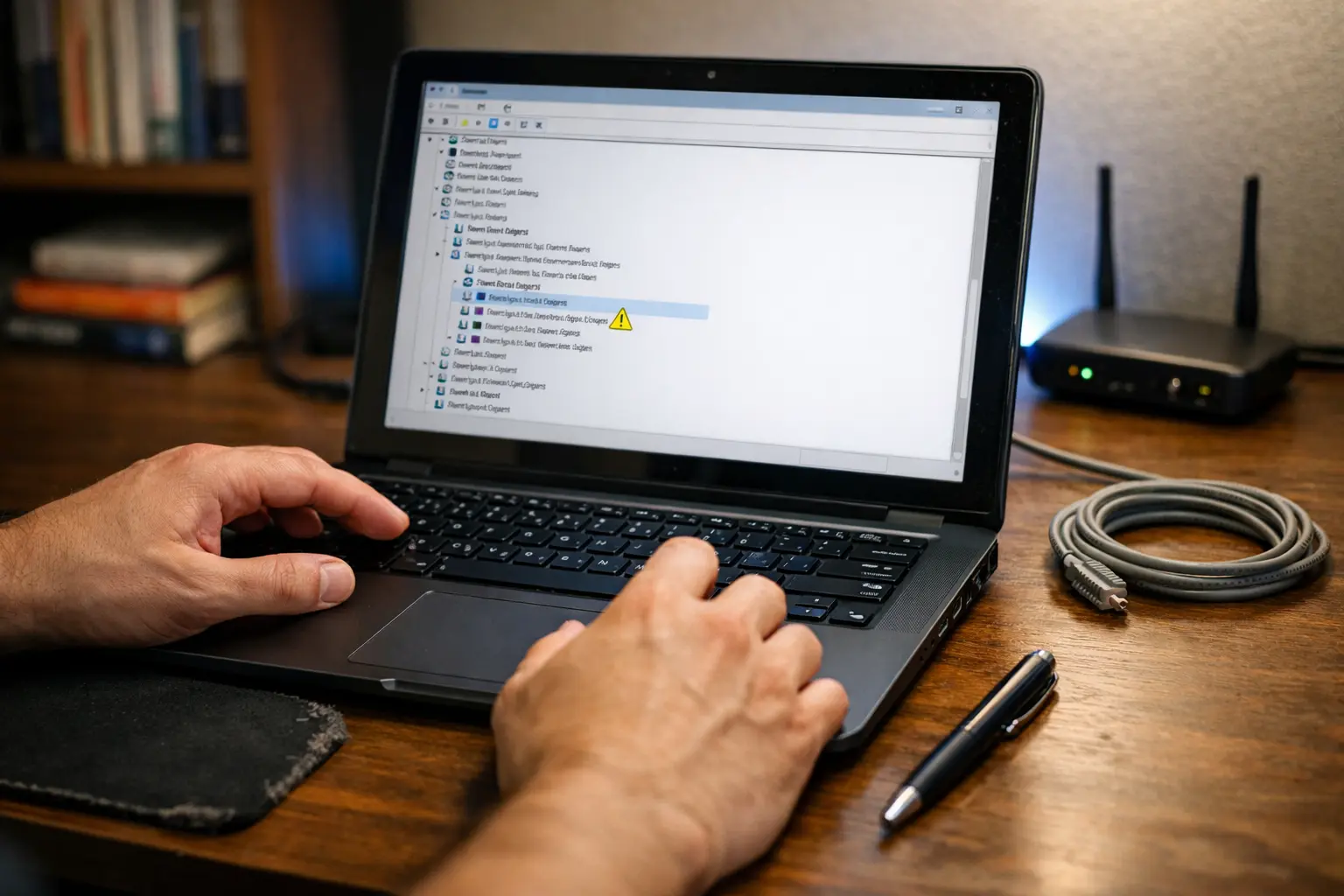
When WiFi keeps disconnecting on Windows 11, the instinct is to restart the router, toggle airplane mode, or run the built-in troubleshooter. Sometimes that works for an hour. Then the connection drops again — mid-call, mid-download, mid-everything. The cycle repeats because none of those steps address what is actually causing the disconnect.
The problem is rarely the WiFi network itself. In most cases, the disconnect is triggered by something inside Windows 11 — a power setting that silently turns off the wireless adapter, a driver that stopped cooperating after an update, or a background service that resets your network configuration without warning. The frustrating part is that Windows almost never tells you which one it is. Your taskbar icon just flips to “No Internet, Secured” or throws a vague “some information has changed” message, and you are left guessing.
This article does not guess. It walks through how to find the exact cause on your specific machine — and then fix it in the right order so the problem actually stays fixed.
The Short Answer — Why WiFi Keeps Disconnecting on Windows 11
There are four real causes behind WiFi disconnecting repeatedly on Windows 11, and nearly every case traces back to one of them:
1. Power management is turning off your WiFi adapter. Windows 11 aggressively manages power on laptops and even some desktops. By default, it is allowed to shut down the wireless network adapter to save energy — especially during idle moments or after sleep. When it does, the connection drops instantly.
2. The network adapter driver is outdated, corrupted, or incompatible. A driver that worked on Windows 10 may malfunction on Windows 11. A Windows Update can also silently replace your adapter driver with a generic Microsoft version that lacks stability.
3. WLAN AutoConfig service is crashing or misconfigured. This is the core Windows service responsible for managing wireless connections. If it stops, restarts, or conflicts with a recent update, WiFi disconnects — sometimes every few minutes.
4. Roaming aggressiveness is set too high. This adapter setting controls how eagerly your device scans for a stronger access point. When set to the highest level, your adapter constantly drops the current connection to look for a better one — even when no better option exists.
The next section shows how to diagnose which of these four causes is responsible on your system before applying any fix.
Diagnose First — Is the Problem Your PC or Your Router
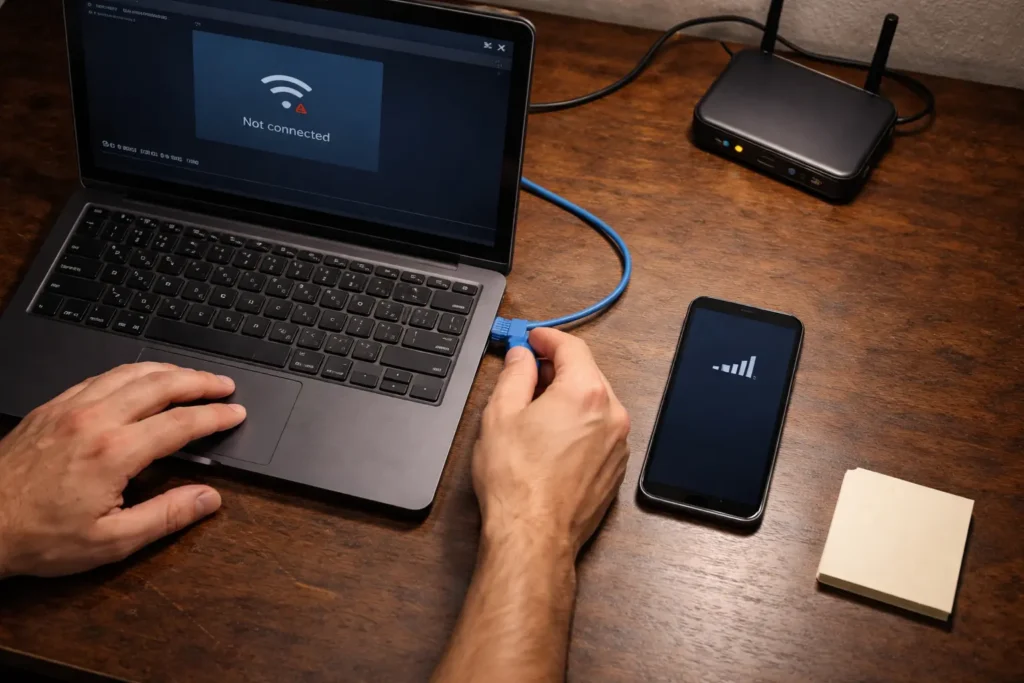
Before changing any setting, you need to answer one question: is the WiFi dropping because of something on your PC, or is the router itself losing the connection? Skipping this step is why most people apply five fixes and still end up with the same disconnect cycle.
The 60-Second Test That Tells You Exactly Where the Fault Is
The next time your WiFi disconnects, immediately check another device — a phone, tablet, or second laptop connected to the same network. If every device loses the connection at the same time, the fault is on the router or modem side. In that case, the problem has nothing to do with Windows 11 settings, drivers, or power management. You would need to troubleshoot the router and modem separately.
If other devices stay connected and only your Windows 11 machine drops, the cause is local to your PC. That is the scenario this article focuses on — and it is the most common one.
There is a second variation worth noting. Sometimes WiFi does not fully disconnect. The taskbar still shows the WiFi icon, but pages stop loading and apps lose connectivity. If this happens, open Command Prompt and run ping 8.8.8.8 -t to send continuous pings. When the next drop occurs, check whether the pings time out. If they do while other devices are fine, your adapter is either briefly powering down or losing its IP lease — both of which point to a Windows-side issue. If the router shows connected but delivers no internet to any device, the problem sits upstream.
What “No Internet Secured” and “Some Information Has Changed” Actually Mean
These two messages confuse almost everyone, but they point to different things.
“No Internet, Secured” means your PC is still connected to the WiFi network with encryption active, but it cannot reach the internet. The wireless link between your adapter and the router is intact — the failure is in routing, DNS resolution, or IP assignment. Common triggers include a stale DHCP lease, a DNS server that stopped responding, or the WLAN AutoConfig service resetting your network profile mid-session.
“Some information has changed” is a Windows notification that appears when the network profile changes unexpectedly. This happens when your IP address is reassigned, the gateway changes, or Windows detects a mismatch between the saved network profile and the current connection parameters. If you see this message frequently, it usually means your router’s DHCP server is issuing a new IP to your machine on a short lease, or Windows is resetting the adapter internally — both of which cause momentary disconnects.
How to Use Event Viewer to Find the Exact Disconnect Trigger
Windows logs every wireless connect and disconnect event. Instead of guessing the cause, you can read exactly what happened.
Open Event Viewer by pressing Windows + X and selecting Event Viewer from the menu. In the left panel, navigate to Applications and Services Logs → Microsoft → Windows → WLAN-AutoConfig → Operational. This log records every WiFi connection attempt, successful association, and disconnection with a timestamp.
Look for Event ID 8001 — this entry logs every time the WLAN AutoConfig service disconnects from a wireless network. The details pane will show the reason: whether it was user-initiated, triggered by the adapter powering off, or caused by an authentication failure. If you see Event ID 4001 entries around the same timestamps, that indicates the WLAN AutoConfig service itself stopped or restarted — which points directly to a service-level or update-related issue.
Cross-reference the timestamps of these events with your disconnect episodes. If the log shows the adapter was disabled by power management, you know exactly which fix to apply first. Windows 11 includes several built-in diagnostic tools beyond Event Viewer, but for WiFi disconnects specifically, WLAN-AutoConfig logs give you the most direct answer.
Why WiFi Keeps Disconnecting on Windows 11 — The Four Real Causes
Once you have confirmed through diagnosis that the problem is on the PC side, the cause almost always falls into one of four categories. Each one triggers disconnections differently, and understanding the mechanism behind each will make the fixes in the next section far more effective.
Power Management Is Silently Switching Off Your WiFi Adapter
Windows 11 aggressively manages power on portable devices. One of the ways it does this is by allowing the operating system to completely turn off the wireless network adapter during what it considers idle time. This setting is enabled by default on most laptops and some prebuilt desktops.
The relevant option is located in Device Manager → Network adapters → [Your WiFi adapter] → Properties → Power Management tab. The checkbox reads “Allow the computer to turn off this device to save power.” When this is checked, Windows can disable the adapter at any point to conserve battery — even if you are actively browsing. The result is a sudden drop with no warning, followed by automatic reconnection a few seconds later. On laptops from Dell, Lenovo, HP, and ASUS, this is the single most common reason wifi keeps disconnecting on Windows 11.
Outdated Corrupted or Incompatible Network Adapter Driver
Network adapter drivers are tightly coupled with the Windows networking stack. When a driver becomes outdated — or worse, when a Windows 11 feature update installs a generic replacement driver over the manufacturer’s version — the adapter can start behaving unpredictably. Intel Wi-Fi 6/6E (AX200, AX201, AX211) and Realtek RTL8852 series adapters are frequently affected after major OS updates.
Symptoms of a driver problem include WiFi working for a few minutes before dropping, the adapter briefly disappearing from Device Manager, or a yellow exclamation mark appearing on the adapter entry. In some cases, the adapter works on 2.4 GHz but constantly disconnects on 5 GHz, which points to a driver-level incompatibility with the band steering logic. If your device also throws wifi authentication errors during reconnection, the driver is almost certainly involved.
Windows Update Breaking WLAN AutoConfig or Network Settings
The WLAN AutoConfig service (wlansvc) is the core Windows service responsible for detecting, connecting to, and managing wireless networks. A Windows 11 cumulative or feature update can occasionally reset this service’s startup type from Automatic to Manual, or corrupt its configuration entirely. When that happens, the service may stop running mid-session — and without it, no wireless connection can be maintained.
In Event Viewer, this shows up as Event ID 4001 under the source WLAN-AutoConfig, indicating the service stopped. Updates released during the 23H2 and 24H2 cycles have been particularly known for disrupting network-related services and resetting adapter-level settings such as DNS configuration and saved network profiles.
Roaming Aggressiveness Setting Causing Constant Network Scanning
WiFi adapters in Windows 11 have an advanced property called Roaming Aggressiveness, found under Device Manager → Network adapters → [Your WiFi adapter] → Properties → Advanced tab. This setting controls how actively the adapter scans for a stronger access point while already connected to one.
When set to Medium-High or Highest, the adapter continuously scans nearby channels — even when your current signal is perfectly stable. Each scan cycle briefly interrupts the active connection, and if the adapter finds a competing signal (even from a neighbor’s router on an overlapping channel), it may attempt to switch, causing a full disconnect-reconnect cycle. This is especially disruptive in apartment buildings or offices with dense WiFi environments. If you suspect channel congestion is contributing, using a WiFi channel analyzer to check for overlap can confirm whether roaming behavior is being triggered unnecessarily.
The recommended setting for single-router home networks is Low or Medium-Low, which tells the adapter to only scan when the current signal drops significantly.

How to Fix WiFi Keeps Disconnecting on Windows 11 — In the Right Order
Now that the causes are clear, the fixes below follow a deliberate sequence. They move from the most common and least disruptive solution to the more involved ones. Start from Fix 1 and test your connection after each step before moving on.
Fix 1 — Disable Power Saving on Your Wireless Network Adapter
This fix directly addresses the most frequent cause covered in the previous section. Open Device Manager by pressing Windows + X and selecting it from the menu. Expand Network adapters, right-click your wireless adapter (it will usually include “Wi-Fi”, “Wireless”, or a chipset name like Intel AX201), and select Properties.
Go to the Power Management tab. Uncheck the box labeled “Allow the computer to turn off this device to save power” and click OK.
This single change stops Windows 11 from silently disabling the adapter during light usage. On laptops, this may slightly increase battery consumption, but the tradeoff is a connection that no longer drops every few minutes. If you are on a desktop PC where battery is irrelevant, this should have been disabled from day one.
Fix 2 — Update Rollback or Reinstall the Network Adapter Driver
Still in Device Manager, right-click your WiFi adapter and select Properties → Driver tab. You have three options here, and the right one depends on your situation:
- Update Driver — Select “Search automatically for drivers” first. If Windows finds nothing newer, go to your laptop manufacturer’s support page (Dell, Lenovo, HP, ASUS) or the chipset vendor’s site (Intel or Realtek) and download the latest WiFi driver manually. Use “Browse my computer for drivers” to install it.
- Roll Back Driver — If WiFi started disconnecting after a recent driver update, click Roll Back Driver to revert to the previously installed version. This button is grayed out if no prior driver version exists in the system’s driver store.
- Uninstall Device — Check the box “Attempt to remove the driver for this device” and click Uninstall. Restart the PC. Windows will reinstall a default driver on boot, which can resolve corruption in the existing driver package.
For Intel-based adapters specifically, downloading the latest driver directly from Intel’s support site consistently provides better stability than relying on Windows Update’s generic driver matching. Microsoft’s own “Microsoft’s own WiFi troubleshooting guide” also recommends manual driver installation as a primary fix.
Fix 3 — Restart and Set WLAN AutoConfig Service to Automatic
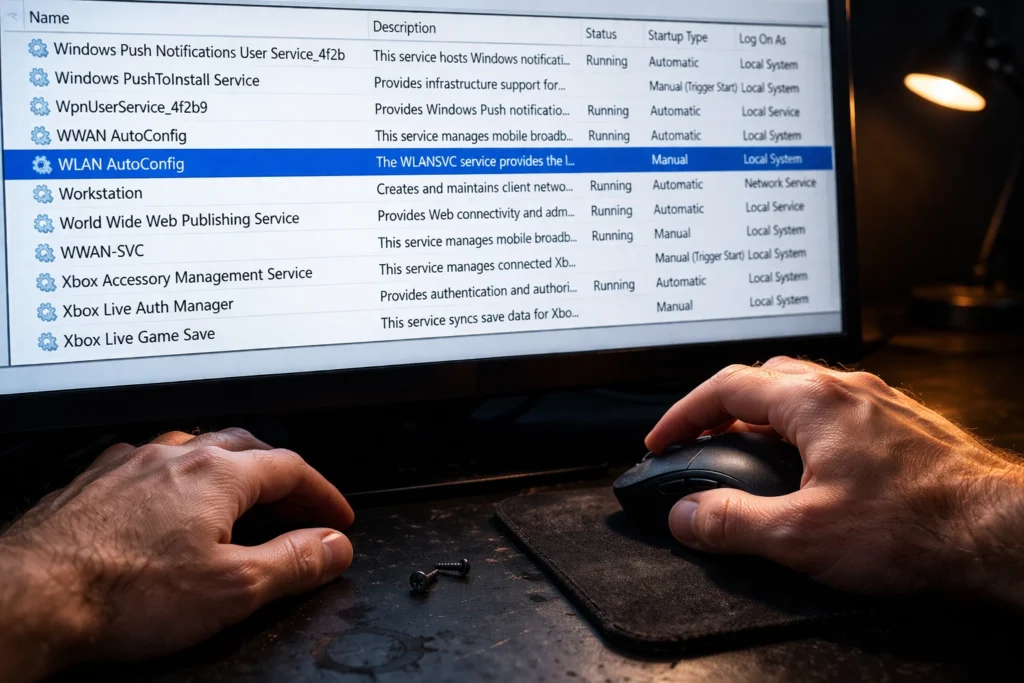
Press Windows + R, type services.msc, and press Enter. Scroll down to WLAN AutoConfig. Right-click it and select Properties.
Check the Startup type. If it is set to anything other than Automatic, change it to Automatic. Then click the Start button if the service status shows Stopped. Click Apply → OK.
If WLAN AutoConfig was already running, stop it first, then start it again to perform a clean restart. This resolves cases where the service is running but stuck in a broken state — particularly after cumulative updates that trigger Event ID 4001 in Event Viewer.
Fix 4 — Change Wireless Adapter Power Plan to Maximum Performance
This is a separate power setting from Fix 1 and lives inside the Windows power plan. Open Control Panel → Hardware and Sound → Power Options. Click Change plan settings next to your active plan, then click Change advanced power settings.
Expand Wireless Adapter Settings → Power Saving Mode. Change both On battery and Plugged in to Maximum Performance.
This prevents the OS-level power plan from throttling adapter performance independently of the Device Manager setting. Both fixes together eliminate the two separate layers of power management that Windows 11 applies to wireless hardware. If your connection also feels sluggish between the drops, this is often why — WiFi can feel slow even when speed tests show full bandwidth because micro-throttling from power saving modes introduces latency spikes that raw throughput numbers do not capture.
Fix 5 — Assign a Static IP to Stop WiFi Dropping Randomly
When Windows 11 relies on DHCP to obtain an IP address automatically, the lease renewal process can occasionally cause brief disconnections — especially if your router’s DHCP server is slow to respond or the lease time is set very short. Assigning a static IP removes this variable entirely.
Open Settings → Network & internet → Wi-Fi → [Your connected network] → Hardware properties. Click Edit next to IP assignment and switch from Automatic (DHCP) to Manual. Toggle on IPv4 and fill in the following:
- IP address — Choose an address outside your router’s DHCP range but within the same subnet. For example, if your router is
192.168.1.1and DHCP assigns192.168.1.100–200, use something like192.168.1.50. - Subnet mask — Enter
255.255.255.0(standard for most home networks). - Gateway — Enter your router’s IP, typically
192.168.1.1or192.168.0.1. - Preferred DNS — Use
8.8.8.8(Google) or1.1.1.1(Cloudflare).
Click Save. If after this change you see connectivity but no actual internet access, the gateway address may be wrong. Verify it by running ipconfig in Command Prompt and checking the Default Gateway value on another device connected to the same network. In situations where the adapter connects but shows no internet at all, the issue may sit at the router level instead.
Fix 6 — Run SFC Scannow to Repair Corrupted Network Files
Corrupted system files can silently break Windows networking components — including the TCP/IP stack, DNS client, and wireless profile management. The System File Checker scans for and restores these files from the local component store.
Open Command Prompt as Administrator (search “cmd”, right-click, select Run as administrator) and run:
sfc /scannowThis command scans every protected system file and replaces any that are missing or corrupted. The process takes several minutes. Once finished, it will report one of three results: no integrity violations found, files were found and repaired, or files were found but could not be repaired. In the third case, follow up with the DISM command to repair the component store itself:
DISM /Online /Cleanup-Image /RestoreHealthAfter both commands complete, restart the PC. These are part of the built-in diagnostic tools available in Windows 11 and should be run whenever system-level corruption is suspected.
Fix 7 — Reset Network Settings When Nothing Else Works
If none of the previous fixes resolved the issue, a full network reset strips all adapter configurations, saved networks, VPN profiles, and firewall rules back to factory defaults.
Go to Settings → Network & internet → Advanced network settings → Network reset. Click Reset now. The PC will restart, and Windows will reinstall all network adapters with default settings.
After the reset, you will need to reconnect to your WiFi network and re-enter the password. Any custom DNS, static IP, or proxy settings configured earlier will need to be reapplied. This is the most thorough client-side fix available and resolves issues caused by layered misconfigurations that individual fixes cannot untangle independently.
WiFi Keeps Disconnecting After Sleep After Update and on Specific Devices
The seven fixes above cover the core causes behind WiFi disconnecting on Windows 11, but two specific scenarios deserve separate attention. WiFi failing to reconnect after sleep and WiFi breaking after a Windows Update both have distinct triggers that the general fixes may not fully resolve on their own. These two situations also generate the highest volume of complaints on laptops from Dell, Lenovo, HP, and ASUS — where aggressive OEM power profiles and manufacturer-specific driver behavior add extra layers to the problem.
WiFi Not Reconnecting After Sleep or Hibernate on Windows 11
When a Windows 11 laptop wakes from sleep or hibernate, the WiFi adapter is supposed to reinitialize and automatically rejoin the last connected network. When it does not — or reconnects but shows no internet — the adapter is failing to properly transition between power states.
First, confirm that Fix 1 from the previous section has been applied. Disabling “Allow the computer to turn off this device to save power” in Device Manager is the primary control for adapter behavior during sleep. Without this change, every other sleep-related adjustment is undermined.
Second, check for additional power settings inside the adapter’s Advanced properties. Open Device Manager → Network adapters → right-click your WiFi adapter → Properties → Advanced tab. Look for any of the following settings, which vary by chipset and manufacturer:
Wake on WLAN (or Wake on Wireless LAN) — If this exists and is set to Disabled, the adapter may not fully reinitialize after the system wakes. Set it to Enabled.
Idle Power Saving (or Ultra Low Power Mode) — Found on some Intel and Realtek adapters, this setting aggressively reduces adapter power during idle periods, sometimes preventing proper wake transitions. Set it to Disabled or Normal Power Saving.
U-APSD Support — Unscheduled Automatic Power Save Delivery is a WiFi power-saving protocol that some routers handle poorly. If present, set it to Disabled and test.
If WiFi still fails to reconnect after sleep, the issue may involve Modern Standby (S0 Low Power Idle), which replaces traditional S3 sleep on most newer laptops. Modern Standby allows background network activity during sleep, but the handoff back to full adapter control on wake can fail silently. To test whether this is the cause, temporarily disable hibernate by opening Command Prompt as Administrator and running:
powercfg /hibernate offThen put the device to sleep normally. If WiFi reconnects correctly every time after this change, the hibernate or Modern Standby component was interfering with adapter reinitialization. You can re-enable hibernate later with powercfg /hibernate on once a driver update addresses the conflict.
When the connection does restore after sleep but latency becomes noticeably higher than it should be compared to a wired connection, that points to a separate adapter performance issue rather than a simple reconnection failure — and warrants its own investigation.
WiFi Started Disconnecting After a Windows 11 Update — Exact Fix
If WiFi was completely stable until a specific Windows Update installed, the update most likely replaced your working network adapter driver with a generic Microsoft version, or it reset adapter-level settings that were previously configured.
Start by confirming whether the driver changed. Open Device Manager → Network adapters → right-click your WiFi adapter → Properties → Driver tab. Check the Driver Date and Driver Version fields. If the driver date matches the date the Windows Update was installed, the update overwrote your manufacturer driver.
Click Roll Back Driver if the button is active. This restores the previous driver version from the system’s driver store. If the button is grayed out, no prior version was retained — you will need to download the correct driver manually from your laptop manufacturer’s support page or directly from Intel or Realtek’s download center.
After addressing the driver, recheck the settings that updates commonly reset. Verify that the power management checkbox in Device Manager is still unchecked (Fix 1), the wireless adapter power plan is still set to Maximum Performance (Fix 4), and that WLAN AutoConfig remains set to Automatic startup (Fix 3). Feature updates in particular — such as the 23H2 and 24H2 releases — have been documented resetting all three.
If the disconnection started after a feature update rather than a smaller cumulative patch, you can temporarily uninstall it. Go to Settings → Windows Update → Update history → Uninstall updates, select the most recent feature update, and click Uninstall. This restores connection stability while waiting for a compatibility fix from Microsoft or the adapter manufacturer.
Before assuming the update caused everything, verify that other devices on the same network are not also experiencing issues around the same timeframe. If they are, the root cause may be upstream — and restarting the modem versus the router in the correct order often resolves connection failures that just happened to coincide with a Windows update.

Frequently Asked Questions
Why does my WiFi keep disconnecting on Windows 11?
In most cases, the disconnect is caused by one of four things on the PC side: Windows power management silently turning off the wireless adapter, an outdated or incompatible network adapter driver, the WLAN AutoConfig service crashing or resetting, or the roaming aggressiveness setting forcing the adapter to constantly scan for stronger networks. Running the diagnosis steps covered earlier in this article — particularly checking Event Viewer logs — will tell you exactly which one applies to your machine.
How do I stop WiFi from disconnecting on Windows 11?
Start by disabling the power saving option on your WiFi adapter in Device Manager, then set the wireless adapter power plan to Maximum Performance in advanced power settings. These two changes alone resolve the majority of cases. If disconnections continue, update or roll back the network adapter driver, verify that WLAN AutoConfig is set to Automatic, and consider assigning a static IP to eliminate DHCP-related drops.
Why is my WiFi disconnecting every few minutes on Windows 11?
Frequent disconnections at regular intervals almost always point to either the WLAN AutoConfig service restarting in a loop or the DHCP lease renewing on a very short timer. Check Event Viewer under WLAN-AutoConfig logs for repeating Event ID 8001 or 4001 entries. If the pattern aligns with your disconnect timing, the service or lease cycle is the direct cause.
What does “some information has changed” mean when WiFi disconnects?
This Windows notification appears when the network profile parameters change unexpectedly — typically because your IP address was reassigned, the default gateway shifted, or Windows detected a mismatch between the stored profile and current connection settings. It is usually triggered by a short DHCP lease or the adapter resetting internally. Assigning a static IP eliminates this message in most cases.
Why does WiFi keep disconnecting on Windows 11 after an update?
Windows updates — especially feature updates like 23H2 and 24H2 — can replace your manufacturer’s WiFi driver with a generic Microsoft version and reset adapter power management settings. Check Device Manager to see if the driver date matches the update installation date, roll back the driver if possible, and reapply power management and WLAN AutoConfig fixes that the update may have undone.
How do I fix WiFi that keeps disconnecting after sleep on Windows 11?
Disable “Allow the computer to turn off this device to save power” in Device Manager, then check the adapter’s Advanced properties for settings like Wake on WLAN, Idle Power Saving, and U-APSD Support. On laptops using Modern Standby, temporarily disabling hibernate with powercfg /hibernate off can confirm whether the sleep power state transition is causing the failure.
Is my firewall causing WiFi to disconnect on Windows 11?
A firewall can block internet traffic, making it appear as though WiFi disconnected, but it does not cause the adapter itself to drop the wireless connection. If your WiFi icon shows “No Internet, Secured” but the adapter remains connected to the network, a firewall or security suite may be blocking outbound traffic. Temporarily disable third-party firewall software to test. Windows Defender Firewall rarely causes this issue with default settings.
Why does WiFi disconnect on my Windows 11 laptop but not on other devices?
When only your Windows 11 machine drops while phones, tablets, and other computers stay connected, the cause is local to your PC. The most common culprits are adapter power management settings, a problematic driver, or the WLAN AutoConfig service. The router and network are functioning correctly in this scenario — the fix needs to happen on the Windows side.
If you have worked through every fix in this article — from disabling adapter power saving through a full network reset — and WiFi still disconnects, the problem likely involves hardware. A failing wireless adapter, a damaged antenna cable (common on laptops after hinge wear), or a defective WiFi card requires physical inspection. At that point, contact your device manufacturer’s support or take the machine to a qualified technician. For USB WiFi adapters, try a different USB port or test with a different adapter entirely to rule out hardware failure before pursuing further software troubleshooting.