
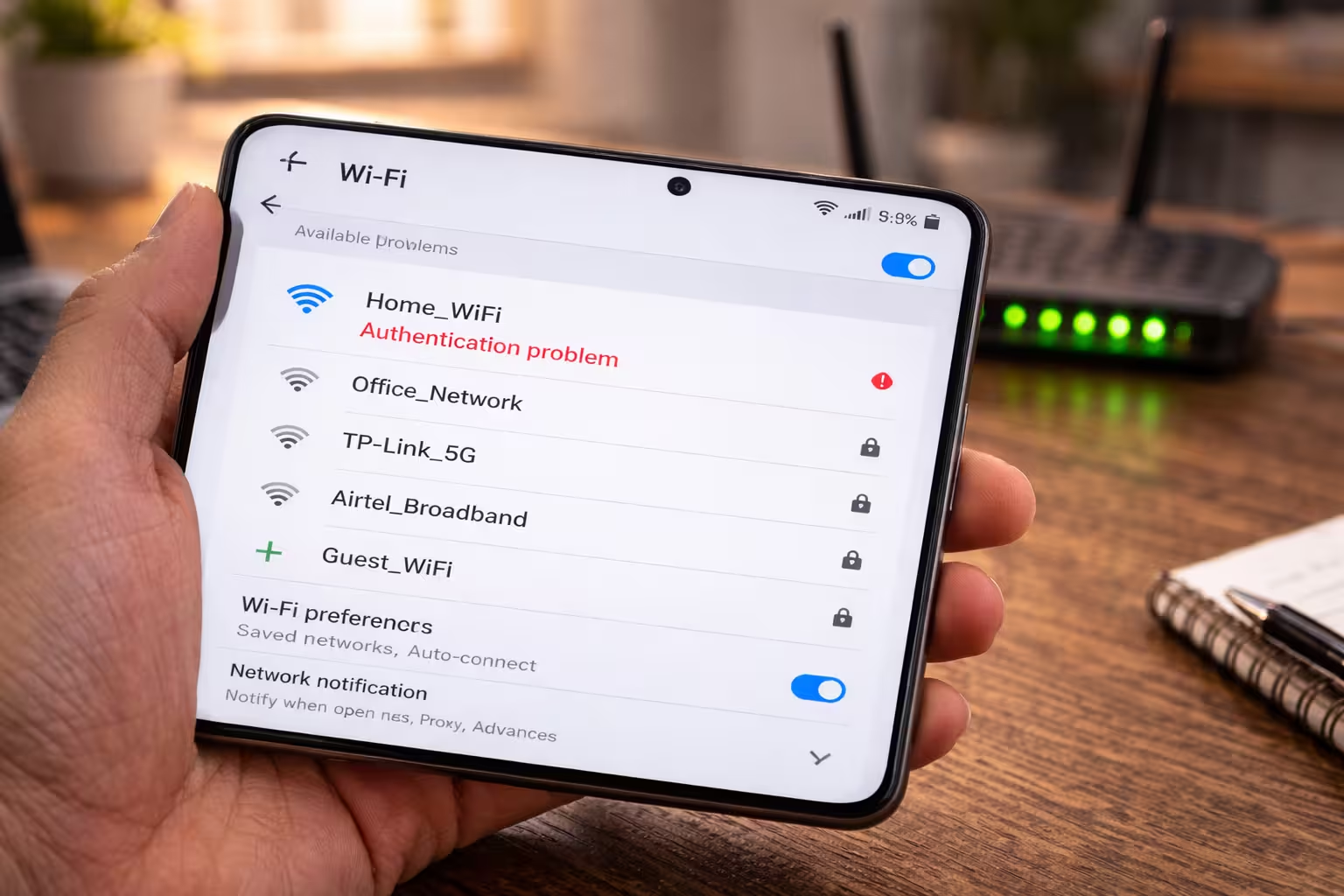
If you see a Wi-Fi authentication error, the problem is usually in the security handshake phase and not a wrong password or missing signal. This error occurs on the three platforms Android, Windows, and iPhone—and most users think the password is wrong, but the real problem lies in the negotiation of the security protocol between the device and the router.
Imagine you enter your home Wi-Fi password correctly, but your phone keeps displaying “Authentication failed” or “Authentication problem.” In some cases, the device tries to connect, the loading circle spins, and then the connection is lost again. This situation is even more confusing when other devices are working normally with the same network.
In this article, we will troubleshoot the Wi-Fi authentication error for each platform—Android, Samsung, Pixel, Redmi, Windows 10/11, and iPhone—using real-world diagnostic scenarios. Each section will first address the problem and then present the exact solution with proof. If your Wi-Fi displays the message “Authentication error occurred” or “Authentication failed, correct password,” this guide is for you.

What is WiFi Authentication Error?
A WiFi authentication error occurs when your device sends the correct credentials to the router, but the security handshake between the router and the device is not completed — and the connection is rejected.
Real Scenario: You enter the WiFi password on your Android phone, the device displays “Connecting…”, then after 3-5 seconds, a message saying “Authentication problem” or “Authentication error occurred” appears. You enter the password again — same result. But the same network is working normally on your laptop or another phone.
App behavior: In WiFi settings, the network shows “Authentication problem” status — it does not show as connected or saved.
Network context: No issues visible on the router side — lights are normal, other devices are connected, internet is working.
Diagnostic tool: Check the device’s WiFi log (Android: Developer Options > WiFi Verbose Logging) — you will see EAPOL handshake failure or 4-way handshake timeout.
Observed issue: WPA2/WPA3 security key exchange between device and router is not completing — this is not a password rejection, protocol-level mismatch, or corrupted cached credentials issue.
Fix:
First step: forget the network and reconnect with fresh credentials — this will clear the cached key.
Limitation: If the issue is a protocol mismatch (WPA3 vs WPA2), forgetting the network will not work — you will need to change the router settings.
Why Does WiFi Authentication Error Occur (Even with Correct Password)?
Even with the correct password, a WiFi authentication error occurs when there is a mismatch between the security protocol, cached credentials, or encryption type between the device and the router — the password is correct, but the handshake is failing.
Real Scenario: You are 100% sure of your WiFi password — the same password works on other devices. But on one specific phone or laptop, you keep getting “Authentication failed.” You try changing the password, but still get the same error. This is clearly not a password issue.
*App behavior: * The device shows the network in the WiFi list, accepts the password, but fails to connect — it shows “Saved” or “Authentication problem” status.
Network context: The router is broadcasting normally, the SSID is visible, the signal strength is strong — but one or more devices are not connecting.
Diagnostic tool: Check the list of connected devices in the router admin panel (192.168.1.1) — the failed device will not be listed there, meaning that the handshake did not reach the router or was rejected.
Observed issue: Cached credentials are corrupted, or the device does not support WPA3 when the router is in WPA3-only mode.
Fix:
Forget the network, set the router’s security mode to WPA2/WPA3 mixed, then connect with a fresh password.
Limitation: Some older devices do not support WPA3 at all — for them, it is necessary to enable WPA2 fallback on the router.
Common Causes of Authentication Failure on WiFi
Common causes of WiFi authentication failure include corrupted saved credentials, security protocol mismatch, MAC filtering, and router-side restrictions — all of which block the connection even if the password is correct.
Real Scenario: There are 4 devices in the house — 3 are normally connected, but one phone keeps giving an authentication error. The password is the same, the signal is strong, the router has been restarted — but the problem persists.
App behavior: The device detects the WiFi network, accepts the password, but gets stuck on “Authentication problem” — sometimes it briefly shows “Connecting” and then fails.
Network context: MAC filtering may be enabled in the router admin panel, which is blocking specific devices — or the maximum client limit may have been reached.
Diagnostic tool: Check the Access Control or MAC Filtering section in the router settings — if enabled, the MAC address of the failed device should be on the whitelist.
Observed issue: Breakdown of common causes:
- Corrupted cached password → fix by forgetting the network
- WPA2/WPA3 mismatch → adjust the router security mode
- MAC filtering → whitelist the device
- Router max client limit → reduce the number of connected devices
- Band steering conflict → try separate SSIDs for 2.4GHz and 5GHz
Fix:
First clear cached credentials, then verify router settings — check MAC filter, security mode, and client limit.
Limitation: Band steering issues silently cause authentication to fail — difficult to diagnose without router logs.
How to Fix WiFi Authentication Error on Android
The most effective way to fix WiFi authentication errors on Android is to forget the network and reconnect, and if the problem persists, assign a static IP.
Real Scenario: Your Android phone was previously connected to WiFi, but suddenly started showing “Authentication problem.” The password has not changed, the router has been restarted, other devices are working — but this phone is not connecting. You enter the password again and again, but the same error occurs.
App behavior: Under WiFi settings, “Authentication problem” is displayed under the network — when tapped, only the ‘Forget’ and “Connect” options are available.
Network context: Everything is normal on the router side — SSID is broadcasting, internet is working on other devices, signal is strong.
Diagnostic tool: Android Settings > WiFi > long press on network > Modify Network > Advanced Options check IP settings — if it is on DHCP and there is an IP conflict, authentication will fail.
Observed issue: Android’s WiFi framework stores cached credentials — if the password or security mode has changed on the router side, the cached key will mismatch and the handshake will be rejected.
Fix:
Step-by-step:
- Settings > WiFi > Network long press > Forget
- Turn WiFi off, wait 10 seconds, then turn it back on
- Enter the new password and connect
- If it still fails — Modify Network > IP Settings > Static > Set DNS to 8.8.8.8
Limitation: Static IP is a temporary fix — if the root cause is a protocol mismatch, you will need to adjust the router settings.
Fix Authentication Problem on Samsung / Pixel / Redmi Phones
Fixing authentication problems on Samsung, Pixel, and Redmi phones depends on brand-specific WiFi settings and custom network manager behavior — generic Android fixes do not work on all phones.
Real Scenario: When connecting to WiFi on a Samsung Galaxy, you get an “Authentication failed” message, but a Redmi phone with the same SIM card works normally on the same network. Or, on a Pixel phone, the WiFi connection drops repeatedly and a reconnect authentication error is displayed.
App behavior: On Samsung, “Smart Network Switch” or “WiFi Assistant” in the WiFi settings automatically disconnects from weak networks — reconnecting causes authentication to fail due to a cached key mismatch.
Network context: Same router, same password — but one brand’s phone fails while the other connects.
Diagnostic tool:
Samsung: Settings > Connections > WiFi > Advanced > Disable “Switch to mobile data.” Pixel: Settings > Network > WiFi Preferences > Turn off “Connect to open networks.” Redmi: Settings > WiFi > Additional Settings > Disable “WiFi Assistant.”
Observed issue: Custom WiFi managers in phones aggressively handle cached credentials — automatic switching in the background corrupts the handshake.
Fix:
- Samsung: Turn off Smart Network Switch, forget the network, and reconnect.
- Pixel: Disable adaptive connectivity, enter a fresh password.
- Redmi: Turn off WiFi Assistant, reset the network in MIUI. (Settings > Connection > Reset WiFi)
Limitation: In some versions of MIUI, the WiFi reset option is hidden — in this case, you have to reset the full network settings, which also clears Bluetooth pairings.
WiFi Authentication Error on Windows 10/11 – Step-by-Step Fixes
To fix the WiFi authentication error on Windows 10/11, delete the wireless profile and make a fresh connection — and if the problem persists, roll back the WiFi driver or set the security type manually.
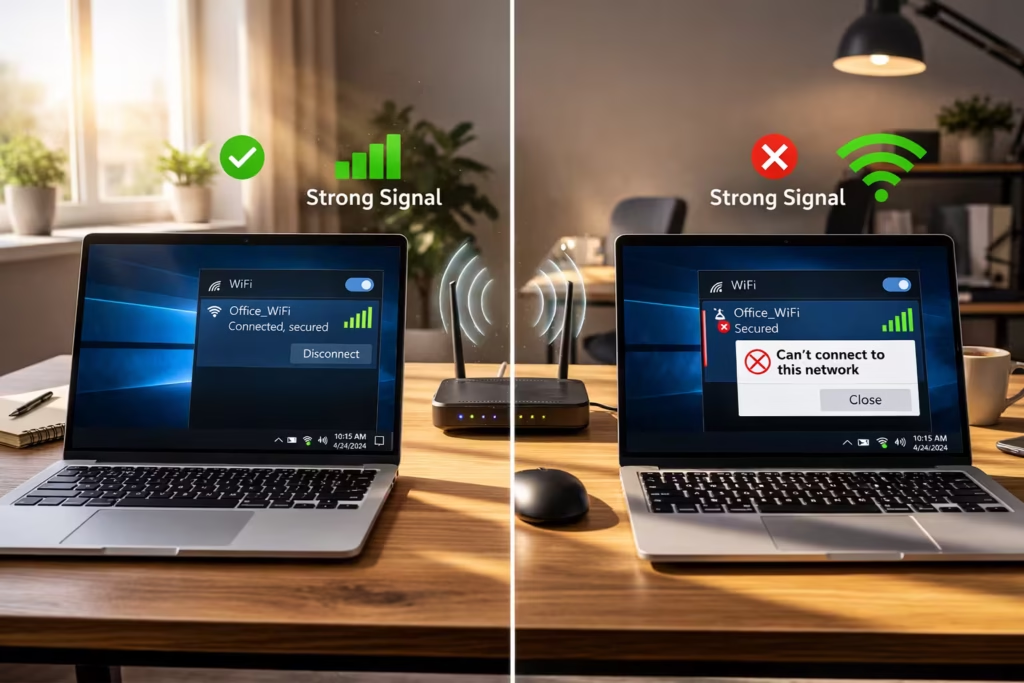
Real Scenario: Your Windows laptop was connected to WiFi, but after Windows Update, it suddenly started showing the “Can’t connect to this network” or “Authentication failed” error. The password is correct, other devices are connected — but the laptop is not connecting.
App behavior: When you click on the WiFi icon in the taskbar, the network appears, you enter the password — but the message “Can’t connect to this network” appears or it gets stuck on connecting and then fails.
Network context: The router is working normally — but after updating the Windows WiFi adapter driver, protocol negotiation is failing.
Diagnostic tool: Open CMD (Admin) and run:
netsh wlan show profiles
netsh wlan delete profile name="WiFi_Name"
Then check Device Manager > Network Adapters > WiFi adapter > Properties > Driver tab > “Roll Back Driver”.
Observed issue: Windows Update sometimes replaces the WiFi adapter driver, which changes WPA3 handling in the new driver — causing handshake failure with older routers.
Fix:
Step-by-step:
- Settings > Network > WiFi > Manage Known Networks > select network > Forget
- Delete profile using CMD (use command above)
- Connect again with password
- If it fails — roll back the WiFi driver in Device Manager
- Last resort: Manually set Security Type to WPA2-Personal in WiFi adapter properties
Limitation: The driver rollback option is only available if the previous driver version is stored with Windows — this option is grayed out on a fresh install, so you will have to manually download the old driver from the manufacturer’s site.
Authentication Failed on iPhone – Quick Solutions
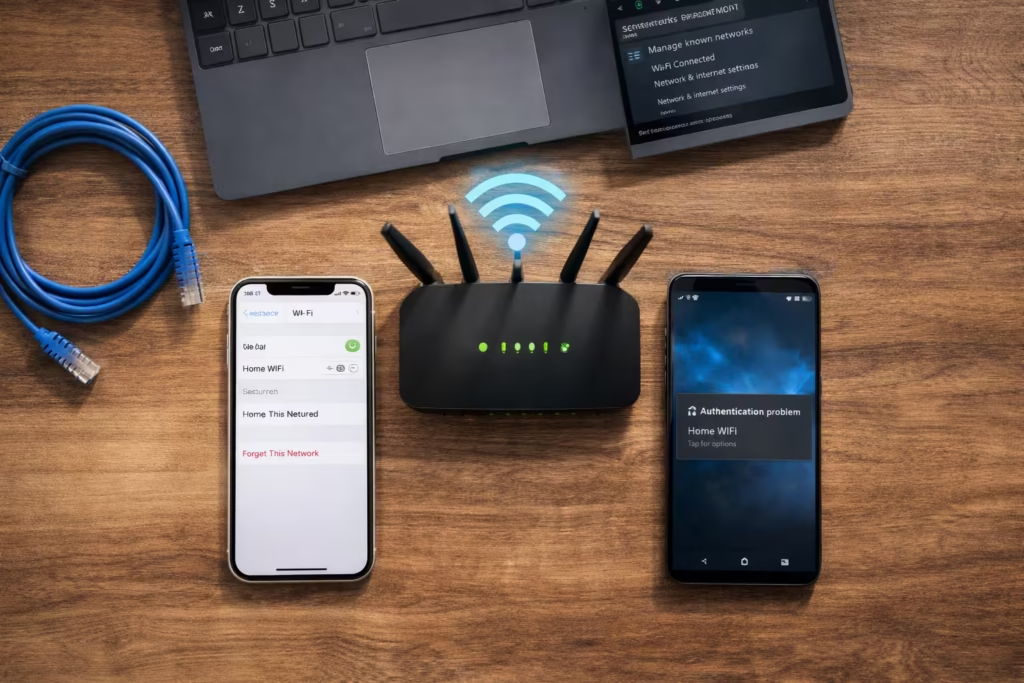
The most effective fix for the authentication failed error on iPhone is to reset the network settings, because iOS offers limited options for manually deleting cached credentials.
Real Scenario: Your iPhone was previously connected to WiFi, but after an iOS update, it started showing the “Unable to join network” or “Incorrect password” error — even though the The password is confirmed correct and every other device on the same WiFi network is connecting without issues.
App behavior: Tap on the network in Settings > WiFi, enter the password, and “Joining…” is briefly displayed, then an error occurs — or the password field appears repeatedly as if the password is incorrect.
Network context: Router is normal, SSID is visible, signal is strong — but iPhone specifically fails when Android or laptop is connected to the same network.
Diagnostic tool: iPhone Settings > WiFi > tap the (i) icon next to the network > check IP address — if IP has not been assigned, then handshake has not been completed.
Observed issue: iOS keychain cached WiFi credentials store karta hai — agar router side pe security mode ya password change hua toh keychain ki stored key mismatch karti hai aur authentication silently fail hota hai.
Fix:
- Settings > WiFi > network ke (i) pe tap > “Forget This Network”
- Turn WiFi off, wait 15 seconds, then turn it back on
- Connect with the new password
- If it fails — Settings > General > Transfer or Reset iPhone > Reset Network Settings
- Last resort: Disable Private WiFi Address (Settings > WiFi > (i) > Private Address off)
Limitation: Reset Network Settings deletes all saved WiFi passwords, VPN configurations, and Bluetooth pairings — this is the nuclear option, try forgetting the network first.
Forget This Network and Reconnect (Easy Guide)
Forget This Network is the most basic and effective fix for WiFi authentication errors — it clears the device’s cached credentials and forces a fresh handshake.
Real Scenario: Any of your devices — Android, iPhone, or laptop — is giving a WiFi authentication error. The password is correct, the router is normal, but the device is not connecting. You keep entering the password, but the same error keeps repeating.
App behavior: The device recognizes the network, the password field is displayed, or it attempts to connect automatically — but it fails every time with “Authentication problem” or “Can’t connect.”
Network context: Router broadcasting normally, other devices connected — issue only on specific device whose cached credential has become corrupted.
Diagnostic tool: Location of forget option on each platform:
- Android: Settings > WiFi > long press on network > Forget
- iPhone: Settings > WiFi > (i) icon > Forget This Network
- Windows: Settings > Network > WiFi > Manage Known Networks > Forget
Observed issue: When the password or security type changes on the router, the device keeps the old cached key stored — the device sends the same old key, which the router rejects.
Fix:
- Open WiFi settings on your device
- Select the problem network
- Tap “Forget” or “Forget This Network”
- Turn WiFi off/on
- The network will be searched again — enter the new password and connect
Limitation: Forgetting the network only clears the cached credentials — if the issue is a protocol mismatch or MAC filtering, this fix will not work, and you will need to check the router settings.
Airplane Mode On/Off Trick
Turning airplane mode on/off forces the WiFi adapter to restart — this completely resets the wireless radio and enables a fresh connection attempt.
Real Scenario: Your phone is showing an authentication error on WiFi, you tried forgetting the network but it didn’t work. No time to restart — need a quick fix that takes 10 seconds.
App behavior: WiFi keeps getting stuck on “Authentication problem” — connecting circle spins then fails, same pattern repeats.
Network context: Router is normal, signal is strong — but device’s wireless chip is temporarily stuck.
Diagnostic tool: Toggle airplane mode from the notification panel — or manually turn Settings > Airplane Mode on/off and observe whether the WiFi adapter re-initializes or not.
Observed issue: Device’s WiFi radio sometimes goes into a hung state — it appears active at the software level but fails to initiate a proper handshake at the hardware level.
Fix:
- Turn airplane mode ON.
- Wait 15-20 seconds.
- Turn airplane mode OFF.
- WiFi will turn on automatically — connect to the network.
Limitation: This fix is for temporary stuck states — if the root cause is cached credentials or protocol mismatch, airplane mode will not work.

Restart Device and Router Fix
Restarting both the device and the router is a classic fix for authentication errors — it clears the RAM, kills hung processes, and starts a fresh DHCP/handshake cycle.
Real Scenario: Tried all fixes — forgot network, airplane mode, re-entered password — but WiFi authentication error persists. Now a proper restart is needed to bring both device and router to a fresh state.
App behavior: WiFi error is persistent on the device — the same “Authentication failed” message appears on every attempt without any change.
Network context: Other devices are also facing intermittent issues — either the router has not been restarted for several days and there is a memory leak or the session table is full.
Diagnostic tool: Check the system log or uptime in the router admin panel (192.168.1.1) — if the uptime is 30+ days, a restart is overdue.
Observed issue: Routers’ extended uptime fills up session tables — new devices cannot be authenticated because resources are exhausted.
Fix:
- Unplug the router’s power cable — wait 30 seconds — plug it back in
- Allow the router lights to stabilize (1-2 minutes)
- Restart your device (phone/laptop).
- Connect to WiFi after the device boots up.
Limitation: Frequent restarts indicate that the router is overloaded or the firmware is outdated — consider a firmware update or router upgrade for a long-term fix.
Check Security Type (WPA2 vs WPA3 Mismatch)
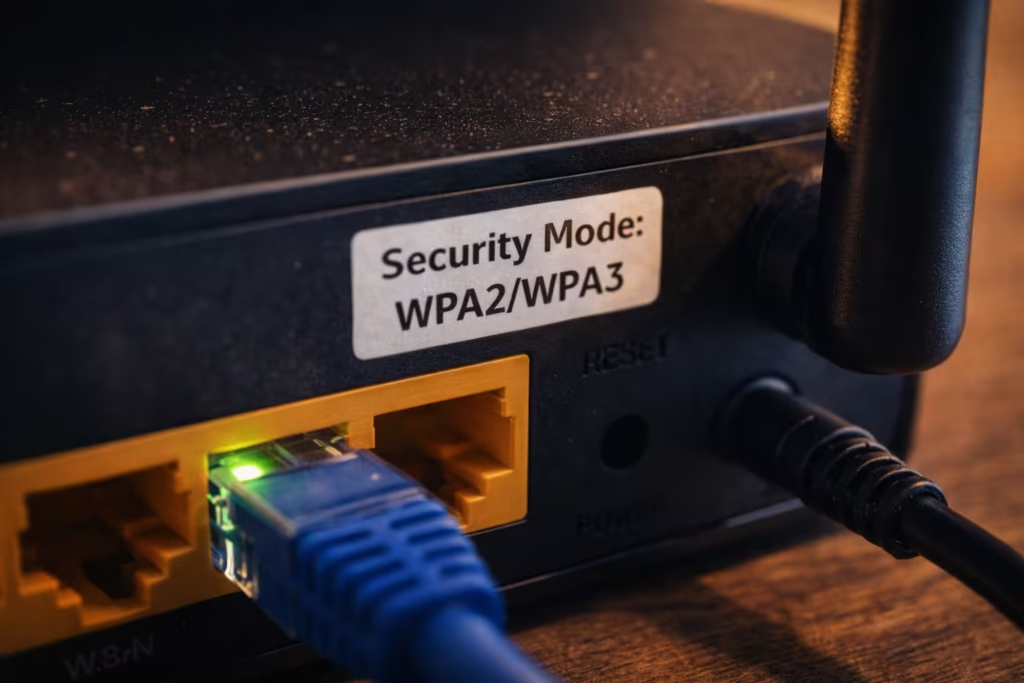
WPA2 and WPA3 mismatch is a hidden cause of WiFi authentication errors — when the router is in WPA3-only mode and the device only supports WPA2, the handshake fails silently.
Real Scenario: New router installed, iPhone and laptop connected, but old Android phone shows “Authentication failed.” Password is 100% correct — but this specific phone keeps getting rejected.
App behavior: Device accepts password, shows connecting, then fails without a clear error — or displays a generic “Authentication problem.”
Network context: Router is set to WPA3 security, which became standard after 2018 — older devices that only support WPA2 cannot connect.
Diagnostic tool: Router admin panel (192.168.1.1) > Wireless Settings > Security Mode check karo — agar “WPA3-Personal” ya “WPA3-SAE” likha hai toh ye culprit hai.
Observed issue: WPA3’s SAE (Simultaneous Authentication of Equals) handshake is not supported in older devices’ WiFi chipsets — the 4-way handshake does not even initiate.
Fix:
- Open the router admin panel.
- Go to Wireless Security settings.
- Change the Security Mode: “WPA2/WPA3 Mixed” or “WPA2-Personal”
- Save, the router will reboot
- Forget the network on the device and reconnect
Limitation: Enabling WPA2 fallback slightly reduces security — upgrading older devices is a better option in sensitive environments.
Update Software / Firmware for Permanent Fix
Updating device software and router firmware is a permanent fix for WiFi authentication errors — outdated drivers and firmware contain known bugs that cause handshake failures.
Real Scenario: Tried all troubleshooting steps — forgot network, restarted, checked security type — but authentication error keeps coming back. This recurring issue indicates a bug at the software or firmware level.
App behavior: Temporary fix works — after a few hours or days, the same “Authentication failed” error reappears without any changes being made.
Network context: Intermittent authentication issues on multiple devices — or a specific device repeatedly displays the same error across different networks.
Diagnostic tool:
- Android: Settings > About Phone > Software Update
- iPhone: Settings > General > Software Update
- Windows: Settings > Windows Update
- Router: Admin panel > System/Maintenance > Firmware Update
Observed issue: WiFi chipset drivers and router firmware have WPA3 handling, PMK caching, and roaming bugs — manufacturers release patches that fix these.
Fix:
- Update your device’s OS to the latest version.
- Check the firmware section in your router’s admin panel.
- Check for any pending firmware or driver updates and apply them if found.
- The router will reboot — wait 2-3 minutes.
- Forget the networks on your devices and reconnect.
Limitation: Some budget routers stop receiving firmware updates after 2-3 years — if authentication issues persist and no update is available, consider upgrading your router.
FAQ: Authentication Error vs Other WiFi Issues
What is the difference between a WiFi authentication error and a wrong password error?
A wrong password error occurs when the password is literally incorrect — an authentication error occurs when the password is correct but the security handshake between the device and the router fails. In an authentication error, the password is accepted but the connection is not established.
Is the “authentication problem” error the same as the “can’t connect to this network” message?
No — authentication problem specifically indicates handshake failure. “Can’t connect” is a broader error that includes IP assignment failure, driver issues, or signal problems. Authentication error specifically occurs due to credential or protocol mismatch.
Why does an authentication error occur on only one device when the others are connected?
This usually happens due to corrupted device-specific cached credentials, or the device’s WiFi chipset does not support the router’s security mode (WPA3). Forget the network and reconnect, or check the device’s security compatibility.
Authentication error keeps coming back — what is the permanent fix?
Recurring authentication errors indicate that the router firmware or device software is outdated. Update both. If the error persists, enable WPA2/WPA3 mixed mode on the router and reset the network settings on the device.
What should I do if I get an authentication error on public WiFi?
Authentication errors on public WiFi are often captive portal issues — open your browser and go to any website; you should be redirected to a login page. If not, forget the network, reconnect, and disable Private/Random MAC address.
What is the difference between a WiFi authentication error and an IP address not found error?
An authentication error occurs at the handshake stage — before the password is verified. An IP address not found error occurs after the handshake is complete but the DHCP server has not assigned an IP address. These are problems at different layers.
Does restarting the router fix the authentication error?
Yes, temporarily — restarting the router clears the session tables and resets hung states. However, if the root cause is a protocol mismatch or corrupted credentials, the error will recur. Along with restarting the router, forget the network on the device as well.
Does an authentication error mean that the WiFi has been hacked?
No, not normally. An authentication error is a technical handshake failure. However, if your password has been changed recently without your knowledge, unauthorized access is possible. Check the router admin panel, change the password, and reconnect all devices.
WiFi authentication error is a frustrating but fixable issue. In this guide, we have covered a step-by-step diagnostic approach for Android, iPhone, and Windows — from forgetting the network to WPA2/WPA3 mismatch, and from temporary fixes to permanent firmware updates. Keep in mind that authentication error does not mean that the password is incorrect — it is a security handshake failure between the device and the router. If basic fixes don’t work, be sure to check your router’s security settings. And for recurring issues, don’t forget to update your device software and router firmware — this ensures long-term stability.
If you are facing connectivity problems other than WiFi authentication, such as DNS failures, timeout errors, or “No Internet” issues, check our Internet Diagnostics category, where you will find a detailed diagnostic guide for every internet problem.