

Your speed test says 100 Mbps or more. The bar fills up, the number looks impressive — and yet websites hesitate before loading, video calls stutter mid-sentence, and online games feel like you are playing a full second behind everyone else. The frustrating truth is that your connection speed was never the problem. The real issue is latency — the invisible delay between your action and the internet’s response.
This guide explains exactly what latency is, what causes it inside a home network, how to measure it properly on Windows 11, and what actually works to reduce it. If you already have a solid understanding of how internet connectivity works, this article will take you deeper into the timing layer that most users never think about — until something feels wrong.
What Latency Actually Is — A Real Explanation Beyond the Textbook Definition
Latency is the time it takes for a small piece of data to travel from your device to a remote server and back. It is measured in milliseconds (ms). When you click a link, send a message, or move your character in a game, latency is the delay between that action and the moment you see a response on screen.
A lower number means a faster response. A higher number means a longer wait. That is the entire concept — but understanding why it behaves the way it does requires separating it clearly from internet speed.
Why Latency and Internet Speed Are Not the Same Thing
Internet speed — measured in Mbps — tells you how much data your connection can transfer per second. Latency — measured in ms — tells you how quickly your connection reacts. These are fundamentally different metrics. A connection can have extremely high bandwidth (speed) and still respond slowly because of high latency.
Think of it this way: speed is the width of a highway, and latency is how long it takes a single car to drive from one end to the other. A six-lane highway does not help if the destination is 500 miles away. The car still takes hours to arrive, regardless of how many lanes are open. This is exactly the relationship between latency and internet speed — they operate on completely separate axes.
The Round-Trip Concept — How Latency Is Actually Measured
When networking tools report latency, they almost always report Round-Trip Time (RTT). This is the total time for a data packet to leave your device, reach the destination server, and return with a response. The ping command on Windows, for example, sends a small packet to a server and measures exactly how many milliseconds the full round trip takes.
RTT is the standard measurement. When someone says “my ping is 35 ms,” they are describing the round-trip latency between their device and the server they tested against. As defined by Cloudflare’s latency reference{:target=”_blank” rel=”nofollow”}, this round-trip measurement is what determines how responsive your connection actually feels in real-world use.
What Good Latency Looks Like in Numbers — The Real Benchmark
Not all latency values are equal, and what counts as “good” depends on what you are doing. Here is a verified breakdown of latency ranges and what they mean in practice:
- Under 20 ms — Excellent. Virtually unnoticeable in any application.
- 20–50 ms — Very good. Smooth gaming, clear video calls, responsive browsing.
- 50–100 ms — Acceptable. Most everyday tasks work fine without obvious delay.
- 100–150 ms — Noticeable. Gaming feels sluggish. Video calls may stutter.
- Above 200 ms — Poor. Consistent lag in games, overlapping speech in calls, delayed page loads.
For general browsing, anything under 100 ms is perfectly fine. For competitive gaming, you want to stay under 20 ms — and certainly under 50 ms. For video conferencing on platforms like Teams or Meet, under 50 ms is ideal, though up to 150 ms remains functional. These benchmarks are not arbitrary — they directly reflect how human perception reacts to digital delay.
What Happens Inside Your Network That Creates Latency
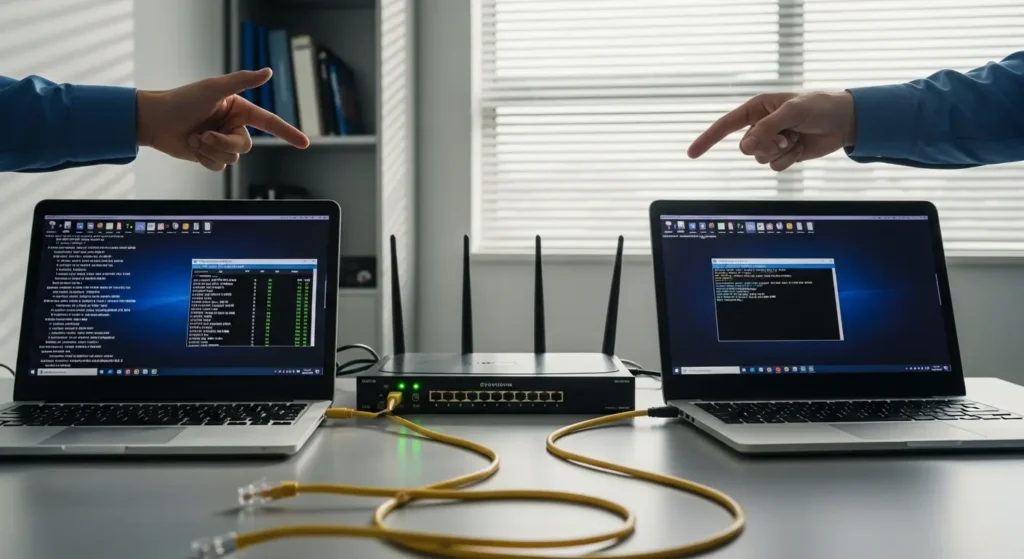
Latency does not come from a single source. Every millisecond you see in a ping result is the combined product of multiple delays that stack on top of each other across your network path. Understanding these individual delay types is the first step toward diagnosing where your latency problem actually lives.
Propagation Delay — The Distance Your Data Has to Travel
Propagation delay is the most fundamental form of latency. It is the time it takes for an electrical or optical signal to physically travel from one point to another. Even at near light speed through fiber optic cables, distance adds up. As a verified baseline, expect approximately 1 ms of latency for every 60 miles between your device and the destination server.
This means a user in New York connecting to a server in London — roughly 3,400 miles — would see a minimum of about 55–60 ms of propagation delay alone, before any other delay type is added. Connection medium matters too. Fiber adds roughly 1–5 ms of base latency. DSL connections carry a base closer to 70 ms. Satellite connections sit at 500–800 ms, making them functionally unusable for any real-time application.
Routing and Queuing Delay — The Traffic Congestion Problem
Every data packet you send passes through multiple routers between your device and the destination. At each hop, the router must examine the packet header, determine the next destination, and forward it accordingly. This processing time is called routing delay, and while each individual hop adds only a fraction of a millisecond, the cumulative effect across 10–15 hops becomes meaningful.
Queuing delay compounds this further. When a router receives more traffic than it can forward immediately, packets are placed into a buffer queue. During peak congestion — either inside your home network or at your ISP — packets can sit in these queues for tens of milliseconds. This is one of the most variable and unpredictable contributors to high latency.
Transmission Delay — When the Link Itself Is the Bottleneck
Transmission delay refers to the time required to push an entire packet onto the network link. It depends on two factors: the size of the packet and the bandwidth of the link. On a high-speed fiber connection, transmission delay is negligible. On a slower uplink — such as an overloaded 2.4 GHz WiFi channel — it becomes a measurable part of total latency.
This type of delay is often overlooked because it blends into the overall result, but on bandwidth-constrained links, it can be the difference between 15 ms and 60 ms round-trip times.
Why Your Internet Feels Slow Even When Your Speed Test Looks Fast
This is the question that confuses most users. The speed test shows 150 Mbps, so everything should feel instant — but it does not. Pages still hesitate. Games still lag. The disconnect between speed test results and actual experience is almost always a latency problem, not a bandwidth problem. If this situation sounds familiar, you are likely dealing with a fast speed test but slow real-world performance.
High Latency vs Low Speed — Two Completely Different Problems
Low speed means your connection cannot transfer large amounts of data quickly — downloads take longer, streams buffer at lower quality. High latency means your connection is slow to respond — clicks feel delayed, game inputs register late, voice calls have awkward pauses. You can have one without the other.
A 10 Mbps connection with 15 ms latency will feel snappier for browsing than a 200 Mbps connection with 180 ms latency. The high-bandwidth connection wins on file downloads, but the low-latency connection wins on everything interactive. This is exactly why WiFi can feel slow even when the speed test number looks fine.
How Jitter Makes High Latency Even Worse
Jitter is the variation in latency over time — the inconsistency between consecutive ping results. If your latency is a steady 60 ms, your applications can adapt. But if it fluctuates between 25 ms and 140 ms from one packet to the next, real-time applications like video calls and gaming cannot maintain a smooth experience.
Jitter is measured as the average deviation between consecutive ping samples. Anything above 30 ms of jitter causes noticeable disruption — audio cuts out mid-word, video freezes briefly, game movement becomes unpredictable. High jitter often points to network congestion, unstable WiFi signal, or overloaded routing equipment.
When Packet Loss Combines With Latency to Break Real-Time Apps
Packet loss occurs when data packets fail to reach their destination entirely. On its own, a small percentage of packet loss might go unnoticed during browsing. But when packet loss combines with already-high latency, the result is devastating for real-time applications. Lost packets must be retransmitted, and each retransmission adds another full round-trip delay on top of the existing latency.
In a voice or video call, this results in choppy audio and frozen frames. In gaming, it produces rubber-banding — where your character snaps back to a previous position. Understanding what packet loss is and how it behaves is essential to diagnosing whether your slow internet experience is a pure latency issue or a combined problem.
How to Measure Your Internet Latency at Home — Windows 11 Methods
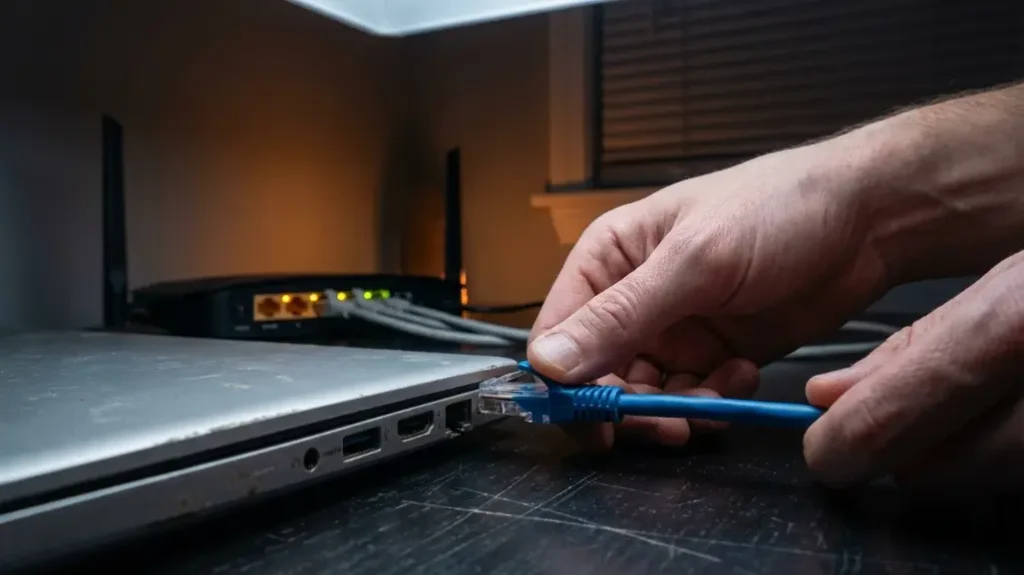
Before you can fix a latency problem, you need to confirm it exists and understand where the delay is happening. Windows 11 includes built-in tools that give you direct visibility into your connection’s response time — no third-party software required.
Using the CMD Ping Command to Check Your Latency Right Now
The ping command is the fastest way to measure your current latency to any server. It sends a small data packet to the target, waits for a reply, and reports the round-trip time in milliseconds.
To run it, open the Command Prompt (search “cmd” in the Start menu) and type:
ping google.comThis sends four packets by default and shows the RTT for each one, along with an average at the end. For a more reliable reading, use an extended ping that sends more samples:
ping -n 20 google.comThis sends 20 packets instead of four, giving you a clearer picture of your average latency and whether jitter is present. Look at the difference between the minimum and maximum values — a wide gap indicates instability. If your average sits comfortably under 50 ms with minimal variation, your latency is healthy. If you are seeing averages above 100 ms or wild swings between packets, something in the path needs investigation.
Using Traceroute to Find Exactly Where the Delay Is
A ping test tells you how much latency you have, but not where it is coming from. That is what tracert — the Windows traceroute command — is for. It maps every hop your data takes between your device and the destination, showing the delay at each one.
Run it from Command Prompt:
tracert google.comThe output lists each router your packet passes through, along with three RTT samples per hop. If the first hop (your router) already shows high latency, the problem is local — your home network. If latency jumps dramatically at a hop several steps out, the issue is likely at your ISP or beyond. This distinction is critical because local problems have local fixes, while ISP-level delays require a different approach entirely.
Using Online Speed Test Tools That Show Latency Alongside Speed
Command-line tools are precise but not visual. Online speed test platforms fill this gap by displaying latency, download speed, upload speed, and sometimes jitter — all in one result. Cloudflare’s speed test{:target=”_blank” rel=”nofollow”} is particularly useful because it reports latency metrics alongside throughput, giving you a complete snapshot of your connection’s behavior.
When choosing a test tool, make sure it actually reports latency separately from speed. Many popular tools bury the ping result or skip it entirely. For a comparison of platforms that handle this properly, see our breakdown of the best internet speed test tools that report meaningful latency data. Run tests at different times of day — morning, evening, and late night — to identify whether your latency problem is constant or time-dependent.
What Causes High Latency — 5 Real Reasons in a Home Network
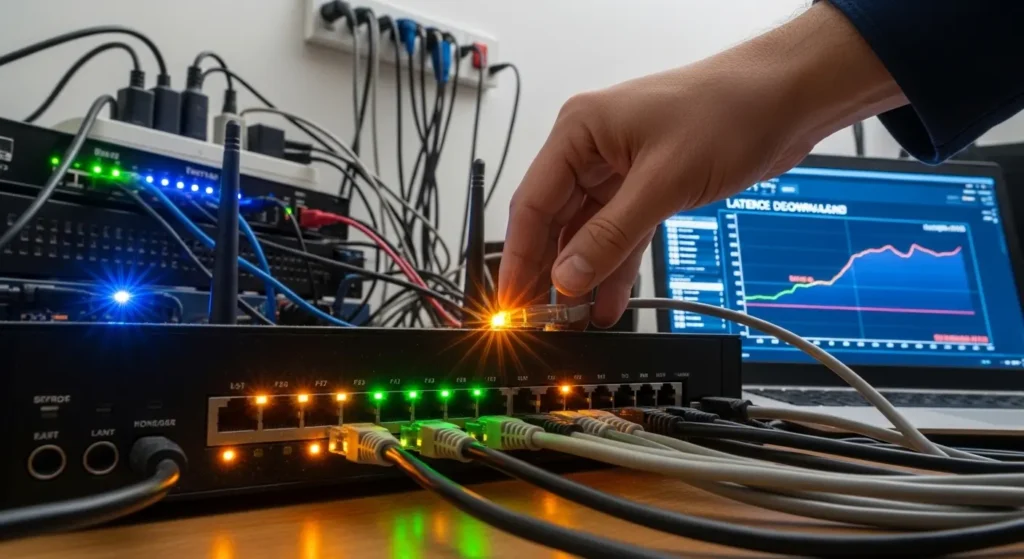
High latency rarely has a single cause. In most home networks, multiple factors combine to push your round-trip time well above acceptable levels. Identifying which of these reasons applies to your situation determines whether the fix is a five-minute adjustment or a conversation with your ISP.
Reason 1 — Physical Distance to the Server
The farther your data has to travel, the longer it takes to come back. At roughly 1 ms per 60 miles, connecting to a server on another continent guarantees higher latency regardless of how fast your local connection is. A user in Los Angeles pinging a server in Tokyo will see 100+ ms of latency purely from distance — no amount of router optimization changes physics. This is why game servers, CDN nodes, and video conferencing relays are distributed geographically. When the nearest server is far away, propagation delay sets a hard floor under your latency.
Reason 2 — WiFi Signal Quality vs Ethernet
WiFi introduces latency that a wired connection simply does not have. Every wireless transmission involves contention — your device must wait for a clear channel before sending data. On a congested 2.4 GHz band with neighboring networks competing for airtime, this wait adds measurable delay. Add in signal attenuation from walls, floors, and distance from the router, and WiFi latency can easily sit 15–40 ms higher than Ethernet on the same network.
This is a well-documented gap. If you have noticed that your WiFi ping is consistently higher than Ethernet on the same router, the wireless medium itself is adding delay that no software setting can fully eliminate.
Reason 3 — Network Congestion at ISP Level During Peak Hours
Your ISP shares infrastructure across thousands of users in your area. During evening peak hours — typically 7 PM to 11 PM — aggregate traffic surges and ISP routers begin queuing packets more aggressively. The result is higher latency that appears and disappears on a daily cycle. Your speed test might still look acceptable, but your ping climbs noticeably.
If your connection feels fine in the morning but degrades every evening, ISP-level congestion during peak hours is the most likely explanation. This is not something you can fix from your end — but confirming the pattern with timed ping tests gives you leverage when contacting support.
Reason 4 — Router Overload and Bufferbloat
Consumer routers have limited processing power and memory. When multiple devices stream, download, and upload simultaneously, the router’s internal buffers fill up. Packets start queuing inside the router itself, and latency spikes dramatically — sometimes jumping from 20 ms to over 200 ms while a large download is running in the background.
This specific behavior is called bufferbloat, and it is one of the most common — and most fixable — causes of high latency in home networks. The router is not dropping packets; it is holding them too long in oversized buffers, creating artificial delay. If your latency only spikes when someone else on the network is actively downloading or streaming, bufferbloat is almost certainly the cause.
Reason 5 — Overloaded or Distant Destination Servers
Sometimes the latency problem is not on your end at all. The destination server — a game server, a website’s origin server, or a video call relay — may be overloaded, under-provisioned, or simply located far from your region. If your traceroute shows low latency across all hops until the very last one, the destination server is the bottleneck. In this case, your network is performing exactly as it should, and the delay is outside your control.
How Latency Affects Gaming, Video Calls, and Real-Time Use
Latency matters most when timing matters. Browsing and file downloads tolerate delay well because they do not require instant feedback. But gaming, video conferencing, and live streaming depend on tight synchronization between what you do and what you see — and high latency breaks that synchronization in very specific ways.
What High Latency Looks Like in Online Gaming
In online games, your inputs — movement, aiming, ability activation — must reach the game server and return before the result appears on your screen. When latency is high, the delay between pressing a key and seeing the action creates a disconnect that skilled players feel immediately.
At 100+ ms, movement feels sluggish. At 150+ ms, hit registration becomes unreliable — you shoot where an enemy was, not where they are. Above 200 ms, rubber-banding appears: your character teleports backward as the server corrects your position based on delayed data. If this delay spikes unpredictably — especially when someone else on your network starts a download — the experience becomes unplayable. This exact scenario, where ping spikes when someone else uses the internet, is one of the most common complaints among gamers sharing a home network.
What High Latency Feels Like During Video Calls
Video conferencing software like Teams, Zoom, and Meet is designed to handle some latency, but it cannot hide delay beyond a certain threshold. Under 50 ms, conversation flows naturally. Between 50–100 ms, slight pauses appear but remain manageable. Above 150 ms, speakers begin talking over each other because the audio delay disrupts natural conversational rhythm.
When latency combines with jitter, the experience degrades further — audio cuts in and out, video freezes mid-expression, and participants start repeating themselves. These symptoms are often mistaken for “bad internet” when the underlying cause is specifically latency instability, not bandwidth shortage.
Latency Benchmarks — What You Should Actually Aim For by Use Case
Different applications have different tolerance thresholds. Here is what you should aim for based on verified benchmarks:
| Use Case | Ideal Latency | Maximum Acceptable |
|---|---|---|
| Competitive gaming | Under 20 ms | Under 50 ms |
| Casual online gaming | Under 50 ms | Under 100 ms |
| Video calls (Teams/Meet/Zoom) | Under 50 ms | Under 150 ms |
| Live streaming | Under 100 ms | Under 150 ms |
| General browsing | Under 100 ms | Under 200 ms |
If your measured latency exceeds the “maximum acceptable” column for your use case, you will notice degraded performance — and fixing it becomes a priority.
How to Reduce Latency — What Actually Works in a Home Network
Not every latency fix applies to every situation. Some solutions are universal, while others depend on where the delay originates. Start with the changes that have the highest impact and lowest complexity.
Switch to Ethernet — The Single Most Effective Fix
Replacing WiFi with a wired Ethernet connection eliminates wireless contention, signal interference, and channel congestion in one step. The latency reduction is immediate and consistent. A connection that showed 45 ms over WiFi might drop to 12 ms over Ethernet on the same network — with zero configuration changes.
If running a cable is impractical, powerline Ethernet adapters or MoCA adapters offer a middle ground with lower latency than WiFi, though not as stable as direct cabling.
Optimize Your Router Setup and Reduce Background Traffic
Router-level changes can reduce queuing delay significantly. Enable QoS (Quality of Service) if your router supports it — this prioritizes latency-sensitive traffic like gaming and video calls over bulk downloads. Disable bandwidth-heavy background processes during critical use: cloud backups, automatic updates, and idle streaming tabs all contribute to router buffer congestion.
If bufferbloat is confirmed, some routers support SQM (Smart Queue Management), which actively prevents buffer overload. Firmware like OpenWrt offers this feature on compatible hardware.
When the Problem Is Your ISP — What to Check and What to Say
If your traceroute shows latency spiking at hops outside your home network, the problem is upstream. Document your findings — screenshots of ping tests and traceroutes during peak hours — and contact your ISP with specific data. Saying “my latency jumps to 180 ms at hop 4 every evening between 8 PM and 10 PM” is far more effective than “my internet is slow.”
If the ISP cannot resolve routing congestion, switching to a fiber-based provider — where available — typically delivers the lowest and most stable latency.

Frequently Asked Questions
What is internet latency in simple terms?
Latency is the time it takes for data to travel from your device to a server and back. It is measured in milliseconds (ms). Lower latency means faster response — clicks register quicker, pages load sooner, and real-time applications feel smooth. High latency means noticeable delay between your actions and what you see on screen.
What is the difference between latency and ping?
Ping is the tool used to measure latency. When you run a ping command, it sends a small packet to a server and measures the round-trip time. The result — reported in milliseconds — is your latency. In casual usage, “ping” and “latency” are often used interchangeably, but technically, ping is the measurement method and latency is the value being measured.
What is a good latency for internet in ms?
Under 20 ms is excellent. Between 20–50 ms is very good for most applications including gaming and video calls. 50–100 ms is acceptable for general use. Above 100 ms becomes noticeable, and above 200 ms causes consistent problems in real-time applications.
Why is my latency high but my internet speed is fast?
Speed and latency measure different things. Speed is how much data your connection can transfer per second. Latency is how quickly your connection responds. High latency with fast speed typically indicates WiFi interference, router bufferbloat, ISP congestion, or long physical distance to the server — none of which are solved by more bandwidth.
How do I check my internet latency on Windows 11?
Open Command Prompt and type ping google.com to see your round-trip time. For a more accurate average, use ping -n 20 google.com to send 20 packets. To identify where delay occurs along the network path, use tracert google.com to see latency at each hop.
Does higher internet speed reduce latency?
No. Upgrading from 100 Mbps to 500 Mbps does not lower your latency. Speed determines throughput capacity, while latency depends on distance, routing efficiency, network congestion, and connection medium. Fiber connections tend to have lower latency than cable or DSL — but that is due to the technology, not the speed tier.
What causes high latency on WiFi?
WiFi latency increases due to signal interference, distance from the router, channel congestion from neighboring networks, and the inherent contention mechanism of wireless transmission. Switching to 5 GHz or using Ethernet typically reduces WiFi-related latency significantly.
What latency is good for gaming and video calls?
For competitive gaming, aim for under 20 ms — under 50 ms is acceptable. For video calls on platforms like Teams or Zoom, under 50 ms is ideal, and up to 150 ms remains functional. Above these thresholds, lag and audio desync become noticeable.
Resolution Summary
Latency is the response time of your internet connection — and when it is high, everything interactive suffers. Diagnosing the source requires separating local issues (WiFi, router bufferbloat) from external ones (ISP congestion, server distance). Use ping and tracert to measure and locate the delay. Switch to Ethernet where possible, enable QoS to prioritize real-time traffic, and document your findings if the problem sits with your ISP.
Contact your ISP when:
- Traceroute shows latency spikes at hops outside your home network
- High latency appears consistently during peak evening hours
- No local fix — Ethernet, router restart, QoS — improves your results
If ISP-level congestion is confirmed and unresolved, switching to a fiber provider remains the most reliable path to consistently low latency. The tools and benchmarks in this guide give you everything needed to identify exactly where your delay lives — and whether the fix is in your hands or theirs.