
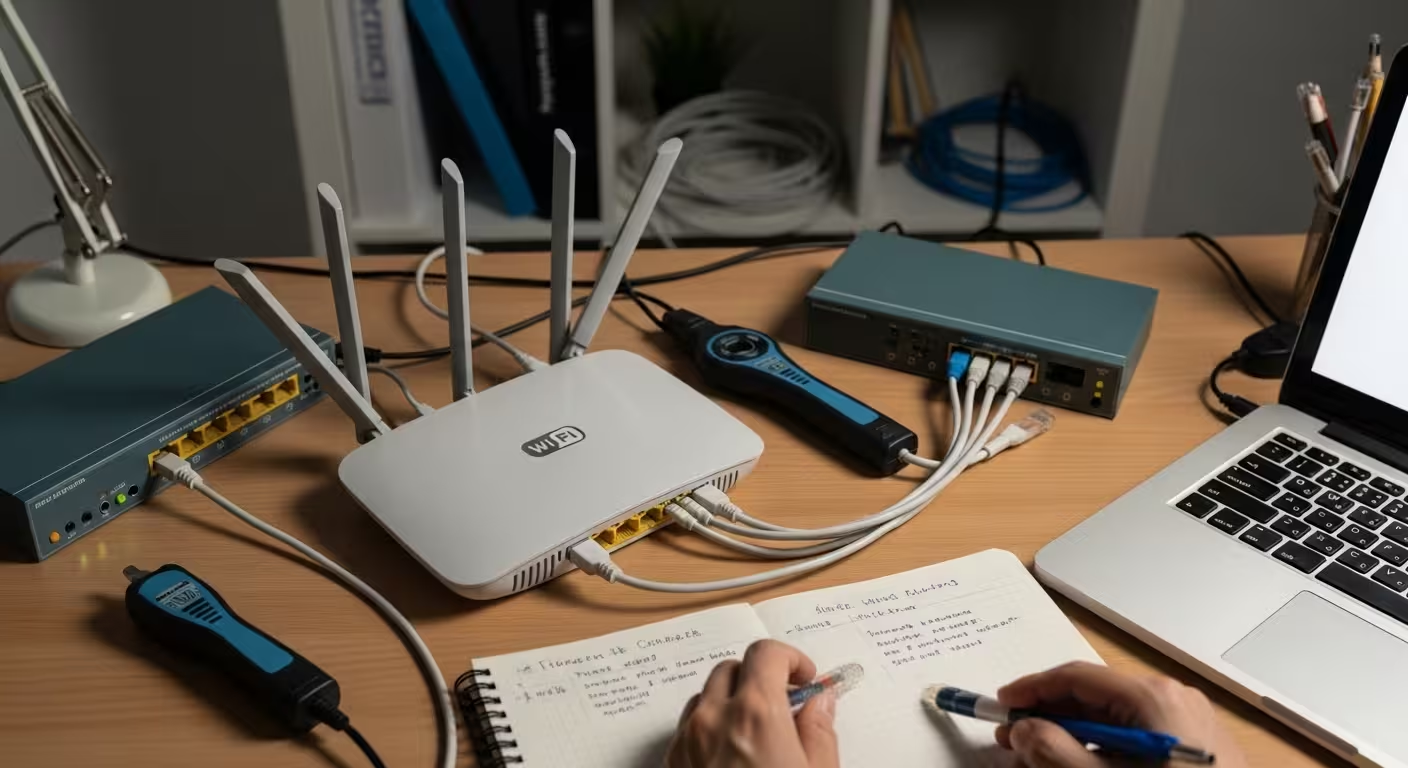
What Is Jitter in Networking?
Jitter in networking refers to the variation in the delay of data packets as they travel across a network.
This irregularity might not matter much for activities like web browsing or file downloads, where data can be reassembled regardless of arrival order. But for real-time communication — video calls, voice calls, online gaming, and live streaming — even small timing inconsistencies become immediately noticeable.
These timing variations are closely related to latency and network delay, which we explained in detail in our latency guide.
Audio might cut in and out, video may freeze momentarily, or a game might stutter without warning.
Even if the overall internet speed is high, large fluctuations in packet timing create an unstable experience. A connection delivering 200 Mbps can still feel unreliable if the packets supporting a video call are arriving with unpredictable delays. That is exactly why network jitter is considered one of the key indicators of connection stability, measured alongside latency, packet loss, and bandwidth.
How Jitter Happens in Internet Connections
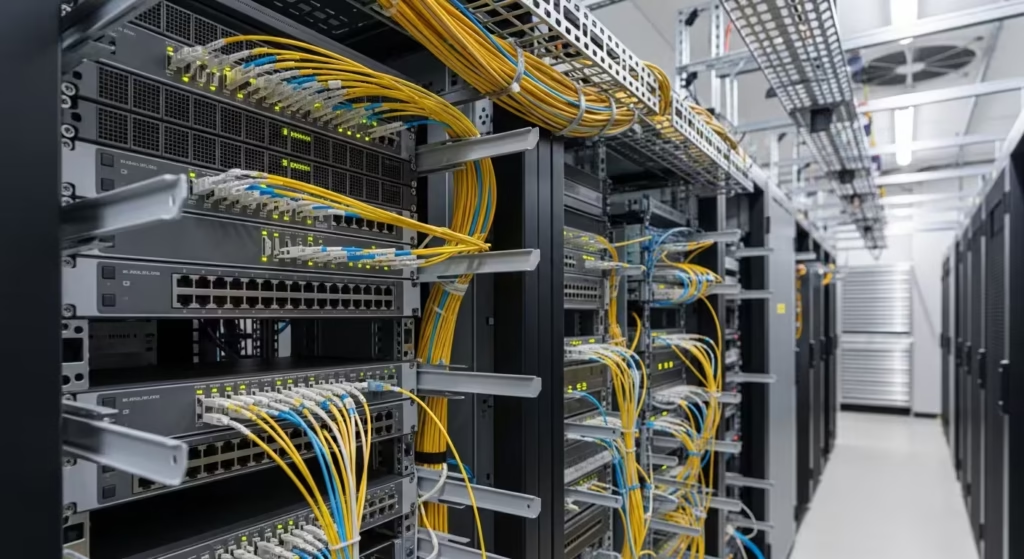
When devices communicate over the internet, data is divided into small units called packets. Each packet is individually routed through multiple switches, routers, and network nodes before it reaches its final destination. Ideally, each packet should arrive at evenly spaced intervals, maintaining the same rhythm from source to destination.
In practice, several factors can disturb this timing. Network congestion is one of the most common — when too many devices compete for the same bandwidth, packets are queued and delayed unevenly. Router buffering adds another layer of inconsistency, as routers temporarily hold packets during periods of heavy traffic, releasing them in bursts rather than at steady intervals. Wi-Fi interference from neighboring networks or household devices can also disrupt packet timing, especially on crowded frequency bands.
Poor routing paths compound the problem further. Packets from the same data stream may take different routes across the internet, each with a different number of hops and varying levels of congestion. When those packets arrive at the destination, the time gaps between them are no longer uniform. This variation in inter-packet arrival time is precisely what networking engineers measure as jitter.
Jitter vs Latency – Key Differences
Jitter and latency are closely related metrics, and they are often confused. However, they describe fundamentally different aspects of network performance.
Latency refers to the total time it takes for a single packet to travel from the source to the destination. It is a fixed measurement of delay — for example, a packet taking 40 ms to reach a server. Jitter, on the other hand, measures the variation in that delay across multiple packets. It is not about how long the trip takes, but about how consistently that trip time is maintained.
Consider this example: if every packet in a stream arrives in exactly 40 ms, the latency is 40 ms and the jitter is essentially zero. But if the first packet arrives in 20 ms, the next in 70 ms, and the following one in 35 ms, the latency values fluctuate significantly. That fluctuation is jitter, and it creates far more disruption for real-time applications than a consistently high latency would.
This distinction matters because many real-time protocols, such as those used for VoIP and video conferencing, can adapt to steady latency by using buffers. However, when jitter is high, those buffers either overflow or underflow, producing choppy audio, frozen frames, or desynchronized streams. That is why real-time applications are often more sensitive to jitter than to latency alone.
What Is a Good Jitter Value?
Now that the distinction between jitter and latency is clear, the next practical question is how much jitter is acceptable. A stable network connection typically maintains very low jitter levels, but the threshold for “too much” depends heavily on the type of activity.
General guidelines for interpreting jitter measurements are:
- 0–5 ms → Excellent network stability. Real-time applications perform without noticeable issues.
- 5–20 ms → Acceptable for most uses, including casual video calls and standard online gaming.
- 20–30 ms → Noticeable instability begins. Voice calls may experience occasional distortion, and gaming responsiveness starts to degrade.
- Above 30 ms → Real-time applications struggle significantly. Audio breaks apart, video freezes, and competitive gaming becomes unreliable.
These thresholds are not arbitrary. Most VoIP systems and video conferencing platforms are engineered with jitter buffers designed to absorb minor variations, typically up to around 15–20 ms. Once jitter exceeds that buffering capacity, the application has no way to reconstruct a smooth stream from packets arriving at wildly different intervals.
It is also worth noting that jitter values should be evaluated alongside packet loss and latency. A connection showing 15 ms of jitter with zero packet loss behaves very differently from one showing 15 ms of jitter combined with 2% packet loss. The combination of these metrics paints a far more accurate picture of real-world connection quality than any single number.
Why High Jitter Causes Problems
High jitter interrupts the steady flow of packets required by real-time communication systems. Instead of receiving data at consistent intervals, applications receive bursts of packets followed by gaps. The downstream effects depend on the type of application, but the underlying issue is always the same — the receiving system cannot predict when the next packet will arrive.
Choppy Audio in Video Calls
Voice communication is especially sensitive to packet timing. Platforms like Zoom, Microsoft Teams, and Google Meet depend on a continuous stream of small audio packets delivered at precise intervals.
If your video calls lag despite a fast connection, you can read our detailed guide explaining why video calls lag even with fast internet.
When jitter increases, some packets arrive late while others arrive clustered together. The application’s jitter buffer attempts to smooth this out, but once the variation exceeds the buffer’s capacity, audio packets are either played out of order or dropped entirely.
The result is immediately recognizable — robotic-sounding voices, words cutting out mid-sentence, or brief moments of complete silence. In group calls, this problem compounds because each participant’s audio stream is affected independently, making the entire conversation difficult to follow.
Lag and Rubberbanding in Gaming
Online games rely on constant synchronization between the player’s device and the game server. Every action — movement, shooting, interacting — generates packets that must arrive within tight timing windows. When jitter disrupts that timing, the game client and server fall out of sync. The server may receive position updates late, then apply corrections all at once, causing the player’s character to snap from one location to another. This effect, commonly known as rubberbanding, makes gameplay feel unresponsive and unpredictable.
Unlike latency, which creates a uniform delay a player can learn to anticipate, jitter produces inconsistent delays that are impossible to predict or adapt to. That unpredictability is what makes high jitter particularly frustrating for competitive gaming, where split-second timing determines outcomes.
Unstable Streaming and Live Broadcasts
Live streaming platforms such as Twitch and YouTube Live must process incoming data continuously without interruption. The broadcaster’s system encodes video and audio into packets and transmits them in real time. When jitter causes irregular packet arrival at the receiving end, the platform’s buffering system is forced to compensate by either pausing playback or skipping frames.
For viewers, this appears as sudden buffering interruptions, dropped frames, or audio falling out of sync with video. For broadcasters, the impact is even worse — high jitter on the upload side can cause the stream to stutter or disconnect entirely, as the streaming server fails to receive a consistent data flow. This is why professional streaming setups almost always prioritize wired connections and network stability over raw bandwidth.
Common Causes of High Jitter
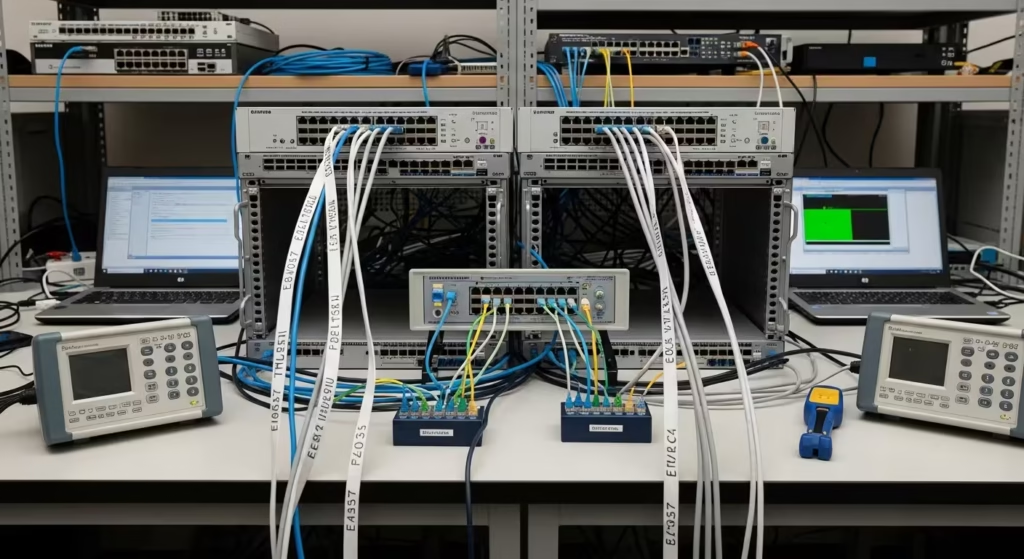
Before attempting any fix, identifying the source of jitter is essential. Network jitter rarely has a single universal cause — it typically results from one or more specific conditions within the local network, the ISP infrastructure, or somewhere along the routing path between source and destination.
Wi-Fi Interference and Channel Congestion
Wireless networks are among the most common sources of jitter in home and office environments. Wi-Fi signals operate on shared frequency bands, primarily 2.4 GHz and 5 GHz. When multiple nearby networks broadcast on the same or overlapping channels, signals interfere with each other. This interference forces devices to retransmit packets, wait for clear transmission windows, or deal with corrupted data — all of which introduce irregular delays.
The 2.4 GHz band is particularly vulnerable because it only offers three non-overlapping channels and is also used by Bluetooth devices, microwaves, baby monitors, and other household electronics. In dense apartment buildings or office complexes, dozens of networks competing on the same channels can push jitter levels well above acceptable thresholds, even when signal strength appears adequate.
Router Bufferbloat
Routers manage traffic by queuing packets in internal buffers during periods of congestion. Under normal conditions, these buffers absorb brief traffic spikes without issue. However, when sustained heavy traffic fills these buffers beyond their intended capacity, a condition known as bufferbloat occurs.
Bufferbloat causes packets to sit in queue for unpredictable lengths of time. Some packets pass through quickly while others wait behind a long queue of unrelated traffic. The result is exactly the kind of uneven packet delivery that registers as high jitter. This problem is especially common on consumer-grade routers that lack intelligent queue management, and it tends to worsen when multiple devices are active simultaneously.
ISP Congestion or Poor Routing
Not all jitter originates inside the local network. Internet service providers route traffic through shared infrastructure, and during peak usage hours, those shared links can become congested. When ISP backbone routers are overloaded, packets from different customers compete for the same capacity, introducing variable delays.
Inefficient routing adds another dimension. Packets sometimes take suboptimal paths due to outdated routing tables or peering agreements between providers. A packet might travel through additional hops or pass through a congested exchange point when a more direct path exists. These routing inconsistencies contribute to jitter that no amount of local troubleshooting can resolve.
Background Bandwidth Usage
Within a local network, background processes frequently consume bandwidth without the user’s awareness. Cloud backup services, automatic system updates, file synchronization tools, and other devices streaming content all generate traffic that competes with time-sensitive applications. When a large download saturates the available upload or download capacity, the router begins queuing packets aggressively, and jitter increases as a direct consequence.
This cause is often overlooked because the background activity is invisible to the user experiencing the problem. A video call may become choppy not because of an ISP issue, but because another device on the same network started uploading a large file to cloud storage moments earlier.
How to Test Network Jitter
Diagnosing jitter requires more than a single speed test. Since jitter represents variation over time, effective testing involves observing packet timing across multiple samples and comparing the consistency of results.
Online Jitter Test Tools
Many modern speed testing platforms include jitter as part of their standard results, displayed alongside ping, download speed, and upload speed. These browser-based tools send a series of packets to a test server and calculate the variation in response times automatically. They provide a quick snapshot of current network conditions and are useful for initial diagnosis.
However, single-run results can be misleading. A test taken during a quiet period on the network may show low jitter, while the same test during peak usage could reveal a very different picture. Running multiple tests at different times of day produces a more reliable baseline.
Using Ping to Measure Jitter
A simple way to observe packet delay and timing variation is by running a ping test, which sends multiple packets and measures their response times.
The ping command, available on virtually every operating system, provides a straightforward method for observing packet delay. By sending ICMP echo requests to a remote server and recording the round-trip time for each, you can manually identify variation patterns.
On Windows, macOS, or Linux, opening a terminal and running a standard ping to a reliable public DNS server sends a series of packets and reports individual response times. If most replies return in 15–20 ms but occasional replies spike to 80 ms or higher, that inconsistency points directly to jitter.
Continuous Ping to Detect Variations
For deeper analysis, running a continuous ping test over several minutes or longer reveals patterns that short tests miss. On Windows, adding the -t flag to the ping command keeps it running indefinitely until manually stopped. On macOS and Linux, ping runs continuously by default.
Watching the results over time exposes recurring spikes that may correlate with specific network events — another device joining the network, a scheduled backup starting, or peak hours on the ISP’s infrastructure. This method does not calculate jitter as a single number, but the raw data makes timing inconsistencies clearly visible, helping narrow down whether the issue is local, intermittent, or persistent.
How to Fix High Jitter
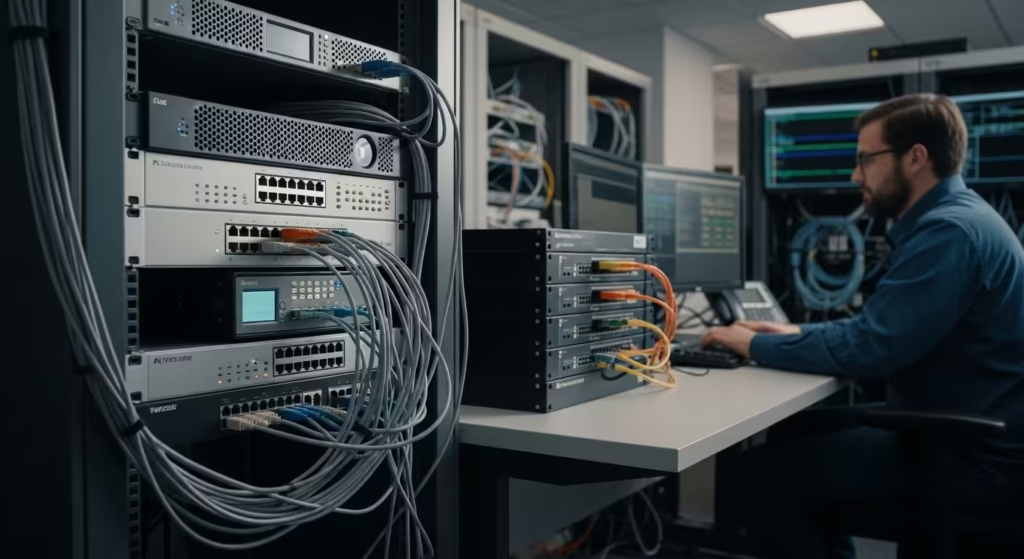
Once testing confirms that jitter is present and affecting performance, the next step is applying targeted fixes. The most effective approach starts with the simplest changes — eliminating local variables before moving to more complex solutions.
Switch to Wired Ethernet
The single most impactful change for reducing jitter on a home or office network is switching from Wi-Fi to a wired Ethernet connection. Wireless signals are inherently susceptible to interference, signal degradation, and contention from other devices. A physical cable eliminates all of those variables, delivering packets with far more consistent timing.
This does not require a permanent rewiring of the space. Even temporarily connecting a laptop or desktop directly to the router with an Ethernet cable serves as a valuable diagnostic step. If jitter drops significantly on a wired connection, the problem is confirmed to be wireless-related, and further troubleshooting can focus specifically on the Wi-Fi environment. If jitter remains high even over Ethernet, the issue lies deeper — either in the router itself, the modem, or the ISP infrastructure.
Change Wi-Fi Channel or Frequency Band
For situations where Wi-Fi is the only practical option, adjusting the wireless channel or switching frequency bands can produce noticeable improvements. Most routers default to automatic channel selection, but the algorithm does not always choose the least congested option.
Logging into the router’s admin interface and manually selecting a less crowded channel — particularly on the 2.4 GHz band where overlap is most problematic — can reduce interference significantly. Tools like Wi-Fi analyzer apps for smartphones can scan the local environment and display which channels are most heavily used by neighboring networks, making it easier to find a cleaner option.
Switching to the 5 GHz band, when supported by both the router and the connecting device, offers another improvement. The 5 GHz band provides more available channels, less interference from household electronics, and generally more stable packet delivery. The tradeoff is reduced range, so the device should be within reasonable proximity to the router.
Restart Router and Modem
Temporary network congestion, memory leaks in router firmware, or accumulated buffer buildup can all contribute to elevated jitter. Restarting both the modem and the router clears these transient conditions and forces the devices to re-establish clean connections.
While this step may seem basic, it resolves a surprising number of jitter issues, particularly on routers that have been running continuously for weeks or months. Power cycling the modem first, waiting 30 seconds, and then powering on the router ensures both devices reinitialize in the correct sequence.
Advanced Fixes for High Jitter
When basic adjustments do not bring jitter within acceptable levels, more targeted network configurations become necessary. These solutions address deeper issues related to traffic management and upstream routing.
Enable QoS on Router
Quality of Service settings allow the router to prioritize certain types of traffic over others. Without QoS, the router treats all packets equally — a large file download receives the same priority as a voice call, which means time-sensitive packets can get stuck behind bulk data transfers in the processing queue.
Enabling QoS and configuring it to prioritize real-time traffic categories — such as VoIP, video conferencing, and gaming — ensures that these packets are processed and forwarded first, even during periods of heavy network usage. Most modern routers include QoS settings in their admin panel, often with predefined categories that simplify configuration. Some higher-end models support application-level prioritization, where specific programs or devices can be assigned guaranteed bandwidth and processing priority.
Reduce Bufferbloat
Bufferbloat, as identified earlier, causes unpredictable queuing delays that directly inflate jitter. Modern router firmware and third-party firmware such as OpenWrt support active queue management algorithms designed specifically to prevent this problem. Technologies like fq_codel and CAKE monitor queue depth in real time and strategically drop or delay low-priority packets before buffers become overloaded.
If the current router supports Smart Queue Management or a similar feature, enabling it can dramatically reduce jitter under load. If the router lacks these capabilities, upgrading to a model that supports intelligent traffic shaping may be the most cost-effective long-term solution for households or offices with multiple simultaneous users.
Check ISP Routing
If jitter persists on a wired connection, with QoS enabled and bufferbloat addressed, the problem likely exists outside the local network. Running a traceroute to the destination server can reveal where delays are being introduced along the path. Each hop in the traceroute output shows the round-trip time to that specific network node. A sudden spike at a particular hop — especially one within the ISP’s address space — points to congestion or misconfiguration on the provider’s side.
At this stage, contacting the ISP with documented test results becomes the appropriate next step. Providing specific data — jitter measurements, traceroute output, and the times when problems occur — gives the provider actionable information and significantly increases the likelihood of a meaningful response compared to a general complaint about slow internet.
Final Jitter Troubleshooting Checklist
Before escalating the issue to an internet service provider, working through a structured checklist ensures that all local causes have been properly ruled out. Skipping this process often leads to unnecessary back-and-forth with ISP support teams, since providers will typically ask customers to perform these same steps before investigating further.
Start by testing jitter using a reliable speed testing tool that reports jitter alongside ping and bandwidth. Run the test at least three times at different points during the day to account for peak and off-peak variation. Next, compare results between Wi-Fi and a direct Ethernet connection to the router. This single comparison isolates whether the wireless environment is the primary contributor.
Stop all background downloads, cloud synchronization, streaming, and any other bandwidth-consuming activity on every device connected to the network. Then retest. If jitter drops substantially, the cause is internal congestion rather than an external infrastructure issue.
Check router placement and potential interference sources. Routers positioned near microwaves, cordless phones, thick walls, or metal surfaces often produce worse wireless performance. Moving the router to a central, elevated, and unobstructed location can improve signal consistency without any configuration changes.
Finally, restart all networking equipment — modem first, then router — and retest one more time. If jitter remains high on a wired connection after all of these steps, the evidence points toward a problem beyond the local network, and contacting the ISP with documented results is fully justified.
FAQ – Common Questions
What is jitter in simple terms?
Jitter is the variation in the timing of packet delivery across a network connection. When packets arrive at uneven intervals instead of a steady rhythm, the resulting inconsistency is measured as jitter. It does not describe how fast or slow a connection is — it describes how consistently packets are delivered over time.
How is jitter different from latency?
Latency measures the total travel time of a packet from source to destination. Jitter measures how much that travel time fluctuates between consecutive packets. A connection can have high latency but low jitter if every packet is delayed by the same amount. The problem arises when delay times vary unpredictably, which is what jitter captures.
Why do video calls become choppy when jitter is high?
Voice and video applications require evenly timed packets to reconstruct smooth audio and video streams. When jitter causes packets to arrive at irregular intervals, the application’s buffer cannot compensate effectively. This results in audio cutting out, robotic voice distortion, frozen video frames, and desynchronization between audio and video tracks.
How can I test jitter on my network?
The simplest method is using a browser-based speed test that includes jitter in its results. For more detailed analysis, running continuous ping tests from a terminal and observing the variation in response times provides reliable data over longer periods. Running tests at multiple times of day and on both Wi-Fi and Ethernet gives the most complete picture.
Can Wi-Fi cause more jitter than Ethernet?
Yes. Wireless connections are inherently more variable due to signal interference, shared airtime with other devices, and environmental factors like walls and distance. Ethernet provides a dedicated physical path for data, which eliminates most of these variables and delivers significantly more consistent packet timing.
When should I contact my ISP?
Contact your ISP when jitter remains consistently high on a wired Ethernet connection after all local troubleshooting has been completed — including restarting equipment, disabling background traffic, and verifying that router-level fixes like QoS are in place. Providing specific jitter measurements, traceroute data, and timestamps of when the problem occurs gives the ISP the technical detail needed to investigate effectively on their end.
Jitter is one of the most overlooked causes of poor real-time network performance. A connection can report excellent speed and reasonable latency while still delivering an unstable experience if packet timing varies significantly. Diagnosing the issue follows a clear path: measure jitter with proper tools, isolate the source by comparing wired and wireless results, eliminate local causes systematically, and escalate to the ISP only when the evidence confirms the problem is upstream. In most cases, switching to Ethernet, managing local bandwidth, and enabling QoS resolve the issue entirely. When those steps fall short and documented test results show persistent jitter on a clean wired connection, the ISP has the data it needs to take action.