
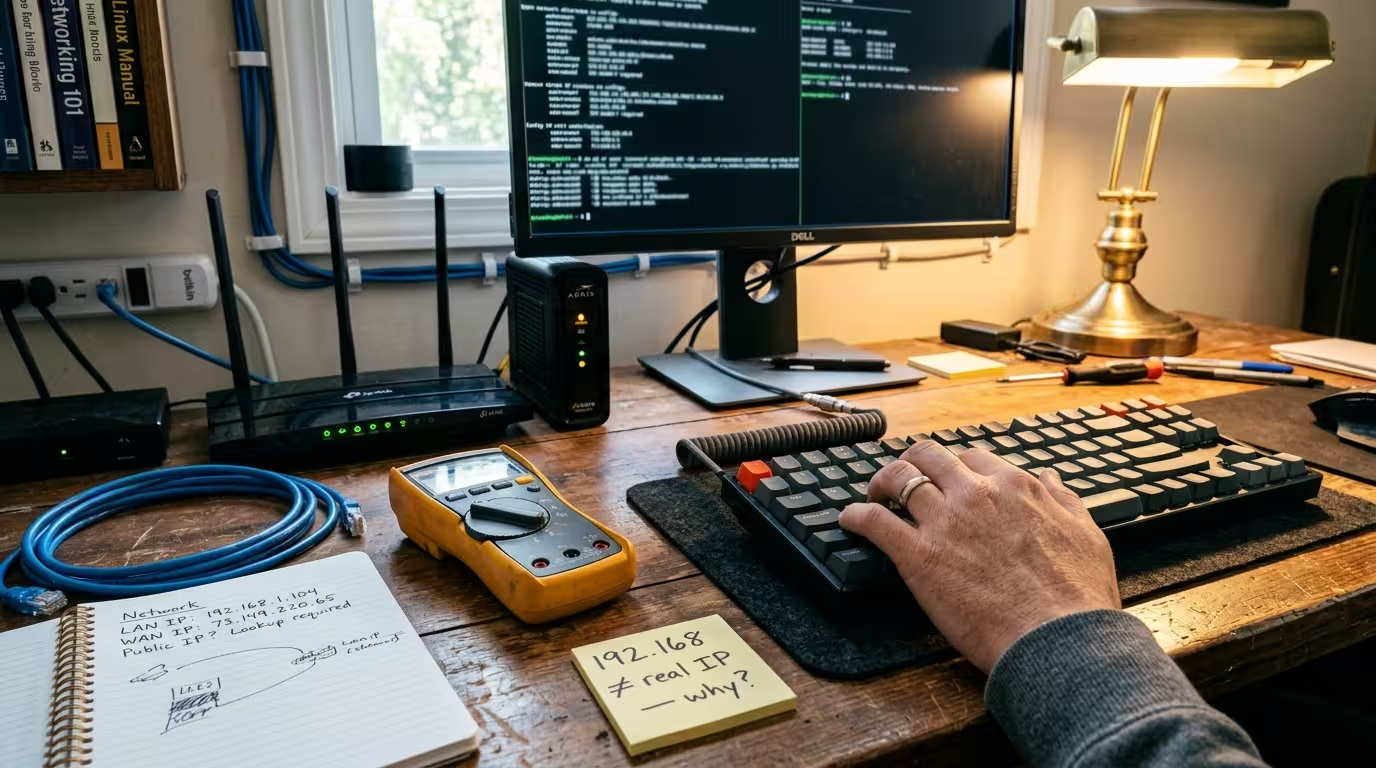
You open Command Prompt on Windows 11, type ipconfig, and see something like 192.168.1.5. Then you visit a site like WhatIsMyIP.com{: target=”_blank” rel=”nofollow”} and it shows a completely different number — maybe 98.47.213.86. Neither is wrong. They are two different IP addresses, and your computer genuinely uses both of them at the same time.
This is one of the most common points of confusion in home networking. The reason it happens comes down to a fundamental design decision in how the internet works: your home network operates on private IP addresses, but the internet sees your connection through a single public IP address assigned by your ISP. Understanding why ipconfig shows a different IP than your real internet IP on Windows 11 is not just trivia — it directly affects how you troubleshoot connectivity issues, configure port forwarding, set up VPNs, and communicate with your internet provider.
This article breaks down exactly what each IP address represents, who assigns it, and why the system works this way.
Why ipconfig Shows a Different IP Than What Websites See
The short answer is that ipconfig and websites like WhatIsMyIP are looking at two entirely different layers of your connection. One shows your address inside your home network. The other shows the address the rest of the internet uses to reach your household.
What ipconfig Is Actually Showing You
When you run ipconfig in Command Prompt or Windows Terminal, the output displays the network configuration of your local machine. The IPv4 address listed — typically starting with 192.168 — is your private IP address. This is the address your router has assigned to your specific device so it can be identified on your home network.
This address only has meaning inside your local network. Your router uses it to distinguish your laptop from your phone, your smart TV, and every other connected device. If you run ipconfig on two different devices in the same house, each one will show a different private IP — for example, 192.168.1.5 on your desktop and 192.168.1.8 on your phone. That is how your router keeps track of which device is which. If you are unfamiliar with using built-in network tools on Windows 11, ipconfig is usually the first place to start.
What Websites Like WhatIsMyIP See When You Connect
When you load a website, your request does not arrive at the web server stamped with your private 192.168.x.x address. Instead, it arrives with the public IP address that your ISP assigned to your router. The web server has no knowledge of your private IP at all — it only sees the public one.
That is exactly what sites like WhatIsMyIP report back to you. They simply read the source IP address from the incoming connection, and that source address is always your public IP. Every device in your household — whether it is your Windows 11 PC, a tablet, or a gaming console — appears to the outside internet as the same single public IP address. The distinction between these two addresses is the core of the private vs public IP address system that every home network relies on.
What a Private IP Address Is — and Why It Starts With 192.168
A private IP address is an address reserved exclusively for use inside local networks. It is not routable on the public internet, meaning no server or website on the internet can use a 192.168 address to reach your device directly. That is by design — and it is the reason the system works at scale.
Why Home Routers Always Use 192.168.x.x Addresses
The Internet Engineering Task Force (IETF) set aside specific IP address ranges that are designated as “private” — meaning they will never be assigned to any public server, website, or internet-facing device. The three reserved private ranges are:
- 10.0.0.0 – 10.255.255.255 (used mostly in large corporate networks)
- 172.16.0.0 – 172.31.255.255 (common in enterprise and ISP internal infrastructure)
- 192.168.0.0 – 192.168.255.255 (the standard range for home routers)
The reason your computer has a 192.168 IP address is simply that consumer router manufacturers default to this range. When you unbox a home router and plug it in, it is preconfigured to hand out addresses in the 192.168.0.x or 192.168.1.x subnet. There is no technical requirement forcing home networks to use 192.168 — it is a convention, but an almost universal one. The private IP address 192.168 meaning on Windows comes down to this: your device is sitting behind a router on a local network, not directly on the internet.
How Your Router Assigns a Private IP to Every Device
Your router runs a service called DHCP — Dynamic Host Configuration Protocol. Every time a device connects to your Wi-Fi or plugs into an Ethernet port, it sends a broadcast request asking for an IP address. The router’s DHCP server responds by leasing an available private IP from its pool — typically something in the range of 192.168.1.2 through 192.168.1.254.
This assignment is automatic. You do not need to configure anything. The router keeps a lease table that maps each device’s MAC address to the private IP it was given, along with an expiration time. When the lease expires, the device either renews the same address or gets a new one. This is why your private IP can occasionally change if you disconnect for a long period or restart your router.
Why Two Devices on Different Home Networks Can Have the Same Private IP
Your laptop might have the address 192.168.1.5. Your neighbor’s laptop might also have 192.168.1.5. This is completely normal and causes zero conflict because private addresses only exist within their own local network. Your router has no connection to your neighbor’s router at the local level — each one manages its own independent pool of addresses.
This reusability is the entire reason private IP addresses were created. There are only about 4.3 billion possible IPv4 addresses in existence. Without private addressing and NAT, every single device on the planet would need its own globally unique public IP, and we would have exhausted the supply long ago. The private vs public IP address system on every home network is what makes the current internet possible despite IPv4 limitations.
What a Public IP Address Is — and Who Controls It
While your private IP identifies your device inside your home, your public IP identifies your entire household on the internet. This is the address that every website, game server, and online service sees when any device in your home connects to it. You do not choose this address, and in most cases, you cannot change it manually.
How Your ISP Assigns a Public IP to Your Router
Your public IP address is assigned by your Internet Service Provider. When your router connects to your ISP’s network — the moment it powers on and establishes a WAN (Wide Area Network) link — the ISP’s DHCP server hands it a public IP address from a pool the ISP controls. This is the address that gets stamped on every packet leaving your home network and heading out to the internet.
Unlike private addresses, public IPs are globally unique. No two active connections anywhere in the world share the same public IP at the same time. Regional Internet Registries (RIRs) allocate blocks of public addresses to ISPs, and each ISP distributes them to customers. When you check your public IP address on Windows 11 through a site like WhatIsMyIP.com{: target=”_blank” rel=”nofollow”}, the address you see belongs to your ISP — it is registered to them, and they have temporarily leased it to your router.
Why All Devices in Your Home Share One Public IP
Your ISP assigns one public IP to your router — not to each device individually. Whether you have three devices connected or thirty, they all exit to the internet through that single address. This is why all home devices show the same public IP when you check from any of them.
The mechanism that makes this possible is NAT (Network Address Translation), which the next section explains in detail. But from a high level, your router acts as the single point of contact between your private home network and the public internet. Every outbound request from every device gets rewritten to carry the router’s public IP as the source address. To the outside world, it looks like one device is making all the requests — your router.
Why Your Public IP Address Changes Sometimes
Most residential ISPs assign public IPs dynamically. This means the address is leased for a period of time — hours, days, or sometimes weeks — and can change when the lease expires or when your router reconnects. If you reboot your router or experience an outage, your ISP’s DHCP server may hand you a different public IP when the connection comes back up.
This is different from a static public IP, which some ISPs offer as a paid upgrade. A static IP never changes, which matters for hosting servers, remote access, or security camera setups that rely on a fixed address. For typical home use — browsing, streaming, gaming — a dynamic public IP is standard, and the occasional change has no practical effect on daily usage. If you use a VPN and have noticed your connection behaving differently with and without it, the public IP switch is often the reason. Our guide on websites that work on VPN but not without it covers that scenario in detail.
What NAT Is and Why It Exists — Simple Explanation for Home Users
NAT — Network Address Translation — is the process your router uses to bridge the gap between your private home network and the public internet. Without it, your devices would have no way to communicate beyond your local network because private IP addresses like 192.168.1.5 are meaningless on the internet. NAT is what makes the entire private vs public IP address system function on every home network running Windows 11 or any other operating system.
What Happens When You Open a Website — Step by Step
Here is exactly what happens when you type a URL into your browser on a device with the private IP 192.168.1.5:
- Your computer creates a data packet with the destination set to the website’s server IP and the source set to
192.168.1.5. It also assigns a random source port number — say,52345. - The packet reaches your router. The router sees that the source address is a private IP, which cannot travel on the public internet. So it rewrites the source address, replacing
192.168.1.5with the router’s public IP — for example,98.47.213.86. It may also change the source port number. - The router records this translation in its NAT table: “Port
52345from internal IP192.168.1.5was mapped to external port52345on public IP98.47.213.86.” - The modified packet leaves your home network and travels across the internet to the web server.
- The web server receives the request. The only source address it sees is
98.47.213.86— your public IP. It has no idea that192.168.1.5exists. - The server sends its response back to
98.47.213.86.
This entire translation happens in milliseconds, on every single request, for every device in your home — simultaneously.
How Your Router Knows Which Device to Send the Reply To
When the response packet arrives back at your router’s public IP, the router checks its NAT table. It looks up the destination port on the incoming packet, finds the matching entry — “port 52345 maps to internal device 192.168.1.5” — and rewrites the destination address from the public IP back to the private one. The packet then gets forwarded to your specific device.
This is how thirty devices can share one public IP without confusion. Each connection gets tracked by a unique combination of internal IP and port number. The NAT table is what keeps everything organized. If your router loses power or gets reset, the NAT table is cleared, which is why active connections drop when you reboot your router.
NAT is also the reason certain applications — especially online gaming and peer-to-peer software — sometimes struggle with connectivity. When an external server or player tries to initiate a connection inward to your network, there is no existing NAT table entry to match it to, so the router drops it. This is the core issue behind strict NAT type problems, which our strict NAT fix guide addresses directly.
How to Find Both Your Private and Public IP Address on Windows 11
Now that the distinction is clear, here is how to actually locate each address on your system. Both checks take under a minute and require no third-party software.
How to Find Your Private IP Using ipconfig
Open Command Prompt or Windows Terminal and run:
textipconfig
Look for the section labeled Ethernet adapter (if wired) or Wireless LAN adapter Wi-Fi (if on Wi-Fi). The line labeled IPv4 Address shows your private IP — typically something like 192.168.1.5 or 192.168.0.12. This is the address your router’s DHCP server assigned to this specific machine. If you need more detail — including DHCP lease times and DNS servers — run ipconfig /all instead. Our walkthrough of built-in network diagnostic tools on Windows 11 covers additional output fields you may find useful.
How to Find Your Public IP Without Any Extra Tools
You do not need to install anything. Open any browser and visit WhatIsMyIP.com{: target=”_blank” rel=”nofollow”}. The address displayed at the top of the page is your public IP — the one your ISP assigned to your router.
If you prefer staying in the command line, you can also run:
textnslookup myip.opendns.com resolver1.opendns.com
This queries an OpenDNS server that responds with your public IP directly in the terminal output. Another quick option is opening PowerShell and running:
text(Invoke-WebRequest -Uri "https://1.1.1.1/cdn-cgi/trace" -UseBasicParsing).Content
This contacts Cloudflare’s DNS service{: target=”_blank” rel=”nofollow”} and returns your public IP among other connection details — no browser needed.
How to Find Your Router IP Address — the Default Gateway
In the same ipconfig output, look for the line labeled Default Gateway. This is your router’s private IP address — usually 192.168.1.1 or 192.168.0.1. It is the address your computer sends all internet-bound traffic to before the router forwards it out through NAT. You can type this gateway address into a browser to access your router’s admin panel. If you are unable to reach it, our guide on cannot ping default gateway but internet works explains why that happens and how to resolve it.
Why This Matters When Troubleshooting Internet Problems
Knowing which IP address to check — and what each one tells you — can cut your troubleshooting time significantly. Many connectivity problems come down to one of these two addresses being wrong, missing, or misconfigured.
When the Private IP Causes Connection Problems — 169.254.x.x Error
If ipconfig shows an address starting with 169.254 instead of 192.168, your device failed to get a private IP from the router’s DHCP server. Windows falls back to an APIPA (Automatic Private IP Addressing) address, which cannot route traffic anywhere — not locally, and certainly not to the internet. This typically means the connection between your device and the router is broken. The cable might be loose, the Wi-Fi authentication may have failed, or the router’s DHCP service could be unresponsive. Our Ethernet connected but no internet guide walks through this exact diagnostic path. Running ipconfig /release followed by ipconfig /renew forces your device to request a fresh IP from the router, which often resolves the issue if the underlying link is stable.
When the Public IP Matters — VPN, Gaming, Remote Access
Your public IP becomes relevant the moment you deal with anything that involves external connections. VPN services route your traffic through a different public IP — that is their entire purpose. Online gaming servers use your public IP to determine NAT type, which affects matchmaking and voice chat. Remote desktop and security camera access require knowing your public IP to connect from outside your home. In all of these scenarios, the 192.168 address from ipconfig is irrelevant. If you are getting ping replies from a different IP address than expected, the public IP layer is usually where the answer lies.
Which IP Address to Give Your ISP When They Ask
When you call your ISP for support, they almost always need your public IP address — not your private one. Your private IP means nothing to them because it only exists inside your home. Your public IP lets them identify your connection in their system, check for outages on their end, and verify routing. Give them the address from WhatIsMyIP, not from ipconfig. If your internet is completely down, log into your router’s admin panel at the default gateway address and look for the WAN IP on the status page — that is your public IP as the router sees it.

Static vs Dynamic IP Address — What Changes and What Stays the Same
The terms “static” and “dynamic” come up frequently in IP address discussions, and they apply to both your private and public addresses — but in different ways.
What a Dynamic Private IP Means on Your Home Network
By default, every device on your home network receives a dynamic private IP. Your router’s DHCP server assigns it automatically from the available pool, and it is leased — not permanent. If your laptop disconnects from the network for a few days and reconnects, it might receive 192.168.1.7 instead of the 192.168.1.5 it had before. For general browsing and everyday use, this makes zero difference.
However, certain setups benefit from a static private IP — an address you manually assign to a device so it never changes. Port forwarding rules, network printers, and home servers all rely on a fixed internal address. If the target device’s private IP shifts after a DHCP renewal, the forwarding rule breaks silently. You can assign a static private IP either in Windows 11’s network adapter settings or through a DHCP reservation in your router’s admin panel. If you have ever needed to reset your network stack after changing IP settings, our guide on what netsh int ip reset actually does explains the process and when it is necessary.
What a Dynamic Public IP Means — and When It Changes
Your ISP assigns your public IP dynamically in most residential plans. It can change when your router reboots, when there is a service interruption, or when the ISP’s lease period expires. Some ISPs rotate addresses every 24 hours; others keep the same address stable for weeks. You have no control over this timing unless you purchase a static public IP from your provider.
A changing public IP is usually invisible during normal use — websites, streaming, and downloads are unaffected. It only becomes a problem when something external depends on your address staying the same, such as a remote desktop connection, a self-hosted service, or a security system that whitelists your IP. In those cases, a static public IP or a Dynamic DNS (DDNS) service is the practical solution.
Frequently Asked Questions
Why does ipconfig show a different IP address than whatismyip?
Because ipconfig displays your private IP assigned by your router for local network use, while WhatIsMyIP shows your public IP assigned by your ISP for internet communication. They are two separate addresses serving different purposes.
What is the difference between a private and public IP address?
A private IP identifies your device within your home network and is not visible on the internet. A public IP identifies your entire home connection to the outside world and is assigned by your ISP.
Why does my computer have a 192.168 IP address?
The 192.168.x.x range is reserved for private networks. Your home router uses this range by default to assign local addresses to every connected device.
Why do all my home devices show the same public IP address?
Your ISP assigns one public IP to your router, and NAT translates all outbound traffic from every device to use that single address. The internet sees your entire household as one connection.
How do I find my real internet IP address on Windows 11?
Visit WhatIsMyIP.com in any browser, or run nslookup myip.opendns.com resolver1.opendns.com in Command Prompt to retrieve your public IP without leaving the terminal.
What is my private IP address on Windows 11?
Open Command Prompt, type ipconfig, and look for the IPv4 Address line under your active network adapter. That is your private IP.
What is NAT and how does it work on a home network?
NAT (Network Address Translation) is a router function that rewrites private source addresses to the public IP on outbound traffic, and reverses the process on incoming replies using a tracking table of ports and internal IPs.
Why does my IP address change sometimes?
Both private and public IPs are typically assigned dynamically with lease periods. Router reboots, ISP maintenance, or lease expirations can trigger a new address assignment.
What does the default gateway IP address mean in ipconfig?
The default gateway is your router’s private IP address. It is the address your device sends all non-local traffic to, and it is the entry point to the internet from your home network.
Why does my computer show a 169.254 IP address instead of 192.168?
A 169.254.x.x address means your device failed to obtain an IP from the router’s DHCP server. Windows assigns this fallback APIPA address automatically, and it cannot route any traffic. Check your physical connection or Wi-Fi status and run ipconfig /renew.
Which IP address should I give my ISP when I call them?
Always provide your public IP address. Your ISP cannot identify your connection using a private 192.168 address. Check WhatIsMyIP or your router’s WAN status page for the correct address.
What is DHCP and how does my router assign IP addresses?
DHCP (Dynamic Host Configuration Protocol) is a service running on your router that automatically assigns an available private IP to each device when it connects. It manages a pool of addresses and tracks leases so no two devices receive the same IP simultaneously.
Can two devices on different networks have the same IP address?
Yes. Private IP addresses are only unique within their own local network. Two devices on completely separate home networks can both hold 192.168.1.5 without any conflict because their traffic never meets at the local level.
What is the difference between a static and dynamic IP address?
A dynamic IP is assigned automatically and can change over time. A static IP is manually configured or permanently reserved and never changes. Both concepts apply independently to private addresses on your home network and public addresses from your ISP.
Final Summary
When ipconfig shows 192.168.x.x and a website shows a completely different number, everything is working correctly. The first is your private IP — assigned by your router, used only inside your home network. The second is your public IP — assigned by your ISP, used by every device in your household to communicate with the internet. NAT bridges the gap between the two, translating addresses on every packet in both directions.
For troubleshooting: if your private IP shows 169.254.x.x, the problem is between your device and your router. If your private IP is normal but you still have no internet, the issue is likely between your router and your ISP — and that is when you call your provider with your public IP ready. Use the ping command for internet troubleshooting to isolate which layer is failing before making that call.