
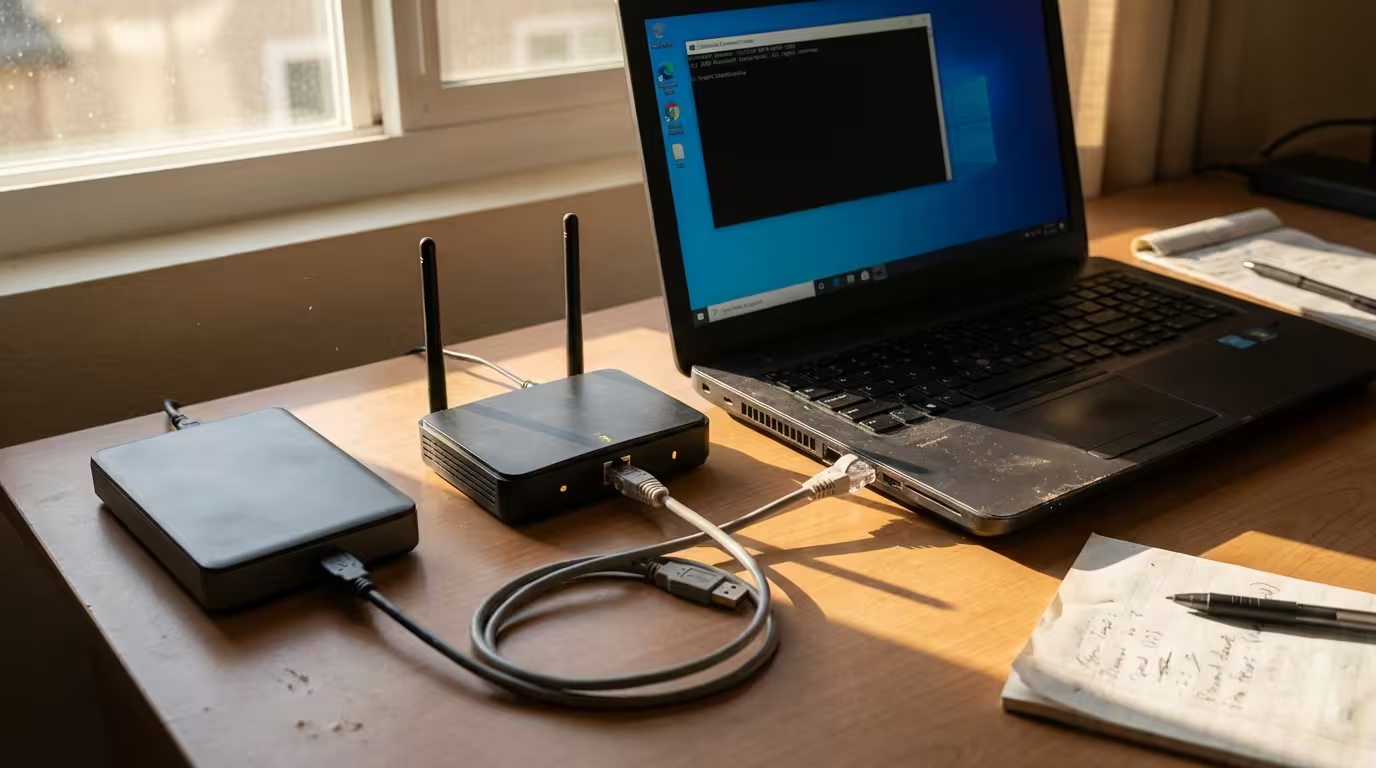
You run a simple ping command, expecting a reply from the exact IP address you targeted — but the response comes back from a completely different IP. It’s confusing, and if you’ve never encountered it before, it can look like your network is broken or compromised. The good news: in most cases, there’s a logical, fixable explanation behind it. This guide breaks down the ping reply from different IP address meaning, walks through every common cause, and provides tested fixes for Windows 11 and Windows 10 systems in 2026.
What Does “Ping Reply From Different IP Address” Actually Mean?
When you open Command Prompt and type something like ping 192.168.1.50, you expect four ICMP echo replies from that exact address. Normally, the output reads Reply from 192.168.1.50: bytes=32 time<1ms TTL=128. But in this scenario, the reply line shows a completely different IP — perhaps your gateway address, a different subnet address, or even a public IP you don’t recognize. This is what’s commonly called a ping reply from a different IP than the one you targeted.
This mismatch means that somewhere between your machine and the intended destination, another device intercepted or responded to the ICMP echo request on behalf of the target.
The ICMP protocol itself is straightforward: your machine sends an echo request packet, and the destination is supposed to send back an echo reply. When a different device sends that reply, it indicates a routing, caching, or configuration issue — not a bug in the ping utility itself.
If your ping command returns a “Destination Host Unreachable” message instead of a normal reply, the issue usually involves routing or gateway connectivity on your local network. See our detailed guide on destination host unreachable to understand the causes and fixes.
If the failure occurs at the very first network hop — your router — the issue may involve the local gateway itself. See our guide on cannot ping default gateway to diagnose gateway-level connectivity problems.
It’s worth noting that this isn’t always a sign of something malicious. In many network environments, routers and gateways are specifically designed to respond with ICMP “Destination Unreachable” or “Redirect” messages when they can’t forward your packet. These responses originate from the router’s own IP, which is why the reply address doesn’t match your target. Understanding this distinction is the first step toward diagnosing the actual problem.
If the response specifically indicates a destination host unreachable error, it means the router was unable to find a valid path to the target device at the network layer, which follows a different diagnostic process than simple ARP or adapter conflicts.
Why Does Ping Show Reply From a Different IP?
Several network conditions can cause a ping reply mismatch, and they range from simple configuration errors to more complex routing table problems. Before jumping into fixes, it’s important to understand each root cause individually — because the correct fix depends entirely on which one applies to your situation.
Local Router Responding Instead of Target
This is the single most common cause. When you ping an IP address that your local router cannot reach — either because the target device is offline, on a different subnet, or blocked — the router itself generates an ICMP response. Typically, this is a “Destination Host Unreachable” message, and it comes from the router’s own IP address rather than the target.
For example, if your default gateway is 192.168.1.1 and you ping 192.168.1.50 (a device that’s powered off), you may see Reply from 192.168.1.1: Destination host unreachable. The router is telling you it tried to deliver the packet on the local network but got no response from the target. This is normal ICMP behavior — the router is doing its job. However, if you see a reply from an entirely unexpected IP outside your subnet, that points to a deeper routing issue covered in later sections.
ARP Cache or MAC Address Mismatch
The Address Resolution Protocol (ARP) maps IP addresses to MAC (hardware) addresses on a local network. Your system maintains an ARP cache — a temporary table of these mappings — so it doesn’t have to broadcast an ARP request every time it sends a packet. When this cache contains a stale or incorrect entry, your ping packet can be delivered to the wrong physical device.
Consider this scenario: Device A previously held IP 192.168.1.50, and its MAC address is still cached on your machine. Device A goes offline, and Device B comes online with a different IP but the same cached association gets confused during lookup. Your ICMP request may land on the wrong device, or the network switch may forward it incorrectly based on outdated MAC-to-port mappings. The result is a ping showing wrong IP address in the reply — or worse, no reply at all followed by sporadic responses from another host. ARP-related mismatches are especially common on networks where devices frequently connect and disconnect, such as Wi-Fi environments or DHCP-heavy office LANs.
Multiple Network Adapters or VPN Interference
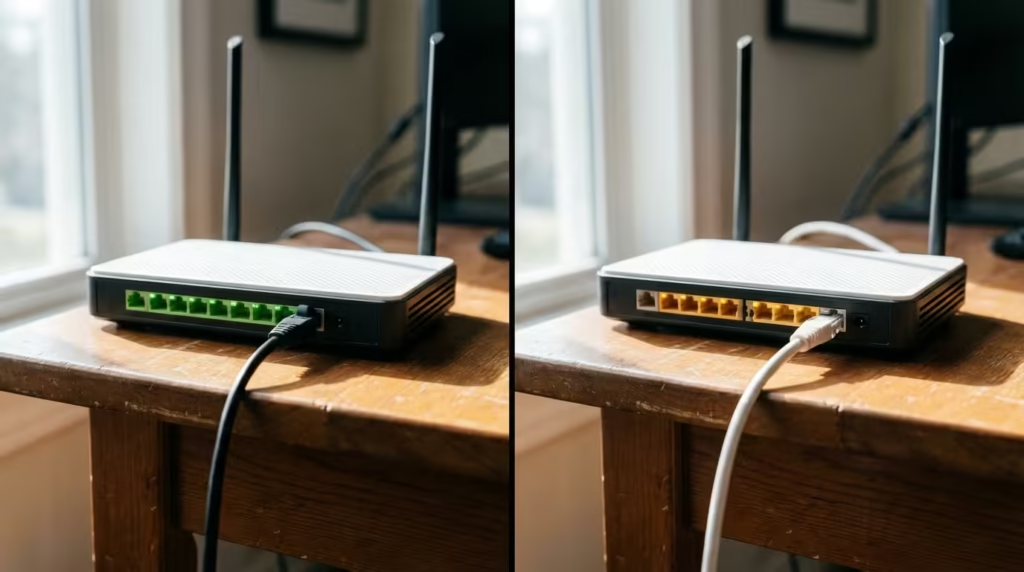
Modern Windows machines often have more than one active network adapter — a physical Ethernet port, a Wi-Fi adapter, a Hyper-V virtual switch, and sometimes a VPN tunnel adapter all running simultaneously. Each adapter has its own IP address and its own routing metric. When you issue a ping command, Windows selects the outgoing adapter based on the routing table, and that selection doesn’t always match what you’d expect.
For instance, if you’re connected to both a corporate VPN (10.0.0.x range) and your home Wi-Fi (192.168.1.x range), pinging a 10.0.0.x address might route through the VPN adapter correctly — or it might not, depending on the VPN’s split tunneling configuration. If the VPN client redirects only certain traffic, your ping could exit through the Wi-Fi adapter instead, reach your local gateway, and return a reply from a different IP than pinged. The same applies to Hyper-V or WSL virtual adapters, which create internal network bridges that can silently alter routing behavior.
This issue has become more prevalent in Windows 11 due to the way virtual adapters are managed alongside physical ones. If you’ve recently installed Docker Desktop, WSL2, or any virtualization software, an extra adapter may have been introduced without your knowledge.
Subnet or Routing Table Problems
When your routing table has incorrect, duplicate, or conflicting entries, ICMP packets can take unexpected paths. The Windows routing table determines which gateway handles traffic for each destination network. If two routes overlap or a static route points to the wrong gateway, your ping might exit through an unintended interface — and the reply naturally comes from a device you didn’t target.
You can view your current routing table by running route print in an elevated Command Prompt. Look specifically at the “Active Routes” section under IPv4. If you see two entries for the same destination network with different gateways, or a 0.0.0.0 default route pointing somewhere unexpected, that’s likely your culprit. Misconfigured static routes are especially common after manual network setups, VPN installations, or system migrations.
Quick Checks to Understand the Issue
Before applying any fix, two quick diagnostic steps will immediately clarify whether the problem is local to your machine or exists further upstream in the network.
Compare Ping Target vs Actual Reply IP
This sounds obvious, but carefully read the full ping output. Open Command Prompt and run your ping command. Note two things: the IP address on the Pinging... line and the IP address on each Reply from... line. If the reply IP is your default gateway, the router is telling you the target is unreachable — that’s a reachability issue, not a routing error. If the reply IP is a completely unknown address outside your subnet, that signals a routing or redirection problem that needs deeper investigation.
Also check whether the reply includes a message like Destination host unreachable or TTL expired in transit. These ICMP messages are informational — they come from intermediate devices, and seeing a different IP in that context is expected protocol behavior, not a fault.
Run ipconfig /all to See All Network Adapters
Open Command Prompt as Administrator and run:
ipconfig /allThis displays every network adapter on your system — active or dormant. For each adapter, note the IPv4 address, subnet mask, default gateway, and DHCP status. What you’re looking for is straightforward: multiple adapters with active IP addresses, especially if more than one has a default gateway assigned. Two active gateways almost always cause routing ambiguity, which directly leads to ping returning a different IP address in replies.
Pay special attention to adapters labeled “vEthernet,” “TAP,” or “Tunnel” — these belong to virtualization platforms or VPN clients and frequently interfere with ICMP routing on Windows 11 and Windows 10 systems.
Basic Fixes for Wrong IP Reply
Now that you understand the likely causes and have identified your adapter configuration, it’s time to apply targeted fixes. Start with these two foundational steps — they resolve the majority of ping reply from different IP address issues without requiring any advanced networking knowledge.
Clear ARP Cache (netsh interface ip delete arpcache)
If your diagnosis points toward a stale or incorrect ARP entry, clearing the ARP cache forces your machine to re-learn the correct IP-to-MAC mappings on the next communication attempt. Before clearing, you can inspect the current cache to see if anything looks wrong. Open Command Prompt as Administrator and run:
arp -aThis lists every cached IP-to-MAC mapping organized by interface. Look for the IP you’ve been pinging — if it’s mapped to a MAC address that belongs to your router (you can check your router’s MAC on its admin page or label), then your system is incorrectly associating the target IP with the gateway’s hardware address. That’s a clear ARP issue.
To clear the cache, run:
netsh interface ip delete arpcacheOn newer builds of Windows 11 (2024 and later), this command may return a message saying the object is not found. In that case, use the alternative approach:
arp -d *This deletes all entries from the ARP table. After clearing, immediately re-run your ping test. Your system will broadcast fresh ARP requests, and if the target device is online and reachable, the reply should now come from the correct IP address.
Release and Renew IP Address
When DHCP assigns overlapping or conflicting addresses — particularly after a device swap or network change — releasing and renewing your IP forces a clean lease from the DHCP server. This also refreshes your default gateway and DNS assignments, which can resolve routing-related ping mismatches.
Run these commands in sequence from an elevated Command Prompt:
ipconfig /release
ipconfig /renew
After the renewal completes, run ipconfig /all again to confirm your adapter received a clean, non-conflicting address. If you’re on Wi-Fi, you may need to reconnect to the network after the release, as some wireless adapters temporarily disconnect during the process.
Advanced Network Fixes
If clearing the ARP cache and renewing your IP didn’t resolve the issue, the problem likely sits deeper — in the protocol stack or in how Windows handles dual-stack (IPv4/IPv6) networking.
Disable IPv6 Temporarily to Test
Windows 11 enables IPv6 by default on all adapters, and in certain network environments, IPv6 routing can interfere with IPv4 ping behavior. Some routers and gateways respond differently when they receive both IPv4 and IPv6 traffic, and name resolution can silently prefer an IPv6 address even when you think you’re pinging an IPv4 target.
To temporarily disable IPv6 on your active adapter for testing purposes:
- Open Settings → Network & Internet → Advanced network settings
- Click your active adapter, then select Edit next to “More adapter options”
- Uncheck Internet Protocol Version 6 (TCP/IPv6)
- Click OK and re-run your ping test
If the ping showing wrong IP address issue disappears with IPv6 disabled, the root cause is IPv6 routing or DNS resolution on your network. You can leave IPv6 disabled if your network doesn’t require it, or investigate your router’s IPv6 configuration for conflicts.
Reset TCP/IP Stack and Winsock
When the networking stack itself is corrupted — due to failed updates, malware removal, or aggressive third-party security software — ICMP behavior can become unpredictable. Resetting the TCP/IP stack and Winsock catalog restores Windows networking components to their default state.
Run each command in an elevated Command Prompt, one at a time:
netsh int ip reset
netsh winsock reset
Both commands require a system restart to take full effect. After rebooting, Windows rebuilds its internal routing table, reloads adapter configurations, and clears any corrupted socket entries. This is one of the most effective broad-spectrum fixes for persistent ICMP reply mismatch issues that survive simpler troubleshooting steps.
Important: If you have custom static routes, firewall rules managed through netsh, or third-party network filter drivers, note them before running the reset — they will be removed and need to be reconfigured afterward.
Firewall and VPN Related Causes
Security software and VPN clients sit directly in the network path between your system and the destination. When they manipulate traffic — either by redirecting it through encrypted tunnels or by selectively blocking ICMP — the result can look identical to a routing error. This section addresses both scenarios.
Check If VPN or Firewall Is Redirecting Traffic
VPN clients work by creating a virtual adapter and rerouting some or all of your traffic through it. The key factor is whether the VPN uses full tunnel or split tunnel mode. In full tunnel mode, every packet — including ICMP pings — exits through the VPN server, meaning any reply you receive passes through that server first. If the VPN endpoint or an intermediate node responds instead of your intended target, you’ll see a ping reply from another IP on Windows 11 that traces back to VPN infrastructure.
To test this quickly, disconnect your VPN entirely and re-run the ping. If the reply now comes from the correct IP, your VPN’s routing policy is the cause. Check your VPN client’s split tunneling settings and ensure that local network traffic (especially private ranges like 192.168.x.x or 10.x.x.x) is excluded from the VPN tunnel.
Third-party firewalls and endpoint security suites — such as those from Kaspersky, Bitdefender, or corporate solutions like CrowdStrike — can also intercept ICMP packets. Some security products proxy network requests through a local filtering engine, which means the reply to your ping technically comes from the firewall’s internal process rather than the actual destination. Temporarily disabling the firewall (not just the UI shield, but the actual network filter driver) is the fastest way to confirm or rule this out.
Allow ICMP in Windows Firewall (Inbound Rules)
Windows Defender Firewall blocks inbound ICMP echo requests by default on most profiles. While this primarily affects whether other devices can ping your machine, misconfigured outbound ICMP rules can also interfere with how replies are processed.
To create an explicit allow rule for ICMPv4:
- Open Windows Defender Firewall with Advanced Security (search
wf.mscin Start) - Click Inbound Rules in the left panel
- Select New Rule → Custom
- Set Protocol type to ICMPv4
- Click Customize, select Specific ICMP types, and check Echo Request
- Allow the connection on all profiles (Domain, Private, Public)
- Name the rule clearly — for example, “Allow ICMPv4 Echo Request”
After creating the rule, test your ping again. If your issue involved the local firewall silently interfering with ICMP handling, this explicit rule eliminates that variable from the equation.
When the Problem Persists
If you’ve worked through every fix above and the ping still returns a different IP address, the problem almost certainly exists outside your machine — in the network path itself. These two diagnostic steps help you confirm that and determine exactly where the mismatch originates.
Use Tracert to Trace the Actual Path
The tracert (trace route) command maps every hop your packet takes between your machine and the destination. Unlike ping, which only shows the final reply, tracert reveals every intermediate router — making it invaluable for spotting where traffic gets redirected.
Run this from an elevated Command Prompt:
tracert 192.168.1.50Replace the IP with your actual target. Each numbered line in the output represents one hop. If the trace reaches a certain hop and then the responding IP changes to something unexpected — or if the trace terminates at a device that isn’t your target — you’ve identified the exact point where redirection occurs. Common findings include a corporate proxy responding at hop 2, a misconfigured router looping traffic, or an ISP-level device intercepting requests.
Test on Another Device or Clean Boot
The final isolation test answers one critical question: is this a problem with your specific Windows installation, or with the network itself?
Connect a second device — a phone, laptop, or tablet — to the same network and ping the same target IP. If the second device gets a correct reply, your Windows configuration is at fault despite previous fixes. In that case, performing a Clean Boot eliminates third-party software interference:
- Press Win + R, type
msconfig, and press Enter - Go to the Services tab, check Hide all Microsoft services, then click Disable all
- Go to the Startup tab and click Open Task Manager
- Disable all startup items, then restart your system
In Clean Boot, only essential Microsoft services run — no VPN clients, no third-party firewalls, no virtualization bridges. If ping works correctly in this state, re-enable services in small batches to identify the specific software causing the reply from different IP than pinged behavior.
Final 10-Minute Diagnostic Checklist
When you need a fast, systematic approach to diagnosing a ping reply from different IP address issue without re-reading the entire guide, follow this checklist in order. Each step builds on the previous one, and most users find their answer within the first six steps.
- Read the full ping output — Confirm whether the reply IP is your default gateway (reachability issue) or a completely unknown IP (routing/redirection issue)
- Run
ipconfig /all— Check for multiple active adapters, duplicate gateways, or unexpected virtual adapters - Run
arp -a— Verify the target IP isn’t mapped to your router’s MAC address or a stale entry - Clear ARP cache with
arp -d *— Eliminate stale mappings and re-ping immediately - Run
ipconfig /releasethenipconfig /renew— Get a clean DHCP lease and fresh gateway assignment - Run
route print— Look for conflicting routes, duplicate default gateways, or unexpected static entries - Disconnect VPN and disable third-party firewall — Re-ping to isolate security software interference
- Disable IPv6 on active adapter — Rule out dual-stack routing conflicts
- Run
tracertto target IP — Identify the exact hop where redirection occurs - Test from a second device on the same network — Determine whether the issue is machine-specific or network-wide
If steps 1 through 8 don’t resolve the problem and step 9 shows redirection happening beyond your local network, the issue sits at the router or ISP level. If step 10 confirms the same behavior on a second device, the problem is definitively in your network infrastructure — not your Windows installation.
FAQ – Common Questions & Answers
What does it mean when ping replies from a different IP address?
It means an intermediate device — usually your default gateway or a misconfigured router — responded to your ICMP echo request instead of the intended target. This typically happens because the target is unreachable, the ARP cache has a stale entry, or a routing rule is sending your packet to the wrong destination. The ping utility itself is working correctly; the network path is where the issue lies.
Why does ping show reply from another IP but target is different?
The most common reason is that your local router intercepts the packet and replies with a “Destination Host Unreachable” message using its own IP. Other causes include VPN split tunneling redirecting traffic, multiple network adapters creating routing ambiguity, or corrupted routing table entries sending ICMP requests through unintended interfaces.
Can ARP cache cause ping reply from wrong IP?
Yes. When the ARP cache contains an outdated IP-to-MAC mapping, your system may deliver the ICMP packet to the wrong physical device on the local network. This is especially common on DHCP networks where devices frequently change IP addresses. Clearing the cache with arp -d * and re-pinging resolves this immediately in most cases.
How do I fix ping returning different IP address in Windows 11?
Start by clearing the ARP cache and renewing your DHCP lease. If that doesn’t work, check for multiple active network adapters in ipconfig /all, disable any virtual adapters you don’t need, and reset the TCP/IP stack with netsh int ip reset. For persistent cases, disconnect VPN software and test in Clean Boot mode to isolate third-party interference.
Is VPN the reason for ping reply mismatch?
It can be. VPN clients create virtual adapters that reroute traffic, and depending on the tunneling configuration, your ICMP packets may exit through the VPN server rather than your local gateway. Disconnecting the VPN and re-testing is the fastest way to confirm or eliminate this as the cause.
Why does this happen after network changes or updates?
Network configuration changes — such as switching routers, updating Windows networking components, installing virtualization software, or changing ISPs — can introduce new adapters, modify the routing table, or invalidate the ARP cache. Windows doesn’t always clean up stale network state automatically, which is why a manual reset of the TCP/IP stack and ARP cache often resolves post-change ping anomalies.
How to clear ARP cache when ping shows wrong IP?
Open Command Prompt as Administrator and run arp -d * to delete all cached entries. On older Windows builds, netsh interface ip delete arpcache also works. After clearing, ping your target again — your system will send fresh ARP broadcasts to correctly map the target IP to its actual MAC address.
When should I check router or ISP for this issue?
If you’ve exhausted all local fixes — ARP cache clearing, IP renewal, stack reset, VPN disconnection, and Clean Boot testing — and the problem persists across multiple devices on the same network, the issue is beyond your Windows machine. Check your router’s firmware version and routing configuration. If the tracert output shows redirection happening at a hop beyond your local network, contact your ISP with the traceroute data and explain the ICMP reply mismatch. ISPs can identify upstream routing errors or transparent proxies that intercept ICMP traffic.
Wrapping Up
A ping reply from a different IP address is not a random glitch — it’s your network telling you exactly where communication breaks down. In most cases, the fix is straightforward: a stale ARP cache, a duplicate gateway from a virtual adapter, or a VPN client quietly rerouting your ICMP traffic. The diagnostic path is consistent: verify the reply source, check your adapter and routing configuration, clear cached state, and test incrementally.
When every local fix has been applied and the mismatch continues across multiple devices, the problem has moved beyond your control. At that point, your router configuration or ISP routing infrastructure is the next layer to investigate. Bring your tracert output and the specific reply IPs to your ISP’s technical support — that data eliminates guesswork and gets the issue escalated to the right team immediately.