
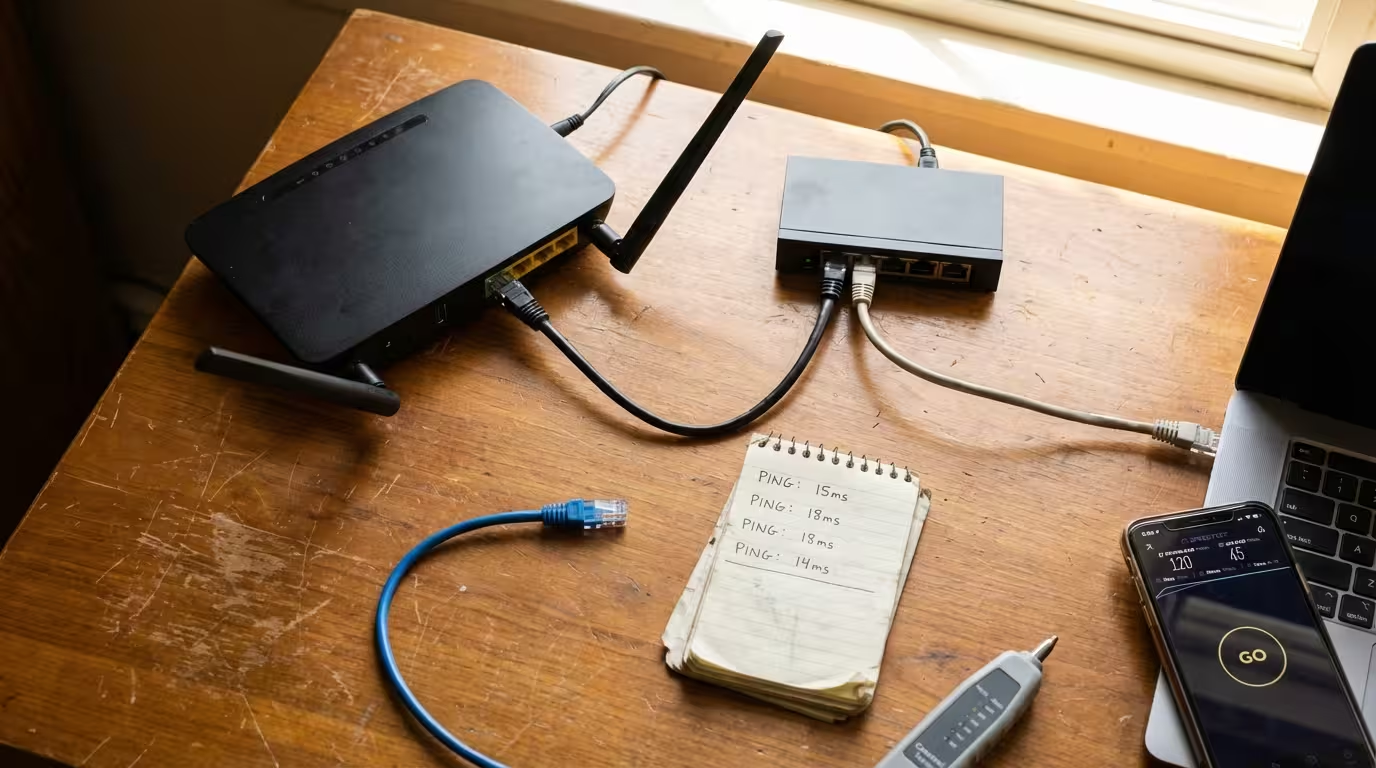
Most people only think about their internet connection the moment something goes wrong — a video call freezes, a game lags, or a webpage refuses to load. But understanding how internet connectivity actually works puts you in a far stronger position to diagnose issues, optimize performance, and make informed decisions about your network setup.
This guide is designed to give you that understanding. Whether you are troubleshooting a stubborn connection problem or simply want to learn what terms like latency, jitter, and packet loss really mean, this is where you start. Consider this your complete internet connectivity explained resource — a single reference point that covers the fundamental concepts, walks you through common problems, and connects you to detailed guides on every subtopic that matters.
We will move from the basics of how your data reaches the internet, through the metrics that define connection quality, into real-world problems and the tools used to solve them. Every section below links to a deeper article where you can explore that topic in full.
What Is Internet Connectivity and How Does It Actually Work?
Internet connectivity refers to the ability of your device — whether it is a laptop, phone, gaming console, or smart TV — to communicate with servers and other devices across the internet. It sounds simple, but what happens behind the scenes involves a layered chain of hardware, protocols, and services that all need to work correctly at the same time.
At its most basic level, internet connectivity requires three things: a device with a network interface, a path to your Internet Service Provider (ISP), and the ISP’s connection to the broader internet backbone. If any single link in that chain fails or degrades, your experience suffers. That is why a “working” connection can still feel broken — the connection exists, but its quality may be poor due to issues at any point along the path.
Understanding this chain is the first step toward being able to troubleshoot effectively. Instead of blaming your router for every problem, you learn to identify whether the issue is local (your device or home network), somewhere in your ISP’s infrastructure, or further out on the internet itself.
How Data Travels from Your Device to the Internet
When you open a website or start a video call, your device creates data packets — small, structured chunks of information that contain both your request and the addressing information needed to route that request to its destination. These packets leave your device through either a wired Ethernet connection or a wireless Wi-Fi signal, reaching your router.
Your router acts as the gateway between your local network and the outside world. It takes those packets, assigns them a public-facing IP address using Network Address Translation (NAT), and forwards them to your modem. The modem then converts the data into a signal appropriate for your connection type — electrical signals over coaxial cable, light pulses over fiber optic lines, or radio signals over a fixed wireless link — and sends it to your ISP.
From the ISP, your data enters a series of interconnected routers and switches that make up the internet backbone. Each device along the way reads the destination address in the packet header and forwards it one step closer to the target server. The server processes your request, generates a response, and the entire process reverses — the response packets travel back through the backbone, through your ISP, to your modem, through your router, and finally back to your device. This entire round trip typically happens in milliseconds, but each hop introduces a small amount of delay. When you hear the term latency, this is exactly what it describes — the total time that round trip takes.
The Role of Your ISP in Your Connection Quality
Your ISP controls the most critical segment of your connection path. They determine the bandwidth available to you, the routing your traffic takes, and how much congestion exists on their network at any given time. Two users on the same ISP plan in different neighborhoods can have noticeably different experiences because their local infrastructure — the cables, nodes, and exchange equipment serving their area — may differ in age, capacity, or condition.
ISPs also manage DNS resolution for most of their customers by default. When your browser needs to convert a domain name like “google.com” into an IP address, that request typically goes to your ISP’s DNS servers. If those servers are slow or misconfigured, every website you visit feels sluggish — even if your raw download speed is perfectly fine. This is one reason why DNS server not responding errors are among the most common connectivity complaints on Windows 10 and 11.
Beyond DNS, your ISP’s peering agreements — the business arrangements that determine how their network exchanges traffic with other networks — directly affect how quickly you can reach specific services. A fast speed test result means your connection to the speed test server is healthy, but it says little about how your ISP routes traffic to a gaming server in another region or a video conferencing platform hosted on a different network.
The Core Concepts You Need to Understand
Before you can troubleshoot a network problem or evaluate your connection quality, you need a working vocabulary. The terms in this section appear constantly in networking discussions, diagnostic tools, and ISP support conversations. Each one describes a different dimension of connection health — and none of them alone tells the full story. Speed gets most of the attention, but these metrics often matter more in real-world usage.
Think of your internet connection not as a single pipe but as a system with multiple measurable characteristics. A connection can be fast yet unstable, or slow yet perfectly consistent. The concepts below help you distinguish between those scenarios and understand exactly where a problem lies.
What Is Latency and Why Does It Matter?
Latency is the time it takes for a data packet to travel from your device to a destination server and back. It is measured in milliseconds (ms) and directly affects how responsive your connection feels. Low latency means near-instant responses — clicks register immediately, searches load without hesitation, and real-time applications run smoothly.
High latency creates noticeable delay. In gaming, it produces the rubber-banding effect where your character snaps backward. In video calls, it causes that awkward conversation overlap where both people talk at once. Even basic web browsing feels sluggish when latency is elevated because every resource the browser requests — images, scripts, stylesheets — each requires its own round trip. Our full breakdown of what latency is and why it matters covers the causes, acceptable ranges, and how to measure it accurately.
What Is Packet Loss and How Does It Affect You?
When data travels across a network, some packets may never reach their destination. This is packet loss — expressed as a percentage of total packets sent. Even 1–2% packet loss can cause significant problems because your device must either request those missing packets again (adding delay) or proceed without them (causing glitches).
In practice, packet loss shows up as choppy audio in calls, pixelated video streams, stuttering in online games, and incomplete page loads. It can originate anywhere along the path — from a faulty Ethernet cable in your home to a congested router at your ISP. Understanding what happens when packets are lost and how to isolate the source is essential for meaningful troubleshooting.
What Is Jitter in Networking?
Jitter measures the variation in latency over time. If your ping to a server is 20ms on one packet, 55ms on the next, and 15ms on the one after, that inconsistency is jitter. A stable connection has low jitter — each packet arrives at roughly the same interval. High jitter means the timing between packet arrivals is unpredictable.
This matters most for real-time applications. Voice and video calls rely on packets arriving in a steady stream. When jitter is high, the receiving device cannot reconstruct the audio or video smoothly, resulting in distortion, freezing, or dropped frames. For a deeper explanation of how jitter is measured and what causes it, see our guide on what jitter is in networking.
What Is Ping and How Does It Measure Your Connection?
Ping is both a network command and a measurement. As a command, it sends a small test packet (ICMP echo request) to a target address and waits for a reply. The time that round trip takes — reported in milliseconds — gives you a direct latency reading to that specific destination. It is the most commonly used tool for quick connection testing.
But ping tells you more than just speed. Consistent ping replies mean a stable path. Fluctuating reply times suggest jitter or congestion. Missing replies point to packet loss or a blocking firewall. Learn how to interpret these results properly in our detailed article on what ping is and how it works.
What Is Bufferbloat?
Bufferbloat occurs when network equipment — typically your router or modem — buffers too much data in its memory queues. Instead of dropping excess packets to signal congestion (which TCP protocols handle gracefully), the device holds them, creating massive latency spikes. Your speed test may still look fine, but interactive tasks like gaming or video calls become unusable. Our article on what bufferbloat is explains how to detect it and the configuration changes that fix it.
What Is TTL in Networking?
TTL — Time to Live — is a value embedded in every IP packet that limits how many router hops the packet can pass through before being discarded. Each router that forwards the packet decreases the TTL by one. When it hits zero, the packet is dropped and an error message is sent back to the sender. This prevents lost packets from circling the internet indefinitely. TTL values also reveal useful diagnostic information — a topic covered fully in our guide on what TTL means in networking.
Internet Speed vs Real-World Performance — Why They Are Different
One of the most frustrating experiences in networking is seeing a speed test report 200 Mbps while your browser takes forever to load a simple webpage. This disconnect confuses millions of users and leads many to blame their router, their device, or their ISP — sometimes correctly, sometimes not. The truth is that raw download speed and actual browsing performance are governed by different factors, and a speed test only measures one narrow slice of your connection quality.
Speed tests measure throughput between your device and a nearby test server under ideal conditions — a single, sustained data stream with no competing traffic. Real internet usage looks nothing like that. You are loading dozens of small files from servers scattered across the globe, each requiring DNS lookups, TLS handshakes, and multiple round trips. In that scenario, latency, packet loss, and jitter matter as much as — or more than — raw bandwidth.
Why Your Speed Test Shows Fast But Internet Feels Slow
This is one of the most searched networking questions for good reason. A fast speed test combined with sluggish browsing almost always points to a latency, DNS, or routing issue rather than a bandwidth problem. Your connection has enough capacity, but something is adding delay to every individual request. Common culprits include slow DNS servers, bufferbloat under load, congested ISP routing paths, or even browser extensions creating overhead. Our dedicated guide on why your speed test shows fast but internet feels slow walks through each cause with real diagnostic steps.
Why Wi-Fi Feels Slow Even When Speed Test Is Fast
Wi-Fi introduces a layer of complexity that wired connections avoid entirely. Radio interference from neighboring networks, physical obstructions like walls and floors, distance from the access point, and the number of connected devices all degrade wireless performance in ways that a speed test may not capture. A speed test might run on your phone while you are standing near the router, giving you a great result — but your actual usage happens from two rooms away with three walls in between.
Additionally, Wi-Fi operates on shared channels. Every device on your network competes for airtime, and devices on neighboring networks in the same frequency band add further contention. This creates inconsistent latency and micro-delays that feel like slowness even when throughput is technically adequate. Explore the full range of causes and fixes in our article on why WiFi feels slow even with a fast speed test.
Speed Test vs Real Internet Performance
Understanding the gap between synthetic benchmarks and real usage is key to setting realistic expectations. A speed test measures best-case throughput to a single, optimized server. Real performance depends on the server you are connecting to, how far away it is, how many hops your traffic crosses, and how congested those intermediate links are. Two users with identical speed test results can have wildly different experiences on the same website because their ISPs route traffic differently. Our comparison of speed test results versus real internet performance breaks down exactly why these numbers diverge and what to measure instead.

Video Call and Streaming Problems
Video calls and live streaming are among the most demanding everyday internet activities — not because they require massive bandwidth, but because they demand consistency. A 10 Mbps connection is more than enough for a 1080p video call, yet many users on 100+ Mbps plans experience freezing, pixelation, and audio drops. The problem is almost never speed. It is stability.
Real-time communication protocols prioritize timeliness over completeness. Unlike loading a webpage where your browser can wait for missing data, a video call cannot pause and buffer without breaking the conversation. This makes video calls uniquely sensitive to jitter, packet loss, and latency spikes — the exact metrics covered earlier in this guide.
Why Video Calls Lag or Freeze Even With Fast Internet
When a video call freezes mid-sentence or audio cuts out every few seconds, the underlying cause is nearly always packet loss or jitter — not bandwidth. Even brief latency spikes of 100–200ms create noticeable conversation delays, while packet loss above 1% causes visible frame drops and robotic-sounding audio. Wi-Fi instability is a frequent contributor, as are overloaded routers running without QoS (Quality of Service) prioritization. A detailed walkthrough of diagnosing and resolving this is available in our guide on why video calls lag despite fast internet.
How to Diagnose Slow Websites Even With Fast Internet
Sometimes the problem is not calls or streaming but specific websites loading slowly while everything else works fine. This pattern typically points to DNS resolution delays, problematic routing to that website’s hosting server, or server-side performance issues outside your control. Identifying whether the bottleneck is local, ISP-related, or server-side requires targeted testing — something we cover step by step in our article on diagnosing slow websites despite fast internet.
Common Internet Connection Problems and How to Fix Them
Now that you understand the metrics behind connection quality, it is time to look at the problems users actually encounter. The issues in this section are among the most frequently reported across forums, support channels, and search engines. Each one has distinct causes and solutions — and misdiagnosing one as another often leads to wasted hours of troubleshooting in the wrong direction.
What makes these problems tricky is that they share surface-level symptoms. A slow connection, a dropped connection, and a misconfigured connection can all feel identical from the user’s perspective. The key is knowing what to check first and in what order. The summaries below will help you quickly identify which problem matches your situation, and each links to a full walkthrough with step-by-step fixes.
Internet Slows Down at Night
If your connection performs well during the day but degrades every evening between roughly 7 PM and 11 PM, you are likely experiencing peak-hour congestion. During these hours, the majority of households in your neighborhood are streaming, gaming, and downloading simultaneously. This puts pressure on your ISP’s local infrastructure — particularly the shared node or segment serving your area. Cable internet connections are especially susceptible because bandwidth is shared at the neighborhood level. Our detailed guide on why internet slows down at night during peak hours explains what you can control and when the problem requires ISP intervention.
Router Not Working — No Internet, No Lights
A router that shows no lights at all is a hardware-level issue — either the power supply has failed, the device has overheated, or an internal component has died. If some lights are on but the internet indicator is off, the problem shifts to your modem, ISP connection, or WAN configuration. These are two fundamentally different problems that require different responses. Walk through the full diagnostic process in our router connected but no internet fix guide.
Ethernet Connected But No Internet
Seeing “Connected” in your network settings while having no actual internet access is a classic case of local connectivity without upstream routing. Your device has successfully linked to the router or switch, but something is preventing traffic from reaching the internet. Common causes include DHCP failures where your device does not receive a valid IP address, incorrect gateway settings, ISP outages, or DNS misconfiguration. This is one problem where checking your IP configuration with ipconfig on Windows or ifconfig on macOS immediately narrows down the cause. Our complete Ethernet connected but no internet fix guide covers every scenario.
WiFi Authentication Error on Android, Windows, iPhone
An authentication error means your device is failing the security handshake with the wireless access point. It cannot get past the password verification stage, so no connection is established at all. This can happen after a router firmware update changes encryption settings, when a saved password becomes outdated, or when the device’s network profile becomes corrupted. The fix differs slightly across operating systems, which is why our WiFi authentication error fix covers Android, Windows, and iPhone separately.
DNS Server Not Responding on Windows 10 and 11
This error means your system cannot reach the DNS server it is configured to use — so domain names cannot be converted to IP addresses, and no website loads. Yet the underlying internet connection may be perfectly functional. You can confirm this by pinging an IP address directly, such as 8.8.8.8. If that succeeds, DNS is your only problem. Switching to a public DNS provider like Google or Cloudflare often resolves the issue immediately. Full instructions are available in our DNS server not responding fix for Windows.
Your Connection Is Not Private Error
This browser warning appears when the SSL/TLS certificate of a website cannot be validated. It does not always mean the website is dangerous — expired certificates, incorrect system clocks, and aggressive antivirus software intercepting HTTPS traffic all trigger it. However, dismissing it blindly is risky. Learn to tell the difference between a harmless false alarm and a genuine security concern in our connection not private error fix.
Website Works on VPN But Not Without VPN
When a specific website loads fine through a VPN but fails without one, the problem is almost certainly DNS filtering, ISP-level blocking, or a routing issue between your ISP and that website’s server. The VPN bypasses all three by tunneling your traffic through a different network path. Identifying which of these causes applies to your situation determines whether you can fix it locally or need to escalate. Our guide on websites that work on VPN but not without walks through each possibility.
Strict NAT Type — Double NAT and CGNAT Fix
Strict or moderate NAT types cause problems in online gaming, peer-to-peer applications, and voice chat by restricting inbound connections. Double NAT — where two devices on your network both perform address translation — is a common cause and can be resolved by bridging your modem or adjusting router settings. CGNAT (Carrier-Grade NAT) is a harder problem because your ISP is performing the translation on their end, meaning you share a public IP with other customers. Our strict NAT fix guide explains how to identify which situation you are in and what options are available for each.

Understanding Ping Errors and What They Mean
The ping command is the first tool most people reach for when something feels wrong with their connection. It is simple, fast, and available on every operating system. But ping does more than confirm whether the internet is “up” or “down” — the specific error messages and behaviors it returns point directly to different categories of network failure. Knowing how to read those messages transforms ping from a blunt instrument into a precise diagnostic tool.
Each error below has a distinct meaning and a different set of probable causes. Treating them interchangeably leads to misdiagnosis. A “Request Timed Out” and a “Destination Host Unreachable” may both mean you cannot reach a target, but they indicate failures at completely different points in the network path. The sections below decode each one and link to full troubleshooting walkthroughs.
Ping Request Timed Out But Internet Is Working
This is one of the most confusing ping results. You can browse websites, stream video, and download files — but pinging a specific address returns “Request timed out.” The explanation is usually straightforward: the target server or an intermediate firewall is blocking ICMP traffic. Many servers — including some operated by major cloud providers — drop ping packets as a security measure while still responding to HTTP, HTTPS, and other application-layer traffic normally.
However, if you see timeouts when pinging your own gateway or your ISP’s DNS server, the problem is more serious and likely involves local packet loss or an unstable connection. Our guide on ping request timed out but internet working helps you distinguish between the harmless and the problematic cases.
Ping Transmit Failed — General Failure
“Ping transmit failed: General failure” means your system could not even send the ping packet out. The failure happens before any network communication is attempted. This typically points to a broken or misconfigured network adapter, a corrupt TCP/IP stack, or a conflict between IPv4 and IPv6 settings on the interface. It is a local problem — your machine is the issue, not the network.
Resetting the network stack, disabling IPv6 temporarily, or reinstalling the network adapter driver usually resolves it. The full diagnostic and repair process is covered in our article on ping transmit failed general failure on Windows.
Destination Host Unreachable
This error tells you that a router along the path knows the destination exists in theory but cannot deliver the packet to it. The most common scenario is a device on your local network that is powered off, disconnected, or has an IP address on a different subnet than expected. You will also see this when your own machine has no valid default gateway configured — it literally has no route to reach anything outside its own subnet.
Unlike a timeout, this error is returned actively by a router — which means the routing infrastructure is working, but the final delivery step is failing. Step-by-step resolution is available in our destination host unreachable fix for Windows.
Cannot Ping Default Gateway But Internet Works
Your default gateway is typically your router’s internal IP address — it should always be reachable from your local network. When it is not responding to ping but internet access still works, the most likely cause is that your router’s firewall is configured to ignore ICMP requests on the LAN side. Some routers do this by default, especially after firmware updates.
Less commonly, this can indicate that your traffic is reaching the internet through a different path than expected — such as a VPN adapter or a secondary network interface taking priority. Our guide on cannot ping default gateway but internet works covers both scenarios and how to verify which applies.
Ping Reply From Different IP Address
When you ping one address but receive a reply from a completely different IP, something along the path is intercepting or redirecting your traffic. This commonly happens when an intermediate router sends an ICMP redirect or when a transparent proxy is in place. ISP-level equipment and corporate firewalls both exhibit this behavior under certain configurations.
While sometimes harmless, unexpected reply sources can also indicate DNS hijacking or man-in-the-middle issues. Learn to identify the cause and whether action is needed in our article on ping reply from a different IP address.
Ping Returns IPv6 Instead of IPv4
On modern Windows systems, pinging a hostname may resolve to an IPv6 address instead of the IPv4 address you expected. This happens because Windows prefers IPv6 when both protocols are available and the DNS response includes a AAAA record. The ping succeeds, but the result confuses users who are trying to test IPv4 connectivity specifically.
This is not an error — it is expected behavior. But when you need to force an IPv4 test, you need to know the correct command syntax. Our article on ping returning IPv6 instead of IPv4 explains why this happens and how to control it.
Why Ping Works on IP But Not Hostname
If you can ping 8.8.8.8 successfully but pinging google.com fails, the network connection itself is fine — the problem is DNS resolution. Your device cannot translate domain names to IP addresses, which means either your configured DNS server is unreachable, misconfigured, or actively failing. This pattern is the clearest possible indicator of a DNS-specific issue rather than a general connectivity failure.
Identifying this distinction early saves significant troubleshooting time, because every fix you need is DNS-related — not network-related. Our walkthrough on why ping works on IP but not hostname guides you through confirming the DNS failure and resolving it.
Network Diagnostic Tools and Commands
Understanding ping errors is valuable, but effective troubleshooting requires knowing which tools to use, when to use them, and how to interpret their output beyond basic pass-or-fail results. The commands covered in this section are built into Windows and available without installing any third-party software. Each one serves a specific purpose in the diagnostic process, and combining them gives you a clear picture of where a connection problem originates.
These are the same tools that network engineers and ISP support technicians rely on daily. Learning even the basics puts you ahead of most users who restart their router and hope for the best.
How to Use Ping for Basic Network Testing
Ping is the starting point for nearly every network diagnosis. The standard approach is to test in layers — first ping your default gateway (usually 192.168.1.1 or 192.168.0.1) to verify local network connectivity, then ping an external IP like 8.8.8.8 to confirm internet access, and finally ping a domain name like google.com to test DNS resolution. If the first test fails, the problem is local. If the second fails but the first succeeds, the issue is between your router and the ISP. If only the third fails, DNS is your bottleneck.
Running a continuous ping with ping -t on Windows lets you monitor stability over time, revealing intermittent packet loss or latency spikes that a single ping would miss. For a complete walkthrough of techniques and interpretation, see our guide on what ping is and how it works.
What Does Netsh Int IP Reset Actually Do
The command netsh int ip reset is one of the most commonly recommended fixes in networking forums — but few people understand what it actually does. It rewrites two critical Windows registry keys that control TCP/IP behavior, effectively resetting the entire IP stack to its default factory state. This clears out corrupt entries, removes stale routing configurations, and eliminates protocol conflicts that accumulate over time.
It is not a magic fix for every problem, and it does require a restart to take effect. But when your network adapter shows connected with no internet, when DHCP fails to assign a valid address, or when other resets have not worked, this command addresses the kind of deep configuration corruption that surface-level troubleshooting cannot reach. Our full explanation of what netsh int ip reset actually does covers when to use it and what to expect.
Ping with Timestamp Command on Windows
Standard ping output shows latency per reply but does not tell you when each reply was received. This makes it difficult to correlate connection problems with specific times — for example, proving to your ISP that packet loss occurs every evening at 9 PM. The ping with timestamp command solves this by logging each reply alongside a precise timestamp, giving you time-stamped evidence you can share with technical support or use to identify patterns in your connection quality.
How to Diagnose Slow Download Speeds
When downloads are consistently slower than your plan promises, running a single speed test is not enough. You need to test across multiple servers, compare wired versus wireless results, check for background bandwidth usage, and rule out ISP throttling. The difference between a slow connection and a connection that only appears slow during certain activities often comes down to how and where you test. Our guide on diagnosing slow download speeds provides a structured process for isolating the true cause.
Advanced Concepts for Deeper Understanding
Once you are comfortable with the fundamentals and diagnostic tools, certain technical details become worth understanding — particularly around TTL values and protocol behavior. These topics come up frequently when reading ping output or analyzing traceroute results, and knowing what they mean adds precision to your troubleshooting.
TTL 128 in Windows — What It Really Means
When you ping a device and the reply shows TTL=128, this tells you the responding device is almost certainly running Windows, and the packet reached you without passing through any intermediate routers — or very few. Windows sets a default starting TTL of 128, and each hop along the path reduces it by one. Seeing exactly 128 means the device is on your local network. Seeing 125 means three hops occurred. Our article on why ping shows TTL 128 in Windows explains how to use this information diagnostically.
TTL 117 — What Does It Mean
A TTL of 117 does not correspond to any standard operating system default. Since Linux defaults to 64 and Windows to 128, a value of 117 means the packet started at 128 and crossed 11 router hops to reach you — indicating a Windows-based server several network segments away. Interpreting non-standard TTL values this way reveals how far away a server is in network terms. See the full breakdown in our article on what TTL 117 means.
Ping Returns IPv6 — How to Force IPv4
As covered earlier in the ping errors section, Windows prefers IPv6 when available. When you need an IPv4-specific test, use ping -4 hostname to force resolution and routing over IPv4. This is essential when troubleshooting IPv4-only infrastructure or when your IPv6 connectivity is broken while IPv4 works fine. Detailed instructions and edge cases are available in our guide on forcing IPv4 ping on Windows.
When to Contact Your ISP
Not every internet problem can be solved from your end. After working through the diagnostic steps in this guide — testing your local network, checking DNS, ruling out device-specific issues, and using tools like ping and traceroute — you may reach a point where the evidence clearly points to something outside your control. Recognizing that boundary saves you from endlessly reconfiguring settings that were never the problem.
Contact your ISP when continuous ping tests to external IPs show consistent packet loss or latency spikes that do not appear when pinging your own router. This pattern confirms the issue exists between your modem and the ISP’s network — infrastructure you cannot access or modify. Similarly, if your connection degrades at the same time every night despite your local network being idle, you are likely dealing with node-level congestion that only your ISP can address by upgrading capacity in your area.
Other clear ISP escalation scenarios include: your modem showing signal levels outside acceptable ranges (which your ISP can check remotely), repeated disconnections logged in your modem’s event history, and situations where your connection works through a VPN but fails without one — suggesting ISP-level DNS filtering or routing failures. When you do contact support, providing timestamped ping logs, traceroute output, and speed test results from multiple servers gives you credibility and speeds up the resolution process significantly.
Frequently Asked Questions
What is internet connectivity?
Internet connectivity is your device’s ability to communicate with servers and other devices across the internet. It requires a functioning network interface, a connection to your ISP, and a working path from the ISP to the broader internet backbone. Without any one of these elements, your device remains isolated from the online world.
Why is my internet connection slow?
Slowness can stem from ISP congestion, Wi-Fi interference, DNS delays, bufferbloat, or background bandwidth usage on your network. Identifying the cause requires testing in layers — local network first, then ISP path, then specific destinations. A single speed test is rarely enough to pinpoint the real bottleneck.
What is the difference between latency and internet speed?
Speed (bandwidth) measures how much data your connection can transfer per second. Latency measures how long each individual piece of data takes to make a round trip. A connection can be high-speed but high-latency, resulting in sluggish responsiveness despite fast downloads. Both metrics matter, but for different reasons.
What causes packet loss?
Packet loss is caused by network congestion, faulty hardware, damaged cables, Wi-Fi interference, or overloaded routers. Even small amounts — as low as 1 to 2 percent — can noticeably degrade real-time applications like gaming, video calls, and voice chat.
Why does my WiFi feel slow even though the speed test is fast?
Speed tests measure peak throughput under ideal conditions. Real Wi-Fi usage is affected by interference from neighboring networks, physical distance from the router, competing devices sharing airtime, and channel congestion. These are factors that a speed test does not capture, which is why your actual experience can feel much slower than the numbers suggest.
What is a good ping for gaming?
Under 30ms is excellent for competitive gaming, 30 to 60ms is good for most online games, and anything above 100ms introduces noticeable input delay. Consistency matters just as much as the raw number — a stable 50ms connection will feel smoother and more responsive than a ping that constantly fluctuates between 20ms and 150ms.
How do I fix DNS server not responding?
Switch to a public DNS provider such as Google DNS at 8.8.8.8 or Cloudflare DNS at 1.1.1.1, flush your local DNS cache by running ipconfig /flushdns in Command Prompt, and restart your router. If the error persists, your network adapter settings or firewall may be interfering. Full step-by-step instructions are available in our DNS server not responding fix guide.
Why does my internet slow down at night?
Peak-hour congestion between approximately 7 PM and 11 PM overloads shared ISP infrastructure, particularly on cable internet connections where bandwidth is distributed across an entire neighborhood. During these hours, streaming, gaming, and downloading activity spikes simultaneously. Our guide on why internet slows down at night explains what you can control locally and when the issue requires ISP-level intervention.
What is jitter in networking?
Jitter is the variation in latency between consecutive packets traveling across a network. When jitter is low, packets arrive at consistent intervals and real-time applications run smoothly. When jitter is high, packet timing becomes unpredictable, causing audio distortion in calls, video freezing during streams, and stuttering in online games.
How do I test my internet connection quality?
Use layered ping tests to build a complete picture. First ping your default gateway to verify local connectivity, then ping an external IP address like 8.8.8.8 to confirm internet access, and finally ping a domain name like google.com to test DNS resolution. Running a continuous ping with timestamps helps detect intermittent issues that a single test would miss. Combine these results with speed tests run across multiple servers for a thorough assessment.
What does TTL mean in networking?
TTL, or Time to Live, is a value embedded in every IP packet that limits how many router hops the packet can pass through before being discarded. Each router along the path decreases the TTL by one, and when it reaches zero, the packet is dropped. This mechanism prevents lost or misrouted packets from circling the internet indefinitely and also provides useful diagnostic information about the distance between your device and a remote server.
Why is my ping so high?
High ping results from several possible causes including network congestion on your ISP’s infrastructure, long physical distance between your device and the target server, Wi-Fi instability adding overhead, inefficient ISP routing paths, or bufferbloat on your local network causing latency spikes under load. Isolating the cause requires testing to multiple destinations and comparing wired versus wireless results.
What is bufferbloat and how do I fix it?
Bufferbloat occurs when network equipment — typically your router or modem — holds too many packets in its memory buffer instead of dropping them to signal congestion. This creates enormous latency spikes during heavy usage, making gaming and video calls unusable even while speed tests still look acceptable. The most effective fix is enabling SQM (Smart Queue Management) on routers that support it, which actively controls queue depth and keeps latency stable under load.
How do I know if my ISP is throttling my internet?
Run speed tests both with and without a VPN connected. If your speeds improve significantly when using a VPN, your ISP may be selectively throttling certain types of traffic such as streaming or torrenting. If speeds remain similar in both scenarios, throttling is unlikely and the problem lies elsewhere — possibly congestion, routing inefficiency, or a local network issue on your end.
Wrapping Up
This guide covered the full landscape of internet connectivity — from how data travels between your device and the internet, through the core metrics that define connection quality, to the specific problems and errors you are most likely to encounter. You now understand why speed alone does not determine your experience, how to interpret ping errors with precision, and when a problem belongs to your ISP rather than your local network.
Every major section above connects to a dedicated article that goes deeper into that specific topic. If you are actively troubleshooting, start with the section that matches your symptoms and follow the link to the full walkthrough. If you are building your knowledge, work through the core concepts first — latency, packet loss, jitter, and ping — then move into the diagnostic tools and advanced topics.
The difference between guessing at a fix and solving the right problem comes down to understanding what your network is actually telling you. This guide gives you the framework. The cluster articles give you the details.