
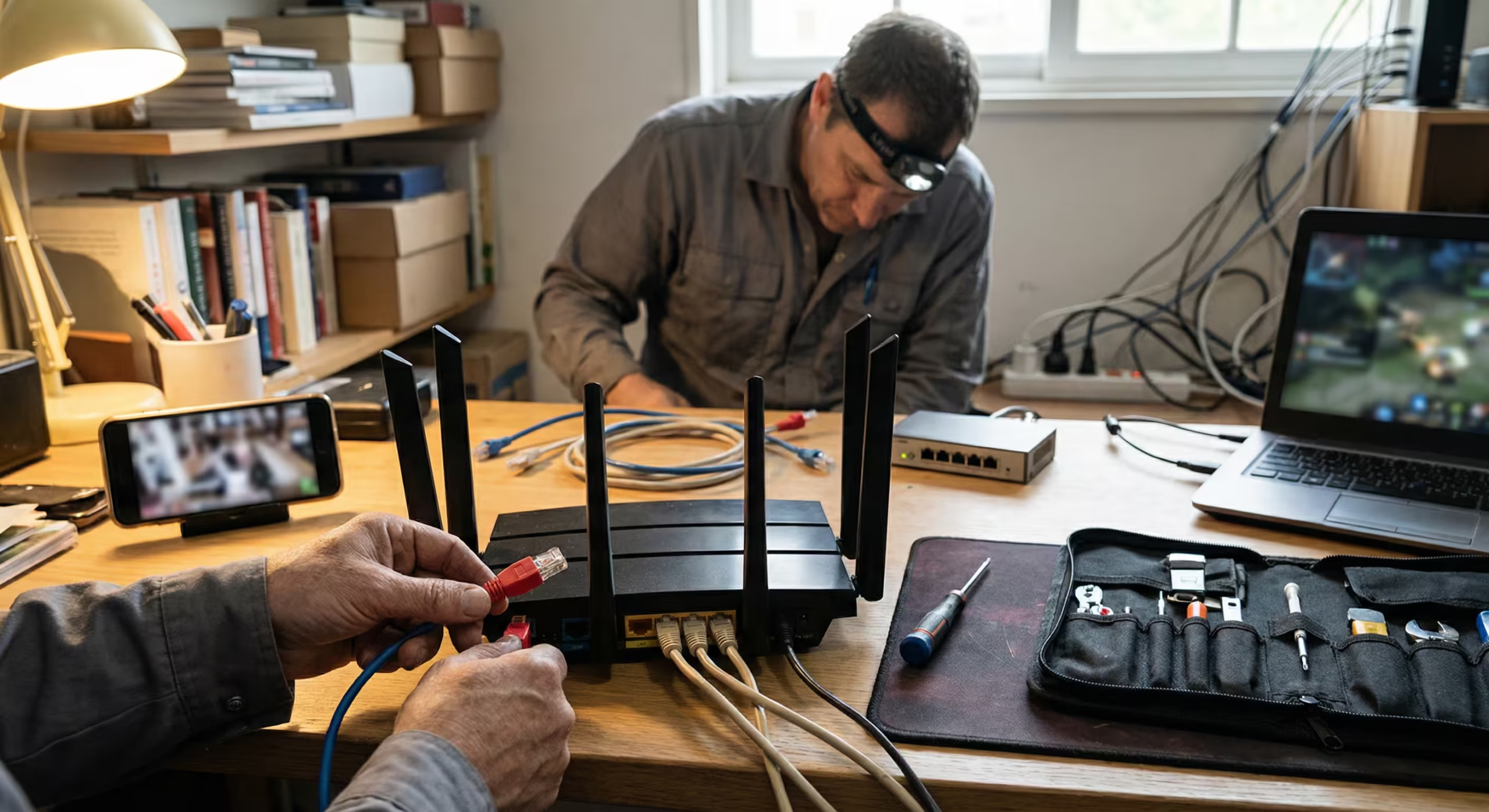
You are mid-match, everything feels smooth, and then someone in your house opens YouTube or starts a download. Instantly, your ping jumps from 25ms to 200ms, rubber banding kicks in, and you lose the fight. This is not a coincidence and it is not random. Your gaming ping spikes when someone else uses the internet because your router has no idea which traffic matters more.
The real problem is not your internet speed. Most households dealing with this issue already have a connection fast enough to handle gaming and streaming at the same time. The problem is how the router manages competing traffic when multiple devices need bandwidth simultaneously. That is a router-level queue management failure, and the fix is configuring QoS device priority — not upgrading your plan.
This guide walks through exactly why this happens, how to confirm that other devices are the cause, and four practical fixes you can apply on any home router today.

Why Your Gaming Ping Spikes When Others Use the Internet
What Your Router Does When Multiple Devices Use Bandwidth at the Same Time
Your router has one upstream connection to your ISP and one pool of bandwidth shared across every connected device. When only your gaming PC is active, all available bandwidth is yours. The moment another device starts consuming data — a phone streaming video, a laptop syncing cloud files, a smart TV buffering Netflix — the router has to decide how to split that single pipe.
Most home routers use a basic first-in-first-out queue. Packets are processed in the order they arrive, with no distinction between a gaming packet that needs to reach the server in under 10 milliseconds and a Netflix chunk that could arrive 500 milliseconds later without anyone noticing. When the queue fills up, every packet waits in line, including your game’s time-sensitive data. This queue buildup is the core mechanism behind what is known as bufferbloat, and it is the single most common cause of ping spikes on home networks.
Why Upload Saturation Causes Gaming Ping Spikes More Than Download
Most people assume download bandwidth is what matters for gaming. In reality, online games use very little download bandwidth — typically 0.5 to 3 Mbps. What they rely on heavily is consistent, low-latency upload. Every input you make — movement, shooting, ability use — is sent as a small upload packet to the game server.
Home internet connections almost always have far less upload capacity than download. A plan advertised as 100 Mbps down might only offer 10 Mbps up. When someone in your household starts a video call, uploads a file to Google Drive, or even streams on Twitch, that tiny upload pipe fills up fast. Once upload saturation hits, your game packets get queued behind bulk data. That is when you see your ping spike from 20ms to 180ms even though your download speed looks perfectly fine.
Why Upgrading Your Internet Speed Does Not Fix This Problem
If the problem were raw throughput, upgrading your plan would solve it. But gaming ping spikes caused by other devices are a traffic management issue, not a capacity issue. Even on a 500 Mbps connection, if the router treats a 4K stream and a game packet identically, the game packet still waits in the same queue during bursts of congestion.
Upgrading speed gives you a wider pipe, but without QoS, the router still has no instruction to prioritize latency-sensitive traffic. The queue still builds. The lag during heavy downloads still happens. The fix has to happen at the router’s traffic scheduling level, which is exactly what the steps below address.
How to Confirm That Other Devices Are Causing Your Ping Spikes
Before changing any router settings, you need to verify that the ping spikes are actually caused by local network congestion and not by your ISP or a problem outside your home. This takes about five minutes and gives you a clear before-and-after comparison.
Step 1 — Run a Continuous Ping Test to 8.8.8.8 While Someone Streams
Open Command Prompt on your gaming PC and run a continuous ping test to Google’s public DNS server. This gives you a real-time view of your connection stability.
ping 8.8.8.8 -tLet it run for about 30 seconds with no other activity on the network. Note the average response time — it should be steady, typically between 10ms and 40ms depending on your ISP.
Now, while the ping is still running, ask someone in your household to start streaming a YouTube video at 1080p or higher, or begin a large file download. Watch the Command Prompt window. If your ping jumps from its baseline to 100ms, 200ms, or higher — and stays elevated while the other device is active — you have confirmed local congestion as the cause.
Step 2 — Disconnect All Other Devices and Rerun the Test
Stop the ping test by pressing Ctrl+C. Now disconnect every other device from the network. Turn off Wi-Fi on phones, tablets, smart TVs, and any other connected hardware. If possible, disconnect them from the router entirely rather than just closing apps, because background syncing and updates still consume bandwidth silently.
Once your gaming device is the only one connected, run the same ping test again.
ping 8.8.8.8 -tLet it run for 60 seconds. If the ping is now stable and low with no spikes, the issue is confirmed — other devices on your network are causing the congestion. Your ISP connection itself is healthy.
Step 3 — What the Results Tell You About Your Router vs Your ISP
If ping remains stable when other devices are disconnected but spikes the moment they reconnect, the problem is local queue management on your router. This is exactly the scenario that QoS fixes.
If ping spikes persist even when your gaming PC is the only device on the network, the issue is upstream — either your ISP is congested, particularly during peak evening hours, or there is a problem between your modem and the ISP’s infrastructure. In that case, QoS will not help, and you need to contact your ISP directly.
You can also check for jitter — variation in ping response times — during both tests. Stable ping with occasional 1–2ms variation is normal. Ping that constantly fluctuates by 30ms or more, even alone on the network, points to an ISP-side or hardware issue rather than a local traffic problem.
With the diagnostic confirmed, move on to the actual fixes.
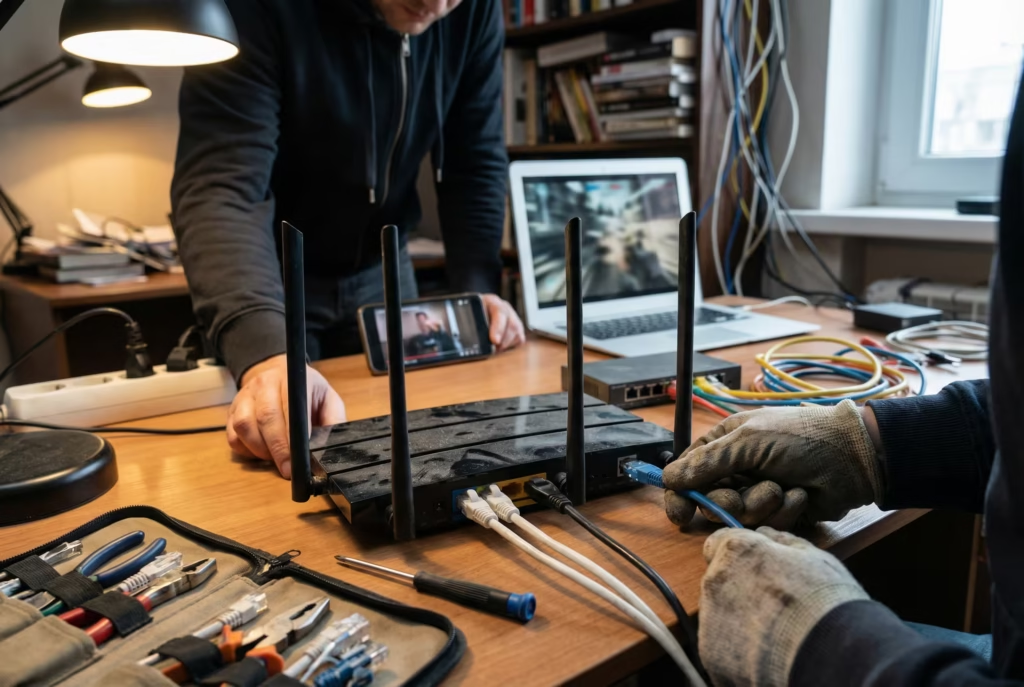
Fix 1 — Enable QoS Device Priority for Your Gaming Device
This is the most effective fix for gaming ping spikes caused by other devices on the network. QoS device priority tells your router to always process traffic from your gaming device before handling bulk data from everything else.
What QoS Device Priority Actually Does on a Home Router
QoS — Quality of Service — is a traffic scheduling feature built into most modern routers. When enabled with device priority, it instructs the router to place packets from your designated gaming device at the front of the processing queue, regardless of how much traffic other devices are generating.
Without QoS, your router treats a game server packet and a Netflix buffer chunk as equally important. With device priority enabled, the router recognizes your gaming PC’s traffic and forwards it immediately, pushing lower-priority bulk transfers to the back of the queue. The result is that your ping stays low and consistent even when someone else is saturating the connection with downloads or streams. This directly addresses the queue buildup problem that causes packet loss and lag spikes during heavy network usage.
How to Find Your Gaming Device MAC Address on Windows 11
Every QoS device priority setup requires your gaming device’s MAC address — a unique hardware identifier assigned to your network adapter. To find it on Windows 11, open Command Prompt and run the following command. This displays network configuration details for all adapters on your system.
ipconfig /allLook for the adapter you use to connect to your router. If you are on Ethernet, find the section labeled “Ethernet adapter.” If you are on Wi-Fi, find “Wireless LAN adapter Wi-Fi.” Under that section, locate the line that says Physical Address. It will look something like this:
Physical Address. . . . . . . . . : A4-B1-C2-3D-4E-5FCopy that value. You will enter it in your router’s QoS settings in the next step.
How to Enable Device Priority on ASUS Routers
Log into your ASUS router admin panel by opening a browser and navigating to 192.168.1.1 or router.asus.com. Enter your admin credentials.
- Go to Adaptive QoS in the left sidebar.
- Click QoS at the top.
- Enable QoS by toggling it on.
- Select Adaptive QoS as the QoS type.
- Open the Device Priority tab — this is labeled as Web & Apps on some firmware versions.
- Find your gaming device in the connected devices list or add it manually using the MAC address.
- Drag your gaming device to the Highest priority tier.
- Click Apply.
ASUS routers with Merlin firmware or AiMesh also support custom bandwidth allocation per priority tier, which gives you even finer control.
How to Enable Device Priority on TP-Link Routers
Log into your TP-Link router at 192.168.0.1 or tplinkwifi.net.
- Navigate to Advanced → QoS.
- Enable QoS and set your total upload and download bandwidth. Enter values slightly below your actual speeds — this is explained in Fix 3.
- Click Add under the device priority section.
- Select your gaming device from the connected devices list or enter its MAC address manually.
- Set it to High priority.
- Click Save.
On newer TP-Link Archer models, this may appear under HomeCare → QoS instead.
How to Enable Device Priority on Netgear Routers
Log into your Netgear router at 192.168.1.1 or routerlogin.net.
- Go to QoS Setup under the Advanced tab.
- Enable QoS if it is not already active.
- Select Add Priority Rule.
- Choose MAC Address as the rule type.
- Enter your gaming device’s MAC address.
- Set the priority level to Highest.
- Click Apply.
On Netgear Nighthawk models, this is often found under Dynamic QoS, and the router may prompt you to run a speed test before activation.
How to Enable Device Priority on Any Other Router
If your router is from a brand not listed above — such as Linksys, D-Link, Huawei, or an ISP-provided gateway — the process follows the same logic.
- Log into the router admin panel. The address is usually printed on a label on the bottom of the router.
- Look for a section labeled QoS, Traffic Management, Bandwidth Control, or Device Priority.
- Enable the feature.
- Add your gaming device by MAC address or select it from the connected devices list.
- Assign it the highest available priority level.
- Save and apply.
If your ISP-provided router does not have any QoS options at all, that is a hardware limitation. In that case, consider using your own router behind the ISP gateway or switching to a router that supports proper traffic management. The video calls lag despite fast internet guide covers additional scenarios where ISP routers fall short of handling real-time traffic properly.
Fix 2 — Set Bandwidth Limits on the Devices That Are Causing the Problem
QoS device priority tells the router what to prioritize. Bandwidth limiting works from the opposite direction — it caps how much bandwidth the problem devices can consume, ensuring they never saturate the connection in the first place. Used together with device priority, this approach virtually eliminates ping spikes caused by other household devices.
How to Find Which Device Is Consuming the Most Upload Bandwidth
Most modern routers include a traffic monitor that shows real-time bandwidth usage per device. Log into your router admin panel and look for a section labeled Traffic Monitor, Traffic Analyzer, Attached Devices, or Network Map. ASUS routers display this under Adaptive QoS → Traffic Monitor. TP-Link Archer routers show it under Network Map or System Tools → Statistics. Netgear Nighthawk models list it under Attached Devices with live usage graphs.
Identify the devices consuming the most upload bandwidth. Common offenders include laptops running cloud backup services like OneDrive or Google Drive, phones uploading photos in the background, smart TVs running apps with telemetry, and anyone actively video calling or live streaming. Upload hogs are almost always the primary cause of gaming lag because, as covered earlier, upload capacity on home connections is far more limited than download.
How to Set Per-Device Bandwidth Limits on Your Router
Once you know which devices are causing the congestion, you can cap their bandwidth individually. The exact path varies by router brand, but the general process is the same.
- Open your router admin panel.
- Navigate to Bandwidth Control, QoS, or Traffic Management.
- Select the device you want to limit — either by name, IP address, or MAC address.
- Set a maximum upload and download speed for that device.
- Save and apply.
On TP-Link routers, this is under Bandwidth Control → Rules List. On ASUS routers with Adaptive QoS enabled, you can assign bandwidth caps per priority tier. On Netgear routers, per-device limits are available through the QoS Setup section.
What Bandwidth Limit to Set So Gaming Is Never Affected
The goal is not to cripple other devices — it is to prevent any single device from consuming more than its fair share of the upload pipe. A practical rule is to never let any single non-gaming device use more than 60 percent of your total upload bandwidth.
For example, if your real upload speed is 10 Mbps, cap heavy-use devices like streaming laptops or cloud-syncing machines at 5–6 Mbps upload. This leaves enough headroom for your gaming device to send packets without queue buildup. For download, you can be more generous since gaming uses very little download bandwidth — capping devices at 70–80 percent of your total download is usually sufficient.
Fix 3 — Set Your Router QoS Upload Limit to 85 Percent of Real Speed
This fix targets the root mechanical cause of ping spikes — the moment your connection hits 100 percent utilization, the queue inside your router starts growing, and every packet gets delayed. By deliberately setting your QoS bandwidth cap below your actual speed, you prevent the queue from ever forming.
Why 100 Percent QoS Setting Does Not Work
When you enable QoS and enter your full upload speed as the bandwidth ceiling, the router still allows the connection to fully saturate before it starts managing traffic. At that point, the queue has already begun building. QoS then tries to sort packets inside an already congested pipe, which reduces the severity of spikes but does not eliminate them.
Setting the QoS ceiling to 85 percent of your real speed forces the router to begin throttling and prioritizing traffic before the connection reaches full saturation. The queue never builds because the router is managing traffic with a buffer of unused capacity. This is the same principle behind SQM — Smart Queue Management — which is widely recognized as the most effective fix for bufferbloat on consumer hardware.
How to Find Your Real Upload Speed With a Proper Test
Do not rely on the speed your ISP advertises. You need an accurate measurement of your actual upload throughput. Run a speed test using Cloudflare’s Speed Test, which provides detailed upload, download, latency, and jitter metrics without influence from ISP-side optimization.
Run the test three times at different points during the day and take the lowest upload result. That is the number you should base your QoS setting on. If your lowest measured upload speed is 10 Mbps, your QoS upload cap should be set to 8.5 Mbps.
How to Set the Correct Upload Bandwidth Cap in QoS
Log into your router and open the QoS settings page — the same section used in Fix 1. Most QoS interfaces have fields for Upload Bandwidth and Download Bandwidth.
- In the Upload Bandwidth field, enter 85 percent of your real measured upload speed. If your upload tested at 20 Mbps, enter 17 Mbps. If it tested at 10 Mbps, enter 8.5 Mbps.
- In the Download Bandwidth field, enter 85–90 percent of your measured download speed using the same logic.
- Save and apply.
You can verify the impact immediately by running a bufferbloat test at Waveform’s Bufferbloat Test before and after making this change. A well-configured QoS upload cap should bring your bufferbloat grade from D or F to A or B, which directly translates to stable ping under load.
Fix 4 — Enable Gaming Mode or Game Accelerator on Your Router
Some routers include a dedicated gaming mode that simplifies traffic prioritization into a single toggle. This is not a replacement for manual QoS configuration, but it can provide a quick improvement if you want a faster starting point.
Which Routers Have a One-Click Gaming Mode
ASUS ROG and RT-series routers offer Game Boost and Open NAT under the Game section of the admin panel. Netgear Nighthawk Pro Gaming routers include Game Detection and Geo Filtering through DumaOS. TP-Link Archer GX and GE series models feature Game Accelerator under HomeCare. Linksys gaming routers such as the WRT32X use a custom Killer Prioritization Engine.
If your router does not have a labeled gaming mode, it likely does not support this feature natively, and manual QoS as described in the previous fixes is your path forward.
What Gaming Mode Actually Does and Its Limits
Gaming mode typically combines two functions — automatic traffic detection for game protocols and port-based prioritization. Some implementations also disable certain background router tasks like band steering or firmware checks to reduce processing overhead.
The limitation is that gaming mode works as a preset. It does not let you control bandwidth caps, per-device priority tiers, or upload saturation thresholds the way manual QoS does. On routers where gaming mode and manual QoS can coexist, enable both. On routers where enabling gaming mode overrides custom QoS rules, stick with manual QoS for finer control. If you are also dealing with connectivity issues related to strict NAT, some gaming modes include Open NAT features that can resolve that simultaneously.
When QoS Cannot Fix the Problem — And What To Do Instead
QoS fixes traffic prioritization inside your home network. It cannot fix problems that exist beyond your router. If your ping spikes persist after applying all four fixes above, the issue is likely upstream.
Common causes include ISP-side congestion during peak hours, a degraded line between your modem and the ISP’s node, or routing issues between your ISP and the game server. Run a continuous ping test to your game server’s IP address during spike events. If latency is high even with your gaming PC as the only device on the network, your ISP is the bottleneck.
In that case, contact your ISP with your ping test results showing timestamps and latency spikes. Request a line quality test. If you are on a DSL or cable connection with consistent peak-hour degradation, switching to fiber — if available in your area — is the only permanent fix for ISP-level congestion.
How to Confirm the Fix Worked — Before and After Ping Test
After applying QoS device priority, bandwidth limits, and the 85 percent upload cap, run the same diagnostic test from the beginning of this guide. Open Command Prompt and start a continuous ping.
ping 8.8.8.8 -tWhile the ping is running, have other household members resume their normal usage — streaming, downloading, video calls. Watch the ping values. If the spikes are gone or reduced to under 10–15ms of variation, QoS is working correctly. Your gaming device is now being prioritized ahead of bulk traffic.
For a comprehensive overview of how latency, congestion, and traffic management interact on home networks, the Internet Connectivity Explained guide covers the full picture.

Frequently Asked Questions
Why does my ping spike when someone else uses the internet?
Your router processes all traffic equally by default. When another device floods the connection, your game packets wait in the same queue as bulk data. This queue delay shows up as a ping spike.
How do I stop ping spikes when someone is streaming?
Enable QoS on your router and set your gaming device as the highest priority. Additionally, set your router’s upload bandwidth cap to 85 percent of your real upload speed to prevent queue buildup.
Why does my gaming lag when someone downloads something?
Large downloads saturate your connection, especially on the upload acknowledgment side. Your router queues all packets equally, and game traffic gets delayed behind download-related data.
How do I prioritize my gaming device on my router?
Log into your router admin panel, navigate to the QoS or device priority section, and add your gaming device using its MAC address. Set it to the highest priority tier.
What is QoS device priority and how do I set it up?
QoS device priority is a router feature that tells the router to process traffic from a specific device before all others. You set it up by entering your device’s MAC address in the QoS settings and assigning it the highest priority level.
How do I find my gaming device MAC address on Windows 11?
Open Command Prompt and run ipconfig /all. Look for the Physical Address under your active network adapter — Ethernet or Wi-Fi. That six-pair alphanumeric value is your MAC address.
How do I set QoS on an ASUS router for gaming?
Go to Adaptive QoS in the router admin panel, enable QoS, open the Device Priority tab, find your gaming device, and drag it to the Highest priority tier. Click Apply.
How do I set bandwidth limits on other devices on my router?
Navigate to Bandwidth Control or QoS in your router settings. Select the device you want to limit by MAC address or IP, set a maximum upload and download speed, and save the rule.
Why does upgrading internet speed not fix gaming lag?
Because the lag is caused by queue management, not raw speed. Without QoS, your router still treats all traffic equally regardless of how wide the pipe is, so congestion and queue buildup still occur during heavy usage.
How do I know if ping spikes are caused by my router or my ISP?
Run a continuous ping test with all other devices disconnected. If ping is stable alone but spikes when other devices reconnect, the problem is your router’s traffic management. If ping spikes even alone, the issue is your ISP.
What QoS bandwidth percentage should I set for gaming?
Set your QoS upload and download bandwidth cap to 85 percent of your real measured speed. This prevents full saturation and eliminates the queue buildup that causes ping spikes.
Does enabling QoS reduce my overall internet speed?
QoS does not reduce your actual internet speed. It manages how your existing bandwidth is distributed. Non-priority devices may experience slightly slower speeds during heavy usage, but total throughput remains the same.
Why does upload saturation cause more gaming lag than download?
Home internet plans have far less upload capacity than download. Games rely on consistent upload to send player inputs to the server. When upload is saturated by other devices, game packets are delayed in the queue, causing immediate ping spikes.
How do I test if QoS is actually helping my gaming ping?
Run a continuous ping test to 8.8.8.8 while other devices are actively using the network. Compare the results to your pre-QoS baseline. If ping stays stable under load, QoS is working as intended.