
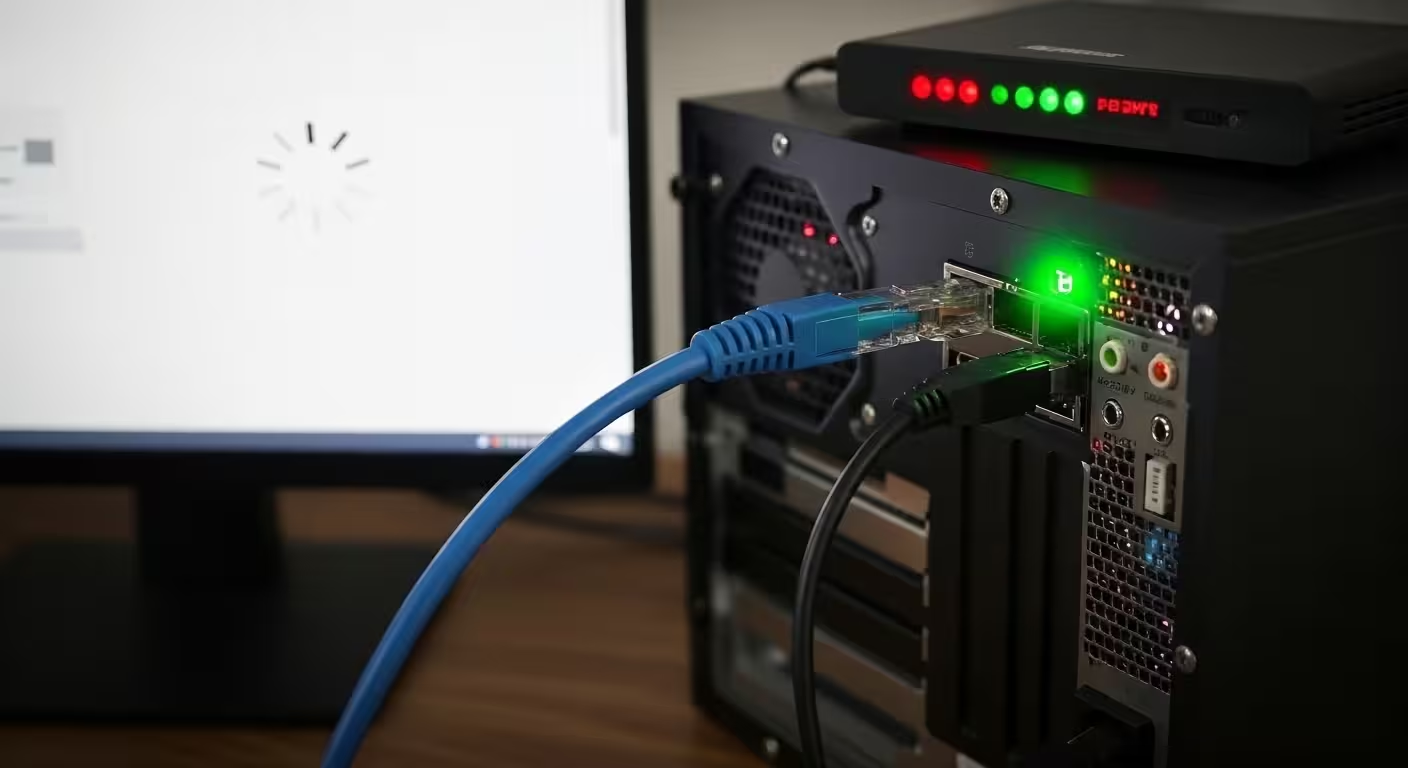
If your Ethernet connection is shown as connected but you still don’t have internet access, it means that the system recognizes the cable but no internet traffic is happening. The taskbar shows “Connected,” the LAN light is blinking, but the browser won’t load any websites. The page stays blank or shows a “No Internet” error message.
This situation confuses the user because everything seems normal. The router lights are on, the cable is connected correctly, but the apps still won’t load. The reason for this is usually not that the Internet service provider is down. In most cases, the problem is related to IP assignment, the default gateway, DNS, or internal network configuration.
In this guide, we will walk through each error state of “Ethernet connected but no Internet” using a real-world troubleshooting scenario. Each section will first provide a direct answer and then use diagnostic blocks to confirm exactly where the problem lies and how it can be fixed step by step.
If you are specifically experiencing issues with gaming or router configuration such as NAT Type Strict, Double NAT, or CGNAT, be sure to check out our detailed guide Why Is My NAT Type Strict? How to Fix Double NAT, CGNAT & Port Forwarding Errors.
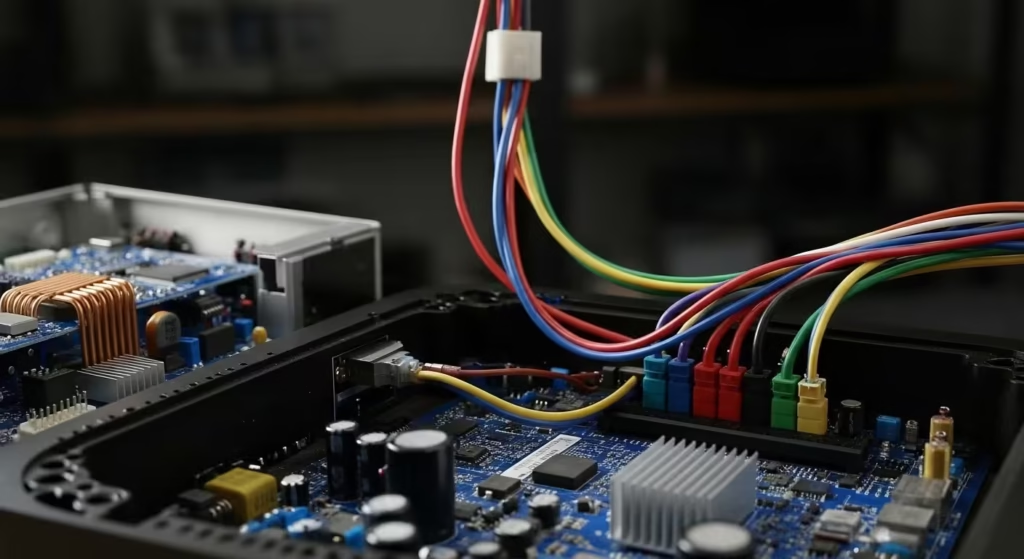
Ethernet Connected But No Internet – What Does This Actually Mean?
This means that your computer is physically connected to the router, but cannot reach the internet.
Let’s say you’ve connected the LAN cable, the network icon on the taskbar shows “Connected,” but as soon as you open Chrome, the website doesn’t load. YouTube keeps spinning, and sometimes you get a “No Internet” or “DNS error” message. The router’s LAN light is blinking, which confuses you because everything is connected, so why isn’t the internet working?
App behavior:
The browser does not load websites, apps do not connect to the server, but the system tray shows Ethernet as “Connected.”
Network context:
The LAN cable is properly inserted, the router port light is active, and WiFi may be working on other devices.
Diagnostic tool:
Command Prompt ipconfig and ping 8.8.8.8 test.
Observed issue:ipconfig shows that the system has obtained an IP address, but when we ping 8.8.8.8, we get a “Request timed out” error. This means that the local network connection is fine, but the default gateway or router is not forwarding the internet. Sometimes the IP is obtained, but the gateway is unreachable, which is why the data cannot leave the router.
Fix:
First, restart the router to establish a fresh connection with the gateway. Then, run ipconfig /release and ipconfig /renew to obtain the IP again. If ping still fails, check the router’s WAN light — if the ISP connection is down on the WAN side, you will not have internet access even though you are connected to the local Ethernet.
Limitation:
If there is an outage on the ISP side or the router firmware has frozen, changing the settings on the PC alone will not solve the problem. In this case, you may need to reset the router or contact ISP support.
Ethernet Connected But No Internet Access on Windows 10 or 11
This error means that Windows is not receiving a valid network configuration from the router, or the network stack has temporarily hung.
You are using Windows 10 or 11, the Ethernet cable is connected, but the system tray says “No Internet Access.” Sometimes a small globe icon appears on the network icon. When you open your browser, pages do not load, and Microsoft Store and updates are also stuck. The router is working normally, and WiFi is working on other devices.
App behavior:
The browser shows “No Internet,” Windows updates do not download, and some apps do not connect to the server.
Network context:
Ethernet is showing as connected, the router is active, WiFi internet is available, but the issue is only occurring on this Windows PC.
Diagnostic tool:
Command Prompt ipconfig, ping, and Windows Network Troubleshooter.
Observed issue:
When checking ipconfig, sometimes the IP address is found but the default gateway is blank, or the DNS server is incorrect. Sometimes the network status shows “Unidentified Network.” This means that Windows has not received the correct configuration from the router, or the network adapter driver is glitching, which is why routing is not being established properly.
Fix:
Disable the network adapter and enable it again. Then run ipconfig /release and ipconfig /renew. If the gateway is still missing, use the Network Reset option (Settings > Network & Internet > Advanced network settings > Network reset). It may also be necessary to update the driver if the adapter is corrupted.
Limitation:
If the router’s DHCP service is down or the internet is down on the ISP side, simply resetting Windows will not provide a permanent solution. The root cause may also be at the router level, which needs to be checked separately.
Ethernet Says Connected But Internet Not Working – Why?
This situation means that the local network link is fine, but data is not being routed to the internet.
You are working with an Ethernet cable connected. The taskbar says “Connected” and there are no warning signs. However, as soon as you open Google, the page does not load. Sometimes you get a “This site can’t be reached” message, sometimes the loading circle keeps spinning. The strange thing is that some local things, such as the router login page, open, but external websites do not work at all.
App behavior:
The browser does not open external websites, but the router’s local IP (such as 192.168.1.1) opens.
Network context:
Ethernet is connected, the router’s LAN light is active, but internet traffic is not going out.
Diagnostic tool:
Command Prompt ping 192.168.1.1 and ping 8.8.8.8.
Observed issue:ping 192.168.1.1 is successful, which indicates that communication between the PC and the router is fine. However, ping 8.8.8.8 returns “Request timed out.” This means that the router is not forwarding traffic on the internet side or the WAN connection is down. The issue here is not with the cable, but with routing or ISP connectivity.
Fix:
Check the WAN light on the router. If it is red or off, power cycle both the modem and router. Check whether the WAN cable is properly inserted. Go to the router’s admin panel and check that the internet status is not marked as “Disconnected.” If the ISP credentials have expired, reconfigure them.
Limitation:
If there is an outage on the ISP side or a fiber issue in the area, no changes you make at the local level will work until the ISP connection is restored.
LAN Connected But No Internet Access – Is It a Router Problem?
If the LAN is connected but the internet is not working, it is not always a router fault, but often the root cause is a router configuration or WAN side issue.
You are using a LAN cable in your office or home. The system shows “Network Connected,” but no website opens. You try another LAN port, change the cable, but the result remains the same. WiFi is also sometimes slow or down on the same network, which adds to the confusion.
App behavior:
The browser does not load external websites, Zoom or Teams do not connect, but local printers or NAS devices may be accessible.
Network context:
Multiple devices are connected to the same router. The LAN link is active. Sometimes WiFi also loses internet connection.
Diagnostic tool:
Router admin panel status page, and ping 8.8.8.8 on the PC.
Observed issue:
When you go to the router admin panel, the WAN status shows “Disconnected” or “No IP Address.” Ping 8.8.8.8 fails on the PC. This means that the router is not getting a public IP from the ISP. When the router is not assigned an IP address from the outside, it cannot forward the internet to LAN devices, even if the LAN is connected internally.
Fix:
Power off both the modem and router and restart them after 2–3 minutes. Firmly insert the WAN cable. If PPPoE credentials are being used, verify the username/password in the router settings. If the issue persists, confirm with the ISP that the line is active.
Limitation:
If the ISP has suspended the service or the fiber line is physically damaged, the internet will not be restored even if the router is working properly until the external line is fixed.
Default Gateway Error Showing on Windows – Step-by-Step Network Fix
This error occurs when your PC cannot reach the router, causing the internet traffic path to be broken.
You are working normally, then suddenly the internet connection is lost. You run the Windows Troubleshooter and get the message: “Default gateway is not available.” Ethernet connected is displayed, but no website opens. Sometimes the internet comes back for 2-3 minutes and then goes down again.
App behavior:
The browser randomly disconnects, online games or calls suddenly drop.
Network context:
Ethernet is stably connected, but the connection frequently breaks. WiFi may be working on the same router.
Diagnostic tool:
Command Prompt ipconfig and ping <gateway IP> (such as 192.168.1.1).
Observed issue:ipconfig shows the gateway address, but when pinging that gateway, you get “Destination host unreachable” or “Request timed out.” This means that logical communication between the PC and the router is breaking down. This is often caused by a network adapter driver issue, power management setting, or corrupted TCP/IP stack, which makes the gateway response unstable.
Fix:
Go to Device Manager and disable the power management option for the Ethernet adapter (uncheck Allow the computer to turn off this device). Then run netsh int ip reset and netsh winsock reset in Command Prompt and restart the system. If the driver is outdated, install the latest driver from the manufacturer’s website.
Limitation:
If the router itself is hanging or the LAN port is faulty, the fix on the PC side may be temporary. In this case, it is also necessary to check the router hardware or firmware update.
Unidentified Network Ethernet Windows 10 – What Causes It?
This means that Windows is unable to detect the correct network profile and gateway, so it treats the connection as “Unidentified” and blocks the internet.
You plug in the Ethernet cable, but the network status says “Unidentified Network” and “No Internet Access” is displayed below. When you open your browser, the page does not load. Sometimes the firewall also goes into strict mode because Windows does not recognize this network as trusted.
App behavior:
Websites do not open, Microsoft services do not connect, and some apps go into “offline” mode.
Network context:
Ethernet is physically connected, the LAN light is blinking, but Windows cannot identify the network.
Diagnostic tool:
Command Prompt ipconfig and Network Status panel.
Observed issue:ipconfig shows the IP address, but the default gateway is missing or an IP in the 169.254 range is assigned. When Windows does not get the proper gateway or DHCP configuration from the router, it cannot identify the network and marks it as public/unidentified. As a result, traffic is not routed to the internet.
Fix:
Disable the network adapter and enable it again. Then run ipconfig /release and ipconfig /renew so that the system obtains a fresh IP and gateway from the router. If the problem persists, manually check the IPv4 settings to ensure that “Obtain IP address automatically” is selected. Restarting the router is also helpful if the DHCP service is temporarily not responding.
Limitation:
If the LAN cable is internally damaged or the router’s DHCP service has crashed, refreshing the Windows side alone will not provide a permanent solution until the root device level issue is fixed.
No Internet Secured on Ethernet – What Does It Indicate?
This message means that the system is securely connected to the router, but the router is unable to provide access to the internet.
You start working by connecting the Ethernet cable. The network status says “Connected, Secured,” but “No Internet” is displayed below. You think everything is fine because it says “Secured,” but the browser won’t open any websites. Sometimes Windows apps like Store or Outlook won’t sync either.
App behavior:
The browser shows a “No Internet” error, online apps won’t log in, and background sync stops.
Network context:
Ethernet is stably connected, the router is reachable, but there is no external internet access.
Diagnostic tool:
Command Prompt ping 192.168.1.1 and ping 8.8.8.8.
Observed issue:
Pinging the gateway returns a reply, which indicates that the connection between the PC and the router is secure and stable. However, pinging the external IP results in a timeout. This means that the router has lost internet access on the WAN side, or DNS resolution is failing, which is why the system cannot verify that the internet is reachable.
Fix:
Check the router’s WAN status and ensure that the ISP connection is active. Test by setting the DNS manually (such as 8.8.8.8 and 8.8.4.4). If the modem is separate, power cycle both devices. Sometimes, simply changing the DNS resolves the issue if the router’s default DNS is not responding.
Limitation:
If ISP authentication is failing or there is a line outage, the router will not provide internet access even though it remains securely connected. In this case, intervention on the ISP side is necessary.
Self Assigned IP Address 169.254 – Why Is Windows Not Getting an IP?
This simply means that Windows did not receive an IP address from the router, so the system assigned itself a temporary IP address in the 169.254 range.
You plug in the Ethernet cable, and it shows that the network is connected, but the internet is not working at all. Run ipconfig in Command Prompt and you will see the IPv4 address 169.254.x.x. The gateway is blank. The browser does not open any sites and shows “No Internet.”
App behavior:
Websites do not open, online apps do not connect to the server, and the system behaves as if it is completely offline.
Network context:
Ethernet is physically connected, the LAN light is on, but the router is not receiving a valid network configuration.
Diagnostic tool:
Command Prompt ipconfig and ping 192.168.1.1.
Observed issue:ipconfig shows the address 169.254, which is assigned when the system cannot receive an IP from the router’s DHCP service. The gateway field is empty. When ping 192.168.1.1 is performed, it fails because the PC and router are not in the same network range. This means that either the DHCP service is disabled on the router, or LAN communication is not being established properly.
Fix:
Restart the router so that the DHCP service starts again. Then run ipconfig /release and ipconfig /renew on the PC. If it still shows 169.254, change the LAN cable or try the other LAN port on the router. Ensure that the IPv4 settings are set to “Obtain IP address automatically.”
Limitation:
If the router’s DHCP is permanently disabled or the firmware is corrupted, simply refreshing the PC will not solve the issue. Router configuration or reset may be necessary.
Why does Ethernet work on WiFi but not on cable?
This means that the internet is available on the router, but communication is breaking down at the specific LAN cable or Ethernet port level.
You see that all devices are using the internet smoothly on WiFi. You connect an Ethernet cable to your PC to get stable speed, but even though the wired connection shows “Connected,” the internet is not working. You disconnect from WiFi and use only the cable, but websites still do not open.
App behavior:
The browser works normally on WiFi, but when connected via cable, websites do not load or “No Internet” is displayed.
Network context:
WiFi is active and functional on the same router. The issue only occurs with the wired LAN connection.
Diagnostic tool:
Command Prompt ipconfig, and test on the router’s other LAN port.
Observed issue:
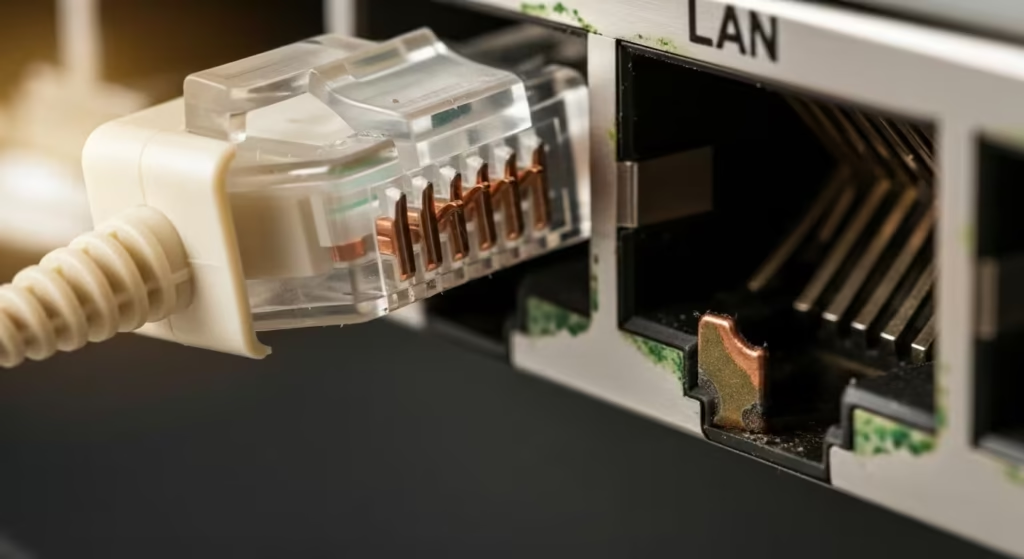
When using WiFi, the system gets the proper IP and gateway. But when checking ipconfig on Ethernet, either it gets 169.254 IP or the gateway is missing. Sometimes pinging the gateway fails. This means that either the LAN cable is internally damaged, or a specific LAN port on the router is faulty, or the Ethernet adapter driver is not communicating properly.
Fix:
Disconnect the current LAN cable and test the connection using another cable and a separate router LAN port.Update the Ethernet adapter driver. Test by disabling/enabling the adapter in Device Manager. If possible, test the same cable on another device to confirm whether the cable is working or not.
Limitation:
If the router’s LAN switch section is damaged at the hardware level, WiFi will work perfectly, but wired ports may fail permanently. In this case, replacing the router is the only solution.
Frequently Asked Questions
What is the most common reason for Ethernet being connected but no internet?
The most common reason is that the PC is not getting a valid IP or default gateway from the router. Sometimes DHCP does not respond, sometimes the gateway is unreachable, which is why there is no internet route despite a local connection.
Why does the default gateway is not available error keep occurring?
This is often due to a network adapter driver issue, power management setting, or unstable router response. When the PC cannot reach the router’s gateway, the internet connection is temporarily disconnected.
What does the IP address 169.254 mean?
It means that Windows has not been assigned an IP address by the router. The system has taken a temporary self-assigned IP address because it did not receive a response from DHCP.
How can I fix the Unidentified Network error?
It can usually be fixed by getting a fresh IP address using ipconfig /release and ipconfig /renew. If the gateway is missing, it is necessary to restart the router or check the DHCP.
If it says “No Internet, Secured,” does that mean the internet is safe or down?
It simply means that you are securely connected to the router, but the router is not providing internet. Secure does not mean that the internet is available.
If WiFi is working but Ethernet is not, what could be the issue?
In this case, the LAN cable may be damaged, the router’s LAN port may be faulty, or the Ethernet adapter driver may not be working properly.
Can restarting the router alone solve the issue?
If there is a temporary routing or DHCP glitch, restarting may fix it. However, if there is a hardware fault or ISP outage, restarting alone will not provide a permanent solution.
Is it helpful to set the DNS manually?
If the issue is with DNS resolution, setting the DNS manually (such as 8.8.8.8) may allow websites to open. However, if the gateway is unreachable, changing the DNS will not help.
If you keep encountering the “Ethernet Connected But No Internet” error, the most important thing to do is to systematically diagnose the problem instead of rushing to conclusions. Just because the cable is connected and it says “Connected” does not mean that the internet layer is also active. Every error state—whether it’s default gateway, 169.254 IP, or unidentified network—gives a specific signal as to which layer the problem is in.
When you use app behavior, network context, and diagnostic tools correctly, you stop guessing and isolate the exact root cause. This approach saves you from unnecessary cable changes, random setting resets, or replacing routers for no reason.
Internet troubleshooting is always layer-by-layer: first the physical link, then IP assignment, then gateway, then routing, and then DNS. If you follow this logical flow, even confusing issues such as “Ethernet Connected But No Internet” become clear and manageable.
If you want to see advanced troubleshooting scenarios such as high ping, packet loss, DNS failure, or intermittent disconnection, be sure to explore our Internet Diagnostics category, where each issue is explained with real-world diagnostic proof.