

Your WiFi icon shows full bars. Your speed test might even run fine. But every website you try to open throws back “DNS server not responding” — and you have no idea why. This error does not mean your internet is down. It means your device is connected to the network but cannot translate domain names like google.com into the IP addresses that actually load websites. That translation process is handled by a DNS server, and when it fails, nothing opens — even though your connection is technically alive.
The problem is that this error shows up in at least four completely different scenarios, and each one has a different fix. It might be happening on only one device. It might be limited to Chrome. It might have started right after a Windows update. Or it might be affecting every device in your house. Applying the wrong fix wastes time and changes nothing. This guide walks through each scenario with the exact diagnostic steps and commands to resolve it permanently on Windows 11 and Windows 10.
What DNS Server Not Responding Actually Means — And the One Test That Tells You Everything
Why WiFi Shows Connected While DNS Completely Fails
A WiFi connection and a working internet connection are two separate things. Your device connects to your router over WiFi — that is the local link. The router then connects to your ISP, and your ISP routes traffic to the internet. DNS resolution is a layer on top of all of this. When your device needs to open a website, it sends the domain name to a DNS server, which returns the correct IP address. If that DNS server is unreachable, misconfigured, or slow to respond, your device has no way to find the destination. The WiFi icon stays connected because the local link to the router is fine. But browsing fails completely because name resolution is broken. For a deeper breakdown of how these layers interact, see this internet connectivity guide.
The Ping Test That Confirms Whether It Is DNS or a Real Internet Outage
There is one test that immediately tells you whether you have a DNS problem or an actual internet outage. Open Command Prompt as Administrator and run this command first:
ping 8.8.8.8
This sends a direct request to Google’s public DNS server using its raw IP address — no name resolution involved. If you get replies with response times, your internet connection is working at the IP level. Now run this:
ping google.com
If this command fails with a timeout or “could not find host” error while the first one succeeded, you have confirmed a DNS resolution failure. Your connection is live, but the system that converts domain names to IP addresses is broken. If both commands fail, the problem is not DNS at all — your internet connectivity itself is down, and you should troubleshoot your router and connection instead. This single two-step ping test eliminates half of all misdiagnosed DNS issues before you touch a single setting.
What the Error Looks Like Across Chrome, Edge and Windows Network Diagnostics
The DNS failure message varies depending on where you encounter it. In Chrome, you will typically see DNS_PROBE_FINISHED_NXDOMAIN or ERR_NAME_NOT_RESOLVED on the error page. Microsoft Edge shows similar messages but may also display “Hmm… can’t reach this page” with a suggestion to check DNS settings. If you run the Windows Network Diagnostics tool, it will usually return the explicit message “DNS server not responding” or “Your computer appears to be correctly configured, but the device or resource (DNS server) is not responding.” Each of these points to the same underlying failure, but the source of the failure — whether it is your device, your browser, your router, or your ISP — determines which fix actually works. The sections below walk through each scenario individually, starting with the most common one: the error appearing on only one device while everything else on the network works fine.

DNS Server Not Responding on One Device Only — Diagnosis and Fix
Why Only Your PC Has the Error While Everything Else on the Network Works
When every phone, tablet, and laptop on your network browses normally but one Windows PC keeps throwing DNS errors, the problem is isolated to that device’s network configuration. The router and ISP are working — the proof is that other devices resolve domain names without issues. The most common cause is an incorrect or stale DNS server address saved in the network adapter settings on that specific machine. This happens when a previous manual DNS entry was never reverted, when a VPN left behind custom DNS settings after uninstalling, or when the adapter simply failed to pick up DNS addresses from DHCP properly. A quick way to confirm is to open Command Prompt and run:
ipconfig /all
Scroll to your active adapter and look at the DNS Servers line. If it shows 169.254.x.x, a blank field, or an IP you do not recognize, your adapter is pointing to the wrong DNS destination. That single misconfiguration explains why only your PC fails while everything else works. If you notice that certain websites only load when connected to a VPN, leftover VPN DNS settings are very likely the cause.
Diagnosing and Resetting DNS Settings on the Affected Device
Fixing this requires going directly into the adapter properties and correcting the DNS configuration. Follow these steps exactly:
Press Windows + R, type ncpa.cpl, and press Enter. This opens the Network Connections panel. Right-click your active adapter — either WiFi or Ethernet — and select Properties. Click Internet Protocol Version 4 (TCP/IPv4) and then click Properties again. You will see two options for DNS. If “Use the following DNS server addresses” is selected with old or incorrect values, that is your problem.
Either select Obtain DNS server address automatically to let your router assign DNS, or manually enter reliable public DNS servers. Set Preferred to 8.8.8.8 and Alternate to 8.8.4.4. Click OK, close all dialogs, then open Command Prompt as Administrator and run these two commands in order:
ipconfig /flushdns
ipconfig /renew
The first clears any cached entries tied to the old DNS. The second requests a fresh network configuration from your router. Restart the PC afterward and test with ping google.com to confirm resolution is working. For the full Windows 11 Settings app method, the detailed walkthrough is covered in the command sequence section later in this guide.
When Security Software or Firewall Is Silently Blocking DNS on That Device
If your DNS settings look correct but the error persists on that one device, the next suspect is security software. Antivirus programs, third-party firewalls, and even some browser security extensions can silently block outbound traffic on UDP port 53 — the port used for all standard DNS queries. The DNS request leaves your PC, gets intercepted by the firewall, and never reaches the server. Windows then reports the DNS server as not responding, even though the server itself is perfectly fine.
To test this, temporarily disable your antivirus and any third-party firewall completely. Then immediately run ping google.com in Command Prompt. If it resolves successfully, the security software was the cause. Re-enable your protection and add an exception for outbound UDP port 53 in the firewall rules. Programs like Kaspersky, Bitdefender, and ESET are known to occasionally filter DNS traffic, especially after their own updates change default filtering behavior. Windows Defender Firewall rarely causes this, but Windows built-in diagnostic tools can help you verify whether the system firewall is interfering with outbound connections.
DNS Issues in Chrome Only: Understanding the Built-In Cache Conflict
Why Chrome Uses an Independent DNS Resolver Instead of the Windows System
Most people assume that when they flush DNS through Command Prompt, every application on the system gets a fresh start. Chrome does not work that way. Google built Chrome with its own dedicated DNS resolver that stores domain lookups in a private cache completely isolated from the Windows DNS resolver. When you type a website address into Chrome, the browser first checks its own internal records before ever asking Windows to resolve anything. This design makes Chrome faster for repeat visits — but it also means corrupted or outdated entries can survive inside Chrome even when the Windows cache has been fully cleared.
The practical result is confusing. You run ipconfig /flushdns, assume the problem is solved, open Chrome, and the same DNS error stares back at you. Meanwhile, opening Edge or Firefox and visiting the exact same URL works perfectly. This happens because Chrome is still serving the broken cached result from its own storage. If you test a failing website in any other browser and it loads without issues, you have confirmed that the problem lives entirely inside Chrome’s resolution layer — your network adapter, your router, and your ISP are all working correctly. Users who experience situations where their internet speed tests fine but browsing feels broken are often dealing with exactly this kind of browser-level DNS failure without realizing it.
How to Clear Chrome Internal DNS Cache in Thirty Seconds
Chrome gives you direct access to its hidden DNS storage through a built-in diagnostic page that most users never discover. Open a new Chrome tab, click on the address bar, and type the following exactly as shown:
chrome://net-internals/#dns
Press Enter. This loads Chrome’s network internals panel showing all cached DNS entries the browser is currently holding. Click the Clear host cache button to wipe every stored record. Chrome will now query fresh results the next time you visit any website.
There is a second step that most guides skip. Chrome also holds open network socket connections that can retain old routing information tied to the bad DNS entries you just cleared. Navigate to this address in the same tab:
chrome://net-internals/#sockets
Click Flush socket pools to close all stale connections. Now close Chrome entirely — do not just close the tab or the visible window. Right-click the Chrome icon in your taskbar system tray and select Exit, or open Task Manager and end all Chrome processes. Reopen Chrome fresh and test the website that was giving DNS errors. In the majority of Chrome-only DNS failures, this two-step internal flush resolves everything immediately. If you use Microsoft Edge and encounter similar behavior, the same cache exists at edge://net-internals/#dns because Edge runs on the same Chromium engine.
How to Disable Secure DNS in Chrome When It Causes Resolution Failures
Chrome introduced a privacy feature called Secure DNS that encrypts your DNS queries using HTTPS instead of sending them as plain text over UDP. Google designed this to prevent network eavesdropping on your browsing activity. The feature works well on open networks, but it creates a serious problem when your local network infrastructure does not support encrypted DNS traffic. Many corporate firewalls, school WiFi networks, and ISP routers with built-in content filtering actively block DNS over HTTPS connections. When Chrome sends an encrypted DNS request and the network drops it, Chrome has no fallback — it simply fails with a resolution error. Other browsers using standard unencrypted DNS on the same machine resolve websites without any problem, which makes the error look like a Chrome-specific bug. This situation can also trigger connection privacy warnings depending on how the network intercepts the encrypted request.
To disable this feature, open Chrome and navigate to Settings. Select Privacy and Security from the left sidebar, then click Security. Scroll down until you find the Advanced section. Locate the option labeled Use secure DNS. You have two choices here. You can toggle it off entirely, which forces Chrome to use the standard DNS path that Windows uses. Alternatively, change the dropdown menu to With your current service provider, which tells Chrome to follow whatever DNS server the operating system is configured to use rather than routing queries through its own encrypted provider.
After making this change, restart Chrome fully and test your previously failing websites. If Secure DNS was the root cause, every site will load without delay. When the problem still continues after both clearing the internal cache and disabling Secure DNS, disable all Chrome extensions temporarily — ad blockers and privacy-focused extensions frequently intercept and modify DNS behavior internally. Test in a clean state. If that finally resolves it, re-enable extensions one at a time to identify the culprit. As a final measure, go to Chrome Settings, scroll to Reset settings, and click Restore settings to their original defaults. This completely rebuilds Chrome’s network configuration without deleting bookmarks or saved passwords.
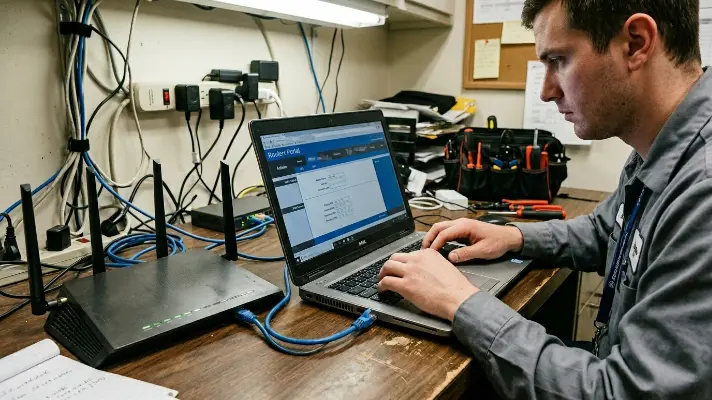
Fix DNS Failures Caused by the Latest Windows Update
Why Windows Updates Reset Network Adapter Settings and Re-Enable IPv6
Windows updates frequently modify network stack components without warning. A cumulative update or feature update can reinstall network adapter drivers, reset TCP/IP configurations, and re-enable settings that users had previously disabled. One of the most common changes is the silent re-enabling of IPv6 on network adapters. If you disabled IPv6 months ago to fix a connectivity issue, a single Windows update can turn it back on — and suddenly the same DNS problems return. Windows 11 prioritizes IPv6 over IPv4 by default, so when IPv6 is active, DNS queries go through the IPv6 path first. Many home routers do not properly support IPv6 DNS resolution, causing the query to timeout before Windows falls back to IPv4. The result is sluggish browsing, intermittent failures, and eventual DNS server not responding errors. This is also why your WiFi might feel slow even when speed tests look fine — the delay happens at the DNS resolution layer, not the raw throughput layer.
How to Fix the Driver and DNS Configuration After an Update
When DNS stops working immediately after a Windows update, the network adapter driver is the first place to check. Updates sometimes install generic Microsoft drivers over manufacturer-specific ones, or they reset driver settings to defaults that do not match your network. To reinstall the driver cleanly, press Windows + X and select Device Manager. Expand Network adapters, right-click your active adapter, and select Uninstall device. Check the box that says Attempt to remove the driver for this device if it appears, then click Uninstall. Restart your PC. Windows will automatically detect the adapter on reboot and install a fresh driver.
After the restart, you may also need to reconfigure DNS. Open Command Prompt as Administrator and run:
ipconfig /flushdns
Then run:
netsh winsock reset
This resets the Winsock catalog, which can become corrupted after updates that modify network stack components. Restart once more after this command. Finally, verify your DNS settings through ncpa.cpl as described earlier — updates sometimes revert manual DNS entries back to automatic, which means your adapter might now be pulling DNS from your ISP instead of the public DNS you configured previously.
How to Disable IPv6 When It Conflicts With Your Router on Windows 11
If the DNS issue started after an update and your router does not fully support IPv6, disabling IPv6 on your adapter is the most reliable fix. Press Windows + R, type ncpa.cpl, and press Enter. Right-click your active network adapter and select Properties. In the list of items, find Internet Protocol Version 6 (TCP/IPv6) and uncheck the box next to it. Click OK and close the window.
This forces all DNS queries and general traffic to use IPv4 only, bypassing the IPv6 timeout problem entirely. Restart your PC after making this change. Run ping google.com to confirm that DNS resolution is working. If the error disappears after disabling IPv6, the conflict was between Windows and your router’s limited IPv6 handling — a common issue with older routers or ISP-provided equipment that advertises IPv6 support without fully implementing it.
One additional post-update setting to check is Delivery Optimization. This feature allows Windows to download updates from other PCs on your network or the internet using peer-to-peer sharing. After major updates, it can temporarily interfere with DNS behavior. Go to Settings, then Windows Update, then Advanced options, and select Delivery Optimization. Toggle off Allow downloads from other PCs if DNS problems persist after trying the other fixes.
DNS Server Not Responding on All Devices — Router and ISP Level Causes
How to Confirm Whether Your Router Is Forwarding DNS Correctly
When every device in your home — phones, tablets, laptops, smart TVs — fails to load websites at the same time, the problem is no longer device-specific. The common failure point is either your router or your ISP’s DNS servers. Your router acts as the DNS middleman for all connected devices. When a device sends a DNS query, the router forwards it to whatever DNS server is configured in its WAN settings. If that DNS server is unreachable, slow, or misconfigured, every device on the network inherits the failure.
To check your router configuration, log into the admin panel. Open a browser and type your router’s gateway address — usually 192.168.0.1 or 192.168.1.1. Enter your admin credentials. Navigate to the WAN or Internet settings section and look at the DNS Server fields. If these fields are blank, set to an ISP-assigned address, or showing addresses you do not recognize, this is the likely cause. A blank field means the router is relying on your ISP to provide DNS dynamically — which fails if the ISP DNS is overloaded or down.
How to Change the DNS Server in Your Router to Fix All Devices at Once
Setting a reliable public DNS directly in your router fixes DNS issues across every connected device without touching individual settings. In your router’s WAN or Internet settings, find the DNS Server fields and enter the following:
Primary DNS: 8.8.8.8
Secondary DNS: 8.8.4.4
These are Google’s public DNS servers. Alternatively, use Cloudflare’s DNS for potentially faster resolution:
Primary DNS: 1.1.1.1
Secondary DNS: 1.0.0.1
Save the settings and reboot the router. Once it restarts, all devices on your network will automatically use the new DNS servers without any configuration changes on individual machines. This is the most efficient fix when multiple devices are affected. For detailed instructions on setting this up across different systems, Google provides an official public DNS setup guide.
How to Tell If Your ISP DNS Is Down and What to Switch To
ISP-provided DNS servers are the default for most home networks, but they are also the least reliable. ISP DNS infrastructure experiences outages, becomes overloaded during peak hours, and often performs slower than public alternatives. If switching to 8.8.8.8 in your router immediately fixes browsing across all devices, your ISP’s DNS was the problem. This is especially common when ISP DNS causes slow website loading during evenings or weekends when network demand spikes.
To confirm an ISP DNS outage before making changes, try this test from any affected device. Open Command Prompt and run:
nslookup google.com 8.8.8.8
This forces the DNS query to Google’s server instead of your default. If this command returns an IP address while nslookup google.com alone times out, your ISP DNS is confirmed down or unreachable. Switching to Google or Cloudflare DNS at the router level is the permanent solution.
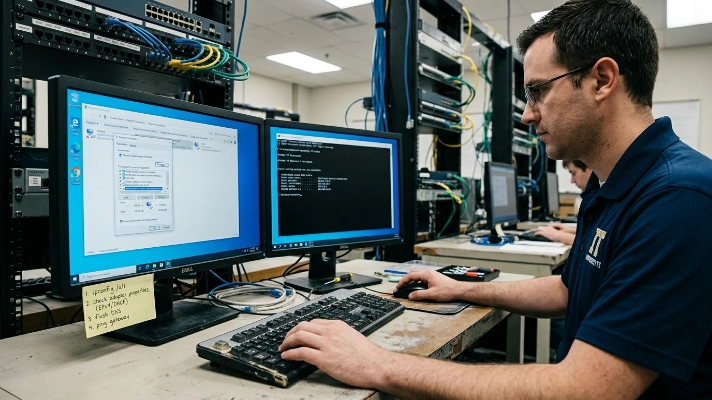
The Complete DNS Fix Command Sequence for Windows 11 and 10
What Each Command Does Before You Run It — And the Correct Order
Blindly running DNS commands without understanding them leads to confusion when the problem persists. Each command targets a specific layer of the network stack. Open Command Prompt as Administrator and run these in order:
ipconfig /flushdns
This clears the local DNS resolver cache on your Windows machine. It removes stale or corrupted entries that may be pointing to old IP addresses. However, it only clears the Windows cache — not Chrome’s internal cache, not your router’s cache, and it does nothing if the actual DNS server is unreachable.
ipconfig /release
This releases your current IP address lease from the router’s DHCP server. Your device temporarily loses its IP assignment.
ipconfig /renew
This requests a fresh IP address and network configuration from the router. Together, release and renew can fix issues where the adapter received incorrect DNS server assignments.
netsh winsock reset
This resets the Winsock catalog, which is the Windows interface between applications and network protocols. Updates, malware, or corrupted installations can damage Winsock entries.
netsh int ip reset
This resets the entire TCP/IP stack to default. It clears all custom IP configurations and forces Windows to rebuild its network protocol settings from scratch.
After running all five commands, restart your PC. The restart is mandatory — several of these changes only take effect after a reboot.
How to Change Your DNS Server Manually on Windows 11 and 10
If flushing and resetting did not solve the problem, manually setting DNS ensures your device always queries a working server regardless of what the router provides.
Windows 11 Settings Method:
Go to Settings, then Network & Internet, then select WiFi or Ethernet depending on your connection. Click Hardware properties. Find DNS server assignment and click Edit. Change the dropdown to Manual. Toggle IPv4 on. Enter 8.8.8.8 as Preferred DNS and 8.8.4.4 as Alternate DNS. Click Save.
Control Panel Method (Windows 10 and 11):
Press Windows + R, type ncpa.cpl, and press Enter. Right-click your active adapter and select Properties. Select Internet Protocol Version 4 (TCP/IPv4) and click Properties. Select Use the following DNS server addresses. Enter 8.8.8.8 and 8.8.4.4. Click OK and close all dialogs.
Both methods achieve the same result. The Control Panel method works identically on Windows 10 if you have not upgraded.
How to Verify the Fix Actually Worked After You Apply It
After applying any DNS fix, verification is essential. Run this command in Command Prompt:
ping google.com
If you receive replies with IP addresses and response times, DNS resolution is working. Next, run:
nslookup google.com
This queries the DNS server directly and displays the server that responded along with the resolved IP address. If nslookup returns results without timeout errors, your DNS configuration is fully functional. Understanding the response times here also helps you assess latency in your DNS path.
Finally, open your browser and test the specific website that was failing. If it loads, the fix is complete. If the browser still fails while command-line tests succeed, return to the Chrome-specific fixes in the earlier section — the problem is browser-level, not system-level.
DNS Error Codes Explained — NXDOMAIN, ERR_NAME_NOT_RESOLVED and No Internet
DNS_PROBE_FINISHED_NXDOMAIN — What It Means and the Correct Fix
NXDOMAIN stands for Non-Existent Domain. When Chrome displays DNS_PROBE_FINISHED_NXDOMAIN, the DNS server received your query but responded that the domain does not exist. This happens for three reasons: you mistyped the URL, the website’s DNS records are genuinely broken on their end, or your local DNS cache contains a stale entry pointing to a domain that moved or expired.
Start by verifying the URL spelling. If correct, flush both Windows and Chrome DNS caches. Run ipconfig /flushdns in Command Prompt, then clear Chrome’s internal cache at chrome://net-internals/#dns. If the error only appears for one specific domain while others load normally, the website itself has DNS misconfiguration — not your system. However, if NXDOMAIN errors appear across multiple sites, switch your DNS server to 8.8.8.8 or 1.1.1.1 because your current DNS may be returning incorrect responses or filtering domains.
NET ERR_NAME_NOT_RESOLVED — Why It Happens and How to Resolve It
This error means the browser sent a DNS query but received no usable response. Unlike NXDOMAIN, where the server explicitly says the domain does not exist, ERR_NAME_NOT_RESOLVED indicates the DNS server either timed out, returned malformed data, or could not be reached at all. The query left your device but never completed successfully.
The fix sequence starts with verifying your DNS server is reachable. Run nslookup google.com in Command Prompt. If it times out, your configured DNS server is the problem. Change DNS to a public server using either the Settings app or ncpa.cpl method described earlier. If nslookup works but Chrome still fails, clear Chrome’s socket pools at chrome://net-internals/#sockets and restart the browser completely. Extensions that modify network behavior can also cause this error — test with extensions disabled.
DNS_PROBE_FINISHED_NO_INTERNET — When the Problem Is Not DNS at All
Despite the DNS prefix in its name, this error typically indicates a broader connectivity failure. DNS_PROBE_FINISHED_NO_INTERNET appears when the device cannot reach any server — DNS or otherwise. Run ipconfig and check your IPv4 address. If it shows 169.254.x.x, your device is not receiving a valid IP from the router. This is an APIPA address that Windows assigns when DHCP fails completely.
The fix is network reconnection, not DNS configuration. Run ipconfig /release followed by ipconfig /renew. If the address remains in the 169.254 range, disconnect and reconnect to WiFi, or unplug and replug your Ethernet cable. Check that your router is powered on and functioning. This error means the problem exists at the IP assignment layer — DNS troubleshooting will not help until basic connectivity is restored.

Frequently Asked Questions
Why is my DNS server not responding but my WiFi is connected?
WiFi connection and DNS resolution are separate layers. WiFi connects your device to the router locally, but DNS translates domain names into IP addresses across the internet. When DNS fails, the local connection remains active — your WiFi icon shows full bars — but websites cannot load because your device cannot find their IP addresses. The DNS server configured on your device or router is either unreachable, misconfigured, or temporarily down.
How do I fix the DNS server not responding error on Windows 11?
Open Command Prompt as Administrator and run ipconfig /flushdns followed by ipconfig /release and ipconfig /renew. If the error persists, manually change your DNS server. Go to Settings, then Network & Internet, select your connection, click Hardware properties, edit DNS server assignment, and enter 8.8.8.8 as Preferred and 8.8.4.4 as Alternate. Restart your PC and test with ping google.com to confirm resolution works.
Why is DNS not responding on only one device when everything else works?
The affected device has incorrect DNS settings in its network adapter configuration. This happens when manual DNS entries were saved previously, a VPN left custom settings after removal, or the adapter failed to receive DNS from DHCP. Open ncpa.cpl, right-click your adapter, access IPv4 properties, and either set DNS to automatic or manually enter 8.8.8.8. Antivirus or firewall software blocking UDP port 53 can also cause single-device DNS failures.
Why is DNS server not responding in Chrome but other browsers are fine?
Chrome maintains its own internal DNS cache separate from Windows. Even after running ipconfig /flushdns, Chrome can hold stale entries that break resolution. Additionally, Chrome’s Secure DNS feature may be configured to use an encrypted DNS provider that your network blocks. Clear Chrome’s cache at chrome://net-internals/#dns, disable Secure DNS in Chrome settings under Privacy and Security, and restart the browser completely.
How do I fix DNS_PROBE_FINISHED_NXDOMAIN on Windows 11?
First verify the URL spelling is correct. Then flush both caches — run ipconfig /flushdns in Command Prompt and clear Chrome’s DNS at chrome://net-internals/#dns. If the error affects multiple websites, change your DNS server to 8.8.8.8 or 1.1.1.1 through adapter settings. If only one specific site shows NXDOMAIN while others work, the problem is that website’s DNS configuration, not your system.
Does ipconfig /flushdns fix the DNS server not responding error?
It fixes only one specific cause — stale or corrupted entries in your local Windows DNS cache. It does not fix Chrome’s internal cache, router DNS settings, ISP DNS outages, IPv6 conflicts, or firewall blocks. If the problem is an unreachable DNS server or misconfigured adapter settings, flushing the cache changes nothing. Use flushdns as one step in the diagnostic process, not as a standalone solution.
Should I disable IPv6 to fix DNS errors on Windows 11?
Disable IPv6 if your router does not fully support IPv6 DNS resolution. Windows 11 prefers IPv6 by default, sending DNS queries through the IPv6 path first. When the router cannot process these queries, they timeout before falling back to IPv4. This creates DNS delays and failures. Open ncpa.cpl, access adapter properties, and uncheck Internet Protocol Version 6. Restart your PC and test whether DNS errors disappear.
What is the best DNS server to use to fix DNS not responding?
Google Public DNS at 8.8.8.8 and 8.8.4.4 offers high reliability and global availability. Cloudflare DNS at 1.1.1.1 and 1.0.0.1 is measured as the fastest public DNS in independent testing. Both are free, more reliable than most ISP DNS servers, and can be configured at either the device level or the router level to fix DNS issues across all devices on your network simultaneously.
Resolution Map — Which Fix Applies to Your Scenario
One device only: Check adapter DNS settings via ncpa.cpl. Reset to automatic or set 8.8.8.8 manually. If correct, disable antivirus temporarily to test for firewall blocking UDP port 53.
Chrome only: Clear Chrome’s internal DNS cache at chrome://net-internals/#dns. Disable Secure DNS in Chrome settings. Test with extensions disabled.
After Windows update: Disable IPv6 in adapter properties. Reinstall network driver through Device Manager. Run netsh winsock reset and restart.
All devices: Log into router admin panel and set WAN DNS to 8.8.8.8 and 8.8.4.4. Reboot router. This fixes every connected device at once.
If ping 8.8.8.8 fails alongside ping google.com, the issue is not DNS — your internet connection itself is down. Check your router, modem, and ISP status before touching DNS settings. When both ping tests fail, no DNS fix will help until raw connectivity is restored.