
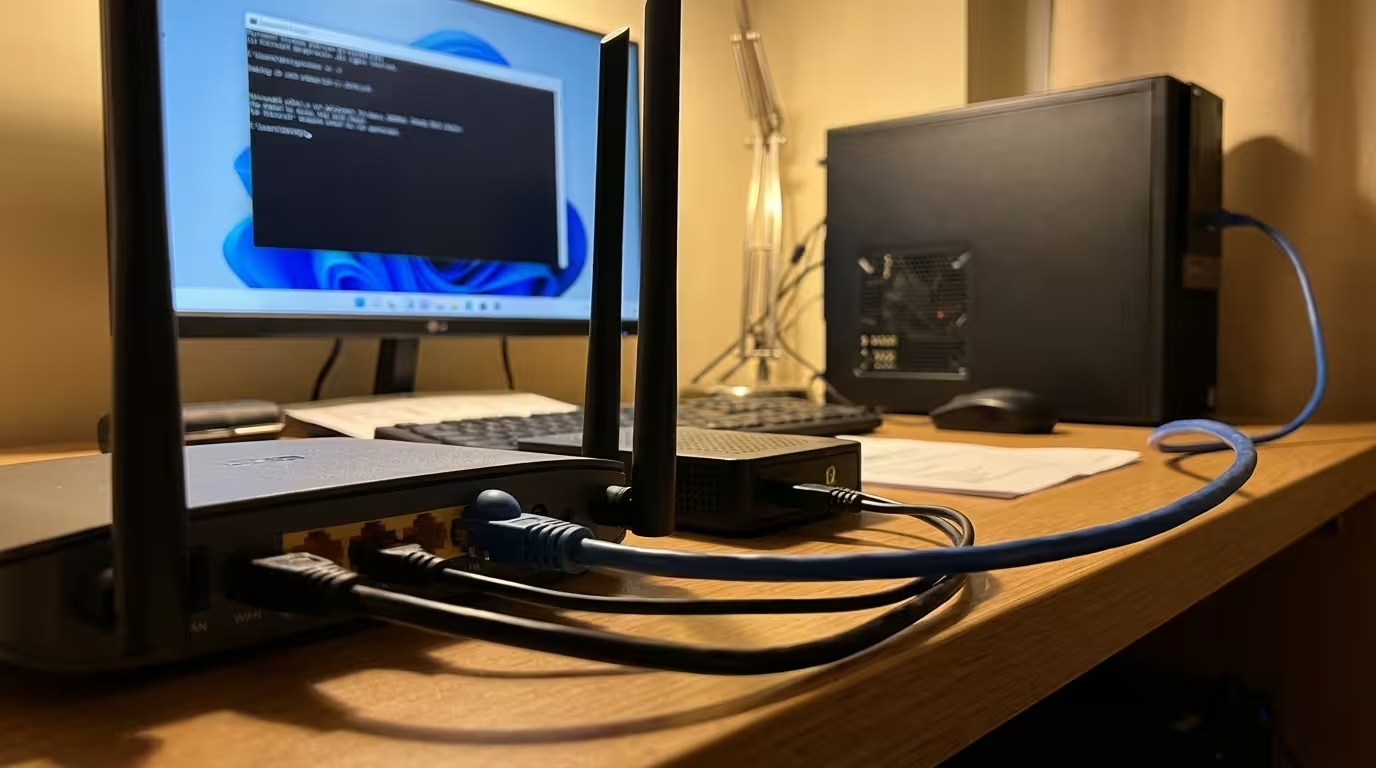
What Does “Cannot Ping Default Gateway” Actually Mean?
When you open Command Prompt and type ping followed by your router’s IP address — typically something like 192.168.1.1 — you expect a reply. That reply confirms your computer can communicate with the router sitting between your local network and the internet. When the ping fails, it means your machine sent out an ICMP echo request and never received a response. The output typically displays either a “Request timed out” error or a “Destination host unreachable” response.
If your ping command returns a “Destination Host Unreachable” message instead of a normal reply, the issue usually involves routing or gateway connectivity on your local network. See our detailed guide on destination host unreachable to understand the causes and fixes.
If your system specifically returns a routing-level destination host unreachable error, it means your computer cannot establish a valid network path to the gateway itself, which is fundamentally different from a simple timeout caused by blocked ICMP traffic.
The default gateway is the first hop your traffic takes on its way out of your local network. Think of it as the front door of your house. Every packet destined for an external server — Google, YouTube, a game server — passes through that gateway. So when you cannot ping default gateway but internet works on Windows 11, the situation feels contradictory. Your browser loads pages, streaming works, yet the most basic connectivity test to your own router fails.
This paradox exists because a ping uses the ICMP protocol, while web browsing, streaming, and most applications use TCP or UDP. If something specifically blocks or disrupts ICMP packets — a firewall rule, a driver quirk, a corrupted ARP entry — your internet traffic can flow normally over TCP while ping silently fails. Understanding this distinction is the first step toward diagnosing the issue correctly instead of chasing the wrong fix.
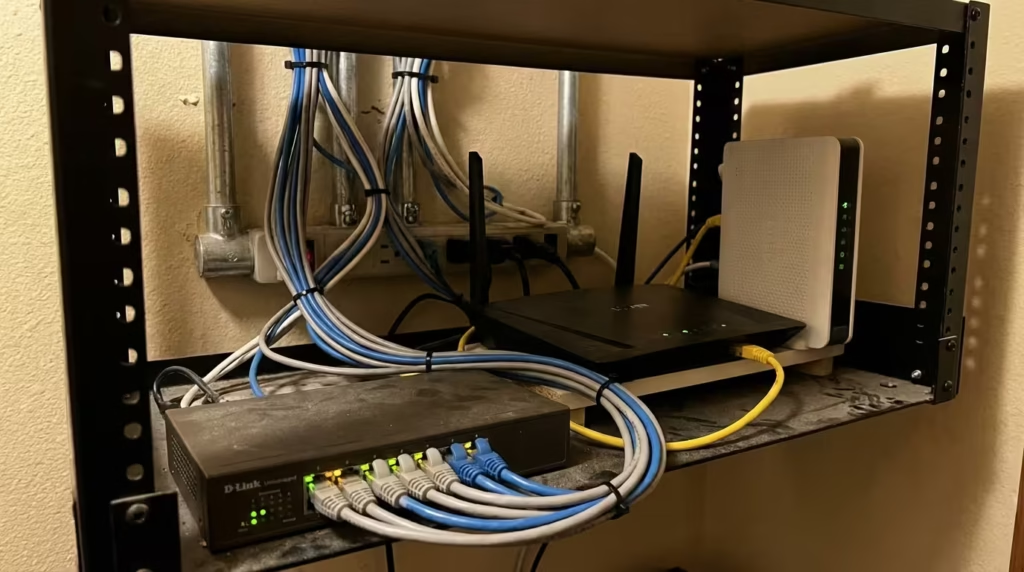
Why Does This Error Happen While Internet Still Works?
Several distinct causes can create this exact scenario. Each one affects ICMP handling or local gateway resolution without necessarily disrupting TCP/UDP-based internet traffic. Below are the most common root causes, ranked from the most frequent to less obvious.
Default Gateway Not Available or Wrong Configuration
The most straightforward cause is a misconfigured or missing default gateway entry in your adapter settings. When you run ipconfig, the “Default Gateway” field might show the wrong IP, display a blank value, or list an address that doesn’t match your router’s actual LAN IP. This can happen after manual static IP configuration, a failed DHCP lease renewal, or even a VPN client that altered routing tables and didn’t clean up after disconnecting.
In cases where the gateway address is slightly wrong — say 192.168.1.2 instead of 192.168.1.1 — TCP traffic might still route successfully through cached routes or secondary paths, but a direct ping to the incorrect address naturally fails. Windows 11 can also intermittently flag “default gateway is not available” in the network troubleshooter, pointing to an adapter that momentarily lost its DHCP-assigned gateway during a power-saving event.
IP Conflict or Self-Assigned IP (169.254)
If another device on your network holds the same IP address your computer is trying to use, both devices experience intermittent connectivity issues. Windows detects the conflict silently in some cases and loudly in others. When a DHCP server fails to respond entirely, Windows assigns itself an Automatic Private IP Address (APIPA) in the 169.254.x.x range. An APIPA address has no valid default gateway, which means ping to any gateway will fail — yet certain cached DNS connections or IPv6 fallback paths might briefly keep browser sessions alive, creating the illusion that internet works.
ARP Cache Corruption
Your computer uses the Address Resolution Protocol to map IP addresses to MAC addresses on the local network. The ARP cache stores your gateway’s MAC address so that every outgoing packet doesn’t require a fresh ARP lookup. When this cache entry becomes stale, corrupted, or incorrectly mapped — sometimes due to a rogue device sending spoofed ARP replies — your ICMP packets get directed to the wrong MAC address. TCP connections often survive because they were established before the corruption occurred and are maintained through existing socket states, while new ICMP pings fail immediately.
Network Adapter Driver or IPv6 Issues
Outdated, buggy, or incompatible network adapter drivers are a persistent cause of selective protocol failures on Windows 11. A driver might handle TCP offloading correctly but mishandle ICMP checksums or packet construction. Similarly, IPv6 misconfiguration can interfere with IPv4 gateway resolution. If your adapter has IPv6 enabled and receives a conflicting router advertisement, the IPv4 gateway ping can break while dual-stack internet traffic continues flowing over the IPv6 path. Several users have reported this exact behavior after Windows cumulative updates that reset adapter driver settings or re-enabled IPv6 components.
Quick Checks Before Fixing
Before applying any fix, you need to confirm exactly what your network stack is doing. Jumping straight to solutions without verifying the actual state of your adapter, IP assignment, and gateway entry often leads to wasted time or — worse — breaking a working configuration. These two diagnostic steps take under two minutes and give you the data needed to choose the right fix.
Run ipconfig /all to Check Gateway Status
The ipconfig /all command displays the full configuration of every network adapter on your system, including DHCP status, assigned IP, subnet mask, default gateway, and DNS servers. Open Command Prompt as Administrator and run:
ipconfig /allLook for your active adapter — usually labeled “Ethernet adapter Ethernet” or “Wireless LAN adapter Wi-Fi.” Focus on three fields:
- IPv4 Address — Confirm it is within your router’s subnet (e.g.,
192.168.1.x). A 169.254.x.x address in the output means DHCP did not assign a valid IP — your PC has fallen back to a self-generated address with no working gateway. - Default Gateway — This should show your router’s IP, typically
192.168.0.1or192.168.1.1. If this field is blank, your adapter has no gateway assignment, which directly explains why pinging it fails. - DHCP Enabled — If this reads “No” and you are not using a static configuration intentionally, your adapter may have been manually configured at some point with incorrect values.
This single command output tells you whether the problem is a missing gateway, an IP conflict, or a DHCP failure — all of which require different solutions.
Test Ping on Different Targets (Router IP, 8.8.8.8)
Once you have confirmed the gateway IP from ipconfig, test connectivity at multiple levels to narrow down the failure point. Run these three pings in sequence:
ping 127.0.0.1
ping 192.168.1.1
ping 8.8.8.8
Replace 192.168.1.1 with whatever gateway address ipconfig reported. The loopback ping (127.0.0.1) confirms your TCP/IP stack is functional. A failure at this step points to an issue within Windows itself rather than anything related to your physical network. The gateway ping tests local network reachability. The external ping (8.8.8.8, Google’s public DNS) tests whether packets actually leave your network. If 8.8.8.8 responds but your gateway does not, the issue is almost certainly ICMP filtering at the router or firewall level — not a true connectivity failure. This distinction is critical because it determines whether you need to fix your network configuration or simply adjust firewall rules.
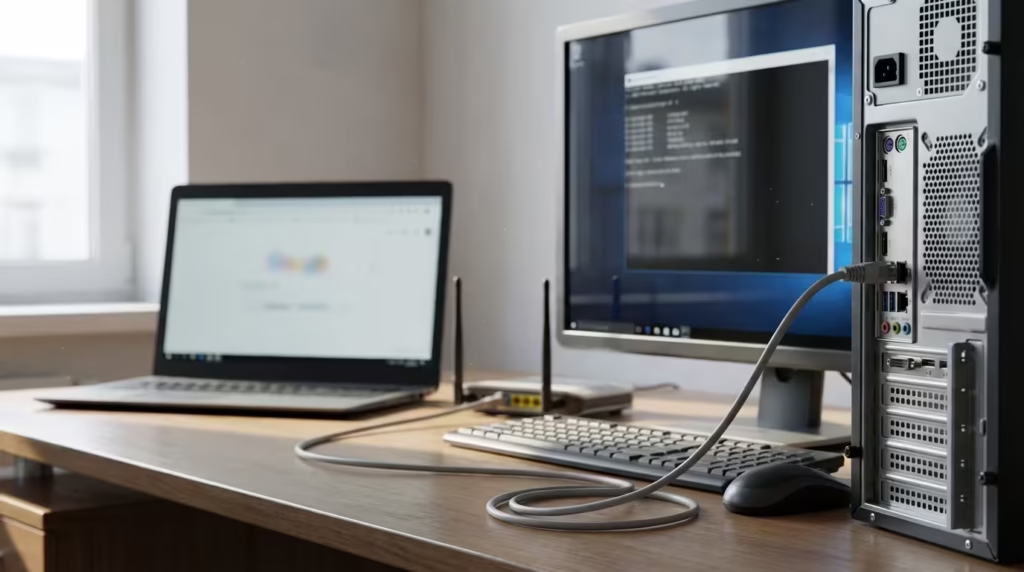
Basic Network Fixes (Fastest Solutions)
If the diagnostic checks above confirm that your gateway IP is correctly assigned but still not responding to ping, these two command-line procedures resolve the majority of cases. They target DHCP lease issues, cached DNS records, and corrupted socket configurations — the three most common culprits behind the cannot ping default gateway Windows 11 problem.
Release and Renew IP Address (CMD Steps)
Releasing and renewing your DHCP lease forces Windows to discard its current IP configuration and request a fresh assignment from the router. This clears stale gateway entries and resolves IP conflicts without any manual configuration. Open Command Prompt as Administrator and run the following commands in order:
ipconfig /release
ipconfig /renew
The /release command drops your current IP assignment. Your adapter will briefly show no connectivity. The /renew command then sends a new DHCP Discover broadcast to your router, which responds with a fresh IP, subnet mask, gateway, and DNS assignment. After renewal, run ipconfig /all again to verify the default gateway field is populated correctly. If the gateway still appears blank after renewal, the issue likely sits on the router side — either DHCP is misconfigured there, or the router is not responding to DHCP requests on that interface.
Flush DNS and Reset Winsock
If the IP renewal did not resolve the issue, clearing the DNS resolver cache and resetting the Winsock catalog addresses deeper corruption in the networking stack. nter each of the following commands one at a time inside a Command Prompt opened with administrator privileges:
ipconfig /flushdns
netsh winsock reset
netsh int ip reset
The flushdns command purges all cached DNS entries, forcing Windows to perform fresh lookups. The winsock reset command restores the Winsock catalog — the interface between Windows applications and TCP/IP — to its default state. The ip reset command rewrites the TCP/IP registry keys that control adapter behavior, clearing any residual misconfigurations. After running all three, restart your PC. This is mandatory because Winsock and IP stack changes do not take full effect until the next boot. Post-restart, test your gateway ping again to check if the issue is resolved.
Fix Gateway and IP Configuration Issues
When basic resets do not resolve the problem, the issue often lies in the specific gateway assignment or the ARP table that maps that gateway to a physical hardware address. These fixes target the exact communication path between your adapter and the router at the IP and data-link layer — the two layers where default gateway unavailable Windows 11 errors most frequently originate.
Verify Default Gateway Is Correct
A surprising number of gateway ping failures come down to the gateway address simply being wrong. This happens more often than expected, particularly on systems where a static IP was configured manually at some point or where multiple network profiles exist. To verify, first confirm your router’s actual gateway address by checking the router’s admin panel — usually accessible through a sticker on the device or its documentation. Common addresses are 192.168.0.1, 192.168.1.1, or 10.0.0.1.
Then compare this to what Windows reports. Open Command Prompt and run:
ipconfig /allIf the default gateway listed does not match your router’s actual address, you need to correct it. Navigate to Settings → Network & Internet → Advanced network settings → your adapter → Edit (next to IP assignment). Switch to manual configuration if needed and enter the correct gateway IP. If you are using DHCP and the gateway is wrong, the problem is on the router side — log into your router’s admin page and verify the DHCP pool settings, ensuring the correct gateway is being advertised to clients.
For users running dual-stack networks with both Ethernet and Wi-Fi active simultaneously, Windows may assign the default route to the wrong adapter. You can check the routing table by running:
route printLook at the line with destination 0.0.0.0 — the interface listed next to it is the one Windows uses as its primary exit path. When the active route is associated with an incorrect adapter, turning off the unused adapter forces Windows to route traffic through the right one.
Clear ARP Cache (netsh interface ip delete arpcache)
If the gateway IP is correct but pings still fail, the ARP table is the next suspect. ARP cache is a local table your system maintains that links each IP address to its corresponding hardware MAC address. When this cache holds a stale or incorrect entry for your gateway — for example, after a router reboot where the router’s MAC address changed or after connecting to a different network — your ping packets get directed to a hardware address that no longer exists or belongs to another device.
In some cases, this can also cause replies to appear from a different device or IP address on the network. See our detailed guide on ping reply from different IP address to understand how this happens.
To clear the ARP cache, open Command Prompt as Administrator and run:
netsh interface ip delete arpcacheOn newer Windows 11 builds, this command may return an error stating the operation requires elevation even when you are already running as admin. In that case, use the alternative:
arp -d *This deletes all entries in the ARP table, forcing Windows to re-resolve every IP-to-MAC mapping on the next communication attempt. After clearing, immediately ping your gateway to check if the fresh ARP lookup resolves correctly. If the ping succeeds once but fails again after a few minutes, your network may have a device conflict — two devices advertising the same IP — which requires investigation at the router or switch level.
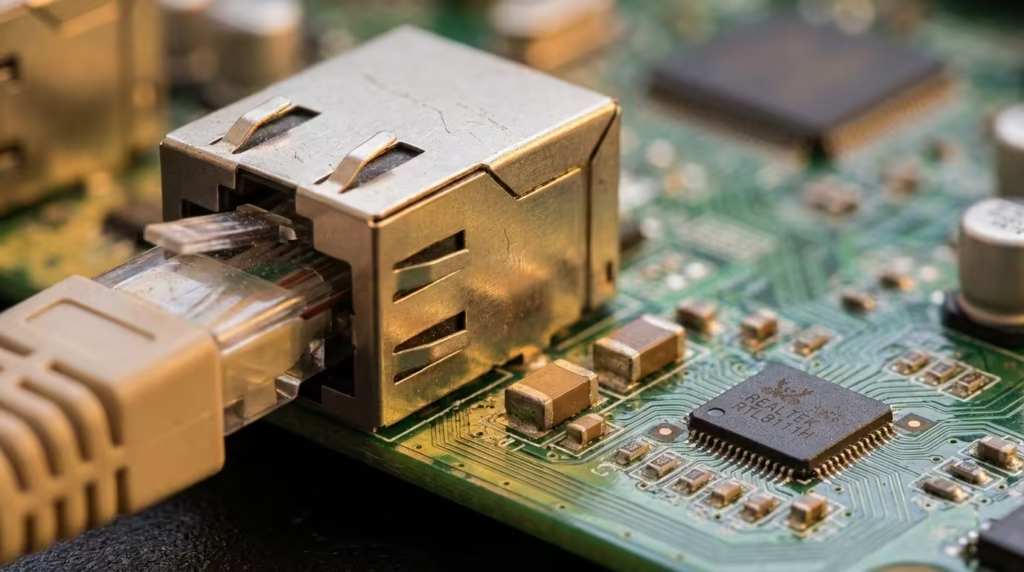
IPv6 and Driver Related Fixes
When IP configuration and ARP are both verified correct and the issue persists, the cause frequently shifts to the adapter software layer. IPv6 stack conflicts and outdated drivers are responsible for a significant share of ethernet connected but no internet Windows 11 reports, especially after cumulative or feature updates.
Disable IPv6 Temporarily to Test
IPv6 runs alongside IPv4 on most modern Windows installations, and under normal circumstances the two coexist without issues. However, when a router does not fully support IPv6 or advertises incomplete IPv6 router advertisements, Windows can end up with conflicting route entries that selectively interfere with ICMP traffic while leaving TCP sessions functional.
To test whether IPv6 is the culprit, temporarily disable it on your active adapter. Go to Control Panel → Network and Sharing Center → Change adapter settings. Right-click your active adapter, select Properties, and uncheck Internet Protocol Version 6 (TCP/IPv6). Click OK and test your gateway ping immediately.
If the ping succeeds after disabling IPv6, the root cause is confirmed. You can leave IPv6 disabled unless your ISP or network specifically requires it. Microsoft’s official documentation notes that disabling IPv6 via the adapter properties is the supported method — editing the registry to disable it system-wide is not recommended as it can break certain Windows services that depend on the IPv6 loopback interface.
Update or Rollback Network Adapter Driver
Driver issues are particularly common with Intel I225-V and Realtek RTL8168/8111 adapters on Windows 11. After a system update, the existing driver may begin mishandling ICMP packets or incorrectly processing ARP responses, resulting in gateway ping failures while higher-level TCP traffic continues unaffected.
To update, open Device Manager → Network adapters, right-click your adapter, and select Update driver → Search automatically for drivers. If Windows finds nothing new, visit the manufacturer’s website directly — Intel’s Driver & Support Assistant or Realtek’s download page — and install the latest version manually.
If the issue started after a recent driver update, rollback is the better option. In Device Manager, right-click the adapter, select Properties → Driver tab → Roll Back Driver. This reverts to the previously installed version. If the rollback option is grayed out, Windows has no previous driver stored, and you will need to download the older version manually from the manufacturer’s support archive.
Firewall and Advanced Troubleshooting
If every previous fix has been applied and the gateway still does not respond to ping, the issue almost certainly involves ICMP being blocked at the firewall level or packets being dropped at a specific point in the network path. These two scenarios account for the remaining cases where cannot ping default gateway but internet works Windows 11 persists despite correct IP configuration, clean ARP tables, and updated drivers.
Allow ICMP in Windows Firewall (Inbound Rules)
Windows Defender Firewall can silently block ICMP echo requests and replies without generating any notification. This is one of the most common reasons a gateway appears unreachable via ping while all other internet traffic flows normally — TCP and UDP traffic on standard ports is allowed by default, but ICMP is not always explicitly permitted, especially on domain or public network profiles.
To check and fix this, open Windows Defender Firewall with Advanced Security. You can access it by pressing Win + R, typing wf.msc, and pressing Enter. In the left panel, click Inbound Rules. Scroll through the list and look for rules named File and Printer Sharing (Echo Request – ICMPv4-In). There will be multiple entries — one for each network profile (Domain, Private, Public). If these rules are disabled, right-click each one and select Enable Rule.
If no ICMP rule exists at all, create one manually. Click New Rule → Custom → All programs → Protocol type: ICMPv4 → Specific ICMP types → Echo Request. Set the action to Allow and apply it to all profiles. Click Finish and test your ping immediately.
Also check outbound rules. While Windows typically allows outbound ICMP by default, third-party security software — such as Kaspersky, Bitdefender, or Norton — sometimes installs its own firewall layer that overrides Windows Defender rules. If you have third-party antivirus installed, temporarily disable its firewall component and retest. If the ping succeeds, add an ICMP exception in that software’s settings rather than leaving it disabled.
Use Tracert to Identify Where Packets Drop
When ping fails but you are unsure whether the block happens at your PC, your router, or somewhere in between, tracert provides the answer. This command sends packets with incrementally increasing TTL (Time to Live) values, mapping every hop between your PC and the destination. Open Command Prompt as Administrator and run:
tracert 192.168.1.1Replace the IP with your actual gateway address. If the first hop shows * * * Request timed out, the block is between your PC and the router — either the firewall on your PC, a switch in between, or the router itself refusing ICMP. If the first hop resolves to a different IP than your gateway, your routing table is misconfigured and packets are taking an unintended path.
For external comparison, also run:
tracert 8.8.8.8If this trace completes successfully and shows your gateway as hop 1 with a valid response, your router is selectively blocking ICMP only for locally originated requests — a setting found in some router firmware under “WAN ping blocking” or “stealth mode” that occasionally applies to LAN-side traffic as well. Log into your router’s admin panel and look for ICMP or ping filtering options under the firewall or security section.
Final 10-Minute Diagnostic Checklist
Use this structured checklist to systematically resolve gateway ping failures. Work through each item in order — each step builds on the previous one.
- Run
ipconfig /all— Confirm your adapter has a valid IP address (not169.254.x.x) and a populated default gateway field. - Ping
127.0.0.1— Verify the TCP/IP stack is functional. Failure here means Windows networking is broken internally. - Ping your gateway IP — Test local network reachability.
- Ping
8.8.8.8— Test external connectivity. If this works but gateway ping fails, the issue is ICMP-specific. - Run
ipconfig /releasethenipconfig /renew— Force a fresh DHCP lease. - Run
arp -d *— Clear stale ARP entries. - Execute ipconfig /flushdns followed by netsh winsock reset — the first removes stale DNS entries while the second rebuilds the socket layer. Reboot the machine once both commands complete.
- Disable IPv6 on the active adapter — Test if IPv6 conflicts are causing selective packet loss.
- Check Windows Firewall — Ensure ICMP Echo Request inbound rules are enabled.
- Update or rollback network adapter driver — Address driver-level ICMP handling bugs.
If all ten steps are completed and the gateway still does not respond to ping but internet works normally, the block is almost certainly at the router firmware level. This is not a Windows-side problem at that point.
FAQ – Common Questions & Answers
What does “Cannot Ping Default Gateway” mean when internet works?
It means your PC cannot send or receive ICMP echo packets to your router, even though TCP-based traffic like web browsing functions normally. ICMP and TCP are different protocols, and firewalls or misconfigurations can block one while allowing the other. The internet working confirms your network path is intact — the issue is specific to how ICMP is handled.
Why does default gateway is not available error appear?
This error appears when Windows detects that the assigned default gateway is unreachable or when the gateway field in your adapter configuration is blank. Common causes include DHCP lease expiration, the adapter waking from sleep with a stale configuration, or the router failing to respond to DHCP renewal requests.
Can this error happen due to IP conflict?
Yes. If another device on your network shares the same IP address as your PC or your gateway, ARP resolution becomes unreliable. Your ping packets may be sent to the wrong device’s MAC address, resulting in timeouts. Run arp -a to check if your gateway IP maps to the correct MAC address listed on your router’s label.
How do I fix cannot ping default gateway in Windows 11?
Start with ipconfig /release and ipconfig /renew to refresh your DHCP lease. If that fails, flush DNS with ipconfig /flushdns, reset Winsock with netsh winsock reset, and clear the ARP cache with arp -d *. Check that ICMP is allowed in Windows Firewall, and verify your network adapter driver is up to date. Follow the diagnostic checklist in this guide for a structured approach.
Does resetting TCP/IP solve gateway unreachable issue?
In many cases, yes. Running netsh int ip reset rewrites the TCP/IP registry keys and clears adapter-level misconfigurations that cause selective packet loss. A restart is required after this command for changes to take effect. This fix is particularly effective when the issue appeared suddenly without any hardware or network changes.
Why does this happen after a Windows update?
Windows updates frequently replace or modify network adapter drivers and reset firewall rules. A cumulative update may install a generic driver that handles ICMP differently than the manufacturer’s version, or it may switch your network profile from Private to Public — which has stricter firewall defaults that block ICMP. Checking your driver version and firewall rules after any major update is recommended.
How to clear ARP cache for gateway problems?
Open Command Prompt as Administrator and run arp -d * to delete all ARP table entries. This forces Windows to perform fresh MAC address lookups on the next network communication. On older Windows builds, netsh interface ip delete arpcache also works. After clearing, ping your gateway immediately to verify whether the fresh ARP resolution fixes the issue.
When should I contact my ISP if gateway ping fails?
Contact your ISP only after confirming that the problem is not on the Windows side. If you have completed all fixes in this guide — IP renewal, ARP clearing, driver updates, firewall rule verification — and the gateway still blocks ICMP while internet works, the block is in the router or modem firmware. If the router is ISP-provided, they can remotely check its ICMP settings. If you own the router, access its admin panel and look for ping or ICMP filtering under firewall settings. If the router’s admin page is also unreachable, a factory reset of the router may be necessary — at which point ISP involvement is warranted for reconfiguration.
Resolution Summary: The cannot ping default gateway but internet works scenario on Windows 11 and 10 is almost always caused by one of five things — a missing or incorrect gateway assignment, ARP cache corruption, IPv6 conflicts, outdated adapter drivers, or ICMP being blocked by a firewall. Systematic diagnosis using ipconfig, ping, and arp commands identifies the exact failure point. In cases where all Windows-side fixes are exhausted and the ping still fails, the router itself is filtering ICMP, which is a non-critical issue that does not affect actual internet functionality. Your network is working — the ping is simply being blocked, not lost.