
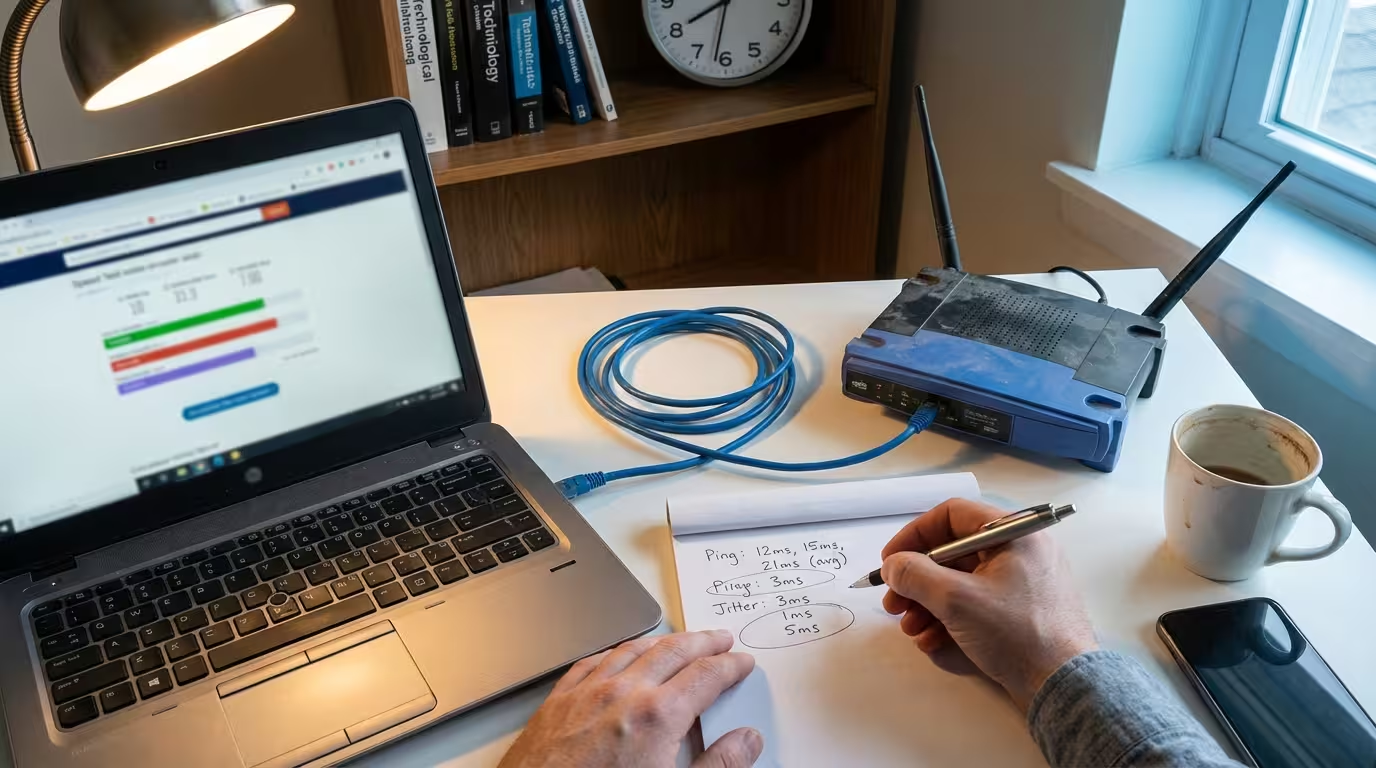
You run a speed test. It says 200 Mbps download. And yet, your video calls stutter, your game lags, and web pages take an extra second to load. The number on the screen looks perfectly fine — but your actual experience says otherwise.
This disconnect is not a mystery. It happens because most internet speed test tools only measure one thing — raw throughput. They tell you how fast data can move in bulk, but they ignore the three metrics that actually determine how your connection feels: ping, jitter, and packet loss. These are the numbers that explain buffering, lag spikes, and dropped connections, and most popular speed tests either hide them or skip them entirely.
This guide compares the best internet speed test tools that go beyond simple download and upload numbers. Each tool is evaluated based on what it actually measures, where it falls short, and which real-world problem it helps you diagnose.

Why Most Speed Tests Do Not Tell the Full Story
Speed tests have trained people to care about one number — download speed. That number matters, but it is only a fraction of what determines your internet quality. Understanding what speed tests actually measure, and what they leave out, is the first step toward diagnosing real connection problems.
What Download Speed Actually Measures
Download speed measures throughput — the maximum amount of data your connection can pull from a server per second, expressed in megabits per second (Mbps). When a speed test runs, it opens multiple connections to a nearby server and tries to saturate your link with as much data as possible over a short burst, usually 10 to 20 seconds.
This number tells you whether your connection has enough raw capacity for activities like streaming 4K video (which needs roughly 25 Mbps) or downloading large files. It answers one question: how much data can flow at once? But it says nothing about how reliably or how consistently that data arrives. A connection with 300 Mbps throughput can still feel broken if packets are arriving out of order, getting delayed, or disappearing entirely.
What Speed Tests Miss — Ping, Jitter and Packet Loss
Three metrics define connection quality far more than throughput does, and most basic speed tests either bury them or ignore them completely.
Ping (also called latency) measures the round-trip time for a single packet to travel from your device to a server and back. High ping means every action — clicking a link, sending a message, making a move in a game — takes longer to register. Anything under 20 ms is excellent. Above 100 ms, you start to notice delays.
Jitter measures how much your ping fluctuates over time. If your ping bounces between 15 ms and 120 ms within a few seconds, that inconsistency causes stuttering in video calls and rubber-banding in games. A stable 50 ms connection feels smoother than one that swings between 10 ms and 80 ms.
Packet loss is the percentage of data packets that never reach their destination. Even 1% packet loss can cause noticeable problems — audio cutting out on calls, textures failing to load in games, or web pages partially rendering. At 3% and above, most real-time applications become unusable.
Together, these three metrics explain why your internet can test fast on paper but feel slow in practice. The tools in the next section are selected specifically because they measure some or all of these values — not just raw speed.
The 6 Best Internet Speed Test Tools Compared
Not every speed test is built for the same purpose. Some prioritize simplicity, others focus on connection quality metrics that most tools skip. The six tools below are evaluated based on what they actually report, how they run their tests, and which real-world problems they help uncover.
1. Speedtest by Ookla — Most Popular But Not the Most Accurate
Speedtest by Ookla is the most recognized speed test on the internet. It has thousands of test servers worldwide, runs on every platform including a dedicated Windows 11 desktop app, and delivers results in under 30 seconds. It measures download speed, upload speed, and ping.
Where Ookla falls short is in connection quality depth. It does report ping, but it does not show jitter or packet loss in its standard web-based test. The desktop and mobile apps sometimes display jitter, but the metric is not prominently featured and packet loss remains absent. Another concern is server selection. Ookla automatically picks the nearest server, which often means you are testing to a location just a few miles away. This inflates your results because it avoids the real-world routing your traffic takes when reaching services like YouTube, Zoom, or game servers that may be hundreds of miles away.
Ookla is useful as a quick check to confirm your ISP is delivering the throughput you are paying for. But if your speed test shows fast numbers while your internet feels slow, Ookla alone will not help you find the cause.
Best for: Quick throughput verification
Misses: Jitter, packet loss, real-world routing accuracy
2. Fast.com — Best for Netflix Streaming Tests
Fast.com is built and operated by Netflix. When you run a test, your data travels to Netflix’s own servers — the same infrastructure that delivers video streams. This makes it one of the few speed tests that measures your throughput to an actual content provider rather than a generic test server.
By default, Fast.com shows only download speed. However, clicking “Show more info” reveals upload speed, latency (both unloaded and loaded), and server location. The loaded latency metric is particularly useful — it shows your ping while your connection is under heavy traffic, which is closer to real-world conditions than testing ping on an idle line.
What Fast.com does not show is jitter or packet loss. It also runs on a single-threaded connection by default, which can sometimes report lower speeds than multi-threaded tests like Ookla. Despite this, the loaded latency metric alone makes it more informative than most basic speed tests.
Best for: Checking if your ISP throttles streaming traffic
Misses: Jitter, packet loss, multi-server comparison
3. Cloudflare Speed Test — Best for Seeing Jitter and Latency
Cloudflare Speed Test is the most detailed free speed test available in a browser. It measures download speed, upload speed, ping, jitter, and provides latency measurements across multiple packet sizes. The results page breaks down performance into clearly labeled sections, showing exactly how consistent your connection is — not just how fast it peaks.
What makes the Cloudflare speed test vs Ookla comparison interesting is the depth of data. Where Ookla gives you three numbers and a server name, Cloudflare gives you latency percentiles (50th, 75th, 90th), jitter calculations, and download consistency metrics. For anyone trying to figure out why their connection stutters during video calls or gaming, these extra data points reveal problems that a simple download number never will.
Cloudflare tests against its own global network, which handles a significant portion of real internet traffic. This means results reflect performance to actual infrastructure your traffic likely passes through daily.
Best for: Detailed latency and jitter analysis
Misses: Packet loss is not explicitly reported as a standalone metric
4. Waveform Bufferbloat Test — Best for Finding Hidden Congestion
Waveform Bufferbloat Test solves a problem that none of the tools above directly address — bufferbloat. Bufferbloat happens when your router or modem buffers too much data during heavy usage, causing latency to spike dramatically even though your throughput looks normal. It is one of the most common reasons your WiFi feels slow even with a fast speed test result.
This tool runs a standard download and upload measurement, but simultaneously monitors your latency throughout the entire test. It then assigns a bufferbloat grade from A+ to F. A connection that shows 200 Mbps download but sees latency jump from 10 ms to 400 ms under load receives a failing grade — and that grade explains why everything feels laggy the moment someone else on your network starts streaming or downloading.
Most people who score poorly on this test have a router-level problem, not an ISP problem. The Waveform test is the fastest way to confirm whether bufferbloat is the hidden cause behind inconsistent performance.
Best for: Diagnosing latency spikes under network load
Misses: Does not measure packet loss or jitter as separate metrics
5. PingPacketTest.com — Best for Seeing Packet Loss in Real Time
PingPacketTest.com is purpose-built for one thing — showing you exactly how many packets your connection drops. While other tools focus on throughput, this one sends a continuous stream of packets and tracks which ones arrive, which ones arrive late, and which ones disappear entirely.
This is the speed test that shows packet loss most clearly. The results display packet loss percentage, round-trip latency, and connection stability over time. It is especially useful for diagnosing problems that come and go — like calls dropping at certain times of day or games lagging only during peak hours. Running this test for a longer duration reveals patterns that a 15-second Ookla test would completely miss.
If you suspect your ISP is dropping packets or your local network has a failing cable or overloaded access point, this tool provides the evidence you need before contacting support.
Best for: Confirming packet loss and connection stability
Misses: Does not measure throughput or jitter
6. Google Speed Test — Quickest Check But Least Detail
Searching “speed test” on Google brings up a built-in test powered by Measurement Lab (M-Lab). It runs directly in the browser with a single click and reports download speed, upload speed, and latency. No app installation, no extra clicks.
The trade-off is depth. Google’s test does not report jitter, packet loss, or loaded latency. It also routes to M-Lab servers, which are often less optimized than Ookla or Cloudflare nodes, sometimes resulting in lower speed readings that do not reflect your actual connection capacity. It is the least detailed option on this list but useful when you need a rough check in under 20 seconds on any device.
Best for: Instant rough estimate from any browser
Misses: Jitter, packet loss, bufferbloat, loaded latency
Speed Test Comparison Table — What Each Tool Measures
| Tool | Download | Upload | Ping | Jitter | Packet Loss | Bufferbloat | Loaded Latency |
|---|---|---|---|---|---|---|---|
| Speedtest by Ookla | ✅ | ✅ | ✅ | ⚠️ App only | ❌ | ❌ | ❌ |
| Fast.com | ✅ | ✅ | ✅ | ❌ | ❌ | ❌ | ✅ |
| Cloudflare Speed Test | ✅ | ✅ | ✅ | ✅ | ❌ | ❌ | ✅ |
| Waveform Bufferbloat | ✅ | ✅ | ✅ | ❌ | ❌ | ✅ | ✅ |
| PingPacketTest.com | ❌ | ❌ | ✅ | ❌ | ✅ | ❌ | ❌ |
| Google Speed Test | ✅ | ✅ | ✅ | ❌ | ❌ | ❌ | ❌ |
No single tool covers every metric. The most accurate internet speed test approach is to use two or three of these tools together — one for throughput, one for latency quality, and one for packet loss — to build a complete picture of your connection health.
Which Speed Test Should You Use and When
Knowing what each tool measures is one thing. Knowing which tool to reach for when something specific goes wrong is what actually saves you time. The right test depends entirely on the symptom you are experiencing.
Use This Tool When You Have Slow Streaming
Start with Fast.com. Since it tests directly against Netflix infrastructure, it reveals whether your ISP is delivering full throughput to a real streaming service or quietly throttling video traffic. Some ISPs shape bandwidth for streaming platforms specifically, and a generic Ookla test will never expose that because it routes to a different type of server entirely.
If Fast.com shows significantly lower speeds than Ookla — for example, 40 Mbps on Fast.com versus 150 Mbps on Ookla — that gap strongly suggests your provider is throttling streaming traffic. If both tools report similar numbers but streaming still buffers, the problem likely sits elsewhere, and you should move on to testing bufferbloat with the Waveform tool to check whether latency spikes under load are causing playback interruptions.
Use This Tool When You Have Gaming Lag
Gaming performance depends almost entirely on ping, jitter, and packet loss — not download speed. A 50 Mbps connection with 12 ms ping and zero packet loss will outperform a 500 Mbps connection with 80 ms ping and 2% packet loss in every online game.
The best speed test for gaming is a two-tool approach. Run Cloudflare Speed Test first to check your baseline latency and jitter. If jitter is above 10 ms or ping exceeds 50 ms, your connection quality is hurting gameplay regardless of throughput. Then run PingPacketTest.com to confirm whether packet loss is occurring. Even 0.5% loss causes rubber-banding, hit registration failures, and disconnections in competitive games.
Use This Tool When Your Speed Test Looks Fine But Internet Feels Slow
This is the most frustrating scenario — and the most common one. Your Ookla test says 200 Mbps, but everything still feels sluggish. The answer almost always involves either bufferbloat or packet loss, neither of which Ookla checks.
Run the Waveform Bufferbloat Test first. If your grade is C or worse, your router is allowing latency to spike under load, which degrades everything from web browsing to video calls the moment any device on your network uses significant bandwidth. Follow that with PingPacketTest.com to rule out packet loss. Together, these two tests explain the vast majority of cases where speed tests look fast but real usage feels slow.
How to Read Your Speed Test Results Correctly
Running a test is only useful if you know what the numbers actually mean. Here are the benchmarks that separate a healthy connection from a problematic one.
What is a Good Download Speed
It depends on usage. For a single user browsing and streaming in HD, 25 Mbps is sufficient. For a household with multiple devices streaming 4K, gaming, and video calling simultaneously, 100 Mbps or more is a practical minimum. Download speed above 300 Mbps provides comfort headroom but does not improve real-time performance if ping and jitter are poor.
What is a Good Ping
For general browsing and streaming, anything under 50 ms is fine. For online gaming and video conferencing, under 20 ms is ideal and under 40 ms is acceptable. Once ping exceeds 100 ms, real-time applications begin to feel noticeably delayed. Pings above 150 ms make competitive gaming and live calls impractical.
What is a Good Jitter Score
Jitter under 5 ms is excellent. Between 5 and 15 ms is acceptable for most activities. Above 20 ms, you will experience inconsistent call quality, micro-stutters in games, and unpredictable page load times. High jitter often points to network congestion, WiFi interference, or an unstable ISP route — problems that raw speed numbers will never surface.
What is Acceptable Packet Loss
The only truly acceptable packet loss is 0%. Any packet loss above zero means data is being dropped somewhere between your device and the server. At 1%, voice calls start cutting out and game inputs fail to register. At 2–3%, video calls freeze repeatedly and downloads may stall or restart. If your test shows consistent packet loss above 0.5%, the problem typically sits at either your local network hardware or your ISP’s infrastructure — and it requires investigation, not a faster plan.
Why Your Speed Test Result Does Not Match Real Internet Performance
This is the question behind every frustrated search — you tested at 200 Mbps, so why does everything still lag? The mismatch between internet speed test vs real speed comes down to how tests run versus how your actual traffic behaves.
Speed tests operate under ideal conditions. They connect to a nearby server, open multiple parallel streams, and push maximum data for a short burst on what is usually a mostly idle connection. Real usage looks nothing like this. Your traffic travels to servers hundreds or thousands of miles away, competes with every other device on your home network, passes through your ISP’s congested peering points, and runs through a router that may be buffering packets excessively.
Server distance is the first factor. Ookla picks the closest server by default, often within your own city. But when you load a website hosted in another country or connect to a game server three regions away, your data crosses multiple network hops, each adding latency and increasing the chance of packet loss. The speed you measured locally has little relevance to the speed you experience to a distant server.
Network congestion is the second factor. Speed tests run for 10 to 20 seconds. During that window, your connection might be clear. But during peak evening hours when your entire neighborhood is streaming, your ISP’s backhaul links can become saturated. Throughput drops, latency rises, and packets start getting lost — none of which shows up on a test you ran at 2 PM on a quiet afternoon.
The third factor is your own local network. WiFi interference, an overloaded router, outdated firmware, or a weak signal between your device and access point all degrade real performance without affecting a wired speed test run from a laptop plugged directly into the modem. If you have ever wondered why your WiFi feels slow even with fast speed test results, the answer almost always involves one of these local variables.
The practical takeaway is straightforward — a single speed test number is a ceiling, not a guarantee. To understand real connection quality, you need to measure latency under load, check for jitter, and confirm zero packet loss. The tools covered in this guide exist precisely for that purpose.
Frequently Asked Questions
Which internet speed test is the most accurate?
No single test is universally the most accurate. Cloudflare Speed Test provides the most detailed results, including jitter and latency percentiles. For pure throughput measurement, Speedtest by Ookla is reliable. The most accurate approach combines two or three tools to cover throughput, latency quality, and packet loss together.
Why does my speed test show fast speeds but internet still feels slow?
Speed tests only measure throughput under ideal conditions. Issues like bufferbloat, packet loss, and high jitter cause real-world slowness that raw download numbers do not capture. Run the Waveform Bufferbloat Test and PingPacketTest.com to find what the basic test missed.
What speed test shows packet loss?
PingPacketTest.com is the best browser-based tool that explicitly measures and displays packet loss in real time. Most mainstream speed tests like Ookla and Fast.com do not report this metric at all.
What speed test shows jitter?
Cloudflare Speed Test clearly displays jitter alongside latency percentiles. Ookla shows jitter only in its desktop and mobile apps, not in the standard web version.
Is Speedtest by Ookla accurate?
Ookla is accurate for measuring raw throughput to a nearby server. However, it selects the closest server by default, which often produces inflated results compared to real-world performance. It also does not report jitter or packet loss in its web version.
What is the difference between Speedtest and Fast.com?
The core difference comes down to server infrastructure. Ookla tests against dedicated speed test servers, while Fast.com tests against Netflix’s content delivery servers. Fast.com also shows loaded latency, which Ookla does not. Neither tool reports packet loss or jitter in their web versions.
Does Cloudflare speed test show packet loss?
Cloudflare does not display packet loss as a standalone metric. It focuses on download, upload, latency, and jitter. For explicit packet loss measurement, use PingPacketTest.com alongside Cloudflare.
What is a good ping on a speed test?
Under 20 ms is excellent for gaming and video calls. Under 50 ms is good for general use. Above 100 ms, real-time applications begin to feel noticeably delayed.
What is a good jitter score on a speed test?
Under 5 ms is excellent. Between 5 ms and 15 ms is acceptable for most tasks. Above 20 ms causes noticeable problems with calls, streams, and gaming. Consistently high jitter usually points to network congestion or WiFi instability.
How do I test for packet loss on my internet connection?
Run PingPacketTest.com from your browser for a quick check. For deeper testing on Windows 11, open Command Prompt and run ping -n 100 8.8.8.8 — the summary at the end reports the packet loss percentage. Any result above 0% needs further investigation.
Why does my speed test show different results every time?
Results vary based on server load, network congestion at the time of testing, WiFi signal strength, background device activity, and ISP traffic management. Testing at different times of day and using a wired Ethernet connection gives more consistent and reliable baselines.
Which speed test is best for gaming?
Use Cloudflare Speed Test for latency and jitter analysis, then run PingPacketTest.com to confirm zero packet loss. Raw throughput rarely matters for gaming — connection stability and low latency matter far more.
What is bufferbloat and how do I test for it?
Bufferbloat is excessive buffering in your router that causes latency to spike dramatically when your connection is under load. Test for it using the Waveform Bufferbloat Test, which grades your connection from A+ to F based on how much latency increases during active throughput testing.
Is Fast.com accurate for testing internet speed?
Fast.com is accurate for measuring throughput to Netflix servers specifically. It may report slightly lower numbers than Ookla due to single-threaded testing by default. Its loaded latency metric adds genuine diagnostic value that most other free speed test tools do not provide.
A single speed test with one big download number is not enough to diagnose real connection problems. If your internet feels slow, laggy, or unreliable despite fast test results, the issue almost always sits in metrics that basic tools ignore — ping, jitter, packet loss, or bufferbloat.
Use Cloudflare for latency and jitter. Use PingPacketTest.com for packet loss. Use Waveform for bufferbloat. Run these tests on a wired connection during both off-peak and peak hours to get a realistic baseline.
If your results consistently show high jitter, measurable packet loss, or severe bufferbloat that persists even on a wired connection with no other devices active, the problem is beyond your local network. At that point, contact your ISP with your test results — specific numbers from credible tools are far more effective than telling support “my internet feels slow.” Bring the data, and demand a line quality investigation rather than a simple speed check on their end. For a broader understanding of how all these factors connect, see our full internet connectivity guide.