What is Packet Loss? Simple Explanation
Every time you browse a website, join a video call, or play an online game, your device sends and receives thousands of small data units called packets. But what is packet loss, and why should you care about it? In the simplest terms, packet loss means some of those data units never reach their destination — they disappear somewhere along the network path between your device and the server.
This might sound like a minor technical detail, but packet loss is one of the most common reasons behind laggy games, frozen video calls, and websites that feel painfully slow to load — even when your internet speed test shows perfectly normal results.
This article breaks down the meaning of packet loss, explains why it happens, and shows how it affects your everyday internet experience in ways you might not expect.
I live in a typical home setup and our internet connection often behaves unpredictably. Many times the speed test shows 80–100 Mbps or even higher, but YouTube videos start buffering, online games lag badly, and video calls suddenly freeze. After running detailed ping tests for several weeks, I found that even when the speed test looked perfect, there was still 2–4% packet loss during actual usage. This real-world experience made me realize that packet loss is a completely different problem from what a normal speed test shows.
What is Packet Loss (Simple Definition)
To understand packet loss, you first need to understand how internet data travels. When you send a message, load a webpage, or stream a video, your data does not travel as one large file. Instead, it gets broken into smaller units called packets. Each packet carries a small piece of the total data, along with information about where it came from and where it needs to go.
These packets travel independently across the network, often taking different routes, and then reassemble at the destination to form the complete data. Think of it like sending a 10-page letter, but mailing each page in a separate envelope. If all 10 envelopes arrive, the recipient can read the full letter. But if envelope number 4 and number 7 get lost in transit, the letter has gaps — and some of the message is missing.
That is exactly what packet loss is. It occurs when one or more packets fail to reach their intended destination. The result depends on the type of activity. For web browsing, your browser might just request the missing data again, causing a small delay. But for real-time applications like gaming or video calls, there is no time to request missing packets — so you experience glitches, stuttering, or freezing instead.
Packet loss is typically measured as a percentage. For example, if 100 packets are sent and 3 never arrive, that is 3% packet loss. According to Cloudflare’s technical documentation{:target=”_blank” rel=”nofollow”}, even 1–2% packet loss can noticeably degrade the quality of real-time communications.
For most general internet usage, 0% packet loss is ideal. Anything above 1% starts becoming noticeable, and beyond 5%, most real-time applications become nearly unusable.
The tricky part is that packet loss does not always show up on a basic speed test. Your download and upload speeds might look perfectly fine, yet you still experience poor performance — because speed tests measure bandwidth, not whether every packet is arriving intact.
How Packet Loss Actually Happens
Now that the meaning of packet loss is clear, the next logical question is — what actually causes it? Packets do not just vanish without reason. There is always a specific point in the network where something goes wrong, and that is where the data gets dropped.
The causes range from issues inside your own home network to problems deep within your internet service provider’s infrastructure. Some are easy to fix on your end, while others are completely outside your control. Understanding where packet loss originates is the first step toward diagnosing it correctly.
As outlined in the Wikipedia article on packet loss{:target=”_blank” rel=”nofollow”}, common causes include network congestion, hardware failures, software bugs, and signal degradation — all of which can occur at any point along the data path.
Let us break down the most common causes one by one.
One important thing most guides miss is that packet loss becomes significantly worse during peak evening hours because most residential ISPs share infrastructure among many users in the same area.
Network Congestion
Network congestion is the single most common reason why packet loss happens. It works exactly like traffic congestion on a highway. When too many devices or users try to send data through the same network path at the same time, the routers and switches along that path get overwhelmed.
Every router has a limited buffer — a temporary storage area where it holds incoming packets before forwarding them to the next hop. When traffic exceeds what the buffer can hold, the router has no choice but to drop the excess packets. Those dropped packets are your packet loss.
This type of congestion typically happens during peak usage hours. If you have noticed that your internet feels worse in the evening compared to early morning, congestion is likely the reason. Your ISP’s local network gets flooded with traffic as more people in your area come online simultaneously.
Congestion can also happen inside your own home network. If multiple devices are streaming, downloading, and gaming at the same time on the same router, the router itself can become the bottleneck. Even a high-speed internet plan cannot prevent packet loss if your local router cannot handle the volume of simultaneous connections.
Faulty Hardware and Cables
Hardware failure is another major cause of packet loss that often gets overlooked. Routers, modems, switches, and network interface cards all have a limited lifespan. As they age or overheat, they start processing packets less reliably. A router that worked perfectly for three years can begin dropping packets without any visible warning sign.
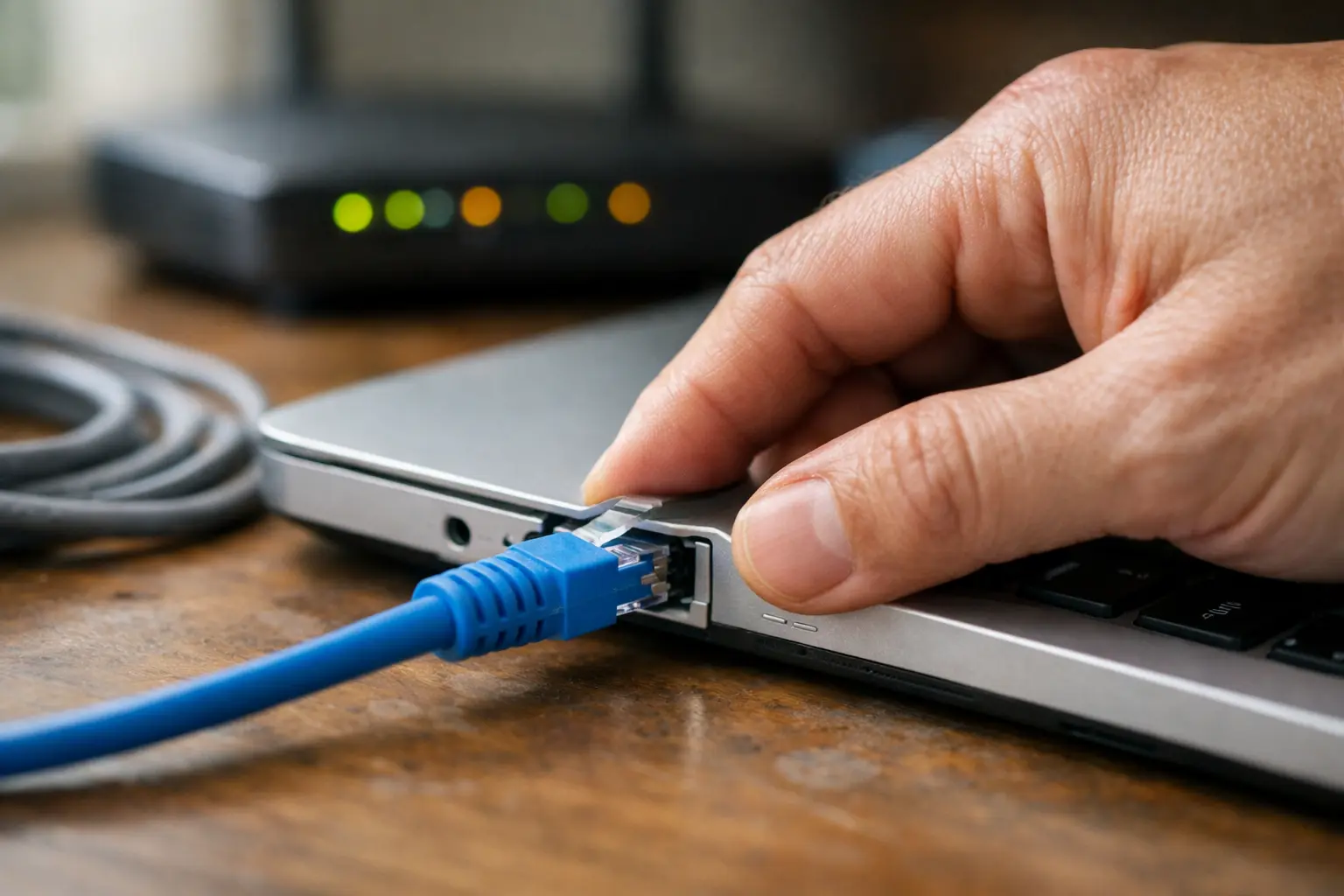
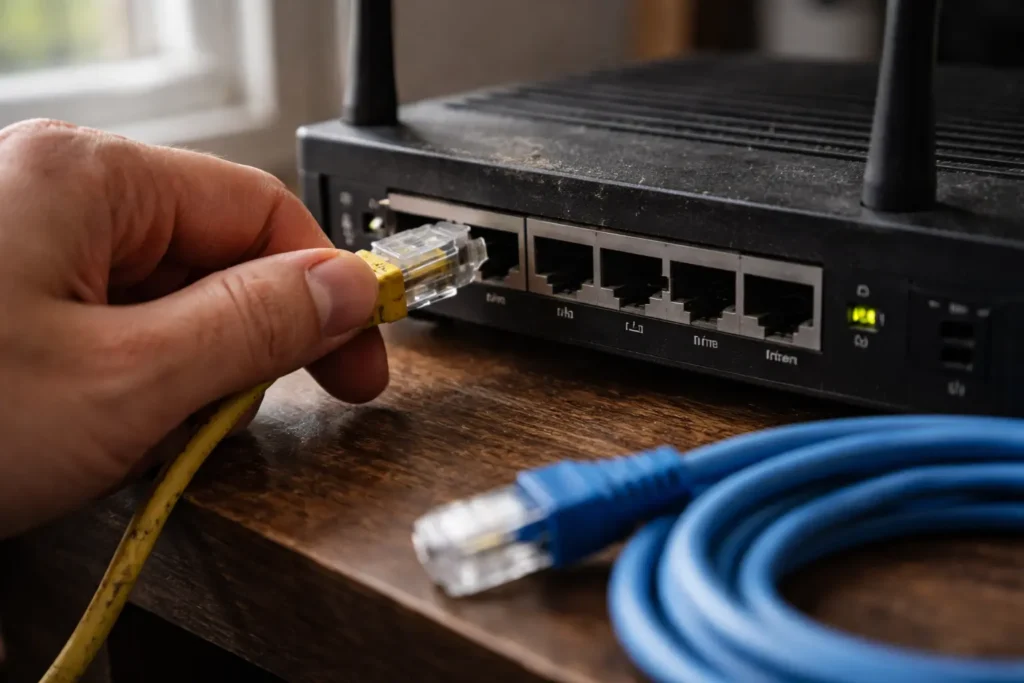
Ethernet cables are equally important. A damaged, loosely connected, or low-quality cable can introduce packet loss that seems random and difficult to diagnose. Cat5 cables, for instance, are more susceptible to interference and signal degradation over longer distances compared to Cat5e or Cat6 cables.
Physical damage is not always obvious either. A cable might look fine from the outside but have internal wire damage from being bent, pinched under furniture, or exposed to heat. Similarly, corroded or loose connector ports on your router or PC can cause intermittent packet loss that only appears under load.
If your packet loss is inconsistent — sometimes fine, sometimes terrible — faulty hardware or a bad cable connection is one of the first things to investigate. Simply replacing an old Ethernet cable or restarting an overheated router can sometimes eliminate the problem entirely.
Wi-Fi Interference
Wi-Fi is convenient, but it is also one of the most unreliable parts of any home network when it comes to packet loss. Unlike a wired Ethernet connection where data travels through a dedicated physical cable, Wi-Fi transmits data as radio signals through the air. And radio signals are vulnerable to interference from multiple sources.
The most common source of Wi-Fi interference is other Wi-Fi networks. If you live in an apartment building or a densely populated area, dozens of neighboring routers are broadcasting on the same frequency bands. The 2.4 GHz band is particularly crowded because it only has a limited number of non-overlapping channels. When multiple networks compete for the same channel, signal collisions occur — and collisions mean dropped packets.
Household devices also contribute to interference. Microwave ovens, cordless phones, baby monitors, and even Bluetooth devices all operate in frequency ranges that overlap with Wi-Fi. When these devices are active, they can disrupt the Wi-Fi signal enough to cause noticeable packet loss.
Physical obstructions matter too. Thick walls, concrete floors, metal furniture, and large appliances between your device and the router weaken the signal. The weaker the signal, the higher the chance of packet loss. A device showing two bars of Wi-Fi signal strength is far more likely to experience dropped packets than one sitting right next to the router.
If you suspect Wi-Fi is the source of your packet loss, the simplest diagnostic test is to connect your device directly to the router using an Ethernet cable and then test for packet loss on Windows 11. If the packet loss disappears on a wired connection, your Wi-Fi environment is the problem — not your internet service.
ISP Infrastructure Problems
Sometimes the cause of packet loss has nothing to do with your home network at all. The problem can exist entirely within your Internet Service Provider’s infrastructure — and in these cases, there is very little you can do on your end except report it.
ISP-related packet loss typically originates from overloaded routing nodes, aging infrastructure, or poorly maintained last-mile connections. The “last mile” refers to the final stretch of cabling that connects your home to the ISP’s nearest distribution point. In many regions, this last-mile connection still relies on older copper telephone lines or aging coaxial cables that degrade over time.
Undersea cable damage, routing misconfigurations at the ISP level, and scheduled maintenance can all introduce temporary packet loss that affects entire neighborhoods or regions simultaneously. If you notice that the problem appears and disappears at roughly the same times, or if neighbors on the same ISP report similar issues, infrastructure-level problems are the most likely explanation.
Peering disputes between ISPs can also cause packet loss. When your data crosses from one ISP’s network to another — which happens frequently when accessing servers hosted on different networks — the handoff points between providers can become bottlenecks. If one ISP is not maintaining adequate capacity at these exchange points, packets get dropped during transit.
Diagnosing ISP-level packet loss requires running traceroute tests to identify exactly where along the network path the packets are being lost. If the loss occurs at hops beyond your router, the issue is on the ISP’s side, and contacting their technical support with traceroute evidence is the most effective course of action.
Real Life Impact of Packet Loss
Understanding what causes packet loss is important, but what really matters to most people is how it affects their actual experience. The technical explanation of dropped packets becomes much more meaningful when you connect it to the frustrating moments you encounter every day — the game that stutters at the worst possible moment, or the video call where your colleague’s face freezes mid-sentence.
The severity of packet loss depends heavily on the type of application you are using. Some applications handle lost packets gracefully by simply requesting them again. Others — particularly real-time applications — have no mechanism to recover lost data, and the impact is immediate and obvious.
Let us look at the two most common scenarios where packet loss makes the biggest difference.
From my personal testing, I noticed that anything above 1% packet loss affects gaming and video calls the most, while normal web browsing often feels fine. This issue has become even more noticeable for Windows 11 users in 2026 because newer updates keep many background network services active.
Online Gaming
Online gaming is arguably the most sensitive activity when it comes to packet loss. Understanding packet loss in gaming explained simply comes down to one concept: every action you take in a multiplayer game is a packet sent to the server, and every response from the server is a packet sent back to you.
When you press a button to shoot, move, or interact with something in the game, that input travels as a packet to the game server. The server processes it, updates the game state, and sends packets back to your screen showing the result. This entire loop happens dozens of times per second. When packets get lost anywhere in this loop, the result is what gamers call rubber banding — your character snaps back to a previous position because the server never received your movement data.
Even 1–2% packet loss can cause visible problems in fast-paced competitive games like first-person shooters or battle royales. At 3–5% packet loss, the game becomes borderline unplayable. Actions register late or not at all, enemies appear to teleport, and hit detection becomes unreliable. You might land a perfect shot on your screen, but the server never received the packet confirming your aim — so the shot does not count.
Most online games use UDP (User Datagram Protocol) rather than TCP for real-time gameplay data. The reason is speed — UDP does not wait for confirmation that each packet arrived before sending the next one. But this also means UDP has no built-in packet recovery. If a packet is lost, it is simply gone. The game moves forward without that data, and you see the glitch on your screen.
Many players blame their internet speed for poor gaming performance, but in most cases the real culprit is packet loss or high latency — not bandwidth. A 50 Mbps connection with 0% packet loss will always outperform a 500 Mbps connection with 3% packet loss in online gaming.
If you are experiencing consistent issues during gameplay, fixing packet loss on Windows 11 is a practical starting point before considering hardware or ISP changes.
Video Calls and Streaming
Packet loss during video calls is the reason behind those moments when someone’s face freezes, their voice cuts out mid-word, or the audio and video go completely out of sync. If you have ever been in a Zoom, Teams, or Google Meet call where someone says “Can you hear me? You froze for a second,” packet loss is almost certainly the cause.
Video calling applications transmit audio and video data as continuous streams of packets. Unlike loading a webpage — where a lost packet simply gets re-requested — video call data is time-sensitive. By the time a lost audio packet could be retransmitted, the conversation has already moved forward. The application cannot pause the live call to wait for a missing packet, so it either fills the gap with silence, repeats the last received frame (causing the freeze effect), or skips ahead — creating that choppy, robotic voice distortion.
Audio is particularly sensitive because even a single lost packet can create an audible gap or click. Video is slightly more forgiving because codecs can interpolate between frames, but sustained packet loss above 2% makes video calls noticeably degraded. At 5% or higher, most video conferencing platforms automatically reduce video quality or drop to audio-only mode to compensate.
Streaming services like Netflix and YouTube handle packet loss differently because they use buffering. The player downloads data ahead of time, so if a few packets are lost and need retransmission, the buffer absorbs the delay. However, on live streams — where there is minimal buffer — packet loss causes the same freezing and quality drops you see in video calls.
The confusing part for many users is that their speed test results look perfectly fine. This is exactly the scenario of internet seeming slow but speed test showing fast results. Speed tests measure raw throughput — how much data your connection can handle per second — but they do not reveal whether individual packets are being lost during normal usage. You can have 100 Mbps download speed and still suffer from unwatchable video calls if 4% of your packets are disappearing.

Packet Loss vs Latency vs Speed – Quick Comparison
Packet loss, latency, and speed are three distinct network metrics, but they are frequently confused with each other. Many people assume that having fast internet means everything should work perfectly — and when it does not, they blame speed. In reality, each of these three factors affects your internet experience in a completely different way.
Speed (bandwidth) measures how much data your connection can transfer per second. A 100 Mbps connection can move more data simultaneously than a 10 Mbps connection. But speed alone does not determine the quality of your connection. Think of bandwidth as the width of a highway — a wider road allows more cars to travel at once, but it says nothing about whether every car actually reaches its destination.
Latency measures how long it takes for a single packet to travel from your device to the server and back. It is measured in milliseconds (ms) and is commonly referred to as ping. High latency means there is a delay between your action and the server’s response. In gaming, high latency means your inputs register late. In video calls, it creates that awkward delay where two people accidentally talk over each other. If you want a deeper understanding of how latency works and why it makes your connection feel slow even with high speeds, the detailed explanation on what latency is and why internet feels slow covers it thoroughly.
Packet loss is fundamentally different from both. It is not about how fast or how much data travels — it is about whether the data arrives at all. You can have excellent speed and low latency, but if packets are being dropped along the way, your experience will still suffer.
Here is a quick comparison to make the differences clear:
| Metric | What It Measures | Ideal Value | Effect When Bad |
|---|---|---|---|
| Speed (Bandwidth) | Data volume per second | Depends on plan | Slow downloads, buffering on large files |
| Latency (Ping) | Round-trip travel time | Below 30ms | Input delay, call echo, sluggish response |
| Packet Loss | Percentage of lost packets | 0% | Freezing, rubber banding, choppy audio |
The key takeaway is that all three metrics must be healthy for a smooth internet experience. To learn how to accurately measure and diagnose latency issues, read our guide on Best Tools to Test Latency on Windows 11. A connection with 200 Mbps speed, 15ms latency, but 4% packet loss will feel broken for gaming and video calls — even though two out of three metrics look excellent.
Frequently Asked Questions
What is packet loss in simple terms?
Packet loss means some pieces of your internet data never reach their destination. When you send or receive anything online, the data travels in small units called packets. If some of those packets disappear during transit due to network issues, that is packet loss. The result is missing information — which shows up as lag, freezing, or glitches depending on the application.
What causes packet loss on the internet?
The most common causes include network congestion during peak hours, faulty or aging hardware such as routers and cables, Wi-Fi interference from neighboring networks or household devices, and infrastructure problems on your ISP’s end. Any weak point along the entire path between your device and the destination server can introduce packet loss.
What is the difference between packet loss and latency?
Latency is the time delay for a packet to travel from point A to point B and back. Packet loss is when the packet never arrives at all. High latency means your data is slow to arrive. Packet loss means some of your data does not arrive. Both degrade your experience, but in different ways — latency creates delays, while packet loss creates gaps and glitches.
How does packet loss affect online gaming?
In online gaming, every player action and server response is transmitted as packets. When packets are lost, your character may rubber band, your actions may not register, and enemies may appear to teleport. Since most games use UDP which has no packet recovery mechanism, even 1–2% loss can make competitive gameplay frustrating and unreliable.
Why do video calls freeze even with fast internet?
Video calls transmit audio and video as real-time packet streams. If packets are lost, the application cannot pause the live conversation to wait for retransmission. Instead, it freezes the last received frame or creates choppy audio. Speed tests only measure bandwidth, not packet integrity — so your speed can look perfect while packet loss silently ruins call quality.
Is 1% packet loss normal?
On a healthy connection, packet loss should be 0%. While 1% packet loss might not be noticeable during basic web browsing or file downloads, it is enough to cause visible degradation in real-time applications like gaming and video conferencing. If you consistently measure 1% or higher, it indicates a problem worth investigating.
Can packet loss be fixed?
Yes, in many cases it can. Fixes depend on the root cause. Switching from Wi-Fi to a wired Ethernet connection, replacing old cables, restarting or upgrading your router, and reducing network congestion by limiting simultaneous device usage are all effective solutions. If the problem originates from your ISP’s infrastructure, contacting their support with diagnostic evidence such as ping and traceroute results is the necessary step.
How do I check if I have packet loss?
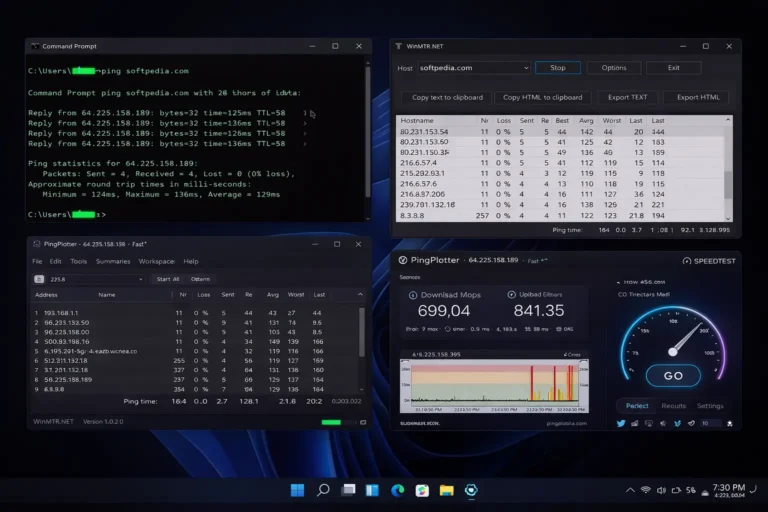
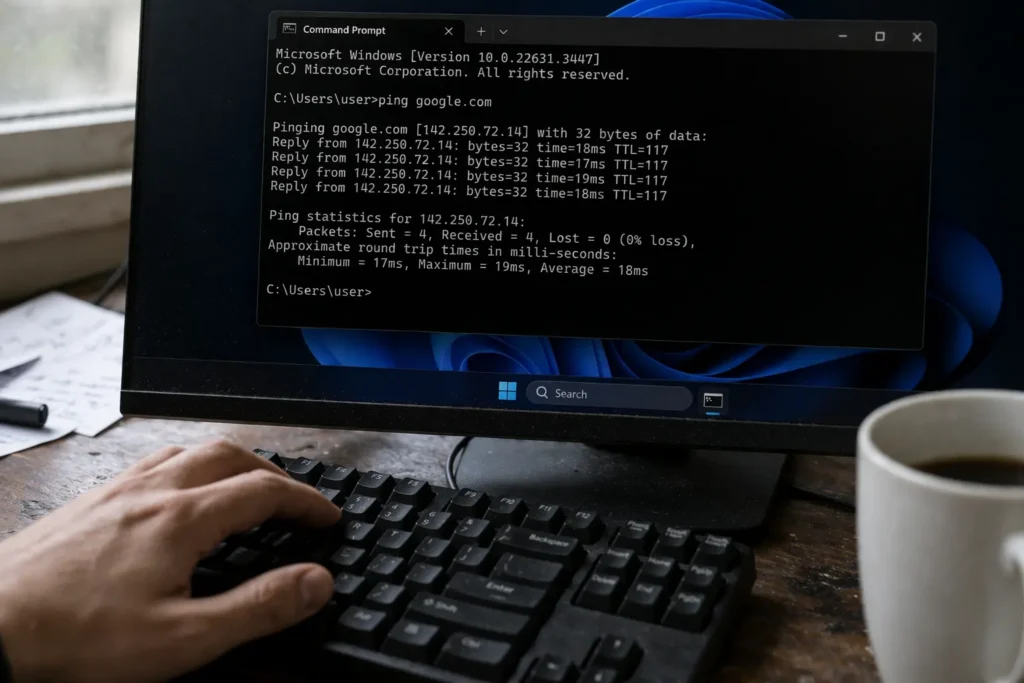
The simplest method is using the ping command. On Windows, open Command Prompt and type ping -n 50 8.8.8.8 to send 50 packets to Google’s DNS server. At the end, the results will show the number of packets sent, received, and lost — along with the loss percentage. For more detailed path analysis, the tracert command or dedicated tools like WinMTR can identify exactly where along the route the loss is occurring.
I have tested this many times on my own home network, and the simple ping command remains the most reliable way to check for packet loss.
Final Summary
Packet loss is one of the most overlooked yet impactful network problems. It operates silently behind the scenes — your speed test looks normal, your router shows a solid connection, and yet your games lag, your calls freeze, and your streaming stutters. The core issue is not about how fast your data moves, but whether it arrives complete.
Diagnosing packet loss requires looking beyond speed tests and checking actual packet delivery using ping and traceroute tools. The fix could be as simple as replacing a cable or switching to a wired connection — or it might require escalation to your ISP if the problem lies within their infrastructure.
If your speed numbers look fine but your internet experience tells a different story, packet loss is the first thing to investigate.