Why Restarting Your Modem Fixes What Rebooting Your Router Cannot
When the internet goes down, most people walk over to the blinking box near their desk and restart it. The problem is that many homes have two separate devices — a modem and a router — and restarting the wrong one wastes time without solving anything. If the connection between your modem and your ISP is broken, restarting your router ten times in a row will not bring the internet back. And if a Wi-Fi conflict between your devices is the actual issue, restarting the modem is equally pointless.
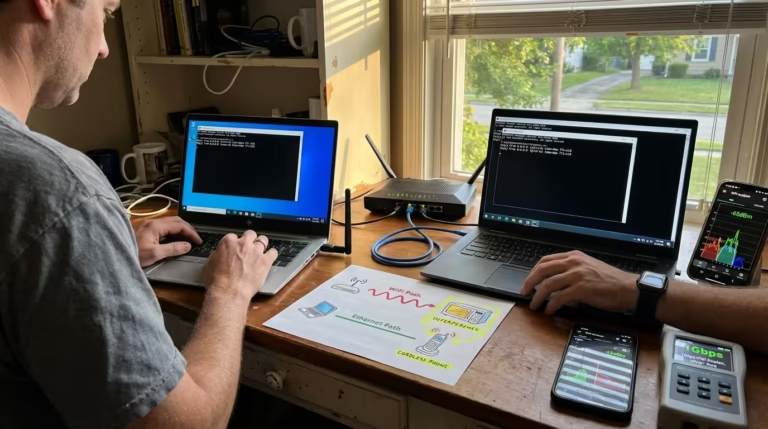
I have faced this exact situation many times on my own home network in Pakistan. I would restart the router again and again while the internet stayed dead — until I learned to restart the modem first. After that, the connection came back in under two minutes every single time.
In this guide, I’m sharing the exact reason why restarting the modem fixes problems that restarting the router cannot, and the correct order that actually works.
The reason restarting your modem fixes internet problems that restarting the router cannot comes down to one thing — these two devices control completely different parts of your internet connectivity. Understanding which device handles which job is the fastest way to cut your troubleshooting time in half.
What the Modem Does and What the Router Does — The Simple Version
Before you can decide which device to restart, you need to understand what each one actually does. They look similar — both are small boxes with lights — but they serve entirely different functions on your home network.
What Your Modem Controls and Who It Talks To
Your modem is the device that communicates directly with your Internet Service Provider. It receives the incoming signal — whether that is over coaxial cable, fiber, or a phone line — and converts it into data your home network can use. The modem holds your public IP address, which is the address your ISP assigns to identify your connection on the wider internet. Every piece of data that enters or leaves your home passes through the modem first. If the modem loses its connection to the ISP, nothing downstream — no device, no app, no browser — can reach the internet.
One thing most guides miss in 2026 is that Windows 11 background services often keep the network stack active even after a router restart, but a modem restart forces a completely fresh DHCP lease and public IP assignment that Windows 11 then picks up automatically.
What Your Router Controls and Who It Talks To
Your router sits between the modem and all of your home devices. It takes the single internet connection from the modem and distributes it to your phones, laptops, smart TVs, and anything else connected over Wi-Fi or Ethernet. The router assigns private IP addresses to each device using DHCP, manages local traffic between devices, and runs the firewall that keeps unsolicited outside traffic from reaching your network. Critically, the router only manages traffic inside your home. It has no relationship with your ISP and no ability to fix a problem that exists between the modem and the outside world.
What Happens When You Have a Gateway — One Device That Is Both
Some ISPs provide a single device that combines the modem and router into one unit, commonly called a gateway. If you only have one device connecting you to the internet and also broadcasting your Wi-Fi, you almost certainly have a gateway. In that case, restarting it resets both the ISP connection and the local network at the same time. For homes with separate devices, though, the distinction matters — and restarting the right one first makes all the difference.
What Restarting Your Modem Actually Resets
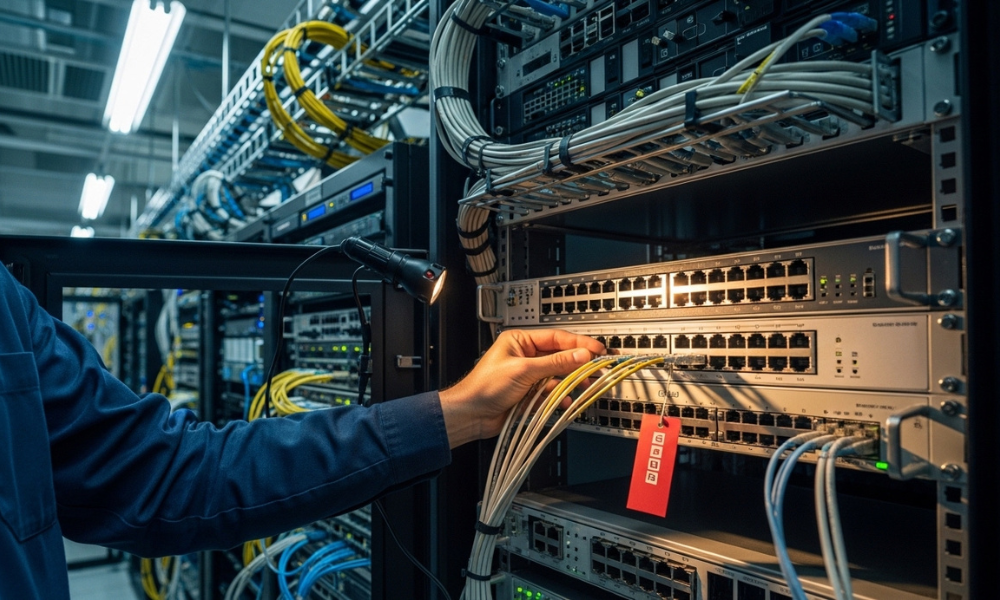
When you power-cycle your modem, you are not just turning a box off and on again. You are forcing it to tear down its entire connection to your ISP and rebuild it from scratch. That process clears several layers of stored state that accumulate over time and can silently cause problems.
Why the Modem Needs to Reconnect to Your ISP After a Restart
Your modem maintains a persistent session with your ISP’s infrastructure. Depending on your connection type, this could be a DOCSIS channel lock with a cable headend, a PPPoE session over DSL, or an optical handshake over fiber. These sessions are negotiated when the modem first powers on, and they stay active for days, weeks, or even months without interruption. Over time, the session state can become stale. Signal levels can drift, authentication tokens can expire on the ISP side, or routing tables upstream can change while your modem still holds outdated information. When you restart the modem, it has no choice but to renegotiate everything — signal frequency, channel bonding, authentication, and IP assignment. That fresh negotiation often resolves connectivity issues that no amount of router rebooting could touch.
What Restarting the Modem Clears That the Router Cannot
The modem holds WAN-side state — information that only exists between your modem and your ISP. This includes the DHCP lease for your public IP, cached DNS resolver assignments from your ISP, and the modem’s own firmware-level session memory. If your ISP’s DNS is responding slowly or has become unresponsive, a modem restart forces a fresh DNS server assignment as part of the new DHCP lease. Your router has no access to any of this. The router only sees the modem as its upstream gateway. It cannot reset the modem’s ISP session, clear the modem’s cached WAN configuration, or force a new public IP lease. That is why restarting the router does not fix no internet problems that originate at the modem level — the router simply does not control that layer.
Why Your Public IP Address Can Change After a Modem Restart
Every time your modem reconnects to your ISP, it sends a DHCP request for a public IP address. If the previous lease has expired — or if enough time passes during the power-off period — the ISP’s DHCP server may assign a different public IP. This is normal on residential connections where IPs are dynamically assigned. A new public IP also means a clean slate from the ISP’s perspective. If your previous IP had been flagged, throttled, or caught in a temporary routing issue upstream, the new address sidesteps that entirely. This is another reason why restarting the modem fixes internet issues that the router simply cannot influence — the router never touches the public IP. It only manages private addresses inside your home network.
What Restarting Your Router Actually Resets
The router handles everything on the local side of your network. When you restart it, you are clearing the internal state that manages how your devices connect, communicate, and receive their network configuration. This is valuable when the problem is between your devices and the router — but it has hard limits.
What the Router Restart Clears — Private IP Addresses and DHCP Leases
Your router runs a DHCP server that assigns a private IP address to every device that joins your network. Over time, these leases accumulate. A phone that connected last week, a guest laptop that has since left, a smart bulb that dropped off Wi-Fi — all of them may still hold active leases in the router’s memory. When the lease table becomes full or conflicting, new devices may fail to get an address, or two devices may end up fighting over the same IP. Restarting the router wipes the DHCP lease table entirely. Every device has to request a fresh IP when the router comes back online, and conflicts that built up over days or weeks are instantly resolved.
From my own repeated testing, I noticed that even when the router shows “connected” and the WAN light is green, a stale modem session upstream can still block all traffic — something a router restart can never fix because the router has no control over the ISP side.
Beyond DHCP, the router also clears its internal routing cache, resets NAT translation tables, and reinitializes its Wi-Fi radios. If your 5 GHz band was stuck on a congested channel, the router may select a better one after reboot. If the NAT table was bloated from thousands of stale connection entries, clearing it can immediately improve responsiveness.
Why Router Restarts Fix Device Connection Problems But Not ISP Problems
If one laptop cannot connect to Wi-Fi but other devices work fine, the issue is almost certainly between that device and the router — not the modem. Similarly, if your Ethernet is connected but there is no internet on a single machine while others browse normally, the problem is local. Router restarts are effective for exactly these scenarios. They resolve DHCP conflicts, clear stuck wireless associations, and reset internal firmware states that can cause individual devices to lose connectivity.
However, the router has no visibility into what happens upstream. It receives a connection from the modem and distributes it. If the modem has no active WAN link, the router will still hand out private IPs, still broadcast its Wi-Fi SSID, and still let your devices connect to the local network — but no traffic will reach the internet. From the router’s perspective, everything looks normal even when the internet is completely down.
What a Router Restart Cannot Fix — No Matter How Many Times You Do It
If your router shows connected but there is no internet, and every device on the network has the same problem, the fault is almost certainly on the modem side or beyond. No router restart will renegotiate your ISP session. No router restart will fix a drifted signal level on your cable line. No router restart will clear a stale public IP lease or resolve an upstream routing failure at your ISP. Restarting the router repeatedly in this situation is the networking equivalent of turning your steering wheel when the engine is off — the controls respond, but nothing moves. Recognizing this boundary is the key to understanding why restarting your modem fixes internet problems that restarting the router does not.
How to Tell in 60 Seconds Whether the Problem Is Your Modem or Your Router
You do not need to guess which device is causing the problem. Three quick checks — taking less than a minute combined — will tell you whether the fault is on the modem side or the router side. All you need is one device connected to your network, either over Wi-Fi or Ethernet.
Step 1 — Ping Your Router IP Address From Windows 11
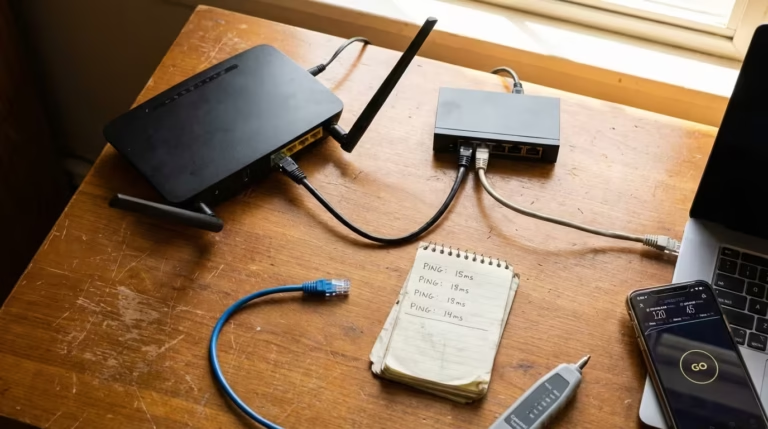
Open Command Prompt on your Windows 11 machine and run a simple ping command to your router’s default gateway address. For most home networks, this is 192.168.1.1 or 192.168.0.1.
ping 192.168.1.1If you are not sure what your gateway address is, run ipconfig first and look for the line labeled Default Gateway under your active network adapter.
If the ping succeeds and you get replies with low latency, your device is communicating with the router normally. The local network is working. If the ping fails entirely — request timed out, destination unreachable — then your device cannot reach the default gateway, and the problem is between your computer and the router. In that case, a router restart or checking your local connection is the right move.
Now run a second ping, this time to an external address:
ping 8.8.8.8This sends a ping to Google’s public DNS server. If the first ping to your router succeeded but this second ping to the internet fails, the problem is beyond your router — meaning the modem or your ISP connection is the likely cause.
Step 2 — Check If Other Devices on the Network Have the Same Problem
Pick up your phone, open a browser, and try to load any website. Try a second device if one is available — a tablet, a smart TV, another laptop. The pattern you see here is immediately diagnostic.
If every device on the network has no internet, the problem is upstream of the router. Either the modem has lost its ISP connection, or there is an outage on your ISP’s side. Restarting the router will not help in this scenario because the router is distributing the connection it receives — and right now, it is receiving nothing.
If only one device has no internet while others work fine, the issue is local to that device or its connection to the router. A router restart may help, or the fix may be on the device itself — a stuck Wi-Fi adapter, a bad DHCP lease, or a DNS configuration problem.
Step 3 — Check the WAN Light on Your Router
Most routers have an indicator light labeled WAN, Internet, or sometimes represented by a globe icon. This light shows whether the router is receiving an active connection from the modem.
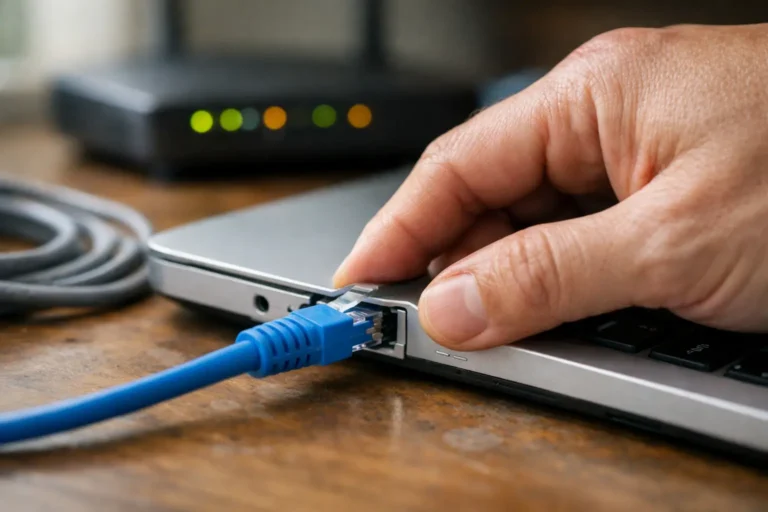
If the WAN light is off or red, the router is not getting a usable signal from the modem. The modem either has no ISP connection, or the cable between the modem and router is faulty. No router restart will fix this — the modem needs attention first.
If the WAN light is solid green or white, the router believes it has an active upstream connection. If the internet still is not working despite this, the problem may be a DNS failure, an ISP-side routing issue, or a stale modem session that appears active but is no longer passing traffic properly.
What the Results Tell You — Modem Side or Router Side
Combine your three checks into a simple decision:
- Router ping fails — the problem is between your device and the router. Restart the router or check your local connection.
- Router ping succeeds but external ping fails, all devices affected, WAN light off — the modem has lost its ISP connection. Restart the modem.
- Router ping succeeds, external ping fails, WAN light is on — the modem session may be stale, or there is an ISP-side issue. Restart the modem first. If that does not work, the fault is likely with your ISP.
- Only one device has no internet — the problem is device-specific. Check that device’s network settings before restarting anything.
This 60-second diagnostic is built entirely from tools already available in Windows 11. No software to install, no special access required.
The Correct Restart Order — Why Modem First Always Matters
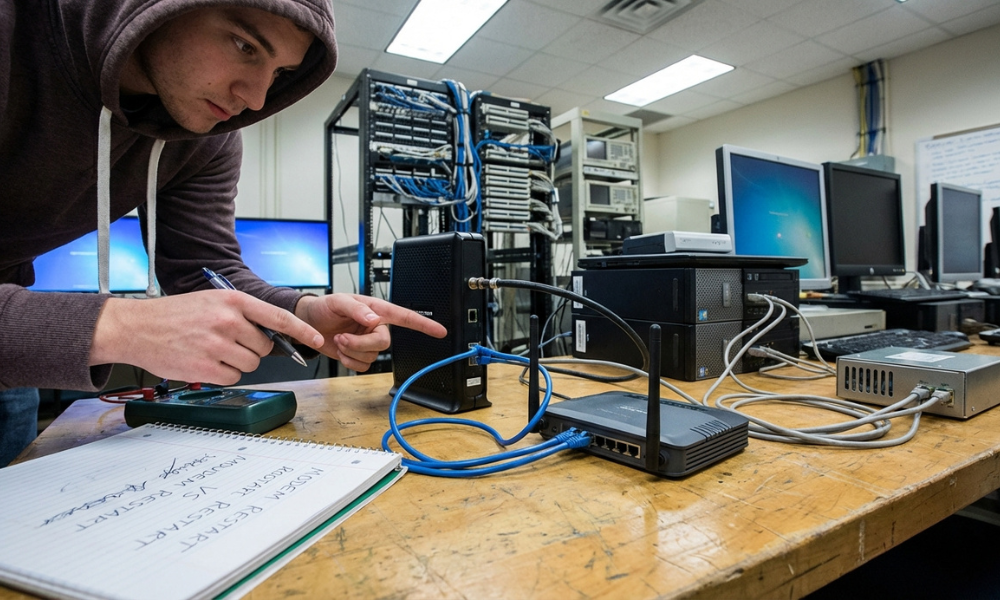
Knowing which device to restart is half the solution. The other half is restarting them in the right order. The modem must always come back online first — before the router is powered on. This is not a preference or a suggestion. It is a technical requirement rooted in how these two devices depend on each other.
What Goes Wrong If You Restart the Router Before the Modem
When your router boots up, one of the first things it does is look for an upstream connection from the modem. It sends a DHCP request to the modem’s LAN-side interface, asking for a WAN IP so it can route traffic to the internet. If the modem is still powered off — or still in the middle of reconnecting to your ISP — the router’s request goes unanswered. The router either times out and assigns itself no WAN address, or it caches a failed state that persists until the next reboot. At that point, even though the modem eventually finishes connecting to the ISP, the router is not aware that a valid upstream connection is now available. You end up with a modem that has internet and a router that does not know it.
How Long to Wait Between Modem On and Router On
After powering on the modem, wait until it has fully established its ISP connection before turning on the router. On most cable modems, this takes between 90 seconds and three minutes. You can watch the modem’s lights to gauge progress — the downstream, upstream, and online indicators will blink during negotiation and turn solid once the connection is locked. On fiber ONTs, the process is usually faster, often under 60 seconds. The key indicator is the Online or Internet light on the modem becoming solid. Once that happens, the modem has a valid ISP session and is ready to hand off a connection to the router.
Step by Step — The Correct Way to Restart Both Devices
Follow this exact sequence:
- Power off the router first. Unplug it from power or use the power switch if it has one.
- Power off the modem. Unplug it from power. If your modem has a battery backup, remove the battery as well to ensure a full reset.
- Wait 30 seconds. This allows residual charge to drain from capacitors in both devices, ensuring stored session state is fully cleared.
- Power on the modem. Plug it back in and wait for all connection lights to become solid — particularly the Online or Internet indicator.
- Power on the router. Once the modem is fully online, plug the router back in. Wait for it to boot, broadcast its SSID, and obtain a WAN address from the modem.
- Test the connection. Open a browser or run a ping to an external address to confirm traffic is flowing.
This restart order — modem first, then router — ensures that by the time the router asks for an upstream connection, the modem is ready to provide one.
When You Have a Gateway — One Device That Does Both
Not every home has two separate boxes. Many ISPs now supply a single gateway device that handles both modem and router functions internally. The troubleshooting logic changes slightly when you are dealing with a gateway.
How to Tell If You Have a Separate Modem and Router or a Gateway
The simplest way to check is to count the devices between your wall jack and your network. If a coaxial cable, fiber line, or phone line goes into one device, and then an Ethernet cable runs from that device into a second device that broadcasts your Wi-Fi — you have a separate modem and router. If the ISP line goes into a single device and that same device also broadcasts Wi-Fi and has multiple Ethernet ports for your home devices, it is a gateway.
Another clue is the label on the device itself. Gateways are often branded by the ISP — Xfinity xFi, AT&T BGW320, Verizon G3100 — and are typically rented as part of your service plan.
What Restarting a Gateway Resets
Because a gateway combines both functions, restarting it resets everything at once — the ISP session, the public IP lease, the DHCP table, the NAT state, and the Wi-Fi radios. You do not need to worry about restart order since both halves power cycle together. The tradeoff is that a gateway restart disrupts every device on your network simultaneously, and the full boot process takes longer because the device must renegotiate the ISP connection before it can begin serving local clients.
When Your ISP Needs to Remotely Restart the Gateway From Their Side
Some gateway issues cannot be resolved by unplugging the device. If the gateway’s firmware has entered a bad state, or if the ISP-side provisioning record for your device is out of sync, your ISP can push a remote restart or re-provision command to the gateway. This is common after service changes, firmware updates pushed overnight, or regional outages that require session resets from the headend. If restarting the gateway yourself does not restore service, calling your ISP and asking them to send a reset signal to the device is a valid and often necessary next step.
When Restarting Neither Device Fixes the Problem
Sometimes you restart the modem, wait for it to reconnect, restart the router in the correct order, and still have no internet. When a proper power cycle of both devices fails to restore service, the problem is almost certainly beyond your home network — either on your ISP’s infrastructure or somewhere along the path between your ISP and the server you are trying to reach.
Signs That the Problem Is on the ISP Side Not in Your Home
Several indicators point to an ISP-level fault rather than a problem with your own equipment. The most obvious is the modem’s Online light. If it refuses to turn solid green even after a full restart and a three-minute wait, the modem cannot lock onto your ISP’s signal. This usually means a line issue, a headend outage, or a provisioning problem that only your ISP can fix.
Other signs include intermittent connectivity that drops every few minutes, packet loss that appears on external pings but not on pings to your router, and situations where some websites load while others time out completely. If your connection was working fine an hour ago and nothing changed on your end — no new devices, no settings changes, no cable disturbances — an ISP-side disruption is the most likely explanation.
You can use WinMTR to catch random internet drops and identify exactly where along the route the packet loss begins. If the first hop with significant loss is beyond your modem — at your ISP’s gateway or further upstream — you have confirmed the fault is not in your home.
How to Confirm the Fault Is With Your ISP Using a Simple Ping Test
Open Command Prompt and run two targeted pings. First, ping a reliable public DNS server:
ping 1.1.1.1This reaches Cloudflare’s public DNS infrastructure, which has nearly 100% uptime worldwide. Then run a second test:
ping 8.8.8.8This reaches Google’s public DNS servers. If both pings return Request timed out or show severe packet loss, and you have already confirmed your router ping at 192.168.1.1 works normally, then traffic is leaving your router but dying somewhere between your modem and the public internet. That is your ISP’s responsibility.
If both external pings work but websites still will not load, the problem is DNS resolution — your devices are reaching the internet but cannot translate domain names into IP addresses. In that case, switching your DNS to either of these public resolvers instead of your ISP’s default DNS typically resolves the issue immediately.
Frequently Asked Questions
Should I restart my modem or my router first?
Always restart the modem first. Power off the router, then power off the modem. Bring the modem back online and wait until its connection lights are solid. Only then should you power on the router. This ensures the router receives a valid upstream connection the moment it boots and sends its first DHCP request.
Why does restarting my modem fix the internet but restarting the router does not?
Because the modem controls the connection between your home and your ISP. When that session becomes stale, corrupted, or drops, only a modem restart can renegotiate it. The router only manages traffic inside your home network and has no ability to influence or reset the ISP connection. That is why restarting the modem fixes internet problems that restarting the router does not — they operate on entirely different layers.
What is the difference between a modem and a router?
The modem connects to your ISP and converts the incoming signal into usable network data. It holds your public IP address and manages the WAN connection. The router takes that connection and distributes it to all your home devices over Wi-Fi and Ethernet. It assigns private IP addresses, manages local traffic, and runs your network firewall. One faces outward toward the internet. The other faces inward toward your devices.
What does restarting a modem actually do?
Restarting the modem forces it to completely drop its existing ISP session and renegotiate from scratch. This includes re-locking signal channels, re-authenticating with the ISP, obtaining a fresh public IP lease via DHCP, and receiving updated DNS server assignments. Any stale or corrupted session data is wiped during the power cycle.
Why do I have to restart the modem first and then the router?
The router depends on the modem for its upstream connection. When the router boots, it immediately requests a WAN address from the modem. If the modem is still offline or mid-negotiation at that point, the router fails to get an address and caches a disconnected state. Restarting the modem first guarantees it is fully online and ready to serve the router the moment the router powers on.
How do I know if my internet problem is the modem or the router?
Ping your router’s gateway address from any connected device. If that ping fails, the problem is between your device and the router. If the router ping succeeds but pinging an external address like 1.1.1.1 fails, the problem is on the modem side or with your ISP. Also check whether all devices are affected or just one — if every device has no internet, the modem or ISP is the likely cause.
How long should I wait between restarting the modem and the router?
Wait until the modem’s Online or Internet light turns solid, which typically takes 90 seconds to three minutes for cable modems and under 60 seconds for fiber. Only power on the router after the modem has fully established its ISP connection. Rushing this step is the most common reason a proper restart sequence still fails.
When should I call my ISP instead of restarting my modem?
Call your ISP if the modem’s Online light does not turn solid after a full power cycle and a three-minute wait, if the problem returns repeatedly within hours of restarting, or if external pings show packet loss at the first hop beyond your modem. These patterns indicate a line issue, a provisioning error, or an infrastructure outage that only your ISP can resolve. If you have a gateway device, ask the ISP to send a remote re-provision signal before scheduling a technician visit.
The modem and router handle fundamentally different jobs. The modem owns the ISP connection. The router owns the local network. When the internet goes down, identifying which side is broken — using a quick ping test and a glance at your WAN light — tells you exactly which device to restart and saves you from cycling the wrong one repeatedly. Restart the modem first, wait for it to fully reconnect, then bring the router online. If neither restart restores service, the fault is with your ISP, and no amount of power cycling on your end will substitute for a call to their support line.
Before: I would restart the router over and over while the internet stayed dead, wasting time with no result.
After: After learning to restart the modem first and then the router in the correct order, the internet came back reliably every single time — often in under two minutes.