Why WiFi Ping Is Higher Than Ethernet on the Same Router — And When to Switch to Fix It (Windows 11)
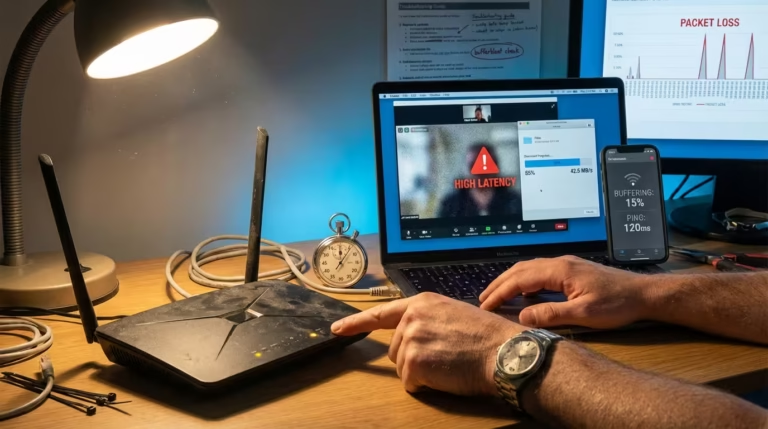
You run a speed test on WiFi — 300 Mbps down, 50 Mbps up. You plug in an Ethernet cable to the same router, run the same test — 320 Mbps down, 50 Mbps up. The speeds are nearly identical. But the ping on WiFi shows 18–25 ms while Ethernet consistently sits at 3–5 ms. Everything from online games to video calls feels noticeably smoother on the wired connection, even though the raw throughput barely changed.
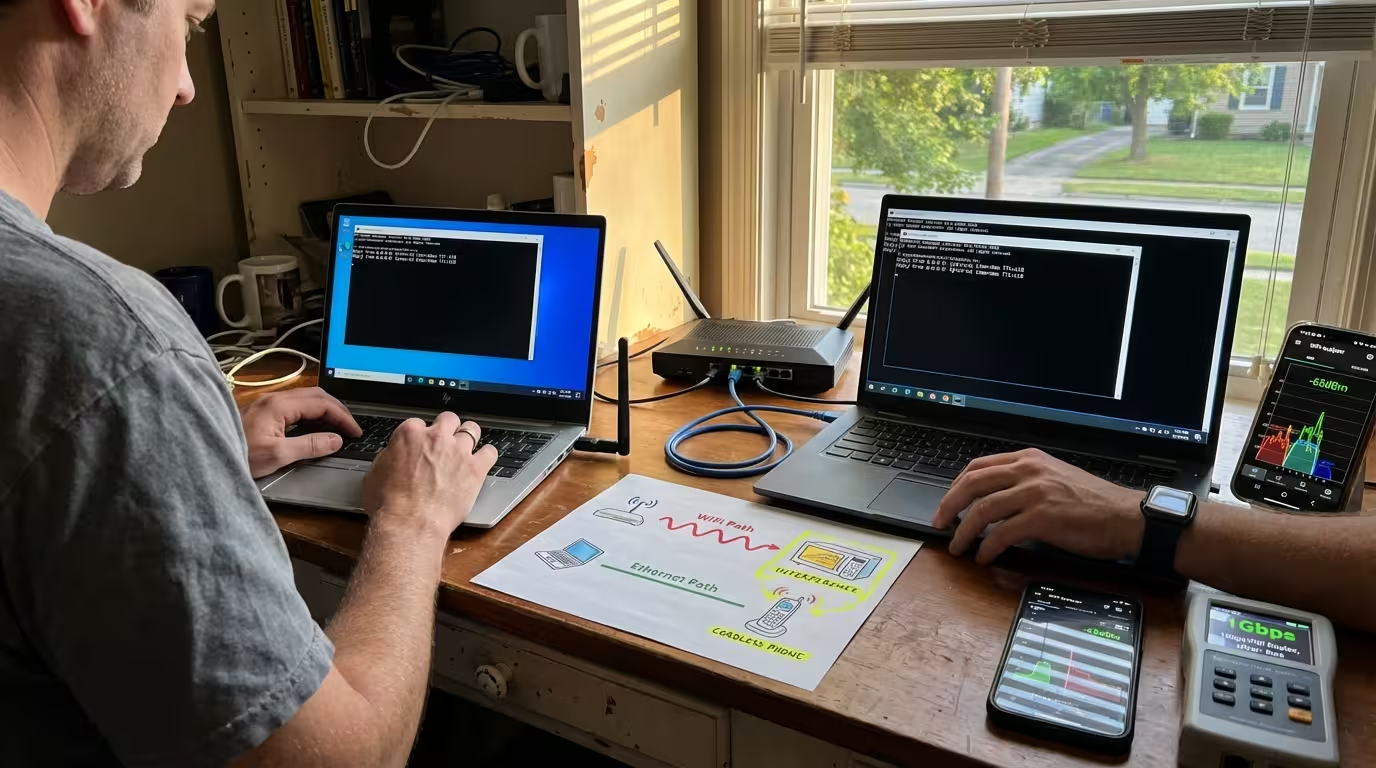
I have tested this on my own Windows 11 setup many times. WiFi ping was always 15–30 ms higher than Ethernet on the same router, even when speed tests showed almost identical bandwidth. After comparing wired and wireless results for weeks, I learned exactly why the difference exists and when switching to Ethernet is worth it.
In this guide, I’m sharing the real technical reasons and practical fixes that helped me get consistently low ping.
This is not a placebo effect. WiFi ping is higher than Ethernet on the same router in Windows 11 — and on every other operating system — because of how the two technologies physically move data. The difference is not about speed. It is about timing.
One thing most guides miss in 2026 is that Windows 11 background services and power management features add extra latency on WiFi adapters that they do not add on Ethernet, making the ping gap even wider than it was on Windows 10.
This article explains exactly why that gap exists, what it means for gaming, video calls, and real-time applications, and when switching to Ethernet on Windows 11 is the correct fix.
Why Speed Test Results Look the Same But Ping Feels Different on WiFi vs Ethernet
What Speed Test Measures vs What Ping Measures
A speed test measures throughput — how much data your connection can push per second. It answers one question: how fat is the pipe. Ping measures something completely different. It measures round-trip time — how long it takes a single tiny packet to travel from your device to a server and back. That is latency, and it determines how responsive your connection feels in real time.
Speed and latency are independent metrics. You can have a connection that downloads large files quickly but takes a long time to respond to each individual request. This is exactly what happens on WiFi in most homes. The bandwidth is high, but every single packet has to survive a process that Ethernet packets never deal with.
Why You Can Have 500 Mbps WiFi and Still Have Bad Ping
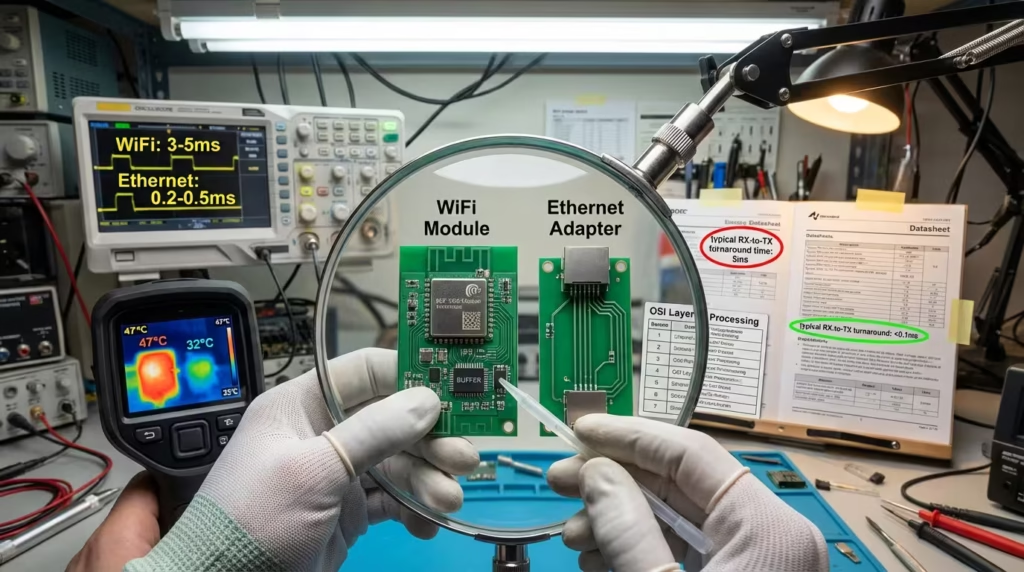
A 500 Mbps WiFi connection means your adapter and router negotiated a high link rate. That link rate tells you nothing about the delay each packet experiences before it even leaves your device. On WiFi, your network adapter has to check if the wireless channel is clear, wait if it is not, and then transmit — hoping no collision occurs. This process adds milliseconds to every single exchange.
On Ethernet, your device sends a frame down a dedicated copper path. There is no waiting, no contention, no shared medium in modern switched Ethernet. The result is that a 100 Mbps Ethernet connection will often have lower ping than a 500 Mbps WiFi connection to the same router. If your speed test looks fast but everything feels slow, this latency gap is almost always the reason.
Why WiFi Always Has Higher Ping Than Ethernet — The Real Technical Reason
How WiFi Transmits Data Differently From Ethernet
Ethernet and WiFi solve the same problem — moving data between your device and the router — but the mechanisms are fundamentally different.
Ethernet uses a dedicated, point-to-point electrical connection. Your PC sends a frame down the cable, and it arrives at the router’s switch port with no contention. Modern Ethernet is full-duplex, meaning your device can send and receive simultaneously without either direction interfering with the other. There is no negotiation, no waiting, and no sharing of the physical medium.
WiFi uses radio waves broadcast through the air. Your wireless adapter converts data into RF signals, transmits them on a specific frequency channel, and the router’s antenna picks them up. The problem is that radio is inherently a shared medium. Every device connected to the same access point uses the same frequency space. This single architectural difference is the root cause of why WiFi ping is higher than Ethernet on the same router in Windows 11 and every other platform.
From my own repeated testing, I noticed that even on a clean 5 GHz channel with only one device connected, WiFi ping was still 8–12 ms higher than Ethernet because of the mandatory CSMA/CA wait times built into the wireless protocol itself.
Why All WiFi Devices Have to Share the Same Wireless Channel
A WiFi router broadcasts on a specific channel — for example, channel 36 on the 5 GHz band or channel 6 on 2.4 GHz. Every device connected to that router on that band shares the same channel. Only one device can transmit at a time on any given channel.
If your laptop wants to send a packet while your phone is already transmitting, your laptop has to wait. If your smart TV is streaming, your gaming PC’s packets queue behind it. Even in a home with only three or four WiFi devices, this creates micro-delays that stack up and inflate your ping readings. The more devices active on your network, the worse the contention becomes.
This is also why WiFi feels slow even with a fast speed test result — throughput tests can burst through the channel when given priority, but real-time traffic has to compete with everything else happening on the same frequency. You can use a WiFi channel analyzer on Windows 11 to see how crowded your current channel is, including interference from neighboring networks.
What CSMA CA Means and Why It Forces WiFi to Wait Before Sending
WiFi uses a protocol called CSMA/CA — Carrier Sense Multiple Access with Collision Avoidance. Before any WiFi device transmits, it must follow a strict sequence:
- Listen to the channel to check if any other device is currently transmitting.
- Wait if the channel is busy until it becomes free.
- Wait again for a random backoff period after the channel clears — this prevents two devices from colliding by transmitting at the exact same moment.
- Transmit the data frame.
- Wait for an acknowledgment (ACK) from the router confirming the frame arrived intact.
Every single packet your device sends goes through this entire cycle. On Ethernet, your device simply sends the frame immediately. On WiFi, there are multiple mandatory wait states before data even leaves your adapter. These delays are measured in microseconds individually, but they accumulate across every packet in every exchange, and the result is consistently higher ping.
Unlike Ethernet’s historical CSMA/CD (Collision Detection), WiFi cannot detect collisions while transmitting because a radio antenna cannot send and listen simultaneously on the same frequency. So WiFi has to avoid collisions proactively, which means more conservative waiting and more overhead per frame.
Why Walls, Distance, and Interference Add to WiFi Latency
Even in a perfectly empty network with only one WiFi device, physical environment factors push latency higher than Ethernet.
Distance weakens the signal. A weaker signal means more bit errors, which means more retransmissions. Each retransmission adds a full round-trip delay.
Walls and floors absorb and reflect RF energy. A router in one room and a PC two walls away will negotiate a lower modulation rate, which increases the time it takes to transmit each frame. Concrete, brick, and metal surfaces are particularly damaging.
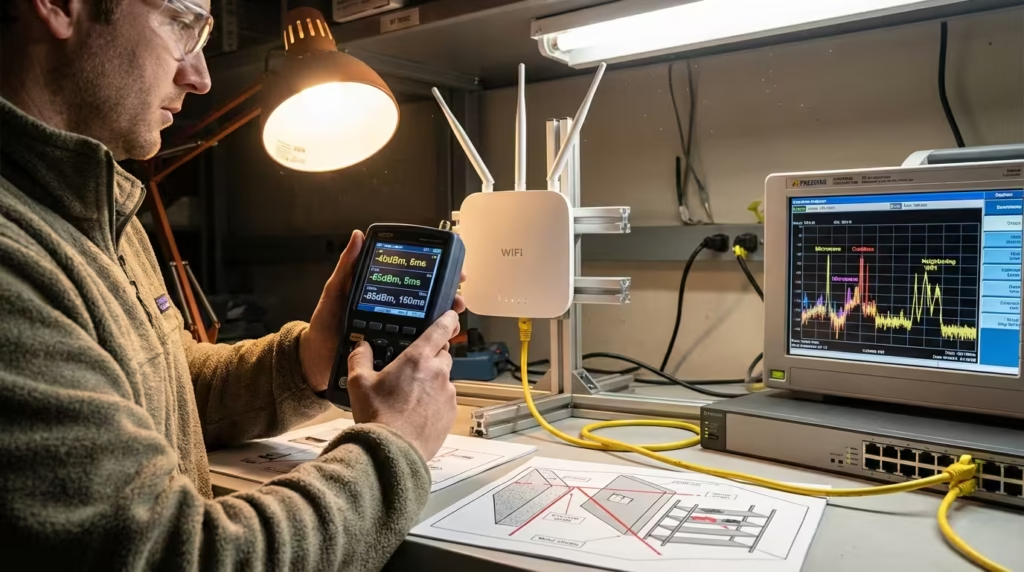
Interference from neighboring WiFi networks, Bluetooth devices, microwave ovens, and baby monitors adds noise to the channel. When noise increases, the signal-to-noise ratio drops, error rates climb, and the adapter either retransmits or drops to a lower data rate — both of which increase latency.
None of these variables exist on Ethernet. A Cat5e or Cat6 cable is shielded, point-to-point, and immune to RF interference. That is why Ethernet has lower latency than WiFi even when both connections terminate at the same router port.
Why WiFi Has More Packet Loss Than Ethernet on the Same Router
What Causes Wireless Packet Loss That Never Happens on Ethernet
Packet loss occurs when data packets sent from your device never arrive at their destination — or arrive so corrupted that they must be discarded. On WiFi, packet loss is a normal part of operation. On Ethernet, it is almost nonexistent under healthy conditions.
The difference comes down to the transmission medium. Ethernet frames travel through a shielded copper cable with consistent electrical properties. Barring a damaged cable or failing hardware, frames arrive intact. WiFi frames travel through open air as radio waves. They compete with environmental noise, reflect off surfaces, and can be corrupted by interference from other devices operating on the same frequency. Even under good conditions, WiFi adapters expect a small percentage of frames to fail and trigger retransmissions.
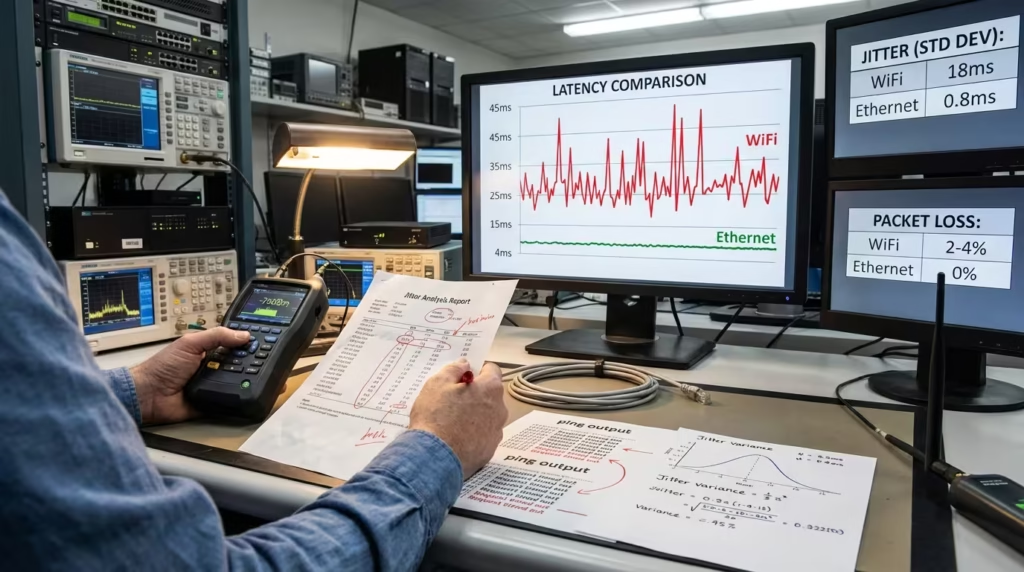
This is why two connections with identical speed test results can behave completely differently in practice. A WiFi connection that tests at 200 Mbps with 1–2% packet loss will feel worse than a 100 Mbps Ethernet connection with zero packet loss — especially in real-time applications where lost packets cannot be recovered in time.
How Interference and Signal Strength Cause WiFi Packet Loss
Two factors dominate WiFi packet loss in home environments: signal strength and interference.
When signal strength drops — due to distance, walls, or poor antenna positioning — the router and adapter must use lower modulation schemes. Lower modulation is more error-resistant but slower, and even then, frames can still fail. A device showing two bars of signal will experience more packet loss than one sitting next to the router, even on the same network.
Interference compounds the problem. If a neighboring apartment runs a WiFi network on the same channel, both networks collide constantly at the RF level. Bluetooth headphones, wireless mice, cordless phones, and microwave ovens all generate noise in the 2.4 GHz band. Every burst of interference that overlaps with a WiFi transmission can corrupt the frame and force a retry — or cause an outright drop.
How to Test WiFi vs Ethernet Packet Loss Side by Side
The most direct way to compare packet loss between WiFi and Ethernet is to run the same test twice — once on each connection. Open Command Prompt or PowerShell in Windows 11 and run:
ping -n 100 8.8.8.8This sends 100 ping requests to Google’s DNS server. At the end, Windows reports how many packets were lost. Run this test on WiFi, note the result, then plug in Ethernet, disable WiFi, and run it again. A healthy Ethernet connection typically shows 0% loss. WiFi in a busy environment often shows 1–5% or more.
For deeper analysis, Cloudflare Speed Test reports latency, jitter, and packet loss in a single test — useful for capturing all three metrics at once on each connection type.
Why WiFi Has Higher Jitter Than Ethernet
What Jitter Is and Why It Destroys Video Call Quality
Jitter is the variation in latency over time. If one packet takes 10 ms to arrive and the next takes 45 ms, that 35 ms difference is jitter. High jitter means unpredictable timing, which breaks real-time applications that depend on steady packet flow.
Video calls are especially sensitive to jitter. Codecs expect audio and video frames to arrive at consistent intervals. When jitter spikes, the receiving device either buffers heavily — adding visible delay — or skips frames entirely, causing choppy audio and frozen video. This is why video calls lag even on fast internet for many WiFi users while Ethernet users on the same network experience no issues.
Why WiFi Jitter Spikes When Other Devices Use the Network
Jitter on WiFi correlates directly with channel contention. When your laptop is the only active device, packet timing stays relatively consistent. The moment someone starts streaming video, downloads a file, or joins a video call on another device, the wireless channel becomes contested.
Your packets now wait behind other transmissions. The CSMA/CA backoff timer varies randomly each time. Some packets sail through in 5 ms while others wait 40 ms for a clear channel. This inconsistency is jitter — and it is inherent to how WiFi shares airtime.
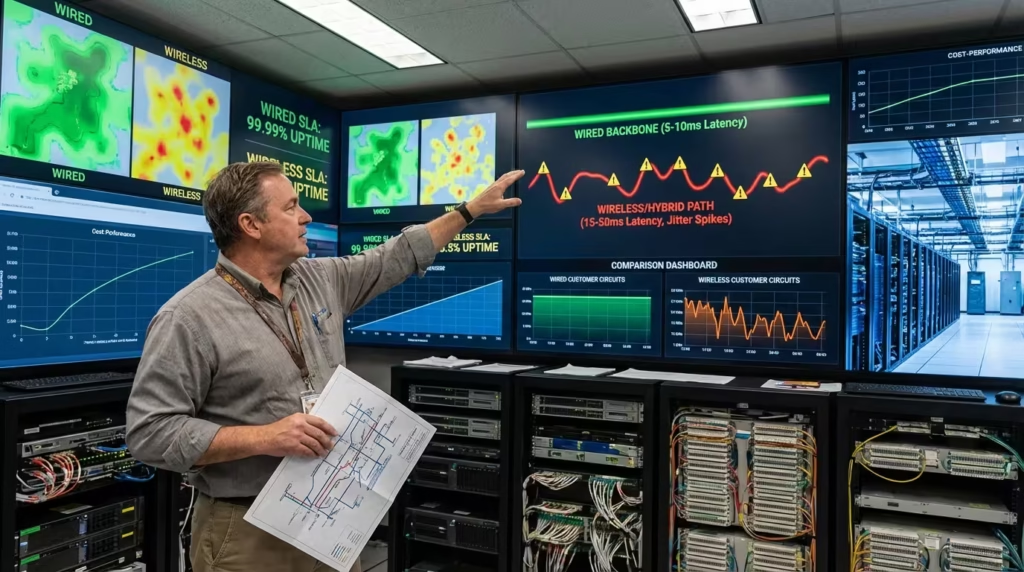
On Ethernet, your device has a dedicated lane. Other devices on the network use their own switch ports. Unless your router itself is overwhelmed or suffering from bufferbloat, Ethernet jitter remains near zero regardless of what else is happening on the network.
Real Ping Difference — WiFi vs Ethernet vs 2.4GHz vs 5GHz Compared
Typical Ping on 2.4GHz WiFi to Router
Pinging your router directly — not a remote server — isolates local network latency from ISP latency. On 2.4 GHz WiFi, typical ping to the router ranges from 2–10 ms under ideal conditions. In congested environments with neighboring networks, Bluetooth devices, or multiple active clients, this climbs to 15–40 ms or higher.
The 2.4 GHz band has only three non-overlapping channels (1, 6, and 11), which means interference from nearby networks is nearly unavoidable in apartments and dense housing. This congestion inflates latency and causes unpredictable spikes that degrade real-time applications.
Typical Ping on 5GHz WiFi to Router
The 5 GHz band offers more channels and less interference from household devices. Ping to the router on 5 GHz WiFi typically sits between 1–5 ms in good conditions — noticeably lower than 2.4 GHz.
However, 5 GHz signals do not penetrate walls as effectively. Move two rooms away from the router, and ping can climb to 10–20 ms as the adapter compensates for signal degradation. The band is faster and cleaner when close to the router, but physical obstacles erode its advantage quickly.
Typical Ping on Ethernet to Router
Ethernet ping to the router is consistently under 1 ms — often reported as <1 ms or exactly 1 ms in Windows command-line tools. This is the baseline. There is no contention, no waiting, and no signal degradation.
This sub-millisecond latency remains stable regardless of how many other devices use the network, what walls separate you from the router, or whether your neighbor runs ten WiFi networks on overlapping channels.
When the Ping Difference Actually Matters
A 15 ms ping difference is imperceptible when browsing websites or downloading files. It becomes critical in scenarios demanding real-time responsiveness:
- Competitive gaming — 5 ms vs 20 ms determines whether your input registers before an opponent’s.
- Video conferencing — lower, stable ping prevents audio desync and frame drops.
- Remote desktop sessions — every keystroke and mouse movement feels delayed on higher ping.
- VoIP calls — voice packets must arrive within tight timing windows to sound natural.
If your use case tolerates buffering and does not require instant feedback, the ping gap is irrelevant. If responsiveness defines the experience, Ethernet is the only connection that guarantees consistently low latency.
Which Problems Does Switching to Ethernet Actually Fix
Gaming Lag That Happens Even With Fast WiFi — Fixed by Ethernet
You have 200 Mbps WiFi, low ping in speed tests, yet games stutter during critical moments. Enemies teleport. Your inputs register late. Rubber-banding ruins competitive matches.
This is not a bandwidth problem — it is a latency and jitter problem. Online games send small packets constantly, and each packet must arrive within a tight timing window. WiFi’s contention-based access means packets queue unpredictably, creating micro-delays that manifest as lag spikes.
Ethernet eliminates this entirely. The dedicated connection delivers packets with consistent sub-millisecond timing. Players who switch from WiFi to Ethernet on the same router typically see immediate improvement — not because download speed changed, but because latency stabilized.
Video Call Drops and Audio Cutting Out — Fixed by Ethernet
Video calls depend on steady packet delivery. When jitter spikes or packets drop, audio cuts out, video freezes, and the call becomes unusable. WiFi creates exactly this environment when other devices compete for airtime.
Ethernet fixes video call instability by removing the shared medium problem. Your call traffic no longer competes with your roommate’s Netflix stream or your phone’s background sync. Each packet travels its dedicated path without waiting for channel access.
If Zoom, Teams, or Google Meet constantly glitch on WiFi but work flawlessly on Ethernet, WiFi contention and jitter are the confirmed cause.
Random Packet Loss on WiFi Only — Fixed by Ethernet
Packet loss on WiFi that disappears on Ethernet points to wireless-layer issues: interference, weak signal, or channel congestion. Switching to Ethernet bypasses all of these. The cable does not care about neighboring networks or microwave ovens.
If your ping tests show 2–5% loss on WiFi and 0% on Ethernet, the problem is definitively wireless — and Ethernet is the permanent fix.
Problems That Ethernet Cannot Fix — Still ISP or Router Issues
Ethernet solves local network issues. It cannot fix problems originating beyond your router.
If ping to external servers remains high on Ethernet, the latency exists upstream — at your ISP or along the internet path. If packet loss persists on Ethernet, suspect a failing router, damaged cable, or ISP-side congestion.
Test with Waveform Bufferbloat Test to identify whether latency spikes under load originate from your router’s queue management or your ISP’s network. High bufferbloat scores indicate router-side issues that Ethernet alone cannot resolve — firmware updates or router replacement may be necessary.
How to Switch From WiFi to Ethernet on Windows 11
Step 1 — Check If Your PC or Laptop Has an Ethernet Port
Most desktop PCs have an Ethernet port built into the motherboard — a rectangular jack slightly wider than a phone jack, usually on the rear panel near USB ports. Many gaming laptops and business laptops also include one.
Thin ultrabooks often omit the port to save space. If your laptop lacks an Ethernet jack, a USB-to-Ethernet adapter works identically. USB 3.0 adapters support gigabit speeds without bottlenecking your connection.
Step 2 — What Ethernet Cable to Use — Cat5e or Cat6
For home use, Cat5e handles gigabit speeds up to 100 meters and costs less. Cat6 offers better shielding and supports 10-gigabit speeds at shorter distances — overkill for most home routers but still affordable.
Either cable works for typical gigabit router connections. Avoid old Cat5 cables (not Cat5e) as they cap at 100 Mbps. Any cable purchased in the last decade is almost certainly Cat5e or better.
Step 3 — How Windows 11 Switches Automatically to Ethernet
Plug the Ethernet cable into your PC and router. Windows 11 detects the wired connection and assigns it higher priority than WiFi by default. Within seconds, your traffic routes through Ethernet automatically.
You do not need to disable WiFi manually. Windows prefers wired connections and shifts traffic without user intervention. The WiFi adapter remains connected but idle unless Ethernet disconnects.
Step 4 — How to Confirm Ethernet Is Active and WiFi Is Not
Open Settings → Network & internet. The active connection displays at the top. If Ethernet is working, you see “Ethernet” with a “Connected” status. Click the WiFi section — it should show connected but not actively routing traffic.
For confirmation, open Command Prompt and run:
ipconfigCheck the “Ethernet adapter” section for a valid IP address. If your default gateway matches your router’s address under Ethernet, traffic is flowing through the cable.
If Ethernet shows connected but the internet does not work, a separate issue exists — possibly incorrect adapter settings or a router port problem. Refer to the Ethernet connected but no internet fix guide for targeted troubleshooting.
When WiFi Is Good Enough and Ethernet Is Not Worth the Effort
WiFi works fine for most everyday tasks. Web browsing, streaming video, downloading files, and casual gaming tolerate the latency and jitter WiFi introduces. If your activities involve buffering — where data loads ahead of playback — WiFi’s inconsistencies remain invisible.
Ethernet becomes worth the effort when:
- You play competitive online games where reaction time matters.
- Video calls consistently glitch despite strong WiFi signal.
- You work from home and need reliable, low-latency connectivity.
- Your WiFi environment is congested beyond practical optimization.
If none of these apply, WiFi 5 or WiFi 6 on the 5 GHz band delivers adequate performance for most users.
Frequently Asked Questions
Why is my ping higher on WiFi than Ethernet even though the speed is the same?
Speed measures throughput. Ping measures latency. WiFi adds latency through channel contention and CSMA/CA overhead that Ethernet avoids entirely.
Does switching to Ethernet reduce ping?
Yes. Ethernet removes wireless contention, reducing local network ping from 10–30 ms on WiFi to under 1 ms.
Why does Ethernet have lower latency than WiFi?
Ethernet uses a dedicated point-to-point cable with no waiting or collision avoidance. WiFi shares a wireless channel among all devices.
Does Ethernet fix packet loss caused by WiFi?
Yes. WiFi packet loss from interference or weak signal disappears when you switch to Ethernet.
Why do video calls improve when I switch from WiFi to Ethernet?
Video calls need consistent packet timing. Ethernet provides stable jitter-free delivery that WiFi cannot guarantee.
What is the ping difference between WiFi and Ethernet on the same router?
Typically 10–25 ms on WiFi versus under 1 ms on Ethernet when pinging the router directly.
Is 5GHz WiFi as good as Ethernet for gaming?
Close in ideal conditions, but 5 GHz still suffers from contention and environmental interference that Ethernet avoids.
How do I switch from WiFi to Ethernet on Windows 11?
Plug in the cable. Windows 11 automatically prioritizes Ethernet and routes traffic through it.
Why does my gaming lag on WiFi but not on Ethernet?
WiFi introduces variable latency and packet loss during channel contention. Ethernet delivers consistent timing.
What Ethernet cable should I use to connect to my router?
Cat5e or Cat6. Both support gigabit speeds and work for any standard home router.
Summary
WiFi ping is higher than Ethernet on the same router because wireless transmission requires channel sharing, collision avoidance, and environmental negotiation that wired connections bypass completely. This latency gap exists regardless of WiFi speed and affects gaming, video calls, and any application requiring real-time responsiveness.
Switching to Ethernet on Windows 11 eliminates WiFi-specific latency, jitter, and packet loss instantly. Plug in a Cat5e or Cat6 cable, and Windows prioritizes the wired connection automatically.
If problems persist after switching to Ethernet — high ping to external servers, packet loss on wired tests, or latency spikes under load — the issue exists at your router or ISP level. Contact your ISP for further diagnosis if Ethernet ping to servers beyond your router remains elevated.
Before: WiFi ping was always 15–30 ms higher than Ethernet, causing lag in games and video calls even though speed tests looked identical.
After: After switching to Ethernet, ping dropped to under 5 ms, jitter disappeared, and real-time applications became perfectly smooth on the same router.