What Is Ping and How Does It Work? Simple Networking Explanation
What Is Ping in Networking?
Ping is a command-line utility built into virtually every operating system — Windows, macOS, Linux, and even most mobile platforms. Its purpose is straightforward: it tests whether a specific device or server on a network is reachable and measures how long it takes data to travel there and back. When someone asks “what is ping and how does it work,” the simplest answer is that ping sends a small packet of data to a target and waits for a response. If the response arrives, the connection is working. If it doesn’t, something along the path is broken.
I have used the ping command thousands of times on my Windows 11 PC to check connectivity. From simple “is the internet working” tests to troubleshooting intermittent drops during gaming, ping has always been my first diagnostic tool.
In this guide, I explain exactly what ping is and how it works in simple terms.
The name “ping” comes from sonar technology, where a pulse is sent out and the echo determines whether an object is present and how far away it is. Network ping operates on the same principle. You send a signal, you listen for the echo, and the time it takes tells you something meaningful about the connection between your device and the target.
One thing most guides miss in 2026 is that Windows 11 background services and power management features can interfere with ICMP packet timing, causing ping results to fluctuate even when the overall connection appears stable.
Despite being one of the oldest networking tools — it was first written by Mike Muuss in 1983 — ping remains the single most used diagnostic command in networking today. System administrators, help desk technicians, and everyday users all rely on it as the first step when diagnosing connectivity problems. It doesn’t require installation, it doesn’t need special permissions in most cases, and its output is immediately useful. Whether you’re checking if your router is responding, whether a website’s server is online, or whether your connection to a game server is stable, ping is almost always the starting point.
How Does the Ping Command Actually Work?
Understanding how the ping command works requires a brief look at what happens beneath the surface when you type it into a terminal or command prompt.
When you execute a ping command — for example, ping 8.8.8.8 — your operating system constructs a small data packet called an ICMP Echo Request. ICMP stands for Internet Control Message Protocol, and it’s a network-layer protocol designed specifically for diagnostic and error-reporting purposes. This Echo Request packet is addressed to the target IP and sent out through your network interface, across your local network, through your router, and out across the internet toward the destination.
Once the target device receives the ICMP Echo Request, it processes it and sends back a corresponding ICMP Echo Reply packet. This reply travels the reverse path — back through the internet, through your router, through your local network, and into your machine. Your operating system then calculates how many milliseconds elapsed between sending the request and receiving the reply. That elapsed time is your round-trip time, commonly displayed as the “time” value in ping output.
This exchange repeats for eachping packet sent. By default, Windows sends four Echo Requests and then stops, while Linux and macOS send them continuously until you manually stop the process with Ctrl+C. Each individual request-reply cycle is independent, which means you can observe variation in response times across multiple packets — a detail that becomes very useful when diagnosing intermittent network issues. Large variations in packet timing are known as jitter, which can affect real-time applications like video calls and online gaming.
From my own testing, I noticed that running continuous ping with the -t flag is the best way to catch intermittent issues that a standard 4-packet ping would miss completely.
Large variations in packet timing can also indicate jitter, which affects real-time communication such as gaming and video calls.
If no reply comes back within a set timeout period (usually one to two seconds), the ping utility reports a failure for that specific packet. The type of failure message varies depending on what went wrong, which is covered in detail in the output interpretation section below. The key takeaway here is that ping is not a sustained data transfer — it’s a quick, lightweight probe designed to confirm reachability and measure basic latency between two points on a network.
What Ping Really Measures
Ping output may look minimal, but it captures three distinct metrics that reveal a great deal about the state of a network connection. Each one serves a different diagnostic purpose.
Round-Trip Time (Latency)
Round-trip time, often abbreviated as RTT, is the most visible metric in any ping result. It represents the total time — measured in milliseconds — for a packet to travel from your device to the target and back again. When you see time=14ms in a ping reply, that means the entire round trip took 14 milliseconds. This delay is commonly referred to as network latency.
Low RTT values indicate a fast, responsive connection. For general web browsing, anything under 100ms is considered acceptable. For online gaming or real-time video calls, values under 30ms are preferred. When RTT values spike into the hundreds or thousands of milliseconds, it typically signals congestion, routing inefficiency, or a problem with the remote server itself. Consistent high latency to a specific destination — while latency to other targets stays normal — usually points to an issue beyond your local network. High delay or unstable packet timing can cause issues like video calls lagging or freezing during real-time communication.
Packet Loss Percentage
At the end of a ping session, the utility reports how many packets were sent, how many replies were received, and the resulting loss percentage. A healthy connection shows 0% packet loss. Any loss above that warrants investigation.
Packet loss means that one or more ICMP Echo Requests either never reached the destination or the replies never made it back. Occasional single-packet drops on a long ping session can be normal, especially over Wi-Fi. But sustained loss — anything above 2–3% — typically causes noticeable performance degradation. Web pages load partially, video streams buffer, and voice calls develop choppy audio. When ping reveals consistent packet loss, the next step is usually running a traceroute to identify where along the path the packets are being dropped. To understand why packets disappear during transmission and how it affects internet performance, see our guide on packet loss.
TTL (Time to Live) Value
Each ping reply includes a TTL value, which represents the remaining hop count on the returning packet. Every router a packet passes through decreases the TTL by one. When the TTL reaches zero, the packet is discarded — a mechanism designed to prevent packets from circling the network indefinitely due to routing loops.
Different operating systems set different default TTL values. Windows typically starts at 128, Linux at 64, and some network appliances use 255. By examining the TTL in a ping reply, you can roughly estimate how many hops the packet traversed and even infer what operating system the remote host might be running. For example, if you ping a server and receive a TTL of 117, and you suspect it’s a Windows machine (default 128), the packet likely passed through approximately 11 routers to reach you.
Why Ping Uses ICMP Protocol
Ping doesn’t use TCP or UDP — the two transport-layer protocols responsible for most internet traffic. Instead, it operates on ICMP, which sits at the network layer alongside IP itself. This design choice is deliberate and important.
ICMP was purpose-built for network diagnostics and control messaging. It doesn’t establish connections, doesn’t manage data streams, and doesn’t deal with ports. That makes it extremely lightweight. A single ICMP Echo Request is typically only 64 bytes, which means it places almost no load on the network. This is exactly what you want from a diagnostic tool — something that tests the path without influencing it.
Because ICMP operates at the network layer, a successful ping confirms that IP-level connectivity exists between two hosts. It proves that routing is functional, that both network interfaces are up, and that no firewall along the path is blocking ICMP entirely. However, it does not confirm that higher-layer services — like a web server on port 443 or an email server on port 25 — are functioning. That distinction matters when a server responds to ping but fails to load in a browser. The network path works, but the application layer has a separate problem.
The ICMP specification is defined in RFC 792, published by the Internet Engineering Task Force. It remains one of the foundational protocol documents of the internet and has not required significant revision, which speaks to how well-designed the original protocol was for its intended purpose.
The ICMP protocol used by ping is officially defined in the Internet Engineering Task Force networking standards.
Basic Ping Command Examples
Running a ping command is straightforward across all major operating systems. The syntax is nearly identical whether you’re using Windows Command Prompt, PowerShell, macOS Terminal, or a Linux shell. Below are the three most common variations you’ll encounter in everyday use.
Simple Ping to IP Address
The most basic form of the ping command targets a known IP address directly. This bypasses DNS resolution entirely, making it useful when you want to isolate whether a connectivity problem is network-related or DNS-related.
ping 8.8.8.8This sends ICMP Echo Requests to Google’s public DNS server. On Windows, four packets are sent by default. On Linux and macOS, packets continue until you press Ctrl+C. If replies come back with low latency and zero loss, your outbound internet path is functional at the IP level.
Ping to a Website Hostname
Instead of using a raw IP address, you can ping a domain name. This forces your system to perform a DNS lookup before sending the first packet, which adds a valuable diagnostic layer.
ping google.comWhen this command executes, your operating system first queries your configured DNS server to resolve google.com into an IP address. If the DNS resolution fails, you’ll see an error like “Ping request could not find host google.com” — which immediately tells you the problem is DNS, not the network connection itself. If resolution succeeds but replies time out, the issue lies somewhere along the network path rather than in name resolution.
Continuous Ping (-t option)
On Windows, the default behavior stops after four packets. That’s often not enough to catch intermittent issues like sporadic packet loss or fluctuating latency. The -t flag tells Windows to keep pinging indefinitely.
ping -t 8.8.8.8This continuous mode is particularly useful when you’re monitoring a connection in real time — for example, while restarting a router, switching between Wi-Fi and Ethernet, or waiting for an ISP outage to resolve. Press Ctrl+C to stop the test and view the cumulative statistics. On Linux and macOS, continuous pinging is the default behavior, so the -t flag is unnecessary.
Understanding Ping Output Results
Knowing how to run ping is only half the skill. Interpreting what comes back is where the real diagnostic value lies. Each type of response points to a different category of problem.
Reply from IP with Time and TTL
Reply from 8.8.8.8: bytes=32 time=14ms TTL=117This is the ideal response. It confirms the target is reachable, tells you exactly how long the round trip took, and provides the remaining TTL. When every packet returns a reply with consistent, low time values, the connection between your device and the target is healthy. Occasional small variations in time — a few milliseconds in either direction — are completely normal and reflect minor fluctuations in routing and congestion.
Request Timed Out Meaning
Request timed out.This message appears when your system sent an Echo Request but received no reply within the timeout window. The packet either never reached the destination, or the reply was lost on the return path. Common causes include an unresponsive target server, a firewall silently dropping ICMP traffic, or severe network congestion causing the reply to arrive too late. When every packet results in a timeout, the target is likely offline or blocking ping. When only some packets time out, the issue is more likely intermittent congestion or an unstable link.
Destination Host Unreachable
Reply from 192.168.1.1: Destination host unreachable.This response is fundamentally different from a timeout. Here, a router along the path — often your own gateway — is explicitly reporting that it cannot find a route to the target. Notice that the reply comes from a different IP than the one you pinged. That IP identifies which router encountered the problem. If the source is your default gateway, the issue is likely a misconfigured local route, a disconnected WAN link, or an incorrect IP address in your command. If the source is a more distant router, the problem sits further upstream.
Transmit Failed – General Failure
PING: transmit failed. General failure.This error never leaves your own machine. It means Windows could not even send the packet out. The most common cause is a disabled or misconfigured network adapter. It also appears when there is no valid IP configuration — for instance, when your adapter has an APIPA address (169.254.x.x) because DHCP failed. Checking your adapter status with ipconfig is the logical next step when this error appears. If the adapter shows no valid gateway or an APIPA address, resolving the DHCP or static IP configuration will clear the failure.

Common Uses of Ping in Everyday Troubleshooting
Ping is rarely the only tool you need, but it’s almost always the first one you should reach for. Its value lies in how quickly it narrows down where a problem exists. Three specific use cases cover the majority of everyday troubleshooting scenarios.
Check Basic Internet Connectivity
When a user reports “the internet is down,” the first diagnostic step is determining whether the device can reach anything at all beyond the local network. A single ping to a reliable external IP address answers that question in seconds.
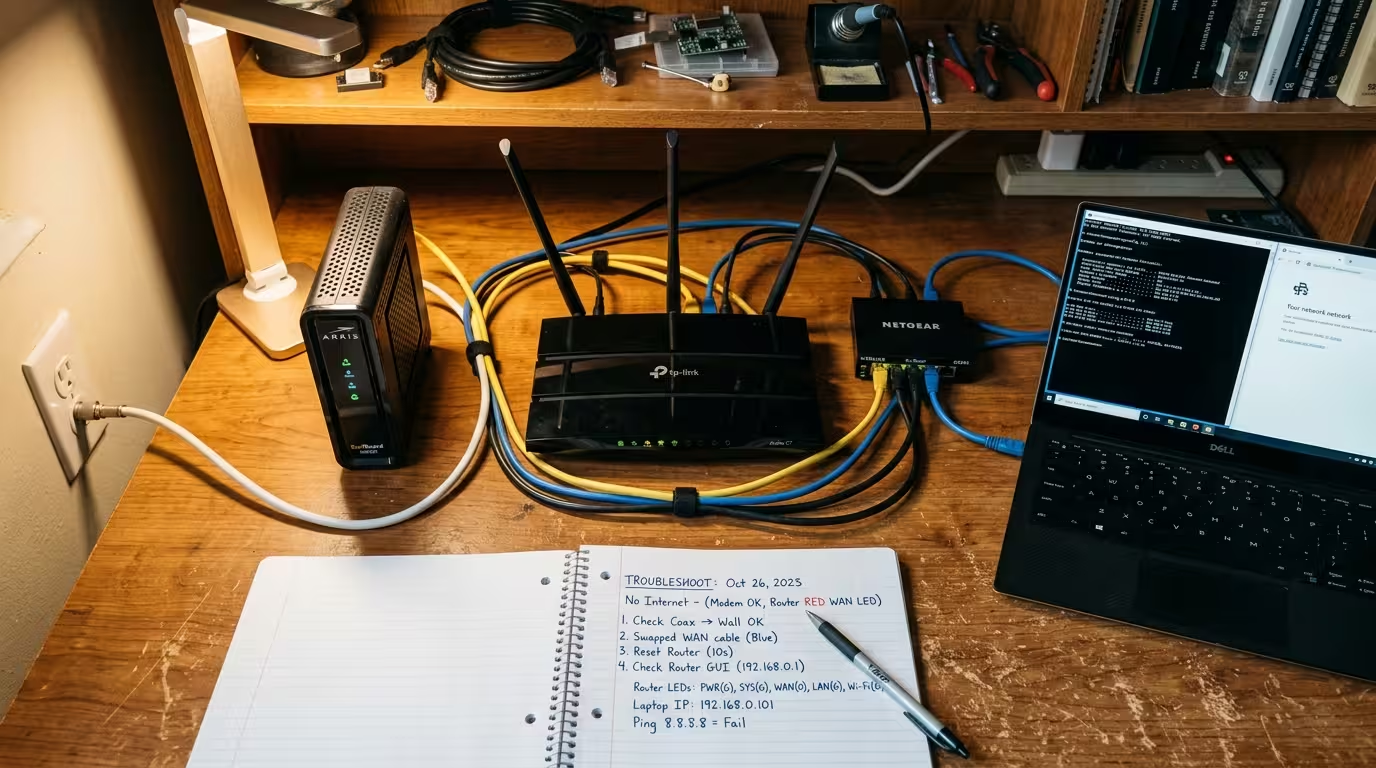
ping 8.8.8.8If replies come back, the device has a functioning path to the internet. If they don’t, the next step is pinging the default gateway — typically the local router — to determine whether the problem is internal or external. If the gateway responds but external IPs do not, the issue is upstream, likely at the ISP or the router’s WAN connection. If the gateway itself doesn’t respond, the problem is on the local network — a disconnected cable, a disabled adapter, or a crashed router.
Test DNS Resolution
A common scenario involves a working internet connection that fails to load websites. The user can’t reach google.com in a browser, but everything else seems fine. This is where pinging a hostname becomes a targeted DNS test.
ping google.comIf this command fails with a host-not-found error, but ping 8.8.8.8 succeeds, the diagnosis is clear: IP connectivity works, but DNS resolution does not. The fix typically involves checking the configured DNS servers, flushing the local DNS cache with ipconfig /flushdns on Windows, or switching to a public DNS provider temporarily to confirm the issue.
Measure Latency to a Server
Performance complaints don’t always involve total outages. Users might report that a specific application feels sluggish or that a game server lags heavily. Pinging the server in question reveals whether latency is abnormally high.
ping -t game-server.example.comRunning a continuous ping while the performance issue is occurring captures real-time latency data. If RTT values spike well above normal during the problem window, the cause is network-related. If latency stays consistently low while the application still feels slow, the bottleneck is likely on the server side or within the application itself — not the network path.
Limitations of Ping You Should Know
Ping is powerful for what it does, but it has clearly defined boundaries. Misunderstanding those boundaries leads to incorrect conclusions, which can waste significant troubleshooting time.
Ping Doesn’t Test Real Bandwidth
A successful ping with 14ms latency tells you the path is responsive — it does not tell you the path is fast in terms of data throughput. Ping packets are tiny, typically 32 or 64 bytes. A connection can return perfect ping results while simultaneously being saturated to the point where large file downloads crawl at a fraction of expected speeds.
Bandwidth issues require different tools — speed tests for throughput measurement or iperf for controlled bandwidth testing between two endpoints. Ping confirms reachability and latency. It says nothing about how much data the connection can move per second.
Many Servers Block ICMP Requests
Not every server on the internet responds to ping, and a lack of response doesn’t automatically mean the server is offline. Many web servers, cloud platforms, and enterprise firewalls are configured to silently drop ICMP traffic as a security measure. This reduces exposure to ICMP-based attacks like ping floods and Smurf attacks.
For example, some major web properties will not respond to ping at all, yet they serve millions of users simultaneously. If you ping a server and get timeouts, but the website loads perfectly in a browser, ICMP is simply being filtered. In these situations, tools like curl, telnet, or Test-NetConnection on Windows provide better application-layer reachability tests by targeting specific TCP ports instead of relying on ICMP.
UDP/TCP Traffic Can Be Different
Ping uses ICMP, which is a separate protocol from the TCP and UDP traffic that carries actual application data. Network policies, quality-of-service rules, and firewall configurations can treat these protocols very differently. A router might prioritize or deprioritize ICMP traffic compared to TCP. A firewall might allow HTTPS traffic on port 443 while dropping all ICMP packets.
This means a successful ping doesn’t guarantee that a specific TCP or UDP service is accessible, and a failed ping doesn’t guarantee that TCP or UDP services are also failing. The practical takeaway is that ping results should be interpreted alongside other evidence rather than treated as the sole indicator of connectivity health. When ping and application behavior disagree, trust the application behavior and investigate further with protocol-specific tools.
Final Ping Basics Checklist
Use this reference to quickly recall what ping does, what its results mean, and when to use it effectively.
- Ping tests reachability — it confirms whether a target device or server responds at the IP level.
- RTT measures latency — round-trip time in milliseconds reveals how responsive the connection is.
- Packet loss indicates instability — any sustained loss above 0% points to a problem that needs further investigation.
- TTL reveals hop count — subtract the received TTL from the OS default to estimate how many routers the packet crossed.
- Ping a hostname to test DNS — if hostname ping fails but IP ping succeeds, the issue is DNS resolution.
- Ping your gateway first — before testing external targets, confirm your local network path is functional.
- Timeouts don’t always mean offline — the target may be filtering ICMP rather than being unreachable.
- Ping doesn’t measure bandwidth — low latency does not equal high throughput.
- Use continuous ping for intermittent issues — the
-tflag on Windows captures patterns that four packets cannot reveal. - Combine ping with other tools — traceroute, nslookup, and speed tests fill the gaps that ping cannot cover.
If ping to your default gateway fails consistently, check physical connections and adapter configuration before anything else. If ping to external IPs fails but gateway ping succeeds, the problem is upstream — restart your router, check WAN status, or contact your ISP. If ping to hostnames fails but IP pings work, the issue is DNS and should be resolved by verifying or changing your DNS server settings.
When all ping tests return normal results but your application still misbehaves, the problem is beyond what ICMP can diagnose. Move to TCP-level tools, check server-side status pages, or contact the service provider directly.

FAQ – Common Questions & Answers
What is ping in simple words?
Ping is a network command that checks whether another device or server is reachable. It sends a small test packet and waits for a response. If the response arrives, the connection is working.
How does ping actually work?
Ping sends an ICMP Echo Request packet to a target IP address. The target receives it and sends back an ICMP Echo Reply. Your system measures the time between sending the request and receiving the reply, which gives you the round-trip latency.
What does ping measure?
Ping measures three things: round-trip time (latency in milliseconds), packet loss (percentage of unanswered requests), and TTL (remaining hop count on the return packet).
Why do some websites not respond to ping?
Many servers and firewalls are configured to block or silently drop ICMP traffic for security reasons. A website can be fully operational and serving users while ignoring ping requests entirely. This is a deliberate administrative choice, not a sign of failure.
What does “Request timed out” mean in ping?
It means your system sent an Echo Request but never received a reply within the timeout period. The packet may have been lost in transit, dropped by a firewall, or the target may be offline. It does not always confirm the target is down — ICMP filtering can produce the same result.
What is TTL in ping results?
TTL stands for Time to Live. It represents the number of remaining hops a packet can take before being discarded. Each router along the path decreases the TTL by one. Comparing the received TTL to common OS defaults (64, 128, or 255) helps estimate how many network hops separated you from the target.
Why is ping useful for troubleshooting?
Ping isolates problems quickly. It confirms whether a target is reachable, reveals whether DNS is working, measures connection responsiveness, and detects packet loss — all within seconds and without requiring any special software.
Can ping show if my internet is slow?
Ping can show whether latency is high, which is one component of a slow connection. However, it cannot measure download or upload speed. A connection can have low ping latency but still suffer from bandwidth congestion. For speed-related diagnosis, a dedicated throughput test is the appropriate tool.
Ping remains the most fundamental and widely used diagnostic command in networking. It answers the most basic question — “is this reachable?” — faster and more simply than any other tool available. When ping results look normal but problems persist, the issue lives at a layer above what ICMP can test, and protocol-specific tools should take over. If you’ve confirmed that your local network, DNS, and external connectivity all pass ping checks yet performance remains degraded, the next appropriate step is contacting your ISP with the diagnostic data you’ve already collected. That data — timestamps, latency values, packet loss percentages, and the specific targets tested — gives support teams what they need to investigate efficiently on their end.
Before: I used ping but didn’t fully understand what the numbers and errors actually meant, so troubleshooting took much longer.
After: Now I can quickly read ping output, identify the real problem, and fix most network issues in minutes instead of hours.