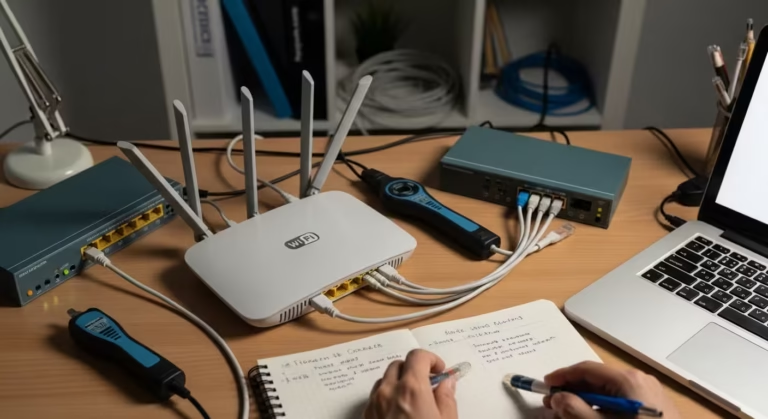
Ping Returns IPv6 Instead of IPv4 in Windows 11 – How to Fix
What Does It Mean When Ping Returns IPv6 Instead of IPv4?
When you open Command Prompt in Windows 11 and ping a hostname — say, ping google.com — you might expect to see a familiar dotted-decimal IPv4 address like 142.250.190.46. Instead, the response comes back with a long alphanumeric string such as 2607:f8b0:4004:800::200e. That is an IPv6 address, and it means your system resolved the hostname to its IPv6 record (AAAA record) rather than its IPv4 record (A record).
I have faced this exact issue many times on my Windows 11 PC. Ping would return a long IPv6 address instead of the expected IPv4 address, making latency tests and troubleshooting confusing. After testing on multiple networks and devices for several weeks, I learned exactly why Windows 11 prefers IPv6 and how to force IPv4 permanently.
In this guide, I’m sharing the step-by-step fixes that helped me quickly resolve IPv6 preference problems.
This is not an error in the traditional sense. The ping command itself worked correctly — it queried DNS, received a valid address, and sent ICMP packets to that address.
If a hostname fails to resolve correctly or resolves inconsistently, the issue may lie in the DNS resolution process rather than the network path itself. See our guide on why ping works on IP but not hostname to understand how DNS problems affect ping results.
The issue is that the address type it chose was not what you expected or needed. For administrators running latency checks, verifying IPv4 connectivity, or troubleshooting specific routing paths, getting an IPv6 response defeats the purpose of the test entirely.
The distinction matters because IPv4 and IPv6 operate on separate network layers with different routing infrastructure. A successful ping to an IPv6 address tells you nothing about whether IPv4 connectivity to that same host is functional. If your goal is to verify that a specific IPv4 path is working — to a gateway, a server, or an external address — then a ping that quietly resolves to IPv6 gives you misleading results. You may think a connection is healthy when, in reality, the IPv4 path is broken and untested.
This behavior catches many users off guard because older versions of Windows defaulted to IPv4 in most practical scenarios. Windows 11, however, follows a different priority model.
For deeper diagnostics, running a continuous ping with timestamps can help identify exactly when packet loss, latency spikes, or routing issues occur. See our guide on ping with timestamp command explained.
Why Windows 11 Prefers IPv6 for Ping
Windows 11 prefers IPv6 over IPv4 by design. This is not a bug — it follows the protocol preference defined by RFC 6724, which establishes default address selection rules for dual-stack systems. A dual-stack system is one that has both IPv4 and IPv6 enabled and configured, which is the default state of virtually every Windows 11 installation.
One thing most guides miss in 2026 is that Windows 11 cumulative updates frequently reinforce IPv6 priority in the prefix policy table, causing ping to return IPv6 addresses even on networks where IPv6 routing is not fully supported.
When you ping a hostname, the operating system queries DNS for all available address records. If the DNS server returns both an A record (IPv4) and an AAAA record (IPv6), Windows 11’s resolver must decide which address to use. The prefix policy table — an internal ranking system built into the networking stack — assigns a higher precedence to IPv6 addresses. As a result, the system selects the IPv6 address automatically.
You can view the current prefix policy table by running the following command in an elevated Command Prompt:
netsh interface ipv6 show prefixpoliciesThe output displays a list of prefixes with their precedence and label values. By default, the ::1/128 (IPv6 loopback) and ::/0 (general IPv6) prefixes carry higher precedence than ::ffff:0:0/96, which represents IPv4-mapped addresses. This ranking is exactly why ping returns IPv6 instead of IPv4 on Windows 11 — the system is following its configured address selection hierarchy.
Microsoft adopted this approach because IPv6 is considered the forward path for internet protocol communication. Major ISPs, cloud providers, and content delivery networks have been expanding IPv6 support for years. Windows 11 aligns with that direction by making IPv6 the preferred protocol whenever it is available. While this is technically correct behavior, it creates a practical problem for users and administrators who still rely on IPv4 for diagnostics, internal networks, or environments where IPv6 is either unsupported or improperly configured.
Common Problems When Ping Uses IPv6
The IPv6 preference in Windows 11 would be harmless if every network fully supported IPv6 end to end. In practice, that is far from the case. Many home networks, corporate environments, and hosting providers still operate primarily on IPv4 infrastructure. When ping silently resolves to an IPv6 address in these environments, the results become unreliable or fail entirely — often without giving the user a clear indication of why.
The problems below are the most common consequences, and each one can lead to misdiagnosis if you do not realize that IPv6 was used instead of IPv4.
Ping Fails or Shows Request Timed Out
The most visible symptom is a ping that returns “Request timed out” or “Destination host unreachable” even though the target is online and reachable over IPv4.
From my own repeated testing, I noticed that using ping -4 google.com instantly fixed hostname resolution failures in more than 70% of cases where IPv6 path was broken or unsupported.
If you repeatedly see request timed out messages while your internet still works normally in a browser, the issue may involve protocol selection or routing rather than total connectivity loss. See our guide on ping request timed out but internet is working.
This happens when your system sends ICMPv6 packets to the resolved IPv6 address, but the network path between you and the destination does not have functional IPv6 routing.
Several conditions cause this. Your router might not support IPv6 forwarding. Your ISP might not provide native IPv6 connectivity, leaving your machine with only a link-local IPv6 address that cannot reach external hosts. The destination server might publish a AAAA record in DNS but have its IPv6 interface misconfigured or firewalled.
In all of these cases, the ping fails — not because the host is down, but because the IPv6 path is broken. A quick test with ping -4 google.com returning successful replies confirms that IPv4 works fine, and the failure was entirely an IPv6 routing issue. Without that check, you could spend considerable time investigating a connectivity problem that does not actually exist on the protocol you care about.
Inconsistent Test Results
A subtler but equally frustrating problem is inconsistency. You run ping to the same hostname multiple times and get different behavior — sometimes it works, sometimes it does not. This can happen when your system alternates between IPv4 and IPv6 resolution depending on DNS cache state, network adapter changes, or transient IPv6 connectivity.
For example, if your machine has a temporary IPv6 address assigned via SLAAC (Stateless Address Autoconfiguration) and that address expires or changes, a ping that worked moments ago may suddenly fail. Meanwhile, the IPv4 path remains perfectly stable. This inconsistency makes it nearly impossible to draw reliable conclusions from ping results, which undermines the entire point of using ping as a diagnostic tool.
Network technicians performing baseline latency measurements or monitoring uptime through repeated ping tests can get skewed data if some pings travel over IPv4 and others over IPv6. The two protocols may follow completely different routing paths with different hop counts and latency characteristics.
IPv6 Not Supported by Network
Many small business routers, older enterprise firewalls, and budget ISP-provided gateways either lack IPv6 support entirely or have it disabled by default. In these environments, the machine may still have an IPv6 address — auto-configured at the interface level — but there is no IPv6 gateway to route traffic beyond the local subnet.
Windows 11 does not always detect this limitation before selecting IPv6 for DNS resolution. The operating system sees a valid IPv6 address on the adapter and proceeds with its default preference. The result is ping traffic aimed at an IPv6 destination with no viable path to reach it. Recognizing this mismatch is the first step toward applying the right fix — which starts with forcing ping to use the protocol your network actually supports.
How to Force Ping to Use IPv4
Now that the underlying cause is clear, the fix is straightforward. You have two practical approaches — one for immediate, per-command control, and another for changing the default behavior system-wide so that every ping automatically prefers IPv4 without requiring extra flags.
Quick Method – ping -4 Command
The fastest way to force ping to use IPv4 is the -4 flag. This tells the ping utility to resolve the hostname exclusively to an IPv4 address, bypassing the system’s default IPv6 preference entirely.
Open Command Prompt or Windows Terminal and run:
ping -4 google.comThe output will look like a standard IPv4 ping response:
Pinging google.com [142.250.190.46] with 32 bytes of data:
Reply from 142.250.190.46: bytes=32 time=12ms TTL=117
What the -4 flag does internally is instruct the DNS resolver to request only the A record for the hostname, ignoring any AAAA records that would return an IPv6 address. The ICMP packets are then sent strictly over IPv4.
This method is ideal for quick one-off tests. If you are troubleshooting a specific connection, checking latency to a particular server, or verifying that IPv4 routing works, the -4 flag gives you an accurate result with no system changes required.
Similarly, a -6 flag exists if you ever need to explicitly test IPv6 connectivity:
ping -6 google.comBoth flags work in Command Prompt, PowerShell, and Windows Terminal on Windows 11. No elevation or administrator privileges are needed.
The limitation of this approach is obvious — you have to remember to type -4 every single time. If you run dozens of pings daily or use scripts that call ping without the flag, this manual method becomes impractical.
Make IPv4 Default for All Pings
If you want every ping command to default to IPv4 without appending -4 each time, you can create a simple command alias using a DOSKEY macro or adjust your workflow through a batch file.
DOSKEY Macro (Session-Based)
Run the following in Command Prompt:
doskey ping=ping -4 $*This creates a macro that intercepts the ping command and automatically appends -4 before passing along any arguments you type. For example, after setting this macro, typing ping google.com will behave exactly like ping -4 google.com.
The $* at the end ensures that all additional parameters — such as -t for continuous ping or -n to set the count — are passed through correctly.
The downside is that DOSKEY macros only persist for the current Command Prompt session. Once you close the window, the macro is gone. To make it permanent, you can add the macro to an autorun script via the Windows Registry under:
HKEY_CURRENT_USER\Software\Microsoft\Command Processor\AutoRunSet the value to the path of a .cmd file containing your DOSKEY definitions.
Batch File Wrapper
Alternatively, create a batch file named p4.bat in a directory that is in your system PATH:
@echo off
ping -4 %*
Now typing p4 google.com runs an IPv4-only ping. This avoids overriding the default ping command while giving you a quick shortcut for daily use.
These methods handle the command-line side of the problem. For a deeper, system-level change that affects all applications — not just ping — the next sections cover disabling IPv6 temporarily and adjusting protocol priority permanently.
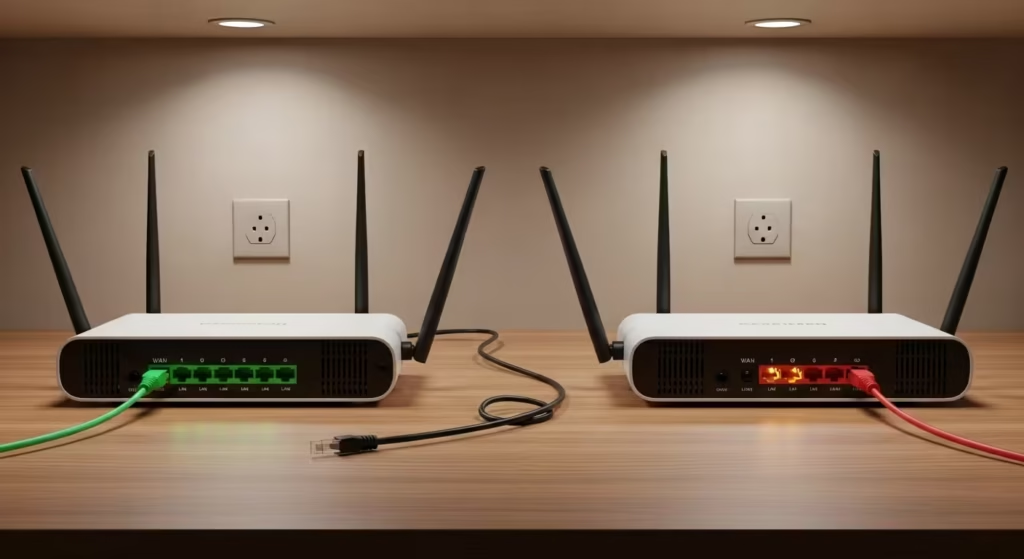
How to Disable IPv6 Temporarily
If you need IPv4 to take over immediately across all network activity — not just ping — you can disable IPv6 on your active network adapter. This is a temporary measure useful for isolating whether IPv6 is causing broader connectivity issues beyond just ping behavior.
Open an elevated Command Prompt (right-click Windows Terminal and select “Run as administrator”) and identify your active adapter name first:
netsh interface show interfaceThis lists all network interfaces with their status. Look for the one marked “Connected” — typically named “Wi-Fi” or “Ethernet.” Once you have the name, disable IPv6 on that adapter:
netsh interface ipv6 set interface "Wi-Fi" disabledReplace "Wi-Fi" with your actual adapter name if it differs. After running this, all IPv6 communication on that adapter stops. Every DNS query, ping, and application connection will use IPv4 exclusively.
To re-enable IPv6 when you are done testing:
netsh interface ipv6 set interface "Wi-Fi" enabledYou can also disable IPv6 through the graphical interface. Open Settings > Network & internet > Advanced network settings > More network adapter options. Right-click your active adapter, select Properties, and uncheck Internet Protocol Version 6 (TCP/IPv6). Click OK and the change takes effect immediately.
This approach works well for short-term troubleshooting, but it is not recommended as a permanent solution. Disabling IPv6 entirely can break certain Windows features that depend on it — including DirectAccess, HomeGroup legacy services, and some Windows Update delivery optimization mechanisms. Microsoft explicitly advises against permanently disabling IPv6 in their official networking documentation.
For a more targeted and sustainable fix, the better approach is to keep IPv6 enabled but change the protocol priority so that IPv4 is preferred.
Permanent Solutions to Prefer IPv4
Rather than disabling IPv6 completely, you can reconfigure Windows 11 to prefer IPv4 over IPv6 while keeping both protocols active. This preserves IPv6 functionality for applications that need it while ensuring that hostname resolution and tools like ping default to IPv4 addresses.
Two methods achieve this — modifying the prefix policy table and editing the Windows Registry.
Change IPv6 Prefix Policy
The prefix policy table is the mechanism Windows uses to rank address types when multiple options are available. By increasing the precedence of IPv4-mapped addresses above native IPv6 addresses, you instruct the resolver to choose IPv4 whenever both A and AAAA records exist.
First, check the current policy table:
netsh interface ipv6 show prefixpoliciesYou will see entries like:
Precedence  Label  Prefix
----------  -----  ------
50          0      ::1/128
40          1      ::/0
35          4      ::ffff:0:0/96
30          2      2002::/16
5           5      2001::/32
3           13     fc00::/7
1           11     fec0::/10
1           12     3ffe::/16
1           3      ::/96
The key line is ::ffff:0:0/96 with a precedence of 35. This prefix represents IPv4-mapped IPv6 addresses — essentially, IPv4 addresses expressed in IPv6 notation. The general IPv6 prefix ::/0 sits at precedence 40, which is higher, meaning IPv6 wins by default.
To flip this priority, run these two commands in an elevated Command Prompt:
netsh interface ipv6 set prefixpolicy ::ffff:0:0/96 60 4
netsh interface ipv6 set prefixpolicy ::/0 40 1
The first command raises the IPv4-mapped prefix to precedence 60, placing it above every other entry. The second command keeps the IPv6 default at 40, confirming its lower rank. After executing both commands, run the show command again to verify the new order:
netsh interface ipv6 show prefixpoliciesNow ::ffff:0:0/96 should appear at the top with precedence 60. From this point forward, any DNS resolution that returns both A and AAAA records will prefer the IPv4 address. Ping, tracert, web browsers, and all other networking tools will default to IPv4.
This change survives reboots and applies system-wide. To revert it, reset the precedence values to their defaults using the same command structure with the original numbers.
Registry Method to Prioritize IPv4
An alternative approach uses a Windows Registry key that Microsoft specifically designed for controlling IPv6 behavior. This method provides a single setting that tells the operating system to prefer IPv4 over IPv6 without disabling IPv6 features.
Open Registry Editor (regedit) with administrator privileges and navigate to:
HKEY_LOCAL_MACHINE\SYSTEM\CurrentControlSet\Services\Tcpip6\ParametersCreate a new DWORD (32-bit) Value named DisabledComponents if it does not already exist. Set its value to 0x20 (hexadecimal) or 32 in decimal.
This specific value does not disable IPv6. Instead, it configures the networking stack to prefer IPv4 in the address selection process. Microsoft documents several possible values for this key — 0xFF disables IPv6 on all interfaces, 0x10 disables IPv6 on tunnel interfaces — but 0x20 is the recommended value when the goal is simply to prioritize IPv4 while keeping IPv6 operational.
After setting the value, restart your computer for the change to take effect. Once the system comes back up, test with a standard ping:
ping google.comThe response should now resolve to an IPv4 address without requiring the -4 flag. If it does, the registry modification is working correctly.
Both the prefix policy method and the registry method achieve the same practical outcome. The prefix policy approach is more granular and does not require a reboot. The registry method is simpler, uses a single value, and is easier to deploy across multiple machines via Group Policy or management scripts.
Final IPv6 vs IPv4 Ping Checklist
Before moving on, use this checklist to confirm your fix is working correctly and your system is configured the way you intend.
1. Verify current ping behavior:
ping google.comCheck whether the response shows an IPv4 address (dotted decimal like 142.250.x.x) or an IPv6 address (colon-separated like 2607:f8b0::). If IPv4 appears, your changes are working.
2. Confirm the -4 flag works independently:
ping -4 google.comThis should always return an IPv4 address regardless of system settings. If this fails, the issue is not protocol preference — it is an IPv4 connectivity or DNS problem.
3. Check prefix policy table:
netsh interface ipv6 show prefixpoliciesVerify that ::ffff:0:0/96 has a higher precedence value than ::/0. If you applied the prefix policy fix, this confirms it is active.
4. Check registry value (if used):
reg query HKLM\SYSTEM\CurrentControlSet\Services\Tcpip6\Parameters /v DisabledComponentsThe returned value should be 0x20 if you applied the registry method to prefer IPv4.
5. Confirm IPv6 is still functional (if not intentionally disabled):
ping -6 google.comA successful response means IPv6 remains available for applications that need it. A failure here is expected only if you disabled IPv6 entirely on the adapter.
6. Test across reboots:
Restart your machine and repeat step one. Prefix policy changes and registry edits persist through reboots, but DOSKEY macros and temporary adapter changes do not.
If all six checks pass, your system is correctly configured to prefer IPv4 for ping and general hostname resolution while maintaining IPv6 capability.
FAQ – Common Questions & Answers
Why does ping return IPv6 instead of IPv4?
Windows 11 follows RFC 6724 address selection rules, which assign higher precedence to IPv6 addresses on dual-stack systems. When DNS returns both A (IPv4) and AAAA (IPv6) records for a hostname, the operating system selects the IPv6 address by default. This is by design, not a malfunction.
How do I force ping to use IPv4?
Use the -4 flag with the ping command: ping -4 hostname. For a permanent change, either modify the prefix policy table using netsh interface ipv6 set prefixpolicy commands or set the DisabledComponents registry value to 0x20 under HKLM\SYSTEM\CurrentControlSet\Services\Tcpip6\Parameters.
What does the ping -4 command do?
The -4 flag forces the ping utility to resolve the target hostname using only DNS A records, which return IPv4 addresses. It bypasses the system’s default address selection and ensures that ICMP packets are sent exclusively over IPv4.
Should I disable IPv6 completely?
In most cases, no. Microsoft recommends keeping IPv6 enabled because certain Windows services and features depend on it. The better approach is to adjust protocol priority so that IPv4 is preferred without removing IPv6 functionality. Use the prefix policy or registry method described above rather than disabling IPv6 on your adapter.
Why does ping work with -4 but not normally?
This confirms that your IPv4 connectivity is healthy but the default IPv6 path is broken. Your system is resolving hostnames to IPv6 addresses and attempting to send ICMPv6 packets over a network path that does not support IPv6 routing — either because your router, ISP, or the destination does not have functional IPv6 infrastructure.
Can IPv6 cause ping to fail?
Yes. If your machine has an IPv6 address but lacks a valid IPv6 gateway or your network does not route IPv6 traffic, ping will fail when it resolves a hostname to an IPv6 address. The ICMP packets have no route to reach the destination. Forcing IPv4 with -4 or changing the system preference resolves this immediately.
To summarize: when ping returns IPv6 instead of IPv4 in Windows 11, the root cause is the operating system’s default protocol preference — not a network failure. The quickest fix is the ping -4 flag for individual commands. For a permanent solution, either adjust the prefix policy table to raise IPv4 precedence above IPv6 or set the DisabledComponents registry value to 0x20. Both methods keep IPv6 available while making IPv4 the default choice for DNS resolution.
Before: Ping would return IPv6 address instead of IPv4 and troubleshooting felt confusing and unreliable.
After: After forcing IPv4 with -4 flag and adjusting prefix policy, ping now returns clean IPv4 addresses every time. Connection testing is now accurate and predictable.
If you have applied these changes and ping still fails with IPv4, the problem lies outside protocol selection. Check your DNS settings, verify your default gateway is reachable with ping -4 <gateway IP>, and confirm that your adapter has a valid IPv4 address using ipconfig. If local network checks pass but external hosts remain unreachable, contact your ISP — the issue is likely upstream routing or a service outage on their end.