Your Connection Is Not Private Error – SSL Certificate, Date, Browser & Network Layer Diagnostic Guide
If your connection is not private, the problem is usually related to a failed SSL certificate check rather than a complete Internet outage. This error is displayed when the encrypted chain of trust between the browser and the website’s server is broken for some reason. The internet is working, the ping is successful, other websites can be opened—but for a specific website, the browser displays a red warning screen and blocks access. This situation is confusing because the user thinks it is a problem with the internet, when in reality it is an error at the certificate level that occurs in the browser.
I have faced this exact error many times on my Windows 11 laptop. The browser would suddenly show “Your connection is not private” on banking sites and streaming services, even though speed test was fine and other websites loaded normally. After troubleshooting for weeks on my own setup, I learned the real causes behind this error and the exact fixes that worked reliably.
In this guide, I’m sharing the step-by-step diagnostic process that helped me quickly identify whether the problem was my device, browser, router, or ISP.
To fix the “Your connection is not private” error in Chrome, it is important to understand that this error is not limited to Chrome. In Firefox, it appears as a “Warning: Possible security risk,” in Safari it is called “This connection is not private,” and Edge, like Chrome, displays the code NET::ERR_CERT_AUTHORITY_INVALID or ERR_CERT_DATE_INVALID. Each browser has its own error message, but the cause always lies in SSL certificate verification at some level—be it an expired certificate, a date mismatch, an untrusted certificate authority, or a network-level interruption.
One thing most guides miss in 2026 is that Windows 11 background updates often silently re-enable IPv6 or reset DNS settings, causing certificate validation to fail on multiple sites even when your internet connection is perfectly fine.
In this article, we will diagnose each real-world error scenario that triggers this error separately. Each section begins with an actual user problem—along with the observable symptoms—and then identifies the cause using diagnostic tools and test blocks. The approach is simple: first understand the problem, then determine the cause, and finally fix it. And if the fix is beyond the user’s control—such as a server-side certificate expiring—this is also clearly stated so you don’t waste your time on unnecessary troubleshooting.
This article is for users who don’t just want to click “Continue Anyway,” but actually want to understand why their browser is preventing them from doing so, what the risks are, and what the correct diagnosis for fixing the “Your connection is not private” error should look like. Each layer—browser, device, network, and server—is diagnosed separately so you can find the exact point of failure and not get generic advice.
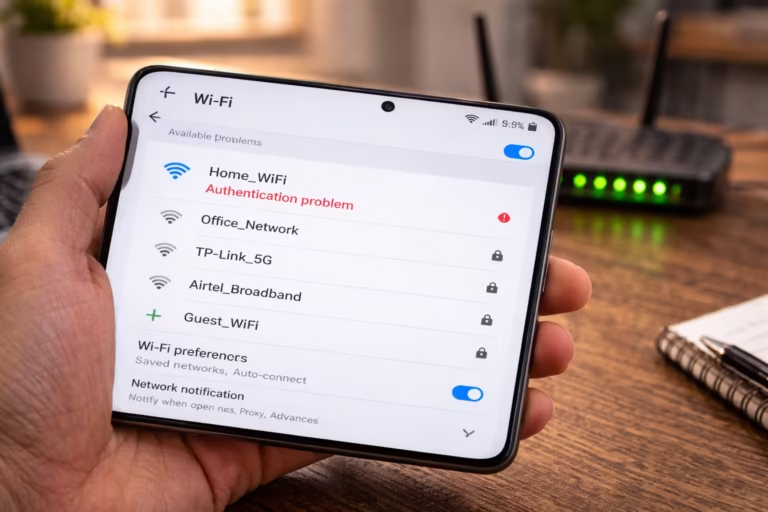
If your device displays “Authentication failed” or “Authentication problem” when connecting to WiFi, please check our WiFi authentication error fix guide.

Your Connection Is Not Private – What Is Actually Failing in the SSL Certificate Verification?
When the browser displays the “Your connection is not private” error, it means that the browser attempted to verify the website’s SSL certificate and the verification process failed at some stage. This is not an internet connectivity issue — it is a trust chain validation failure.
Real Diagnostic Scenario:
You open Chrome, access a website — let’s say https://example.com — and instead of the page loading, a red warning screen appears that says “Your connection is not private” and below it is an error code such as NET:: ERR_CERT_AUTHORITY_INVALID or ERR_CERT_DATE_INVALID. You are confused because just two minutes ago, other websites were opening fine. YouTube is working, Google search is working, but this one specific site is blocked. You think maybe the internet is slow or the site is down — but in reality, the browser has rejected the certificate during the SSL handshake.
It is important to understand that SSL certificate verification is a multi-step process. When you access an HTTPS website, the browser requests a certificate from the server. The browser then checks:
- Is the certificate still valid or has it expired?
- Was the certificate issued for the exact domain you are visiting?
- Has the SSL certificate been issued by a recognized Certificate Authority (CA)?
- Is the device’s system date and time within the certificate’s validity range?
- Is there any intermediate certificate missing in the chain?
If any one of these checks fails, the browser immediately blocks the connection and displays a warning screen. This is the browser’s security mechanism. The browser prevents you from proceeding to an unencrypted or potentially intercepted connection.
Diagnostic Proof Block:
App behavior:
Chrome displays a red warning screen — “Your connection is not private” message with NET::ERR_CERT_AUTHORITY_INVALID or ERR_CERT_DATE_INVALID error code visible below. When you click the “Advanced” button, the browser informs you that the certificate could not be verified. The page does not load at all — no content is displayed, and no images are loaded.
Network context:
The internet connection is fully functional. Other HTTPS websites — Google, YouTube, Facebook — open without any errors. DNS resolution is also working because the browser resolves the domain and reaches the server — the problem is not in establishing the connection, but in completing the SSL handshake. When you run a ping test, the IP responds, but the browser stops at the trust layer.
Diagnostic tool:
Here’s how to check certificate details in Chrome — click on “Not Secure” or the lock icon in the address bar, then select the “Certificate is not valid” option. Here you will see the full details of the certificate — issued to, issued by, validity dates, and certificate chain. If any field mismatches, it will be clearly visible here. In addition, open the Security tab in Chrome DevTools (F12 → Security) — here the browser explicitly tells you why the certificate was rejected, which check failed, and what is missing in the chain.
Observed issue:
SSL certificate verification failure does not mean that the website is malicious. Often, the certificate has simply expired and the website owner has not renewed it. Often, the device’s date is incorrect, causing the browser to think that the certificate is valid in the future or has already expired. Often, the captive portal of public Wi-Fi intercepts the HTTPS connection and injects its own certificate, which is not in the browser’s trust store. And sometimes antivirus software uses its own root certificate to scan HTTPS traffic — if that certificate is not in the browser’s trusted list, the same error occurs. The error code is slightly different in each scenario, but the parent error message remains the same — “Your connection is not private.”
Fix:
The first step in fixing the “Your connection is not private” error is to identify the error code. The error code indicates which layer of verification has failed:
- ERR_CERT_DATE_INVALID → Check the system date/time
- NET::ERR_CERT_AUTHORITY_INVALID → Verify the certificate authority trust chain
- ERR_CERT_COMMON_NAME_INVALID → Domain mismatch — certificate issued for another domain
- NET::ERR_CERT_REVOKED → Certificate revoked, server-side issue
- ERR_SSL_PROTOCOL_ERROR → SSL/TLS protocol version mismatch or configuration problem
Each error code has a different diagnostic approach — that’s why generic “clear cache and retry” advice often doesn’t work. First look at the error code, then diagnose that layer.
Limitation:
If the error code NET::ERR_CERT_REVOKED appears or SSL Labs test confirms that the server certificate has expired or is misconfigured, this is beyond the user’s control. No matter what you do on your end—clear your cache, fix the date, reinstall your browser—the error will not go away until the website owner renews or reconfigures the certificate. In this situation, using the “Proceed to site (unsafe)” option is also risky because the connection will not be encrypted or will be encrypted with a potentially compromised certificate. You should notify the website owner or temporarily avoid that site until the certificate is fixed.
ERR_CERT_DATE_INVALID – Is Your Date and Time Breaking the SSL Certificate?
When Chrome displays the ERR_CERT_DATE_INVALID error, it directly means that your device’s date or time does not match the SSL certificate’s validity range. The browser thinks the certificate has expired or is “not yet valid” — when in fact the certificate may be perfectly fine.
Real Diagnostic Scenario:
A user opens their laptop in the morning, launches Chrome, and tries to access Gmail or a banking site. The browser displays a red warning screen — “Your connection is not private” and below it is the error code ERR_CERT_DATE_INVALID. The user is confused because everything was working fine last night. They try other sites — same error there too. Then they notice that the laptop’s date is showing 2019 when the actual year is 2025. Due to the CMOS battery being dead, the system clock has reset and the browser has treated every SSL certificate as “expired” because, according to the device, the certificate’s validity period has not yet started or has already expired.
This scenario is not limited to laptops. Mobile phones also trigger the same error, especially when the date is set manually and auto time sync is turned off. Chrome on Android and Safari on iOS both perform date-based certificate validation. If the device clock is off by even 24 hours, this error can occur on multiple HTTPS sites simultaneously.
Another common situation is that the user has set the wrong time zone. The date appears to be correct, but the time is a few hours ahead or behind. In certificate validation, the time matters as well as the date — especially when the certificate has just been issued or is about to expire. If the device’s time is outside the certificate’s “Not Before” or “Not After” timestamp, the browser will reject it.
Diagnostic Proof Block:
App behavior:
Chrome shows ERR_CERT_DATE_INVALID on every HTTPS website. Not just one site — multiple sites are affected simultaneously. HTTP websites, if any, open because they do not require certificate verification. When you click on the Advanced section of the browser, it says that the certificate has expired or is “not yet valid” — but when you manually check the certificate details, the validity dates are in the future or recent past, which confirms that the problem is not with the certificate, but with the device clock.
Network context:
There is no issue with the internet connection. Ping works, DNS resolves, and speed tests give normal results. Other devices connected to the same Wi-Fi do not experience any SSL errors. This is a clear indicator that the problem is not at the network layer but at the device-specific configuration layer. If multiple HTTPS sites are failing on only one of your devices and everything is normal on the other devices, then date/time mismatch is the first checkpoint.
Diagnostic tool:
In Windows, the date and time are displayed in the right corner of the taskbar — right-click on it and select “Adjust date/time”. Check whether the “Set time automatically” toggle is ON or OFF. If it is OFF, turn it ON and press the “Sync now” button. If the sync fails, check the Windows Time service — type the following in Command Prompt:
w32tm /query /statusThis will tell you whether the time service is active or not and when the last successful sync took place. If the service is stopped, type:
net start w32tm
w32tm /resync
In Android, go to Settings → System → Date & Time and enable both “Automatic date & time” and “Automatic time zone.” In iPhone, go to Settings → General → Date & Time and turn “Set Automatically” ON.
If the CMOS battery is dead, the date will reset after every shutdown — in this case, you will need to replace the battery, otherwise this error will occur repeatedly.
Observed issue:
ERR_CERT_DATE_INVALID is understood to be the root cause when you compare the actual validity dates of the certificate with the current date on your device. In Chrome, click on the lock icon or “Not Secure” label in the address bar → “Certificate is not valid” → Look at the “Not Before” and “Not After” fields in the “Details” tab. If your device’s date is not between these two dates, the browser will reject the certificate. This is the browser’s security behavior — it assumes that if the certificate dates do not match, then either the certificate is fake or has been tampered with. The browser has no way of deciding for itself that the device’s clock is incorrect — it only validates against the system time available to it.
Another subtle case is when the NTP (Network Time Protocol) server is unreachable. In corporate networks or restricted firewalls, the NTP port (UDP 123) is sometimes blocked, causing the device’s automatic time sync to fail. The device’s clock gradually drifts, and at some point, SSL validation fails. The user is unaware that the time is incorrect because the difference is initially only a few minutes—but when the gap reaches hours or days, the certificates start to fail.
Fix:
If you are experiencing the “Your connection is not private” error in the case of ERR_CERT_DATE_INVALID, the steps are clear:
For Windows:
- Right-click on the taskbar clock → Adjust date/time
- Turn on “Set time automatically”
- Turn on “Set time zone automatically”
- Click “Sync now”
- If the sync fails, go to Services and restart the “Windows Time” service
- Restart your browser and reopen the affected site
For Android:
- Settings → System → Date & Time
- Enable “Automatic date & time”
- Enable “Automatic time zone”
- Force close Chrome and reopen it
For Mac:
- System Preferences → Date & Time
- Click the lock icon and enter the admin password
- Enable the “Set date and time automatically” checkbox
- Select the Apple NTP server (time.apple.com) — confirm
After fixing the date, restart the browser and the ERR_CERT_DATE_INVALID error should be resolved immediately without clearing the cache or doing anything else. If the error persists after fixing it, the problem is not with the date — you will need to diagnose the other layers in the sections below.
Limitation:
If the device’s CMOS battery is dead, fixing the date is a temporary solution — after each restart, the date will reset and the error will reappear. Battery replacement will be necessary. In addition, in some corporate environments, users do not have permission to change the date/time — Group Policy restricts this. In this case, you will need to contact the IT admin. And if the NTP port is blocked at the network level, you can manually set the date temporarily, but the long-term solution is to allow NTP traffic in the firewall rules. These things are not always under the direct control of the user, but diagnostic awareness is necessary so that you don’t waste time troubleshooting the wrong layer.

NET::ERR_CERT_AUTHORITY_INVALID – Browser Cannot Verify the SSL Certificate
The browser displays this error when the website’s SSL certificate is signed by a Certificate Authority (CA) that does not exist in the browser’s trusted root store. The certificate exists, and a connection attempt is being made, but the browser cannot trust that the certificate is genuine.
Real Diagnostic Scenario:
A user opens a company’s internal portal site in Chrome — or accesses a lesser-known website — and gets the NET::ERR_CERT_AUTHORITY_INVALID error. Other major websites are working normally. The user thinks that maybe the site is down, but in reality, the site’s certificate is self-signed or issued by a CA that is not listed in the browser’s built-in trust store. Another common case — the website has used a Let’s Encrypt certificate, but the intermediate certificate chain is not configured properly, so the browser cannot complete verification up to the root CA.
Diagnostic Proof Block:
App behavior:
Chrome displays the “Your connection is not private” screen with the NET::ERR_CERT_AUTHORITY_INVALID code. In the certificate details, the “Issued by” field either shows self-signed or an unknown CA name that is not found in the browser’s trust store.
Diagnostic tool:
In Chrome, check the padlock icon → Certificate details → “Certification Path” tab. If any certificate in the chain shows a red cross or warning, that is the missing or untrusted link. For external verification, use SSL Labs Server Test (ssllabs.com) — it clearly reports certificate chain completeness and CA trust status.
Observed issue:
This error will always occur with self-signed certificates because they have not been verified by a third-party CA. Corporate internal sites often use self-signed or private CA certificates — these are not found in browsers’ public trust stores. In addition, if the server has not installed an intermediate certificate, the chain will be incomplete — the browser will not be able to reach the root CA and validation will fail.
Fix:
- If it is a corporate internal site, obtain the company’s root CA certificate from the IT admin and manually import it into the browser or OS trust store
- Windows:
certmgr.msc→ Trusted Root Certification Authorities → Import - In Chrome: Settings → Privacy and Security → Security → Manage certificates → Import
- If it is a public website and the SSL Labs test shows an incomplete chain — this is a server-side misconfiguration, which cannot be fixed by the user
- If you have a Let’s Encrypt certificate but the intermediate is missing — the website owner will need to reconfigure the certificate chain
Limitation:
You can bypass self-signed certificates by clicking “Proceed to site (unsafe)”, but this is not recommended — especially on banking, email, or login pages. If SSL Labs confirms that the server’s chain is incomplete or the CA is untrusted, then the user cannot make any permanent fix on their side — the website owner will have to configure the certificate properly. In corporate environments, it is not possible to import root CA without IT admin if Group Policy restricts it.
Your Connection Is Not Private on One Device Only
If this error is only occurring on one device and other devices connected to the same network are able to open the same website without any issues, then the problem is not with the network or server, but rather with the local configuration of that specific device.
Real Diagnostic Scenario:
There are three devices in the house — a laptop, a phone, and a tablet. All three are connected to the same Wi-Fi. The website opens normally on the phone and tablet, but Chrome shows the “Your connection is not private” error on the laptop. The user thinks that maybe there is a problem with the router or that the ISP is blocking it — but the fact that everything is working fine on the other devices means that the network layer is clear. The problem is only within that one device.
Single Device Failure – Diagnostic Checklist:
When the error occurs on only one device, check the following things sequentially:
1. Date/Time Verification
The first step — already covered in detail in H2-2. Verify the device’s clock. If the date is incorrect, errors will occur on multiple sites only on that device.
2. Browser Certificate Store
Each OS has its own certificate trust store. If root certificates become corrupted or deleted after an update, browser CA verification will fail. In Windows, check this:
certmgr.msc → Trusted Root Certification AuthoritiesIf the list is unusually short or empty, run Windows Update — root certificates are updated through Windows Update.
3. Browser-Specific Issue
Sometimes the problem only occurs in one browser. If you are getting an error in Chrome, try the same site in Firefox or Edge:
- If you get the error in the other browser too → there is an OS-level certificate store or date issue
- If you only get it in Chrome → there is a Chrome certificate cache or extension conflict
4. Antivirus HTTPS Scanning
Some antivirus programs — especially Avast, Kaspersky, ESET — intercept HTTPS traffic by injecting their own certificate. If the antivirus is only installed on one device, only that device will be affected. Temporarily disable HTTPS scanning and check whether the error occurs or not.
5. Outdated OS or Browser
Older OS versions do not have updated root CA certificates. If your laptop is running Windows 7 and your phone is running Android 13, newer CAs may be missing from your laptop’s trust store. Update both your browser and OS.
Condensed Proof Block:
Diagnostic tool:
Open the same website in the browser of another device on the same network. If it opens normally there, then a device-specific issue is confirmed. Then check Chrome DevTools → Security tab to see the exact reason for certificate rejection. It will tell you if there is a date mismatch, if the CA is untrusted, or if the certificate chain appears incomplete to the browser.
Fix:
- Sync date/time (auto mode ON)
- Run Windows Update for root certificate updates
- In Chrome, go to
chrome://settings/security→ Manage certificates → verify trusted roots exist - Temporarily disable HTTPS/SSL scanning in your antivirus software
- If nothing works — reset your Chrome profile or create a fresh profile
Limitation:
If the OS is very old — such as Windows 7 or Android 6 — newer SSL certificates will not validate because updated root CAs are not available in the trust store of that OS. In this case, a permanent fix is not possible without upgrading the OS. And if it is a corporate device where Group Policy controls certificates and settings, the user cannot make any changes manually — IT admin involvement will be required.
Your Connection Is Not Private on Public Wi-Fi Network
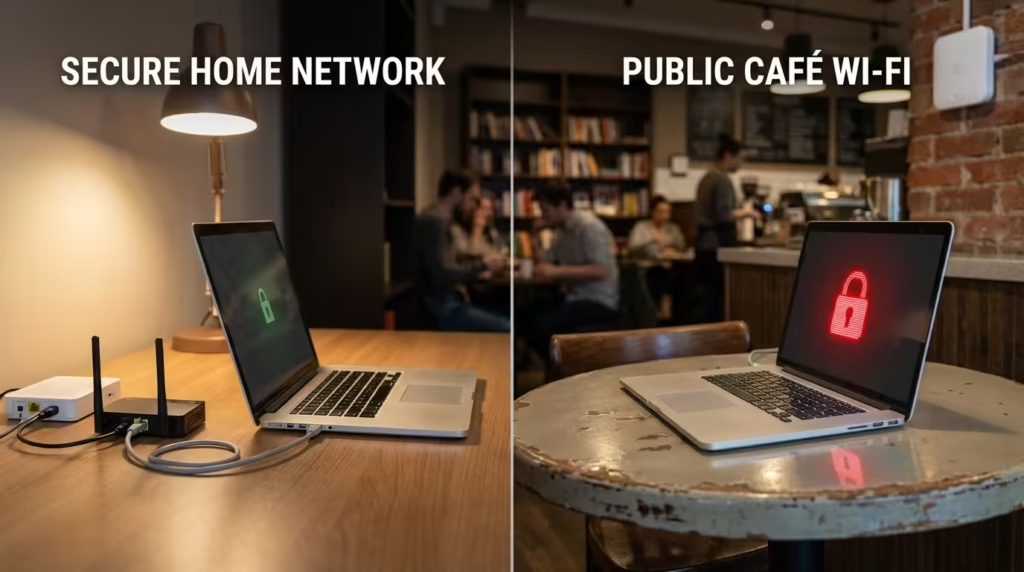
When you open an HTTPS website on public Wi-Fi—such as an open network in a hotel, airport, cafe, or mall—and this error appears, the problem is often not with the SSL certificate but with network-level interception. The Wi-Fi captive portal is interfering with the HTTPS connection.
Real Diagnostic Scenario:
A user connects to free Wi-Fi at an airport. The Wi-Fi connection is showing, and the signal is strong. The user opens Chrome and tries to access Google or any other HTTPS site — the error “Your connection is not private” appears with the code NET::ERR_CERT_AUTHORITY_INVALID. When checking the certificate details, the actual CA of the website does not appear in “Issued by,” but rather an unknown name — such as “WiFi-Gateway” or “FortiGate” or some generic firewall name. This confirms that the Wi-Fi network is intercepting HTTPS traffic and injecting its own certificate, which is not in the browser’s trust store.
Public Wi-Fi Error – Why It Happens:
Public Wi-Fi networks often have a captive portal — this is the login/terms acceptance page that should appear after connecting. However, when the user directly opens an HTTPS site, the captive portal cannot properly intervene in the encrypted connection. The network tries to redirect, but for redirection in an HTTPS connection, the network must present its certificate — which the browser rejects because it is not signed by a trusted CA.
Another scenario — some public networks intentionally inspect HTTPS traffic for security reasons. Corporate guest Wi-Fi, university networks, and some paid hotspots use SSL inspection firewalls. These firewalls inject their own certificate into every HTTPS connection. Unless the user’s device has the firewall’s root certificate installed, this error will appear on every HTTPS site.
Condensed Proof Block:
App behavior:
Chrome displays “Your connection is not private” on every HTTPS site on public Wi-Fi. Any HTTP sites will open — or the captive portal page will redirect. The “Issued by” field in the certificate details will show the name of the network device, not the actual CA of the website.
Diagnostic tool:
First, open an HTTP site in the browser — such as http://neverssl.com or http://captive.apple.com. If the captive portal login page redirects, it confirms that the portal was pending. After logging in/accepting, HTTPS sites should work normally. If there is no redirect, check the certificate details in Chrome — note the name in the “Issued by” field. If it is not the website’s known CA, network-level interception is confirmed.
Fix:
- Captive portal pending: Open HTTP site → portal page will appear → log in or accept terms → then try HTTPS sites
- Portal page not appearing: Manually try router IP in browser — usually
192.168.1.1or10.0.0.1 - Error persists even after completing the portal: Network SSL inspection is in progress — in this case:
- Use VPN to bypass network traffic inspection
- Or switch to mobile data and verify that the error disappears
- Chrome specifically: Clear the DNS cache using
chrome://net-internals/#dnsafter completing the portal.
Limitation:
If a public Wi-Fi network is intentionally performing SSL inspection, there is no permanent fix for the user on that network. Do not add the network’s firewall certificate to your trust store, as trusting unknown certificates is a security risk. VPN is the safest workaround, but some networks block VPN traffic as well. Switching to mobile data is the most reliable fallback. It is important to understand that the “Your connection is not private” error on public Wi-Fi is often due to network behavior — there is no fault with the website or your device in this case.
Expired or Invalid SSL Certificate on the Website
If a website’s SSL certificate has expired or is invalid, every visitor will see this error on every device and browser. This is purely a server-side failure — there is no fix for the user.
Real Diagnostic Scenario:
A user opens a website — Chrome displays the “Your connection is not private” error. They think there might be a problem with their device — they check the date, clear the cache, try another browser — the same error appears everywhere. Then they try using mobile data on their phone — same thing happens there too. Other people are reporting the same error on the same website. They check the certificate details and see that the date has passed in the “Not After” field — the certificate has expired.
Expired vs Invalid – Understand the Difference:
- Expired certificate: The certificate’s validity period has expired. The website owner has not renewed it. This is the most common server-side cause — especially on small websites where auto-renewal is not configured.
- Invalid certificate: The certificate is technically active but invalid for some other reason — it has been revoked, issued for the wrong domain, or the certificate chain is broken.
In both cases, the browser will block the connection — but the diagnostic approach is different.
Condensed Proof Block:
Diagnostic tool:
Open certificate details in Chrome — padlock or “Not Secure” → Certificate → Check the “Not After” date. If this date is in the past, the certificate has expired. For external verification, enter the domain in SSL Labs (ssllabs.com/ssltest) — it will report the certificate status, expiry date, chain completeness, and trust level. If the certificate has been revoked, SSL Labs will clearly show “Certificate revoked.”
Observed issue:
An error will appear on every device on a site with an expired certificate — this cannot be fixed with user-side troubleshooting. Let’s Encrypt certificates are valid for 90 days — if auto-renewal fails, the certificate expires after 3 months and the entire site is blocked for visitors. Paid certificates are usually valid for 1-2 years, but the same situation occurs if renewal is missed.
Fix:
- First confirm that the problem is server-side: Try the same site on another device, another network, another browser. If you get an error everywhere — server-side confirmed
- Run an SSL Labs test — certificate expiry or revocation will be clearly verified
- Check on Down Detector or IsItDownRightNow to see if other users are reporting the same issue
- Notify the website owner — find their email address on the contact page, social media, or whois record
- Clear your cache, fix the date, change your browser — none of this will work in this case
Limitation:
There is no technical fix for users in this situation. The “Proceed to site (unsafe)” option is available, but avoid logging in, making payments, or entering sensitive data on sites with expired certificates — connection encryption may be compromised or completely absent. Until the website owner renews the certificate, the site will remain untrusted. If you urgently need to access the site’s content, you can view the archived version from Google Cache or Wayback Machine — but interacting with the live site is risky.

Browser Cache or Certificate Cache Causing the Error
If you have renewed your website’s SSL certificate but your browser is loading the old expired certificate from its cache, you will continue to see the error while other users will see the site normally.
Real Diagnostic Scenario:
A user has been getting a “Your connection is not private” error on a website for the past week. The website owner has renewed the certificate — other users confirm that the site is now working normally. However, that specific user is still getting the error in Chrome. They check the date — it’s correct. They try another device — the site opens normally there. They try Firefox on the same device — it’s normal there too. The error persists only in Chrome. The problem is Chrome’s cached certificate data, which is holding onto old, expired certificate information.
How the cache affects:
The browser performs two types of caching related to SSL errors:
- SSL State Cache: The browser temporarily stores previously verified certificate information. If the certificate changes on the server but the browser cache still has the old data, a mismatch occurs.
- HSTS Cache: If the site previously sent an HSTS header and now there is a certificate issue, the browser does not provide a bypass option — it strictly blocks due to the cached HSTS policy.
Condensed Proof Block:
Diagnostic tool:
First test — open the same site in Chrome Incognito mode (Ctrl + Shift + N). Incognito mode does not use cached certificates or HSTS data. If the site opens normally in Incognito mode but an error occurs in normal mode — cache confirmed as root cause.
Fix:
Step-by-step cache clear:
- Clear browser cache:
Chrome → Settings → Privacy and Security → Clear browsing data → Select “Cached images and files” → Time range “All time” → Clear data - Clear SSL State cache (Windows):
Internet Options (Control Panel) → Content tab → Click the “Clear SSL State” button - Clear HSTS cache in Chrome:
Go tochrome://net-internals/#hstsin the address bar → Enter the affected domain in “Delete domain security policies” → Delete - Restart your browser and open the site again
If the error persists after all this, your Chrome profile may be corrupt — reset your browser settings via chrome://settings/reset or create a new Chrome profile.
Limitation:
Clearing the cache may also delete saved passwords, auto-fill data, and site preferences, depending on what you select. You have to manually delete the HSTS cache for each domain individually — the bulk clear option is limited. And if the error persists after clearing the cache, the problem is not with the cache — you will have to check other diagnostic layers such as antivirus interception or an actual server-side certificate issue.
Domain Name Mismatch and HTTPS Configuration Problem
If a website’s SSL certificate is issued for another domain but the site is hosted on a different domain or subdomain, the browser displays an ERR_CERT_COMMON_NAME_INVALID error. The certificate is valid and has not expired, but the domain does not match.
Real Diagnostic Scenario:
User opens https://shop.example.com — Chrome displays “Your connection is not private” error with ERR_CERT_COMMON_NAME_INVALID code. When checking the certificate details, example.com is written in the “Issued to” field — but the user is accessing shop.example.com. The certificate is only issued for the main domain and does not cover the subdomain. The website owner did not purchase a wildcard certificate (*.example.com) or add the subdomain separately to the certificate.
Domain Mismatch – Common Cases:
- Subdomain miss: The certificate is only for
example.com, but the user is accessingwww.example.comormail.example.com. - WWW vs non-WWW: The certificate is only valid for
www.example.com, but the site is also accessible atexample.comwithout redirection — an error occurs on the non-www version. - Multiple domains on one server: There are multiple sites on one IP address on shared hosting, but the SNI configuration is incorrect — the wrong certificate is being served to the wrong domain.
- CDN misconfiguration: The website uses CDN, but the custom SSL certificate is not properly configured on the CDN edge server — the CDN is serving its default certificate, which does not match the user’s domain.
Condensed Proof Block:
Diagnostic tool:
Open the certificate details in Chrome → Check which domain is listed in the “Subject” or “Common Name” field. Then check the “Subject Alternative Name (SAN)” section — the domains listed here are covered by the certificate. If the domain you are accessing is not on this list, then the domain mismatch is confirmed. The SSL Labs test also clearly shows the ‘Subject’ and “SAN” fields along with an exact mismatch warning.
Fix:
- This is a server-side issue — there is no direct fix for the user
- If there is a www vs non-www issue, try changing the URL manually — replace
https://www.example.comwithhttps://example.comor vice versa. If one version works, you have a temporary workaround - For website owners: Reissue the certificate with the correct domain names — or use a wildcard certificate (
*.example.com) that covers all subdomains - For CDN users: Upload a custom SSL certificate to the CDN dashboard or enable the CDN provider’s auto-SSL feature
- For shared hosting: Confirm with your hosting provider that SNI is configured correctly and that the correct certificate is serving the correct domain.
Limitation:
Users cannot fix domain mismatches on their end — this is purely a server configuration and certificate issuance issue. You can bypass this by clicking “Proceed to site (unsafe),” but entering sensitive data is risky because the certificate is not technically verified for that domain. The best approach is to notify the website owner. If switching between www and non-www works, this is a temporary fix — proper redirect and certificate coverage are the responsibility of the website owner.
Antivirus, firewall, or proxy that intercepts the HTTPS connection
If antivirus, firewall, or proxy software scans HTTPS traffic by inserting its own certificate into the connection—and this certificate is not present in the browser’s trust store—the error message “Your connection is not private” will appear, even though both the Internet and the website are completely fine.
Real-world diagnosis scenario:
The user has installed a new antivirus program—Kaspersky, Avast, or ESET. After installation, the error message “Your connection is not private” randomly appeared on some HTTPS websites. Everything was fine before. When checking the certificate details, the name of the antivirus program is displayed in the “Issued by” field instead of the actual certification authority of the website – e.g., “Kaspersky Anti-Virus Personal Root Certificate” or “Avast Web Shield Root.” The same website displays normally on another device. The antivirus program is temporarily disabled – the error no longer occurs. It has been confirmed that the antivirus program is intercepting HTTPS data.
Another scenario: In a corporate environment, a proxy server is configured to check all traffic. The user is not even aware that the proxy is active. Errors occur intermittently on every HTTPS website because the proxy inserts its own certificate.
Summary evidence block:
Diagnostic tool:
The “Issued by” field in the certificate details is the most important indicator. If the name of the antivirus program or firewall appears here instead of the website’s known certification authority—such as DigiCert, Let’s Encrypt, GlobalSign—monitoring is confirmed. Quick test—temporarily disable the antivirus program and reload the website. If an error occurs, the cause is confirmed.
Observed problem:
Antivirus programs perform HTTPS scans to detect malware in encrypted traffic. To do this, they act like a proxy—they switch between the browser and the server and replace the server’s original certificate with their own certificate. If the antivirus program does not properly install its root certificate in the browser or operating system’s trust store, the browser believes that an unknown entity is intercepting the connection and displays an error message. This behavior is common with Avast, Kaspersky, ESET, Bitdefender, and some firewalls.
Workaround:
Disable HTTPS scanning in the antivirus program:
- Avast: Settings → Protection → Core Protection → Web Shield → Disable “Enable HTTPS scanning”.
- Kaspersky: Settings → Network Settings → Disable “Scan encrypted connections”.
When the Error Persists – How to Confirm If It Is a Server-Side Issue
If you have checked everything on your end — the date is correct, the cache is clear, you have tried another browser, you have disabled your antivirus — and the error persists, then you need to confirm whether the problem is server-side or not.
Real Diagnostic Scenario:
The user has completed the entire troubleshooting cycle. The date is correct, Windows is updated, Chrome cache is cleared, Incognito mode is tried, Firefox is tried, antivirus is disabled, mobile data is switched on — the same error occurs on the same website everywhere. Other websites are working normally. The same site is showing errors on other devices in the home as well. Now the user is confused — is there something else going on, or is the problem with the website itself?
Server-Side Issue Confirmation – Step by Step:
Step 1 – Multiple Device + Multiple Network Test:
Try the same website on at least 2 different devices on 2 different networks. If the error occurs on every combination, user-side causes can be almost eliminated.
Step 2 – SSL Labs Server Test:
Enter the website’s domain on ssllabs.com/ssltest. This tool provides a complete report on the server’s certificate configuration:
- Certificate expired or not
- Chain complete or intermediate missing
- CA trusted or not
- Domain mismatch or not
- TLS version supported or outdated
- Certificate revoked or not
If there are any red or orange warnings in the SSL Labs report, a server-side issue is confirmed.
Step 3 – Online Down Checkers:
Check the website on Down Detector, IsItDownRightNow, or “Down for Everyone or Just Me.” If other users are also reporting that the site is inaccessible or giving a certificate error, then a mass server-side failure is confirmed.
Step 4 – Certificate Transparency Logs:
Search for the domain using crt.sh. This tool shows the history of all certificates issued for that domain — when the latest certificate was issued, when it will expire, and which CA issued it. If the latest certificate is already shown as expired, then the server owner has not renewed it.
Condensed Proof Block:
Diagnostic tool:
SSL Labs test is the most definitive tool — if this test shows that the certificate is valid and the chain is complete, but you are getting an error in your browser, then the problem is on your side. If there are errors in SSL Labs as well — then it is confirmed to be a server-side issue without any doubt.
Fix:
- If the server-side issue is confirmed — there is nothing you can do on your end
- Contact the website owner — find their email address on the contact page, social media, or WHOIS record
- If it is a business-critical site, notify the hosting provider directly
- Until the certificate is fixed — avoid the site for sensitive data
- If you only want to access content, search for
cache:example.comin Google Cache or view the archived version on Wayback Machine (web.archive.org)
Diagnostic Differentiation Block – Quick Reference:
This article covers multiple failure layers. This quick reference block will help you immediately identify which layer the error is coming from:
| Error Symptom | Root Cause Layer | User Fix Possible? |
|---|---|---|
| Multiple HTTPS sites fail + date is incorrect | Device date/time mismatch | ✅ Yes — fix the date |
| Certificate “Issued by” contains unknown name | Antivirus/proxy/public Wi-Fi interception | ✅ Partially — disable antivirus or use VPN |
| Error on only one device, others normal | Browser cache, certificate store, or OS issue | ✅ Yes — clear cache, update OS |
| Error on only one website, all others normal | Server-side certificate issue | ❌ No — website owner will fix |
| Certificate “Not After” date is past | Expired SSL certificate on server | ❌ No — server owner will renew |
| Different domain name in “Issued to” | Domain mismatch / wrong certificate configured | ❌ No — server configuration fix required |
| Error only occurs on public Wi-Fi | Captive portal or network SSL inspection | ✅ Partially — HTTP site portal trigger or mobile data use |
| Works in incognito mode but error in normal mode | Browser cache or HSTS cache issue | ✅ Yes — clear cache + HSTS |
This table saves you from unnecessary troubleshooting — first match the symptom, then fix that layer.
Limitation:
For server-side issues, the user is completely dependent on the website owner. Often, certificates on small we
Frequently Asked Questions
Q1: What does the error “Your connection is not private” mean?
It means that the browser attempted to verify the website’s SSL certificate and the verification failed. This is not an internet problem — it is a certificate trust chain failure. The certificate may have expired, there may be a date mismatch, the CA may be untrusted, or there may be some network-level interception.
Q2: How to fix the ERR_CERT_DATE_INVALID error?
Check the date and time on your device. If it is incorrect, turn on auto time sync — enable “Set time automatically” in Windows, turn on “Automatic date & time” in Android. After fixing the date, restart your browser — the error should be resolved immediately. If the CMOS battery is dead, you will need to replace it, otherwise the date will reset after every restart.
Q3: What does NET::ERR_CERT_AUTHORITY_INVALID mean?
The browser could not find the Certificate Authority (CA) that signed the certificate in its trust store. This happens when the certificate is self-signed, the intermediate certificate chain is incomplete, or the antivirus/proxy is injecting its own untrusted certificate. Check the “Issued by” field in the certificate details — this is the fastest way to identify the root cause.
Q4: Is it safe to click “Proceed to site (unsafe)”?
It depends on the situation. If you know that the error is only due to a date mismatch or cache, you can proceed temporarily. However, if the certificate has expired, the CA is unknown, or the error is occurring on public Wi-Fi, it is risky to proceed. Login pages, banking sites, or any page where you need to enter sensitive data — never bypass this.
Q5: Why does the “Your connection is not private” error occur on public Wi-Fi?
Public Wi-Fi networks have a captive portal that intercepts HTTPS connections to display a login page. If the browser encounters an unknown certificate, it throws an error. The fix is simple — first open any HTTP site such as http://neverssl.com to trigger the captive portal page. After logging in or accepting the terms, HTTPS sites should work normally. If the error persists, the network is performing SSL inspection — use mobile data or a VPN.
Q6: How to fix the “This Connection Is Not Private” error in Safari?
The root causes are the same in Safari — expired certificate, date mismatch, untrusted CA, or network interception. First, check the Mac’s date/time (System Preferences → Date & Time). Then clear Safari’s cache (Safari → Clear History → All History). If the error occurs on only one site, verify the server certificate using SSL Labs. If the error occurs on every site, open macOS Keychain Access and verify the root certificates in the trust store.
Q7: How can I tell if the error is on my end or the website’s end?
Simple test — open the same website on another device using a different network. If the error occurs there too, it is a server-side issue. If it only occurs on your device, the problem is on your side — check the date, cache, antivirus, or browser certificate store. The SSL Labs test (ssllabs.com/ssltest) gives a definitive answer — if certificate errors are shown there, it is confirmed to be a server-side issue.
Q8: I keep getting an SSL certificate error in Chrome — what is the permanent fix?
If you keep getting the same error, check the following: Run Windows Update because root certificates are updated through Windows Update. Verify whether Chrome is updated or not. Check the antivirus HTTPS scanning. Delete the HSTS policy for the affected domain from chrome://net-internals/#hsts. If that doesn’t work, reset the Chrome profile or create a new profile — a corrupt profile is a common cause of persistent SSL errors.
“Your connection is not private” error is not a single problem — it is the result of SSL certificate verification failing on multiple layers. In this article, we have diagnosed each layer separately — from the device’s date/time to browser cache, antivirus interception, public Wi-Fi captive portals, domain mismatch, and server-side certificate expiry. Each error code points to its own root cause — and until you identify the correct layer, generic fixes will not work. The approach should always be the same: first look at the error code, then match the symptom, then troubleshoot that specific layer. If everything is fine on your end and the error persists, run an SSL Labs test and confirm that it is a server-side issue. In every situation, it is essential to understand the root cause before clicking “Proceed to site” unnecessarily, because this error exists to protect your security; it is not stopping you, it is saving you.
If you want more real-world diagnostic guides related to internet connectivity—such as DNS resolution failures, Wi-Fi authentication errors, or ISP-level blocking issues—then explore Laxlayer’s Internet Diagnostics category, where each problem has been diagnosed using a problem-first approach.
Before: “Your connection is not private” error on multiple banking and streaming sites, had to keep clicking “Proceed anyway” or use VPN for everything.
After: After fixing the date/time, clearing Chrome cache, and setting reliable DNS, all websites started loading normally without any warning. No more dependency on VPN or unsafe bypass.
Password is correct, but no Wi-Fi connection possible? This could be a problem with Wi-Fi authentication—complete diagnostic steps can be found here.