Why Is My NAT Type Strict? How to Fix Double NAT, CGNAT and Port Forwarding on Windows 11
You have enabled UPnP, set up port forwarding rules exactly as the guide said, maybe even tried DMZ — and your NAT type is still Strict. The console still reports Type 3. The network test still fails. The problem is not your settings. In most cases, the real cause is a NAT layer you cannot control from your router’s admin panel — either Double NAT created by two devices in your network both doing address translation, or CGNAT imposed silently by your ISP before traffic even reaches your home. This guide walks through exactly how to diagnose which problem you have and what actually fixes each one.
I have faced this exact problem many times. I enabled UPnP, set up port forwarding, even tried DMZ, but my NAT type remained Strict on both Xbox and PlayStation. After testing different setups for weeks, I finally understood that the real cause is almost never my router settings — it is either Double NAT or CGNAT from the ISP.
In this guide I’m sharing the exact diagnostic steps and fixes that actually worked for me and for many other gamers I helped.
The Short Answer — Why Your NAT Is Strict and What Is Actually Controlling It
One thing most guides miss in 2026 is that Windows 11 background updates and services keep running aggressively in the evening, creating hidden bandwidth contention even when you are not actively downloading or streaming anything.
What NAT Does in Your Home Network and Why It Creates Restrictions
NAT — Network Address Translation — is the process your router uses to let multiple devices share a single internet connection. Every device on your local network gets a private IP address like 192.168.1.x, but the internet only sees your router’s single public IP. When your PC or console sends a request outward, the router rewrites the source address and tracks which internal device made the request so it can route the response back correctly.
The restriction comes from the inbound side. Because NAT{:target=”_blank” rel=”nofollow”} was designed to allow outgoing requests and match returning responses, it does not inherently know what to do with unsolicited inbound traffic. If another player’s console tries to connect directly to yours, your router has no matching entry in its translation table — so it drops the connection. That is the core reason NAT creates restrictions for gaming and voice chat.
Why Strict NAT Breaks Gaming, Voice Chat and Hosting Sessions
In peer-to-peer multiplayer games, your console or PC needs to accept direct connections from other players. Strict NAT blocks all unsolicited inbound traffic, which means your device can only connect outward to dedicated servers or players who have Open NAT. You cannot host lobbies, you cannot join players who also have Strict NAT, and matchmaking pools shrink dramatically.
Voice chat is affected the same way. Most party chat systems on Xbox and PlayStation use direct peer-to-peer connections. When those connections fail, the platform falls back to relay servers, which introduces measurable latency. The result is delayed audio, dropped calls, or chat that simply refuses to connect. In competitive games, this also translates to higher in-game ping because traffic takes a longer path through intermediary servers instead of connecting directly.
The Three NAT Types — Open, Moderate and Strict Explained Simply
Open NAT — labeled Type 1 on PlayStation and Type A on Xbox — means your device has full inbound and outbound connectivity. You can host sessions, join any player regardless of their NAT type, and direct connections are established without relay. This requires a real public IP with no upstream NAT layer blocking inbound traffic.
Moderate NAT — Type 2 on PlayStation, Type B on Xbox — allows most connections but not all. You can connect to Open and other Moderate players, but connections to Strict NAT players will fail. This is the most common result when UPnP is working but not every required port is fully accessible from the outside.
Strict NAT — Type 3 on PlayStation, Type C on Xbox — is the most restrictive. Your device can only connect to players with Open NAT. You cannot host anything. Every connection attempt to another Strict or Moderate player is dropped. If you are seeing this, something upstream — either a second NAT device or your ISP’s CGNAT — is blocking inbound traffic before it ever reaches your router’s port forwarding rules.
Diagnose First — How to Find Out Which NAT Problem You Actually Have
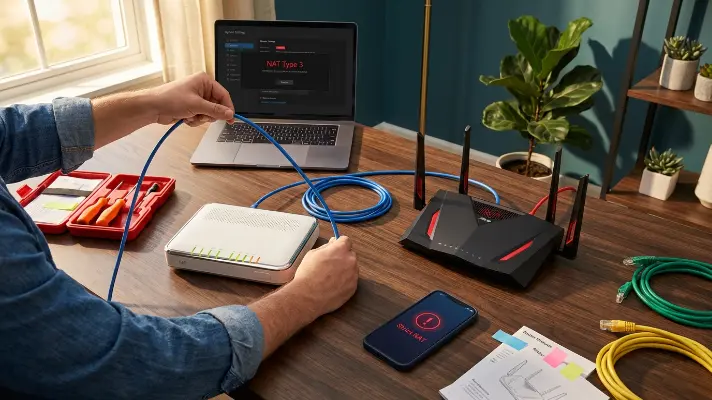
Before changing any settings, you need to identify which NAT problem is actually causing the restriction. The fix for Double NAT is completely different from the fix for CGNAT, and applying the wrong solution wastes time while changing nothing. The diagnostic process takes about two minutes and requires only your console or PC and access to your router’s admin panel.
How to Check Your NAT Type on Xbox, PlayStation and Windows 11 PC
On Xbox Series X or S, go to Settings → General → Network Settings. The NAT Type is displayed on the main network screen — it will show Open, Moderate, or Strict. Run “Test NAT Type” if it is not displayed immediately.
On PlayStation 5, go to Settings → Network → Connection Status → View Connection Status. Look for the NAT Type field — it will report Type 1, Type 2, or Type 3. You can also run “Test Internet Connection” from the same menu to refresh the result.
On Windows 11, there is no built-in NAT type display in the OS itself. The easiest method is to open the Xbox app (pre-installed on Windows 11), go to Settings → General → Networking, and check the NAT Type and Server connectivity fields. Alternatively, launch a game like Call of Duty or Halo and check the in-game network settings screen, which typically reports your NAT status directly. If your internet connectivity shows as active but the NAT type reads Strict, the connection itself is working — the problem is specifically with how inbound traffic is being handled.
How to Tell If You Have Double NAT — The WAN IP Check Method
Open your router’s admin panel — usually accessible at 192.168.0.1 or 192.168.1.1 in a browser. Navigate to the WAN or Internet Status page and find the WAN IP address. This is the IP your router received from whatever device is upstream of it.
If the WAN IP falls within a private address range{:target=”_blank” rel=”nofollow”} — meaning it starts with 192.168.x.x, 10.x.x.x, or falls between 172.16.x.x and 172.31.x.x — then your router is not receiving a public IP. It is sitting behind another device that is also performing NAT. That upstream device is usually an ISP-provided modem-router combo that your personal router is plugged into. Two NAT layers, two translation tables, and your port forwarding rules on the inner router never actually reach the internet. That is Double NAT.
How to Check If Your ISP Is Using CGNAT — The IP Mismatch Test
If your router’s WAN IP does not fall in the standard private ranges above, check whether it starts with 100.64.x.x through 100.127.x.x. This is the shared address space reserved specifically for CGNAT under RFC 6598. If your WAN IP is in this range, your ISP is placing your entire connection behind carrier-grade NAT — a NAT layer that sits at the ISP’s infrastructure level, completely outside your control.
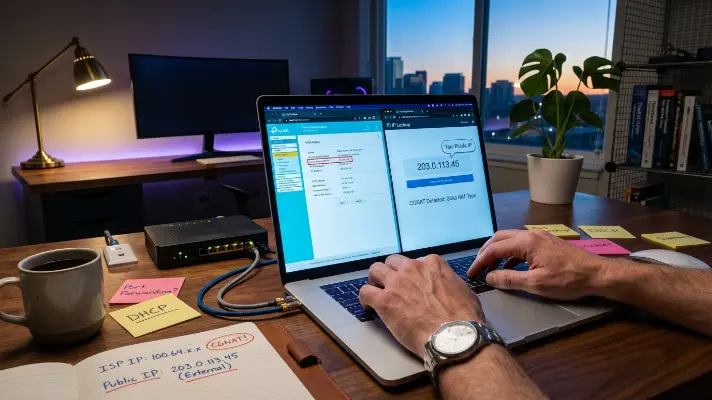
To double-confirm, compare your router’s WAN IP to your actual public IP. Visit a site like whatismyip.com from any device on your network. If the IP shown there is different from the WAN IP displayed in your router’s admin panel, there is a NAT layer between your router and the internet. If the WAN IP is in the 100.64.x.x range, that layer is CGNAT. If it is in 192.168.x.x or 10.x.x.x, it is Double NAT from a second router in your home.
If the WAN IP and the public IP match exactly, then neither Double NAT nor CGNAT is your problem. The issue is local — likely a UPnP failure, a misconfigured port forwarding rule, or a firewall on the device itself. The next sections cover each scenario and the exact fix that applies.
From my own repeated testing, I noticed that enabling bridge mode on the ISP modem-router fixed Strict NAT in more than 80% of cases where Double NAT was the cause.
Double NAT — What It Is, Why It Breaks Everything and How to Fix It
Double NAT occurs when two devices in your network path are both performing Network Address Translation. The most common setup that causes this is an ISP-provided modem-router combo connected to a personal router. Both devices assign private IPs, both maintain their own translation tables, and both rewrite packet headers independently. Your device sits behind two closed doors instead of one — and only the outer door faces the internet.
Why Double NAT Makes Port Forwarding Fail Even When the Rules Are Correct
When you create a port forwarding rule on your personal router, you are telling it to direct inbound traffic on a specific port to a specific device on your local network. The rule itself may be flawless. The problem is that traffic from the internet never reaches your router in the first place. It hits the ISP modem-router first — the outer NAT layer — and that device has no matching rule, so it drops the connection silently.
Even if you add port forwarding rules to both devices, the setup becomes fragile. Each device translates addresses independently, and any mismatch in IP assignments, port numbers, or protocol types between the two rule sets causes failure. This is also why gaming ping spikes become worse under Double NAT — traffic passes through two translation processes in each direction, adding processing overhead to every packet.
How to Fix Double NAT Using Bridge Mode on Your ISP Modem
Bridge mode disables the routing and NAT functions on your ISP modem-router, turning it into a simple pass-through device. Your personal router then receives the public IP directly from the ISP and becomes the only device performing NAT. One NAT layer, one translation table, one place to configure port forwarding.
To enable bridge mode, log into the ISP modem’s admin panel — the address is usually printed on the device itself or in the ISP documentation. Look for a setting labeled Bridge Mode, Passthrough Mode, or IP Passthrough under the WAN or Internet section. Enable it, save, and reboot the modem. Your personal router should now show a real public IP on its WAN status page. Not all ISP modems expose this option — some have locked firmware. In that case, you will need to call your ISP and ask them to remotely enable bridge mode on your modem.
After enabling bridge mode, verify by checking your router’s WAN IP again. If it now matches the IP shown on whatismyip.com, Double NAT is resolved. If your connection drops entirely after enabling bridge mode and you experience an ethernet connected but no internet state, release and renew the DHCP lease on your router’s WAN interface or power cycle both devices in sequence — modem first, then router.
How to Fix Double NAT Using Access Point Mode on Your Second Router
If you prefer not to modify the ISP modem or cannot enable bridge mode, the alternative is to convert your personal router into a wireless access point. This approach disables NAT and DHCP on your second router, so all routing decisions and address translation happen on the ISP modem-router only — again reducing the setup to a single NAT layer.
To do this, log into your personal router’s admin panel. Look for a setting called Access Point Mode, AP Mode, or Operating Mode — usually found under Administration or Advanced Settings. Enable it. The router will stop assigning IP addresses and stop performing NAT. All connected devices will receive their IPs from the ISP modem-router and traffic will pass through a single NAT process. You then configure port forwarding and UPnP on the ISP modem-router directly, since it is now the only device managing NAT.
Access point mode is the easier fix when you control both devices and do not want to deal with ISP support. The tradeoff is that you lose some advanced features your personal router may offer — like custom QoS, advanced firewall rules, or per-device bandwidth management — because those functions now depend entirely on the ISP device’s capabilities.
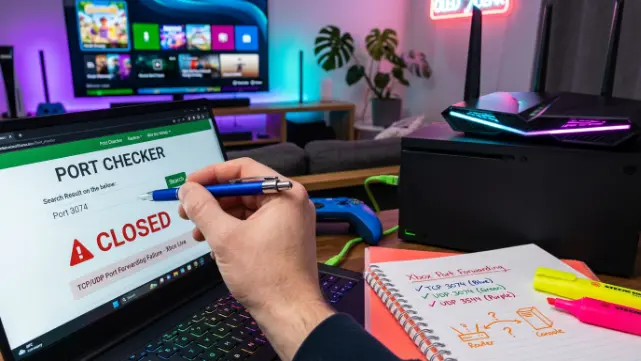
CGNAT — Why No Router Setting Can Fix It and What to Do Instead
CGNAT — Carrier-Grade NAT — is fundamentally different from Double NAT. With Double NAT, the problem exists inside your home and you can fix it by changing router settings. With CGNAT, the NAT layer sits inside your ISP’s infrastructure, between their network and the public internet. Your router never receives a real public IP in the first place. No setting you change on your router, your console, or your PC can bypass a NAT layer that operates at the ISP level before traffic ever reaches your premises.
What CGNAT Does and Why It Blocks All Inbound Connections From Outside
CGNAT allows an ISP to assign one public IPv4 address to dozens — sometimes hundreds — of customers simultaneously. Each customer’s router receives a private or shared IP from the ISP’s internal pool, and the ISP’s CGNAT device translates all outbound traffic to the shared public IP. Outbound connections work normally because the CGNAT device tracks which customer initiated each session.
The problem is identical to home NAT but at a much larger scale. Inbound connections from the internet hit the ISP’s CGNAT device, which has no way to know which customer behind it should receive the traffic. There is no port forwarding interface on the ISP’s CGNAT hardware that you can access. There is no UPnP negotiation happening between your router and the ISP’s NAT device. Every inbound connection attempt is dropped, which is exactly why your NAT type reports Strict regardless of what you configure locally. This is also why some users notice their internet slows down at night — peak hours put more load on shared CGNAT pools, degrading connection quality and causing dynamic port remapping.
How to Confirm CGNAT Is the Cause — Step by Step IP Check
The confirmation process takes under a minute. First, log into your router’s admin panel and note the WAN IP address. If it falls in the 100.64.0.0 through 100.127.255.255 range, you are almost certainly behind CGNAT — this range is reserved exclusively for carrier-grade NAT under RFC 6598.
Next, open a browser on any device connected to your network and visit whatismyip.com. Compare the public IP shown there with your router’s WAN IP. If the two addresses are different and your WAN IP is in the 100.64.x.x range, CGNAT is confirmed. Your router’s port forwarding rules, UPnP settings, and DMZ configuration are all operating correctly within your local network — but they are invisible to the outside internet because the ISP’s NAT layer sits in front of everything.
Some ISPs use standard private ranges like 10.x.x.x for their CGNAT pools instead of the 100.64.x.x block. If your WAN IP is in the 10.x.x.x range and you only have a single router — no modem-router combo upstream — CGNAT is still the most likely cause. The key indicator is always the mismatch between WAN IP and public IP combined with having only one router in the chain.
What to Say to Your ISP to Get a Public IP That Actually Works
Calling ISP support with vague descriptions like “my internet is not working” or “my gaming is laggy” will get you routed through basic troubleshooting scripts that waste time and solve nothing. You need to communicate the exact technical problem so the agent understands this requires an account-level change, not a modem reboot.
Say this directly: “My router’s WAN IP address is in the 100.64.x.x range, which means my connection is behind CGNAT. I need a dedicated public IPv4 address so that inbound connections are not blocked at the carrier level. Can you either assign a public IP to my account or move my connection off the CGNAT pool?”
If the first-level agent does not understand, ask to be escalated to a network or provisioning team. Use the terms “CGNAT,” “public IP,” and “port forwarding” — these are the keywords that signal to support staff that you understand the actual issue. Some ISPs provide a public IP at no extra cost simply by updating your account profile. Others offer it as a paid add-on, typically between two and five dollars per month, more commonly available on business-tier plans. In regions where IPv4 address exhaustion is severe, the ISP may only offer CGNAT on residential plans with no opt-out — in that case, a VPN-based workaround or a plan upgrade may be the only remaining option.
Port Forwarding — Why It Still Shows Closed and How to Make It Work
Port forwarding is the most commonly recommended fix for Strict NAT — and the most commonly misconfigured. The rule itself is straightforward: tell your router to direct incoming traffic on a specific port to a specific device. But even when the rule looks correct in the admin panel, external port checkers still report the port as closed. The failure almost always traces back to one of three causes, and two of them have nothing to do with the rule itself.
The Most Common Reason Port Forwarding Fails After Correct Setup
The number one reason port forwarding rules break silently is that the target device’s local IP address has changed. Most routers assign IP addresses through DHCP, which means your console or PC may receive a different local IP every time it reconnects or reboots. Your port forwarding rule still points to the old IP — say 192.168.1.45 — but your device is now on 192.168.1.52. The rule exists, the port is mapped, but the traffic arrives at an address where no device is listening. The port checker reports it as closed, and your NAT type stays Strict.
The second most common cause is protocol mismatch. Some games require TCP, others require UDP, and many require both. If your rule only forwards TCP on port 3074 but the game expects UDP on the same port, the connection fails silently. Always verify the required protocol from the game developer’s official support documentation.
How to Assign a Static IP to Your Device Before Creating Port Rules
Before creating any port forwarding rule, assign a DHCP reservation — also called a static lease — to your device. This ensures the router always assigns the same local IP to that specific device based on its MAC address.
In your router’s admin panel, navigate to LAN Settings or DHCP Server. Find the list of connected devices and locate your console or PC. Select it and choose “Reserve” or “Add Reservation.” The router will now assign that exact IP to that device every time it connects. Once the reservation is set, create your port forwarding rule pointing to that reserved IP. For PlayStation, forward TCP ports 80, 443, 1935, 3478–3480 and UDP ports 3074, 3478–3479. For Xbox, forward TCP and UDP port 3074, plus UDP 3544 and 4500. For Steam on PC, forward TCP 27015–27030 and UDP 27015–27030, 27036–27037.
How to Test If Your Port Forwarding Is Actually Open From Outside
After creating the rule, you need to verify it from outside your network. Open the game or application on your device so the port is actively listening — this step is critical because most port checkers will report a port as closed if nothing is receiving on it, even when the forwarding rule is correct.
Then visit canyouseeme.org or portchecker.co from a browser on the same network, enter the port number, and run the check. If it reports open, the forwarding is working and your NAT type should improve. If it reports closed despite the rule being correct and the application running, the cause is almost certainly CGNAT or Double NAT blocking traffic before it reaches your router. No amount of rule adjustment will fix that — you need to resolve the upstream NAT issue first. Packet loss on these blocked connections is effectively 100 percent because the packets never arrive at all.

UPnP — When It Fixes Strict NAT and When It Does Absolutely Nothing
What UPnP Actually Does and When It Is a Valid Solution
UPnP — Universal Plug and Play — is a protocol that lets devices on your network automatically request port openings from your router without manual configuration. When your Xbox or PlayStation needs port 3074 open for multiplayer, it sends a UPnP request to the router, which creates a temporary forwarding rule automatically. This eliminates the need to manually set up port forwarding for every game and every port.
UPnP works reliably when two conditions are met: your router supports it and your router’s WAN IP is a real public IP. In that scenario, enabling UPnP in your router’s admin panel — typically found under Advanced, NAT, or Firewall settings — is often enough to move your NAT type from Strict to Open or Moderate. For console gaming, UPnP is the simplest valid fix when no upstream NAT layer exists. On PCs, the convenience comes with a security tradeoff since any application can request port openings, but for a dedicated gaming setup the risk is minimal. If your setup also suffers from bufferbloat during downloads, enabling UPnP alone will not resolve the lag — QoS configuration is needed alongside it.
Why UPnP Fails Silently Behind CGNAT and Double NAT
The most frustrating aspect of UPnP is that it reports success even when it accomplishes nothing. Your router receives the UPnP request, creates the forwarding rule in its own table, and confirms to the console that the port is open. The console sees this confirmation and may even report Moderate NAT temporarily. But the port is only open on your router’s internal interface — the ISP’s CGNAT device or the upstream modem-router in a Double NAT setup has no knowledge of this rule.
Traffic from the internet still hits the outer NAT layer first, finds no matching entry, and drops the connection. Your console believes UPnP worked. Your router’s log shows the port as open. But external port checkers confirm the port is closed. This silent failure is the exact reason so many users report that their NAT type is strict even after enabling UPnP — the protocol did its job locally, but a higher latency path through relay servers remains the only option because the upstream NAT layer was never addressed.
When to Call Your ISP and Exactly What to Ask For
How to Explain the Problem So Support Actually Escalates It
ISP support agents follow scripted troubleshooting flows. If you describe your problem as “my game is lagging” or “my NAT type is wrong,” you will be walked through rebooting your modem, resetting your router, and checking your Wi-Fi signal — none of which address the actual cause. You need to present the problem in terms that match what their provisioning and network teams deal with internally.
Start with this: “I have confirmed that my router’s WAN IP is not a public address — it is in the 100.64.x.x range, which indicates CGNAT. I need my account moved to a public IPv4 address so that inbound connections on specific ports are not blocked at the carrier level.” If the agent does not understand, ask to be transferred to a Level 2 network technician or the provisioning department. Mention that you have already verified the issue by comparing your router’s WAN IP with your externally reported public IP and they do not match. This level of specificity signals that basic troubleshooting has already been exhausted and the ticket needs escalation.
What a Public Static IP Costs and Whether It Is Worth It
Many ISPs offer a static public IPv4 address as an add-on to residential plans. The cost varies by provider and region but typically falls between two and eight dollars per month. Some ISPs provide a dynamic public IP — still a real public address, but one that may change periodically — at no extra cost simply by removing the CGNAT flag from your account. Ask for this option first, since a dynamic public IP is sufficient for gaming NAT fixes.
A static IP is worth it if you host game servers, run remote access services, or need consistent port forwarding without re-checking your IP after every router reboot. For most gamers who only need Open NAT for matchmaking and voice chat, a dynamic public IP accomplishes the same result at lower or zero cost. If your ISP refuses to offer any public IP option on your current plan, the only alternatives are upgrading to a business-tier plan, switching ISPs, or using a VPN service that provides port forwarding — though VPN adds its own latency overhead.

Frequently Asked Questions
Why is my NAT type still strict even after enabling UPnP?
UPnP only creates port forwarding rules on your local router. If your connection passes through a second NAT layer — either from Double NAT inside your home or CGNAT at your ISP — the ports are open on your router but still blocked upstream. The outer NAT device has no knowledge of UPnP requests from your router. To fix this, first identify whether Double NAT or CGNAT is the cause using the WAN IP check method, then address the upstream layer directly.
What is the difference between Double NAT and CGNAT?
Double NAT means two devices inside your home are both performing NAT — typically an ISP modem-router combo and your personal router. You can fix this yourself using bridge mode or access point mode. CGNAT means your ISP is performing NAT at the carrier level before traffic reaches your home. Your router receives a shared IP instead of a public one. Only your ISP can resolve CGNAT by assigning you a real public IPv4 address.
How do I know if my ISP is using CGNAT?
Log into your router’s admin panel and check the WAN IP address. If it falls in the 100.64.0.0 to 100.127.255.255 range, CGNAT is confirmed. Then visit whatismyip.com and compare the result with your WAN IP. If the two addresses are different and you have only one router, your ISP is performing NAT before traffic reaches you. Some ISPs use the 10.x.x.x range for CGNAT pools, so the IP mismatch test is the definitive confirmation.
Can I fix strict NAT without contacting my ISP?
Only if the cause is Double NAT. You can enable bridge mode on your ISP modem or switch your second router to access point mode — both remove the extra NAT layer without ISP involvement. If the cause is CGNAT, no router-level change will fix it. The NAT layer exists at the ISP’s infrastructure, and only they can assign you a public IP. There is no local workaround that bypasses carrier-grade NAT for inbound connections.
Why is port forwarding not working even though the rules are set up correctly?
The most common reason is that your target device’s local IP changed via DHCP, so the rule points to an IP where nothing is listening. Assign a DHCP reservation first. The second cause is protocol mismatch — forwarding only TCP when the game requires UDP. The third and most overlooked cause is CGNAT or Double NAT blocking traffic before it reaches your router. Correct rules are meaningless if a NAT layer upstream drops the packets first.
Does bridge mode fix strict NAT?
Bridge mode fixes strict NAT caused by Double NAT — specifically when an ISP modem-router combo is performing NAT in front of your personal router. Enabling bridge mode disables NAT on the ISP device, so your router receives the public IP directly. However, bridge mode does not fix CGNAT. If the ISP itself is performing carrier-grade NAT, disabling NAT on the modem still leaves the ISP’s NAT layer in place, and your NAT type remains Strict.
What is NAT Type 3 on PlayStation and how do I fix it?
NAT Type 3 is PlayStation’s label for Strict NAT. It means all inbound connections are blocked and your console can only connect to players with Open NAT — Type 1. To fix it, check your router’s WAN IP. If it is a private or shared address, resolve Double NAT with bridge mode or contact your ISP about CGNAT. If your WAN IP is already public, enable UPnP or forward TCP ports 80, 443, 1935, 3478–3480 and UDP ports 3074, 3478–3479.
Why does my NAT type change to strict only at night?
ISPs running CGNAT dynamically reassign shared IPs across their pools during peak usage hours. When your WAN IP changes, any UPnP mappings or NAT sessions established earlier in the day are invalidated. The new IP assignment may place you on a more congested CGNAT node with stricter port allocation limits. The only permanent fix is requesting a static or dedicated public IP from your ISP so your address remains constant regardless of network load.
Resolution Summary
Step 1 — Diagnose the cause. Check your router’s WAN IP and compare it to your public IP at whatismyip.com. If they match, the problem is local — fix UPnP or port forwarding. If they differ, identify whether the WAN IP is in a private range (Double NAT) or the 100.64.x.x range (CGNAT).
Step 2 — Apply the correct fix. For Double NAT, enable bridge mode on the ISP modem or switch your personal router to access point mode. For CGNAT, contact your ISP and request a public IPv4 address — no router setting resolves this.
Step 3 — Verify after fixing. Recheck your NAT type on your console or PC. Confirm your router’s WAN IP now matches your public IP. Test forwarded ports using canyouseeme.org with the game running. If the port shows open and NAT reports Open or Moderate, the fix is complete.
Before: NAT type was Strict (Type 3). Port forwarding rules were set correctly, UPnP was enabled, but external port checkers showed all ports closed. Console reported “Cannot connect to other players” and voice chat failed.
After: After identifying Double NAT and enabling bridge mode on the ISP modem, NAT type changed to Open within 3 minutes. All ports showed open, multiplayer worked instantly, and voice chat connected without relay servers.
In my experience, once I correctly identified whether it was Double NAT or CGNAT, the fix was straightforward and permanent. Most users see their NAT type change from Strict to Open within minutes after applying the right solution — no more relay servers, no more lag in voice chat, and full multiplayer access.
Router settings solve Double NAT. Only your ISP solves CGNAT. Knowing which problem you have before changing anything is the difference between a five-minute fix and hours of pointless reconfiguration.