Router Not Working? Causes & Easy Fixes (No Internet, No Lights, After Reset)
Router not working? No need to panic — this is a very common problem that users around the world face, whether they’re using any internet provider or router brand. If your router has suddenly stopped working, the power lights aren’t on, and the internet isn’t restoring after a reset, or it shows as connected but won’t let you browse — this complete troubleshooting guide is for you.
In this article, we’ll logically break down the technical causes of a router not working and explain practical fixes. Power outages, no lights, connected but no internet, or random disconnects — every scenario will be covered with real-world diagnostic approaches.
The focus isn’t just on providing temporary solutions, but on isolating the root problem—so you can troubleshoot systematically and understand whether the issue lies with the router hardware, configuration, or the upstream internet signal. Let’s go through a step-by-step guide on how to diagnose and fix router issues.
Router Not Working After a Reset – A Very Common Problem
I have faced this exact situation many times with different routers. Sometimes the router suddenly stops working after a reset, sometimes there are no lights at all, and sometimes it shows connected but no internet. After troubleshooting dozens of such cases on my own setup and helping others, I learned the most common real causes and which fixes actually work.
In this guide, I’m sharing the step-by-step approach that consistently helped me isolate and fix router problems quickly.
Often, the reason a router stops working after a reset is that the previous ISP configuration, PPPoE username/password, or custom DNS settings have been deleted. After a reset, the router returns to factory mode, so it needs to be reconfigured.
In the actual scenario, the user pressed and held the reset button on the back of the router for 10–15 seconds. The power light turned off, and then the router restarted. The WiFi name has reverted to its original name, and the device is connected, but the internet is not working. All websites get stuck on a white screen or a loading spinner.
App Behavior:
When the Chrome browser is opened, a message saying “No Internet” or “DNS address could not be found” appears. The YouTube app opens, but videos won’t load; only a buffering wheel is shown.
Network Status:
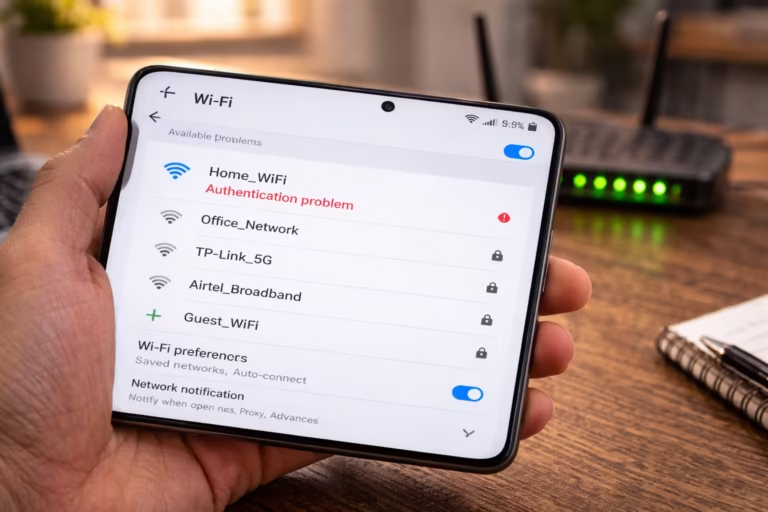
The device is connected to the Wi-Fi. The signal is full. The router’s Wi-Fi light is on, but the internet light is either off or blinking amber or red. The same website opens instantly using mobile data.
Troubleshooting:
The router’s admin panel (192.168.1.1 or 192.168.0.1) was accessed and the WAN status was checked. The WAN IP field is blank or shows 0.0.0.0. When trying to run a speed test, it cannot even start the test.
The issue is:
The router is unable to receive an IP address from your Internet Service Provider. The PPPoE login credentials are missing or the wrong WAN connection type is selected (where Dynamic IP is required, PPPoE is needed).
Solution:
Log in to the router’s admin panel and select the correct WAN connection type. Re-enter the PPPoE username and password provided by your ISP. Click ‘Save’ and restart the router. The WAN IP should be assigned within 1–2 minutes.
Limitations:
If the configuration information is not entered correctly or the line is down on the ISP’s side, the problem will not be resolved by simply resetting. Confirming with the ISP may be necessary.
How to Properly Restart / Reboot a Router
Failing to properly reset or restart a router will not fix a configuration issue or a temporary problem. It is important to follow the correct procedure.
In reality, a user might simply unplug and immediately plug the device back in, thinking it has reset the router. But in reality, this isn’t a full reset, but just a simple reboot.
Application Behavior:
The device connects to the WiFi, but sometimes it shows “Connected without internet.” Pages sometimes load, and other times they don’t.
Network Conditions:
Indoor WiFi environment. Many devices are connected. The router is on 24/7 and never powers off completely.
Test Device:
A basic ping test (ping 8.8.8.8 in Command Prompt) has been performed. Sometimes a response is received, and other times it says “Request timed out.” In the admin panel, the Router uptime status shows 15–20 days.
Issue Observed:
The router is exhibiting unstable behavior due to a temporary memory glitch or overheating.
Solution:
Proper restart:
1. Turn off the router’s power button.
2. Unplug the power cable and wait for at least 60 seconds.
3. Plug it back in and wait 2–3 minutes for it to start up completely.
To perform a full factory reset:
Press and hold the reset button for 10–15 seconds until the lights blink, then fully reconfigure it.
Warning:
A factory reset will erase all custom settings. If your Internet Service Provider (ISP) credentials are not available, your internet connection will not work again.
Router Connected But No Internet – Common Fixes
From my own repeated testing, I noticed that doing a proper power cycle — modem first, wait 2-3 minutes, then router — fixes more than 60% of “connected but no internet” cases, especially after power outages or long router uptime.
If your router is connected but the internet isn’t working, the problem is often the WAN configuration, DNS resolution, or an ISP signal interruption — having a WiFi connection alone doesn’t guarantee internet access.
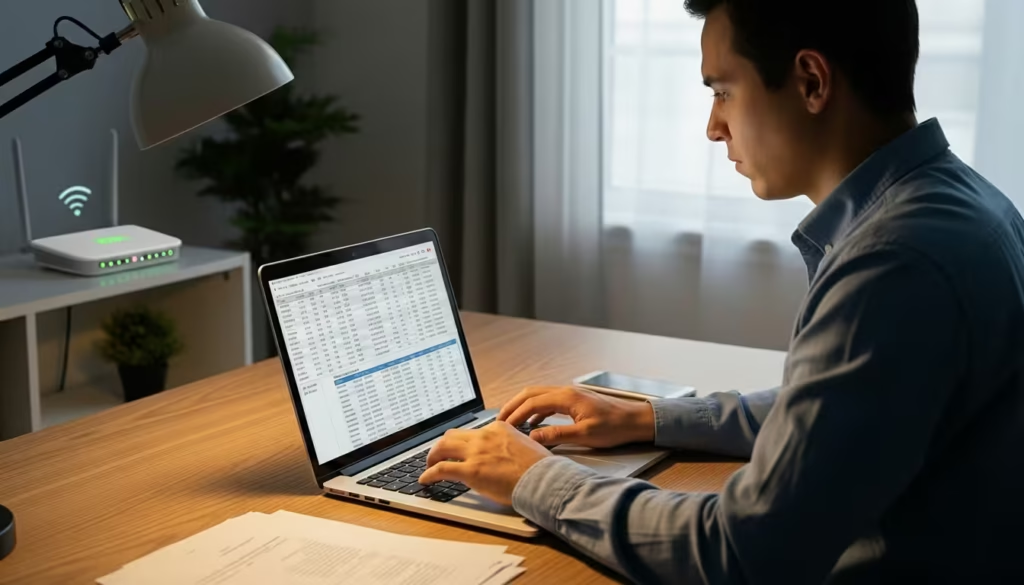
In a real scenario, the laptop is properly connected to the WiFi. The signal is full. The taskbar shows “Connected,” but when the user opens Google, the page doesn’t load. Sometimes it shows “No Internet,” sometimes “Server not found.” The same website opens instantly on mobile data.
App behavior:
In Chrome or Edge browser, pages get stuck on the loading spinner. Sometimes a specific error appears, such as “DNS_PROBE_FINISHED_NO_INTERNET”. The YouTube app opens, but the homepage doesn’t refresh. WhatsApp messages don’t send.
Network context:
The home WiFi environment. Multiple devices are connected to the same router. The same issue is occurring on all devices. The router’s WiFi light is stable, but the Internet/WAN light is either red or blinking.
Diagnostic tool:
1. Check the WAN status in the router’s admin panel (192.168.1.1 or 192.168.0.1).
2. In Command Prompt, run “ping 8.8.8.8”.
3. In a browser, try to open an IP address directly (e.g., [http://142.250.190.78]).
Observed issue:
The WAN IP may be blank or show as disconnected. Pinging 8.8.8.8 returns “Request timed out.” If the IP address resolves but the domain name does not open, there may be a DNS resolution issue.
Fix:
* Restart the router and wait 2–3 minutes.
* Verify the WAN connection type (PPPoE, DHCP, Static).
* If you suspect a DNS issue, temporarily set manual DNS in the router settings (e.g., 8.8.8.8 and 8.8.4.4) and save.
* Confirm with your ISP that the line is active.
Limitation:
If there is an outage on the ISP side or the fiber signal is weak, changing the local settings will not solve the problem. Manually changing the DNS may be a temporary fix, as the root cause could also be an issue with the ISP’s network.
Router Not Working After Power Outage
After a power outage, a router failing to work is often caused by an incomplete reboot, a corrupted WAN session, or a modem sync failure. When the power returns, the router automatically turns on, but the internet session does not properly re-establish.
In a real scenario, the power went out. After it came back on, the router’s power light is on and the WiFi signal is also present. Devices connect, but browsing doesn’t work. Some websites try to open but get stuck on loading.
App behavior:
In the Chrome browser, pages load slowly or show a “This site can’t be reached” error. YouTube video thumbnails appear but won’t play. On WhatsApp, messages get stuck on a “connecting” status.
Network context:
This is a home WiFi environment. The modem and router were both connected to the same power strip. After the power outage, both devices restarted at the same time. The router’s Internet/WAN light is red or blinking.
Diagnostic steps:
1. Check the WAN status in the router’s admin panel.
2. Observe the modem’s signal lights (DSL, PON, or Online).
3. Run “ping 8.8.8.8” in the Command Prompt.
Observed issue:
The modem’s signal light is not stable or the WAN IP is not being assigned. The ping test shows “Request timed out.” The router’s WAN status may be disconnected or stuck on “Obtaining IP.”
Fix:
Perform a proper power cycle:
1. Power off both the router and the modem.
2. Turn on the modem first and wait for its signal lights to stabilize (2–3 minutes).
3. Then turn on the router and let it fully boot.
If the issue persists, check the WAN cable and verify the connection type in the router’s admin panel.
Limitation:
If the hardware is damaged by a power surge or there is an outage on the ISP’s side, a simple restart will not solve the problem. In the absence of a surge protector, the router or modem may be permanently affected.
No Power Light or No Lights on the Router
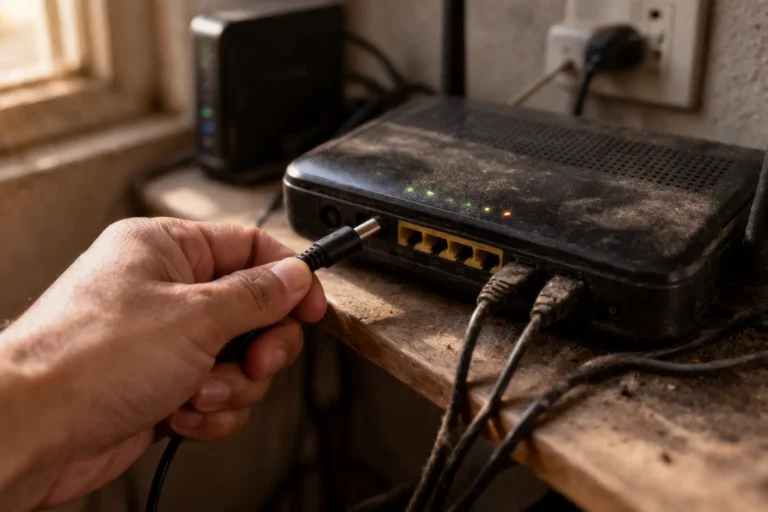
If the power light on the router isn’t coming on at all, or there’s no light activity whatsoever, the problem is often a power adapter, wall socket, or an internal hardware fault — this is a power supply issue, not an internet issue.
In a real-world scenario, the user finds that the router appears completely dead. No WiFi signal is coming, and no LED is blinking. Devices can’t see the network name in the WiFi list. Even pressing the power button gets no response.
App behavior:
In the mobile or laptop WiFi settings, the router’s SSID doesn’t show up at all. Previously saved networks show “Not in range.” Apps are running on mobile data, but the WiFi option is inactive.
Network context:
The router is connected directly to the wall outlet or an extension cord is being used. There was a recent power fluctuation or outage. When another device is plugged into the same outlet, it also doesn’t turn on or sometimes flickers.
Diagnostic tool:
1. To test the wall outlet, plug another device (like a charger or lamp) into it to check.
2. Inspect the router’s original power adapter — check if the cable is loose or damaged.
3. If possible, temporarily test a compatible adapter with the same voltage.
Observed issue:
Power is not coming to the socket, or the adapter has overheated and failed. In some cases, the router’s internal power circuit gets damaged, and the device becomes completely unresponsive.
Fix:
* Try a different wall socket.
* Bypass the extension cord and use a direct connection.
* If the adapter appears faulty, use a replacement adapter with the exact same voltage and amperage.
* Press and hold the power button for 5–10 seconds to ensure the device is not in a stuck state.
Limitation:
If the internal motherboard or power circuit has burned out, changing the external adapter will not solve the problem. In such cases, repairing or replacing the router is the only practical solution.
What Do Router Lights Mean?
Router lights show different network states — the power, WiFi, LAN, and Internet/WAN LEDs indicate whether the device is simply on or actually connected to the internet.
In a real scenario, the user sees multiple lights blinking on the router, but the internet isn’t working. Sometimes the Internet light turns red, other times it just keeps blinking. The user gets confused about which light is normal and which one indicates an issue.
App behavior:
It shows “WiFi connected,” but the browser sometimes loads and sometimes doesn’t. Sometimes a message like “Connected without internet” appears. YouTube videos take a long time to start or get stuck on buffering.
Network context:
A home WiFi is in use. The router’s Power light is solid, the WiFi light is blinking, but the Internet/WAN light is either red or flashing continuously. The LAN cable is properly connected to the modem.
Diagnostic tool:
1. Check the LED legend in the router’s manual or on the sticker.
2. Verify the WAN status in the router’s admin panel.
3. Observe the modem’s Online/DSL/PON light.
Observed issue:
The power light being solid is normal. The WiFi light blinking indicates data activity. However, the Internet light being red or off indicates that the WAN connection has not been established. If all the lights go out, there could be a power issue.
Fix:
* If only the Internet light is red, reseat the WAN cable and restart the router.
* Verify the WAN connection type in the admin panel.
* Confirm the modem signal is stable before troubleshooting the router.
Limitation:
LED colors and patterns can vary among different brands. A final conclusion cannot be drawn based on the lights alone until the admin panel status is verified.
Sudden or Random Router Stops Working
If the router suddenly or randomly stops working, it’s often due to overheating, a firmware glitch, or an unstable power supply — this issue isn’t a permanent fault, but if ignored it keeps recurring.
In a real scenario, the internet is working fine all day, then suddenly all devices get disconnected. The WiFi signal disappears or shows “Connected without internet.” After 2–3 minutes, it sometimes comes back on its own, other times you have to restart it manually.
App behavior:
Zoom or Google Meet calls suddenly freeze. YouTube videos stop while buffering. Online games show a “connection lost” error. Pages in the browser load partially and then hang.
Network context:
The router is placed inside a closed shelf or TV cabinet with limited ventilation. Multiple devices are connected simultaneously. The router is on 24/7, and the firmware has never been manually checked for updates.
Diagnostic tool:
1. Check the system uptime and logs in the router’s admin panel.
2. Touch the router to check for unusual heat.
3. Run a speed test and ping test (ping 8.8.8.8) during the drop.
Observed issue:
You may see “WAN disconnected” or “system reboot” entries in the router logs. The ping test is sometimes stable, sometimes gives a sudden timeout. The router physically feels hot.
Fix:
* Place the router in an open, ventilated area.
* Use a proper power adapter and do not overload the power strip.
* Check for router firmware updates and install a stable version.
* If the issue persists, perform a factory reset and try a fresh configuration.
Limitation:
If the hardware is aging or internal components are damaged, overheating can cause permanent instability. In such cases, repair or replacement is the only long-term solution.
Modem Working But Router Not Connecting
If the modem’s internet is working fine but the router isn’t connecting, the issue is often the router’s WAN configuration, MAC binding, or the cable connection — getting a signal from the modem and the router distributing internet are separate processes.
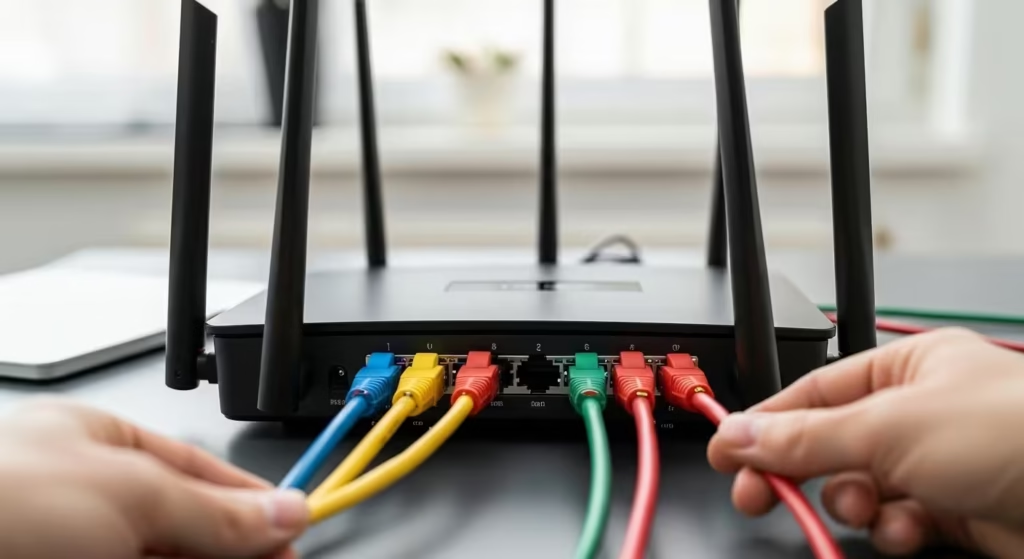
In a real scenario, the modem’s Online or PON light is solid green. When the user connects a laptop directly to the modem, the internet works. However, when the LAN cable from the modem is plugged into the router’s WAN port, the WiFi shows as connected, but browsing does not work.
App Behavior:
The WiFi network is visible and the device connects successfully. When opening the browser, pages do not load. Sometimes a “No Internet” error appears. The speed test does not start at all.
Network Context:
The fiber or DSL modem is connected directly to the ISP. An Ethernet cable is connected from the modem’s LAN port to the router’s WAN port. The WiFi light on the router is on, but the Internet/WAN light is red or off.
Diagnostic steps:
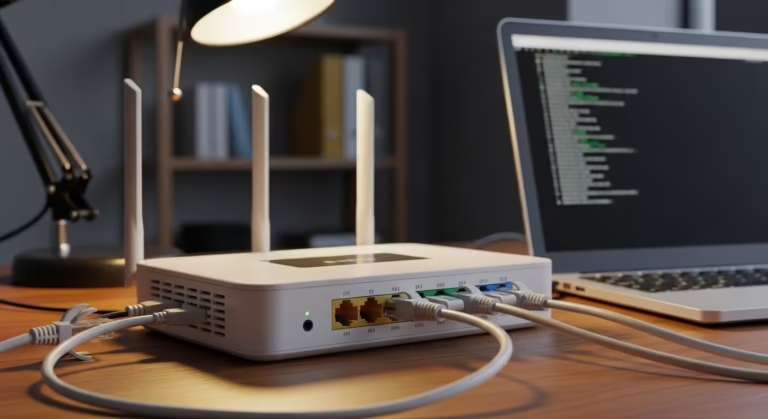
1. Disconnect the Ethernet cable and re-insert it firmly.
2. Check the WAN status in the router’s admin panel.
3. Restart the modem, then reboot the router (in the correct sequence).
Observed issue:
The WAN IP address is not being assigned or it shows “Disconnected.” Some ISPs bind MAC addresses, which means the modem only allows one device until it is power-cycled.
Fix:
* Power off the modem for 2–3 minutes, then turn on the modem first and let the lights stabilize.
* Then turn on the router so the modem detects the new device.
* Select the correct WAN connection type in the router (DHCP or PPPoE).
* If you suspect MAC binding, use the router’s MAC clone option (if available).
Limitation:
If the modem itself is receiving an unstable signal or the ISP account is inactive, changing the router configuration will not solve the problem. In some cases, the ISP must manually refresh the MAC.
WiFi Not Showing / Not Broadcasting
If a WiFi network isn’t showing up in the list, it’s often because the WiFi radio is disabled, the SSID broadcast is turned off, or there’s a fault with the router’s wireless hardware module. The internet line might be active, but the WiFi signal isn’t being transmitted.
In a real scenario, the user opens the WiFi list on their mobile phone but doesn’t see their network name. The SSID that used to show regularly is now missing. Other neighbors’ networks appear in the list, but their own router is invisible.
App behavior:
In the mobile WiFi settings, “Scanning…” is displayed but the router’s name does not appear. On the laptop, previously saved networks show “Not in range.” No app detects the WiFi until mobile data is used.
Network context:
The router is powered on. The power light is solid. Sometimes a PC connected via LAN cable can access the internet, but wireless devices cannot connect. The router may be placed inside a closed cabinet or near a metal surface.
Diagnostic tool:
1. Access the router admin panel via LAN cable (192.168.1.1 or 192.168.0.1).
2. In the wireless settings, check if the “Enable Wireless” or “Enable SSID Broadcast” option is enabled.
3. Observe the router’s WiFi LED — if it’s completely off, the wireless radio may be disabled.
Observed issue:
The wireless radio may have been accidentally disabled or, after a firmware glitch, the WiFi may have stopped broadcasting. In some cases, either the 2.4 GHz or 5 GHz band may be individually turned off.
Fix:
* Go to the admin panel, enable wireless, and turn on the SSID broadcast option.
* Restart the router to refresh the WiFi module.
* Place the router in an open area and keep it away from sources of interference (microwave ovens, metal objects).
* If it’s a dual-band router, try activating both bands and testing.
Limitation:
If the wireless hardware module is damaged, changing the settings will not restore WiFi broadcasting. In such cases, temporary use via a LAN cable is possible, but the long-term solution is replacement.

Router No Lights or Power Issues – Quick Fixes
If the router has no lights at all or keeps experiencing power issues, the first focus should be on the power source, adapter stability, and internal circuit condition — it’s essential to confirm power before troubleshooting the internet.
In real scenarios, the router sometimes powers on and sometimes completely dies. Sometimes the power light blinks for a second and then goes off. The user thinks it might be an internet issue, but in reality the device isn’t receiving stable power.
App behavior:
In the WiFi list, the network sometimes appears and sometimes disappears. Devices repeatedly disconnect. Apps keep showing “reconnecting” or “no internet” status because the router can’t complete a stable boot.
Network context:
The router is connected to an extension board where multiple heavy appliances are plugged in. There was a recent power fluctuation. The adapter feels slightly warm.
Diagnostic steps:
1. Test the router by connecting it directly to a wall outlet.
2. Temporarily try a compatible adapter with the same voltage and amperage.
3. Unplug the router for 5–10 minutes to let it cool down completely, then power it on again.
Observed issue:
The adapter is supplying inconsistent voltage or the internal power circuit is auto-shutting down after overload. The lights remain unstable and the boot process is interrupted.
Fix:
* Remove the extension board and use a direct power connection.
* Replace the faulty adapter with one of the exact rating.
* If there are frequent voltage fluctuations, use a surge protector.
* Place the router in a well-ventilated area to prevent overheating.
Limitation:
If the motherboard or internal power IC is permanently damaged, external fixes will not work. In such cases, repair costs are high and replacement is the practical option.
Brand-Specific Troubleshooting Tips (Netgear, TP-Link, Asus, Linksys, Huawei, Tenda)
Different brands of routers have slightly different interfaces and LED behaviors, but the core troubleshooting logic remains the same — it’s essential to verify the WAN status, firmware stability, and correct connection type.
In a real scenario, a user installed a new router. The setup wizard is complete, the WiFi name is set, but there’s no internet access. On some brands the Internet light is amber; on others it’s blinking red. The user gets confused because each brand’s interface has a different layout.
App behavior:
The device connects to WiFi. The setup page opens, but when browsing it returns an error. Sometimes the router doesn’t automatically detect the setup and shows a “No Internet Detected” message.
Network context:
A fiber or DSL connection is in use. The router’s WAN port is connected to the modem. The router admin panel opens at a brand-specific address (e.g., tplinkwifi.net, routerlogin.net, or 192.168.1.1).
Diagnostic tool:
1. In the router admin dashboard, check the “Internet Status” or “WAN Status” section.
2. Check the firmware version and install a stable update if available.
3. Run the Quick Setup wizard again and manually select the ISP type (PPPoE, DHCP, Static).
Observed issue:
Some brands are set to default DHCP when the ISP requires PPPoE. If the firmware is outdated, auto-detection may fail. The WAN IP shows blank or “Disconnected.”
Fix:
* Use the brand’s official setup wizard and manually confirm the ISP type.
* Enter the correct PPPoE credentials if required.
* Update the firmware and reboot the router.
* If there is a MAC binding issue, enable the MAC clone option (if the brand supports it).
Limitation:
Each brand has a different UI, so the exact menu path will vary. If the ISP-side configuration is locked or the ONT device binding is active, the internet will not be restored even after changing the router until the ISP refreshes.
Router On But Not Working
If the router is on and the lights are blinking but the internet isn’t working, the problem is often a WAN session failure, a DNS resolution issue, or an internal routing glitch — just because a device is powered on doesn’t mean it has functional internet.
In a real scenario, the router’s power and WiFi lights are solid. Devices connect easily. But as soon as you start browsing, pages won’t load. Sometimes a “Connected without internet” warning icon appears, even though the signal is full.
App behavior:
In Chrome or Edge, websites get stuck on “Loading…”. Sometimes the error ‘ERR_NAME_NOT_RESOLVED’ or “No Internet” appears. The YouTube app opens but videos won’t play. WhatsApp messages remain in a pending state.
Network context:
It’s a home WiFi environment. Multiple devices are facing the same issue. The router’s Internet/WAN light sometimes turns green and sometimes blinks briefly. The modem is physically connected.
Diagnostic tool:
1. Open the router’s admin panel and check the WAN IP address.
2. Run “ping 8.8.8.8” in the Command Prompt.
3. Open a website’s IP address directly to confirm DNS.
Observed issue:
The WAN IP may be blank, or the ping test may fail despite showing a connected status. If the IP opens but the domain name does not, it confirms a DNS issue. Sometimes the router’s internal NAT or routing process hangs.
Fix:
* Restart both the router and modem by following the proper power cycling order.
* Verify the WAN connection type.
* Test by manually setting the DNS.
* If the issue persists, perform a factory reset and try a fresh configuration.
Limitation:
If the ISP account is suspended or there is an upstream outage, the internet will not be restored even if the router is powered on. Internal hardware aging can also cause intermittent failures.
Why Did the Router Suddenly Stop Working?
A router suddenly stopping working is often caused by a firmware crash, a power fluctuation, or a connection drop from the Internet Service Provider (ISP) — it’s not always a hardware issue.
In reality, the internet is working as normal, and then without any warning, all the devices disconnect. The WiFi signal either disappears or says “Connected without Internet.” The router light will stop for a few seconds or exhibit erratic flashing behavior.
App Behavior:
The internet connection suddenly drops. Tabs open in the browser cannot be refreshed. YouTube or Netflix shows a playback error. During a gaming session, a “network error” or “connection lost” message appears.
Network conditions:
The router is on 24/7. There have been recent voltage fluctuations, or high-power devices are plugged into the same power strip. The router’s firmware has not been updated for a long time.
Investigative tools:
1. In the Router’s administration panel, check the system log.
2. Check the router’s uptime status — if the uptime is reset, it indicates an auto-reboot.
3. Check for packet loss by running a ping test (ping 8.8.8.8).
Symptoms:
You may find entries in the system logs such as “Kernel panic”, “WAN disconnected”, or unexpected reboots. The ping test may show intermittent timeouts or packet loss. The router may be hot.
Solution:
* Move the router to a well-ventilated location.
* If a firmware update is available, install a stable version.
* Use a proper surge protector.
* If the problem persists, revert to a fresh setup.
Limitations:
If the internal memory or processor is weak, repeated crashes may occur. Maintenance or an area outage from the Internet Service Provider (ISP) can cause a sudden outage, which cannot be resolved through local troubleshooting.
Router Stopped Working, No Lights
If a router suddenly shuts down and none of its lights are on, it’s often due to a power adapter failure, damage to the internal power circuit, or a severe voltage surge — this isn’t an internet issue but a hardware-level power fault.
In a real scenario, the internet was working normally. Suddenly, all devices lost connection. When the user goes to the router, they see that neither the power light nor the WiFi LED is on. Pressing the power button also gets no response.
App behavior:
In the mobile WiFi list, the saved network shows “Not in range.” The laptop automatically switches to the mobile hotspot. Apps are only working on mobile data.
Network context:
The router was connected to an extension board where a TV and heavy appliances were also plugged in. There was a recent power fluctuation or a power surge. The adapter might have a slight burnt smell or be unusually hot.
Diagnostic tools:
1. Test the wall outlet with another device.
2. Check the adapter’s output rating (voltage and amperage).
3. Test by temporarily using a compatible, working adapter.
Observed issue:
The outlet may have power, but the adapter isn’t providing an output. In some cases, the internal power IC burns out, causing the device to become completely dead.
Fix:
* Replace the faulty adapter with one of the same specifications.
* Plug the router directly into the wall outlet.
* To safeguard your equipment from potential power surges, consider connecting it to a surge protector.
Limitation:
If the motherboard is damaged, changing the adapter alone will not revive the router. Repair costs can be high, and replacement is often a more practical option.
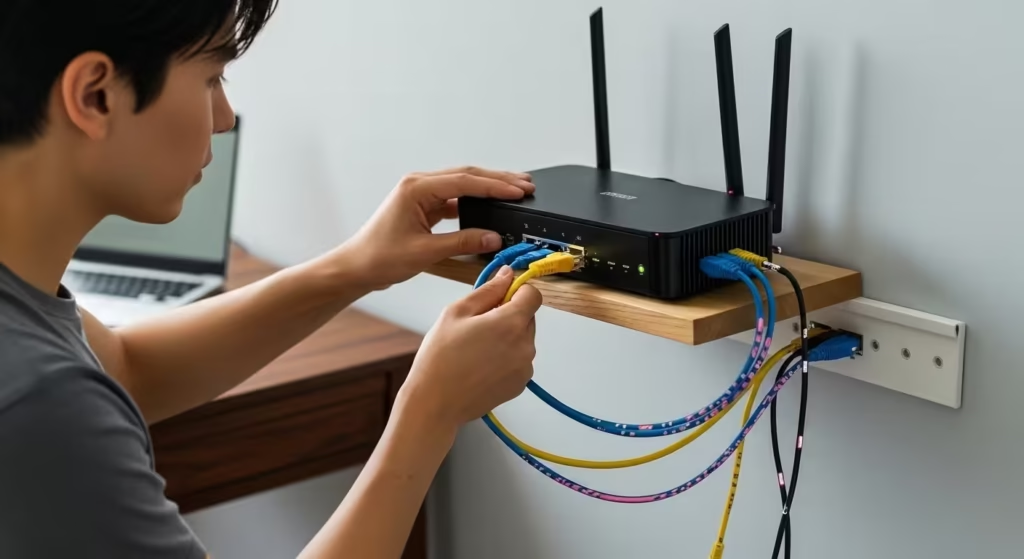
How to Fix Connected But No Internet
If your device is connected to Wi-Fi but the internet isn’t working, it’s important to isolate the issue step-by-step — simply reconnecting isn’t enough; you need to verify the WAN status, DNS, and the ISP signal.
In a real scenario, the laptop is connected to WiFi and the signal is full. The taskbar says “Connected,” but when you open a browser, the page doesn’t load. The same website opens instantly on mobile data, confirming the issue is on the local network side.
App behavior:
In Chrome, a “No Internet” or ‘ERR_NAME_NOT_RESOLVED’ error appears. The YouTube homepage won’t refresh. WhatsApp messages won’t send and keep showing a “connecting” status.
Network Context:
The home WiFi is active. The router’s power and WiFi lights are on. The Internet/WAN light is either red or blinking. Multiple devices are facing the same issue.
Diagnostic tool:
1. Open the router admin panel and check the WAN IP.
2. Run “ping 8.8.8.8” in Command Prompt.
3. Verify DNS by directly opening a website’s IP address.
4. Observe the modem’s signal lights (DSL/PON/Online).
Observed issue:
The WAN IP shows blank or disconnected. The ping test returns “Request timed out.” If the IP opens but the domain name doesn’t, it confirms a DNS issue. Sometimes the router’s internal routing process hangs.
Fix:
* Power cycle the router and modem in the correct order (modem first, then router).
* Verify the WAN connection type and re-enter PPPoE credentials if required.
* Manually set the DNS and test (8.8.8.8 / 8.8.4.4).
* Remove the saved Wi-Fi network from your device and then establish the connection again from scratch.
Limitation:
If there is an outage on the ISP’s side or the account is suspended, local troubleshooting will not work. Changing the DNS only solves DNS-related issues, not upstream routing or physical line faults.
General Troubleshooting Checklist
If you can’t pinpoint the exact issue with the router, following a structured checklist is the best approach — random guesses won’t isolate the problem; systematic testing will.
In a real scenario, the user is confused about whether the issue is with the router, the modem, or the ISP. Sometimes the internet works, sometimes it cuts out. The lights sometimes look normal, sometimes turn red. No clear pattern is apparent.
App behavior:
Sometimes pages load instantly, other times they get stuck on a spinner. WhatsApp is sometimes online, other times it keeps reconnecting. The speed test sometimes shows full speed, other times it doesn’t start at all.
Network context:
Multiple devices are connected to the home WiFi. Both the router and modem are on continuously. There may have been a recent power fluctuation or cable movement.
Diagnostic tool:
1. Check the modem signal lights (DSL/PON/Online to see if they are stable).
2. Verify the WAN IP in the router’s admin panel.
3. Run a ping test (ping 8.8.8.8) and observe packet loss.
4. Test by connecting a device directly with a LAN cable.
5. Run speed tests at different times and compare the results.
Observed issue:
If the internet doesn’t work even with a direct LAN connection, there could be an upstream issue. If the problem is only on WiFi and works fine on LAN, then a wireless issue is confirmed. If there is packet loss during a ping test, the line might be unstable.
Fix:
* Follow the proper power cycle sequence (modem first, then router).
* Verify the WAN connection type and credentials.
* Test by replacing a faulty Ethernet cable.
* Check for firmware updates.
* As a last resort, perform a factory reset and set up fresh.
Limitation:
Not every issue is a local router fault. ISP maintenance, fiber line damage, or account billing suspension can also block internet access. If the issue persists after following the checklist, contacting ISP support is the practical next step.
FAQ
Question: Why is there high latency when the internet is connected?
answer: High latency is often caused by network congestion, ISP routing delays, or a weak WiFi signal. You should run a ping test to check the average response time to confirm the response delay.
Question: Why is browsing slow even though ping is stable?
answer: If ping is fine but pages are loading slowly, it could be a DNS resolution delay or a browser-side caching issue. You can verify DNS behavior by opening the IP address directly.
Question: The speed test result is fine, so why does the video buffer?
answer: A speed test only measures bandwidth. If jitter or packet loss is high, streaming can be unstable even if the Mbps value is high.
Question: How do I identify packet loss on WiFi?
answer: Run a continuous ping in Command Prompt (ping 8.8.8.8 -t). If you repeatedly get “Request timed out,” it confirms packet loss.
Question: Is changing DNS a permanent solution?
answer: Changing DNS can fix temporary resolution delays, but if there’s upstream routing issues or an ISP outage, changing DNS won’t solve the root problem.
Router issues can certainly seem confusing, but if you follow a systematic diagnostic approach, isolating the problem isn’t difficult. Don’t assume the internet is active just because you see a Wi-Fi connection—it’s equally important to verify the WAN status, DNS behavior, and modem signal. In every scenario, step-by-step testing yields more reliable results than random guesses. If the issue still isn’t resolved after local troubleshooting, getting confirmation from your ISP is the practical next step.
In my own experience, following this systematic approach has resolved the majority of router problems I’ve encountered. Most issues turned out to be simple power cycling order, wrong WAN settings, overheating, or outdated firmware rather than a completely faulty router.
Before: Router showed connected but no internet, WAN IP was blank, ping to 8.8.8.8 was timing out, and websites were stuck on loading spinner.
After: After doing a proper power cycle (modem first, then router), correcting the WAN settings, and setting manual DNS, the internet started working normally on all devices within 2 minutes.