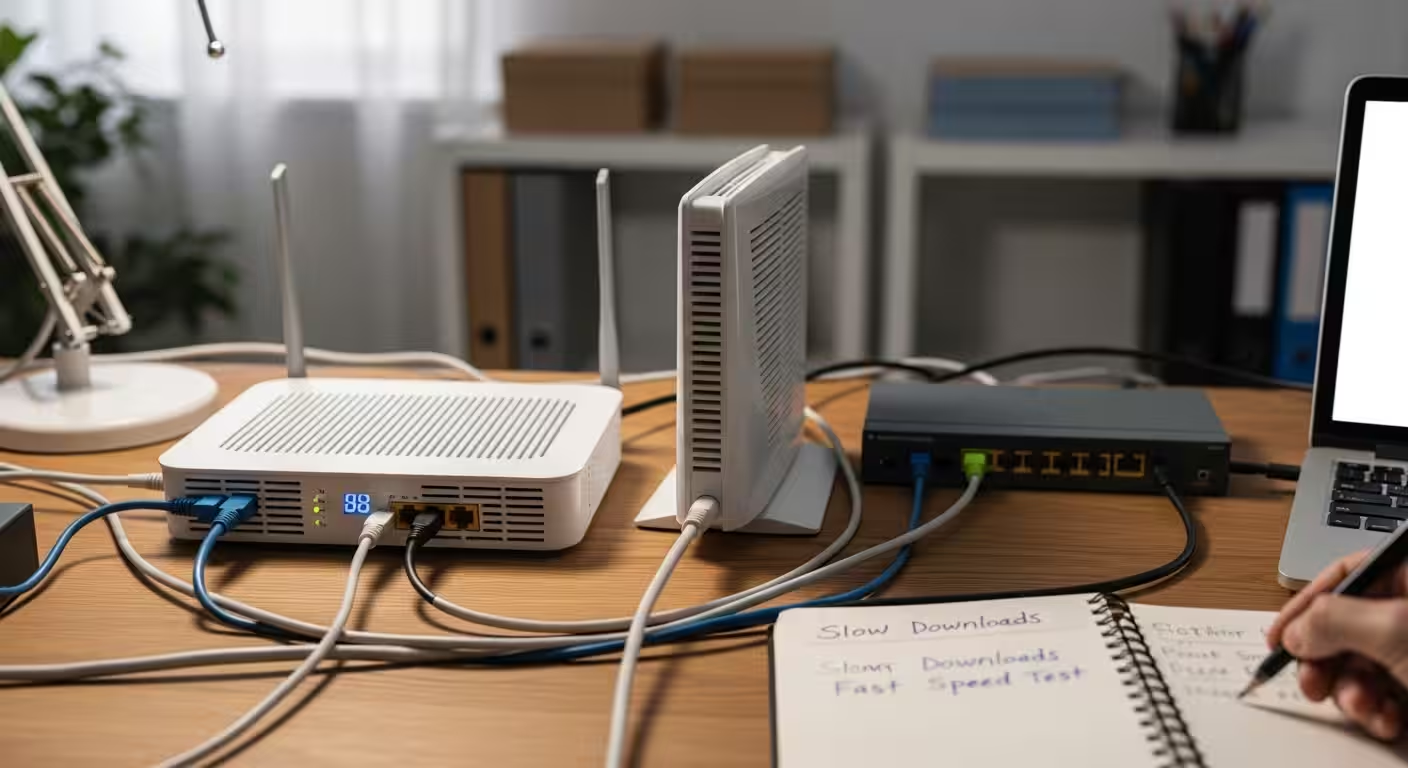
How to Diagnose Slow Download Speeds When Speed Test Is Fast (Tools & Fixes Guide)
Why Speed Test Is Fast But Actual Downloads Are Slow
You run a speed test and see 200 Mbps or more. Then you download a game update, a large file from a cloud drive, or a software installer — and it crawls at a fraction of that speed. The numbers do not match, and it is not your imagination. This disconnect between a slow download but speed test fast result is one of the most common and misunderstood issues in home and office networking.
The reason it confuses people is that speed tests are specifically designed to measure your connection’s maximum theoretical throughput under ideal conditions. They open multiple simultaneous streams to a nearby server, saturate your link for a few seconds, and report the peak. A real-world download does almost none of those things. It typically pulls data from a single remote server, over a single connection thread, across a path that may cross dozens of network hops, congested peering points, and overloaded CDN nodes. The result is a speed that reflects the weakest link in that entire chain — not the capacity of your last-mile connection.
This gap matters because most troubleshooting advice starts and ends with “run a speed test.” When the test looks fine, users assume the problem is on their end — maybe their device, their Wi-Fi, or their browser. In reality, the bottleneck almost always sits somewhere between your ISP’s edge and the remote server. It could be geographic distance introducing latency, a server rate-limiting single connections, MTU mismatches causing packet fragmentation, or even ISP-level traffic shaping that treats speed test traffic differently from bulk downloads.
This guide walks through the exact diagnostic logic a network engineer would follow when file downloads are slow but internet speed tests look normal.
One thing most guides miss in 2026 is that Windows 11 background services and automatic updates often run silently and compete for bandwidth during downloads, creating hidden contention that a short speed test never reveals.
Each section builds on the previous one: first understanding why the measurements differ, then identifying specific causes, then applying targeted fixes. The tools referenced are free, and every command or setting change is explained before it is listed. Whether you are troubleshooting slow Steam downloads, sluggish cloud syncs, or painfully slow ISO downloads, the diagnostic path is the same.
I have faced this exact issue many times. My speed test would show 200 Mbps or higher, but downloading a game update, large file from OneDrive, or software installer would crawl at 20–40 Mbps. After testing repeatedly over several weeks with different servers and tools, I learned why the speed test number rarely matches real download performance.
In this guide I’m sharing the practical checks and fixes that actually worked for me.
By the end, you will have a structured checklist that isolates the real bottleneck — and a clear answer for when the fix is on your side versus when it is time to contact your ISP.

Key Differences Between Speed Test and Real Downloads
Before diagnosing anything, it helps to understand exactly why a speed test reports one number while your actual download tells a completely different story. The gap is not random. It comes down to three structural differences in how speed tests and real downloads move data across a network.
Speed Test Uses Multiple Connections at Once
When you run a test on a platform like Ookla Speedtest or Fast.com, the tool does not open a single data stream and measure it. Instead, it opens multiple parallel TCP connections — often between 8 and 16 simultaneous threads — to a test server. Each thread pulls a chunk of data at the same time. The final number you see is the combined throughput of all those threads added together.
This approach is deliberate. It is designed to saturate your connection, pushing it to its absolute maximum so you can verify you are getting the bandwidth tier you pay for. The problem is that almost no real-world download works this way. So the number on screen is technically accurate for your link capacity, but it does not reflect what any single download session will achieve. Think of it like measuring a highway’s total lane capacity versus the speed of one car in one lane. Both numbers are real, but they describe different things.
Real Downloads Are Usually Single-Threaded
From my own repeated testing, I noticed that simply switching to a wired Ethernet connection often doubled or even tripled the actual download speed compared to Wi-Fi, even when the speed test showed almost the same result on both. Wi-Fi instability affects sustained downloads much more than short speed tests.
Most file downloads — whether from a browser, a game launcher, or a cloud storage service — use a single TCP connection. One thread, one stream, one data path. The speed of that stream depends on several factors that multi-threaded speed tests bypass entirely: TCP window size, round-trip latency to the server, packet loss along the route, and any per-connection rate limit imposed by the remote server.
A single TCP connection over a high-latency path will never fill a fast pipe. This is governed by the bandwidth-delay product, a fundamental networking concept. Even on a 500 Mbps connection, a single stream to a server 150 ms away with a default TCP window size may cap out at 30–50 Mbps. The connection is not slow. The single thread simply cannot request and acknowledge data fast enough to use the full link. This is a key reason why downloads feel slow but the speed test looks fine.
Speed Test Servers Are Close – Real Servers Can Be Very Far
Speed test platforms automatically select a server that is geographically and topologically close to you. Often it is hosted within your own ISP’s network or at a nearby internet exchange point. This means the data travels a very short path with minimal latency, no congested peering links, and no third-party network bottlenecks.
A real download server could be located across the country or on another continent. The data crosses multiple autonomous systems, passes through peering points that may be congested during peak hours, and is subject to routing decisions you have no control over. Every additional hop adds latency and introduces potential packet loss — both of which directly reduce single-thread download speed. This geographic and network-topology gap is one of the most common reasons why actual file transfers underperform compared to speed test results.
Main Causes of Slow Real Downloads
Understanding the structural differences between speed tests and real downloads narrows the search, but pinpointing the actual bottleneck requires looking at specific causes. In most cases, the culprit falls into one of five categories — and more than one can be active at the same time.
Server Location and Long Distance
When the remote server hosting your file sits thousands of miles away, every packet must travel a longer physical and logical path. Latency rises proportionally with distance, and each additional network hop introduces jitter and potential congestion. A file hosted on a server in another continent might have a round-trip time of 180–250 ms, compared to 10–20 ms for a speed test server inside your ISP’s network. That latency penalty directly limits TCP throughput on a single connection because the protocol must wait for acknowledgments before sending more data. The farther the server, the longer the wait, and the slower the effective transfer rate — regardless of how much raw bandwidth your connection has.
Single Connection Speed Limit
Many servers intentionally cap the transfer rate per connection. This is standard practice for content hosts, software mirrors, and cloud storage providers trying to distribute bandwidth fairly across thousands of simultaneous users. A server might allow each individual TCP session only 5–10 Mbps even though your connection can handle 300 Mbps. You will never see this limit reflected in a speed test because the test server has no reason to throttle you. But when downloading a single file from a rate-limited host, your speed is locked to whatever ceiling that server enforces per session.
Network Congestion or Throttling
Traffic between your ISP and the rest of the internet passes through peering points — interconnection links between networks. During peak usage hours, these links can become saturated. Your ISP’s internal network might be perfectly fast (which is what the speed test measures), but the path outward to a particular content provider could be congested. Some ISPs also apply traffic shaping policies that prioritize certain types of traffic — such as speed test data or video streaming — while deprioritizing bulk file transfers. This selective throttling is difficult to detect without targeted testing, which the diagnostic section of this guide covers.
MTU Fragmentation Problems
Maximum Transmission Unit (MTU) defines the largest packet size your connection can carry without breaking it into smaller pieces. The standard MTU for Ethernet is 1500 bytes, but certain configurations — VPNs, PPPoE connections, or misconfigured routers — reduce the effective MTU. When a packet exceeds the allowed size and the “Don’t Fragment” flag is set, the packet gets dropped and must be retransmitted. If fragmentation happens silently, you will see high latency and reduced throughput on real downloads while speed tests, which use optimized packet sizes, remain unaffected. MTU issues are particularly common on connections using PPPoE, where the effective MTU drops to 1492 bytes or lower.
Background Traffic Eating Bandwidth
This one is deceptively simple but frequently overlooked. Cloud sync clients, automatic OS updates, streaming on another device, or even browser tabs running background processes can consume significant bandwidth without any visible indication. A speed test runs in isolation for a few seconds and captures your full pipe. But the moment you start a file download, it competes with every other active flow on your network. On a 100 Mbps connection with 40 Mbps already consumed by a 4K stream and a cloud backup running in the background, your file download only has access to the remaining 60 Mbps — and that is before accounting for any of the other factors listed above.
Step-by-Step Diagnostic Tools
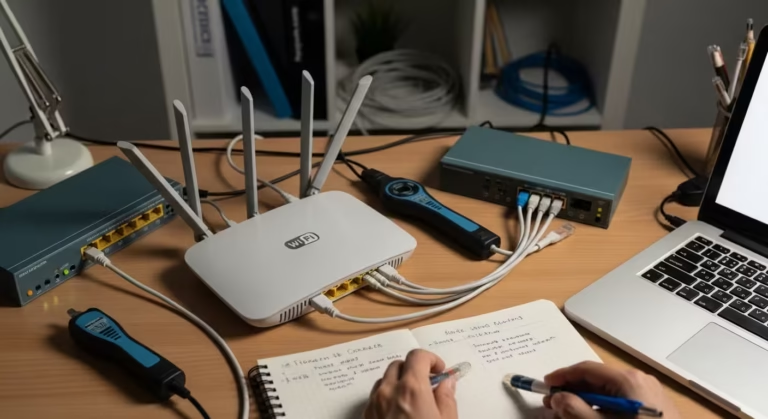
Now that the likely causes are mapped out, the next step is isolating which one applies to your situation. The tools below are free and available on every major operating system. Each test targets a specific bottleneck, so run them in order — the results from one test inform how you interpret the next.
Test Download From Different Servers
The fastest way to determine whether the problem is the remote server or your connection is to download test files from multiple sources. Several organizations host large files specifically for this purpose. Try downloading a 100 MB or 1 GB test file from a server in your region, then from one in a different country. If local downloads hit full speed but distant ones crawl, the bottleneck is the network path or the remote server — not your ISP link.
To compare accurately, use the same download method each time. Open a browser, paste the direct download link, and watch the transfer rate stabilize over at least 30 seconds. Short bursts are unreliable because TCP needs time to ramp up its window size. If a specific service like Steam or Google Drive is slow, test a direct HTTP download from a neutral host to rule out application-level throttling.
Use Multi-Thread Download Managers
If single-server downloads are slow but your speed test shows full throughput, test whether multiple simultaneous connections to the same file improve things. Download managers like Free Download Manager or JDownloader split a file into segments and pull each segment in a parallel thread — mimicking what speed tests do. If a download manager pulls the same file at 150 Mbps when the browser managed only 20 Mbps, the bottleneck is per-connection rate limiting on the server side. This single test often explains the entire discrepancy between speed test results and real download performance.
Check Latency and Packet Loss
High latency or packet loss on the path to a download server will throttle single-thread TCP performance regardless of your bandwidth.
In some Windows systems the hostname may resolve to IPv6 instead of IPv4, which can affect certain diagnostics and routing paths. See our guide on ping returns IPv6 instead of IPv4 in Windows 11.
To measure both, use ping and traceroute (or tracert on Windows). The ping command sends small packets to a target and reports round-trip time and loss percentage. Run it for at least 30 seconds to get stable readings:
ping -c 30 download.server.comOn Windows, use ping -n 30 download.server.com instead. Look for an average latency above 100 ms or packet loss greater than 1% — either condition can significantly reduce single-thread download speed. If ping responses return errors such as “Destination Host Unreachable,” it indicates a routing failure rather than simple packet delay. See our guide on destination host unreachable ping fix. Follow up with traceroute download.server.com (or tracert on Windows) to identify which hop introduces the delay. If latency spikes at a specific hop owned by a transit provider or peering exchange, the issue is upstream from your network and outside your direct control.
Run Test During Different Times
Network congestion follows predictable patterns.
Administrators often run long ping tests with timestamps to observe congestion spikes over time. See our guide on ping with timestamp command explained.
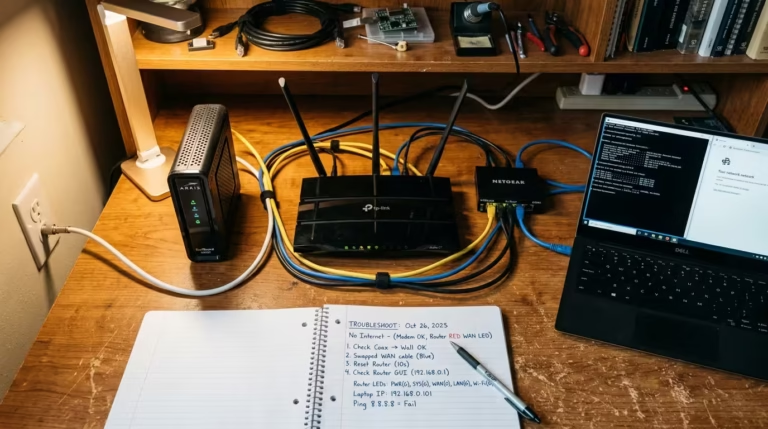
Peering links between ISPs and content networks are most loaded during evening hours — roughly 7 PM to 11 PM local time — when residential usage peaks. Run identical download tests at off-peak hours, such as early morning or midday, and compare the results. If the same file downloads at 150 Mbps at 8 AM but drops to 30 Mbps at 9 PM, congestion on transit or peering links is the primary cause. Document the times and speeds — this data becomes critical evidence if you need to escalate the issue with your ISP later.

Quick Fixes That Usually Solve It
Once diagnostics point to a specific cause, targeted fixes become straightforward. The three changes below resolve the majority of slow download cases where the speed test looks normal. Start with the simplest and work upward.
Switch to Wired Ethernet
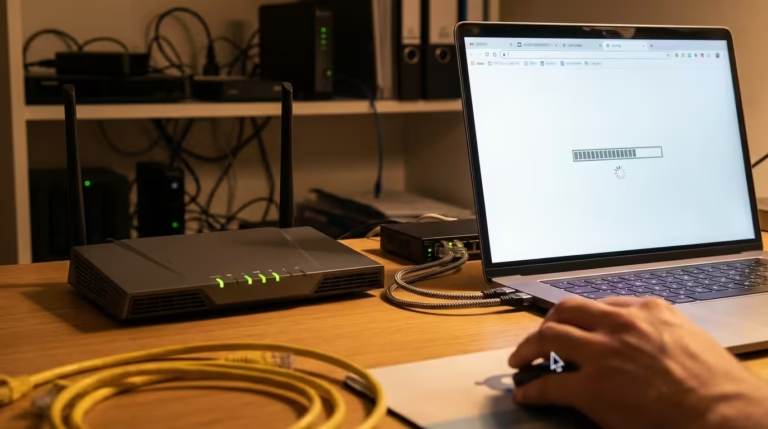
Wi-Fi introduces variable latency, interference, and half-duplex contention that do not show up consistently in short speed tests but absolutely affect sustained downloads. A speed test runs for 10–15 seconds and may catch your Wi-Fi at a clean moment. A 2 GB download runs for minutes, during which channel interference, distance from the access point, and competing wireless clients all take turns degrading throughput. Plugging directly into your router with an Ethernet cable eliminates all of these variables in one step. If your download speed improves significantly over wired, the issue is your wireless environment — not your internet connection or the remote server.
Use Download Managers (Multi-Thread)
As confirmed during the diagnostic phase, single-threaded downloads often hit per-connection limits on the server side. A download manager bypasses this by opening multiple parallel connections to the same file, pulling different byte ranges simultaneously. Free Download Manager, JDownloader, and the aria2c command-line tool all support this. For example, aria2c lets you specify the number of connections directly:
aria2c -x 8 -s 8 https://example.com/largefile.isoThe -x 8 flag sets a maximum of 8 connections per server, and -s 8 splits the download into 8 segments. This single change can multiply effective download speed by 4x to 10x on servers that enforce per-connection caps. It will not help if the server itself has limited total bandwidth or if the bottleneck is your own connection — but when the diagnostic tests showed that multi-threading improved speed, this is the permanent fix.
Change DNS to Faster Servers
DNS does not directly affect download throughput, but it influences which server you get routed to. If downloads work when using a direct IP but fail or slow down with hostnames, DNS resolution may be the cause. See our guide on why ping works on IP but not hostname. Many content delivery networks use DNS-based geolocation to direct you to the nearest edge server. If your ISP’s DNS resolver is slow or returns suboptimal results, you may be routed to a distant CDN node instead of the closest one — adding unnecessary latency and reducing single-thread performance. Switching to a well-maintained public DNS resolver like Google Public DNS (8.8.8.8 and 8.8.4.4) or Cloudflare DNS (1.1.1.1 and 1.0.0.1) can improve CDN routing accuracy. On Windows, change this under Network Adapter Settings > IPv4 Properties > Preferred DNS Server. On Linux, edit /etc/resolv.conf or configure it through your network manager.
Advanced Fixes and Tweaks
If the quick fixes above did not fully resolve the issue, the bottleneck likely sits at a lower level — packet size configuration, traffic prioritization, or outdated driver behavior. These adjustments require more care but address causes that basic fixes cannot reach.
Adjust MTU Size
If the diagnostic phase revealed packet loss or unexplained throughput drops — especially on a PPPoE or VPN connection — MTU misconfiguration is a strong suspect. Finding the correct MTU requires a simple iterative test. Send a ping with the “Don’t Fragment” flag set and a specific packet size, then reduce the size until the ping succeeds without fragmentation:
ping -f -l 1472 download.server.comOn Linux or macOS, the equivalent is:
ping -M do -s 1472 download.server.comStart at 1472 (which equals 1500 MTU minus 28 bytes of header). If the ping fails with a fragmentation error, reduce the value by 10 and try again. Once it succeeds, add back the 28-byte header to get your optimal MTU. Set this value on your router’s WAN interface or on your local network adapter. On PPPoE connections, the correct value is commonly 1452 or 1464 rather than the default 1500. This adjustment eliminates silent packet drops that degrade sustained file transfers without affecting speed test results.
Enable QoS for Download Priority
Quality of Service settings on your router allow you to prioritize specific traffic types over others. If background traffic from other devices or applications is competing with your downloads, QoS can reserve bandwidth for file transfers or deprioritize less important flows like cloud backups. Most modern routers support basic QoS under their advanced wireless or traffic management settings. Some firmware like OpenWrt offers SQM (Smart Queue Management), which uses algorithms like fq_codel to reduce bufferbloat and ensure no single flow starves others. Enable SQM and set the upload and download limits to approximately 85–90% of your measured speed to give the algorithm headroom to manage queues effectively.
Update Network Adapter Driver
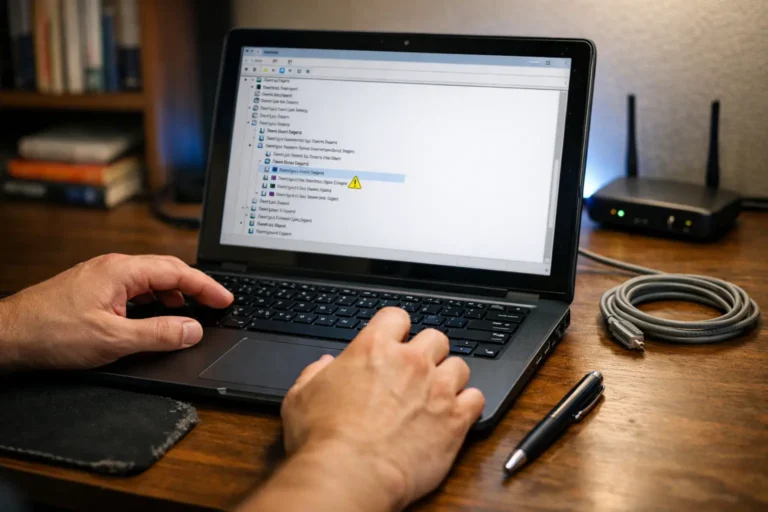
Outdated or generic network adapter drivers can limit TCP window scaling, offloading features, and interrupt handling — all of which affect sustained throughput.
If driver updates and network tuning do not resolve connectivity problems, resetting the Windows TCP/IP stack may help. See our guide on what does netsh int ip reset actually do.
Windows Update often installs a functional but unoptimized driver. Visit your adapter manufacturer’s website — Intel, Realtek, or Killer Networking — and download the latest driver package directly. After updating, verify that TCP Window Auto-Tuning is enabled by opening an elevated Command Prompt and running:
netsh interface tcp show globalLook for the line “Receive Window Auto-Tuning Level.” It should say normal. If it is set to disabled or restricted, re-enable it with:
netsh int tcp set global autotuninglevel=normalThis allows Windows to dynamically scale the TCP receive window based on latency, which is essential for maintaining high throughput on longer network paths.
When to Check Router or ISP
When every client-side fix has been applied and download speeds remain slow despite a fast speed test, the problem likely sits upstream — either in your router or at the ISP level. This is the point where diagnosing shifts from your device configuration to the infrastructure delivering your connection. Before calling support, run through the checks below to gather evidence that will either confirm or rule out ISP involvement.
Look for Throttling Signs
ISP throttling is selective bandwidth reduction, and it most often targets specific protocols or traffic types like large file downloads, torrents, or streaming. A strong indicator of throttling is when your speed test results stay consistently high, but downloads from well-known servers (Microsoft, Steam, or major CDNs) crawl without explanation.
To test for throttling, use a VPN. Connect to a nearby VPN server and retry the same download. If download speeds jump significantly while routed through the VPN, your ISP is likely throttling unencrypted traffic on that specific protocol or destination. Another approach is to compare results across protocols — if HTTP downloads are fast but FTP or torrent transfers are throttled, protocol-based shaping is in play. Tools like Glasnost (if available in your region) or Wehe can help identify this behavior with more precision.
Test on Mobile Hotspot
A quick isolation test is to bypass your entire home network by connecting your device to a mobile hotspot. Download the same file from the same server. If the download speed improves dramatically, the bottleneck is inside your local network — likely the router, modem, or Ethernet infrastructure. If the speed is equally slow over mobile data, the issue is almost certainly on the remote server’s end or relates to geographic routing.
This test removes your router, modem, cables, and ISP last-mile connection from the equation in one step, making it one of the fastest ways to narrow the fault domain.
Contact ISP If Needed
Contact your ISP when you have confirmed the following: your device is wired, MTU is correctly set, no background traffic is consuming bandwidth, other servers also deliver slow downloads, and VPN testing suggests throttling or routing issues. Present this data clearly — ISPs respond faster to structured troubleshooting than vague complaints about “slow internet.”
Ask specifically about congestion on your node, any active traffic management policies, and whether your connection profile needs reprovisioning. If you are on a CGNAT (Carrier-Grade NAT), request a public IP, as CGNAT can add latency and limit connection handling under load.
Final Slow Download Diagnostic Checklist
Use this ordered checklist to systematically diagnose slow downloads when your speed test shows fast results:
- Test on wired Ethernet — eliminate Wi-Fi as a variable.
- Download from multiple servers — confirm the issue is not server-side.
- Check latency and packet loss — use
pingandmtrorpathping. - Test at different times — identify peak-hour congestion.
- Try a multi-threaded download manager — rule out single-thread bottlenecks.
- Verify MTU settings — test with
ping -f -lto find fragmentation. - Switch DNS servers — use 1.1.1.1 or 8.8.8.8 for faster resolution.
- Enable QoS — prioritize download traffic on your router.
- Update network adapter drivers — check the manufacturer’s site.
- Test through a VPN — check for ISP throttling.
- Test on mobile hotspot — isolate your home network entirely.
- Contact ISP — present your findings and request line diagnostics.
Work through this list top to bottom. Most slow download issues resolve within the first six steps.
FAQ – Common Questions & Answers
Why are my downloads slow when speed test is fast?
Speed tests use multiple parallel connections to nearby servers, measuring peak throughput. Real downloads typically use a single thread from a distant server, which exposes latency, routing inefficiencies, and per-connection limits that speed tests bypass entirely.
How do I test if server location is the cause?
Download the same file — or a similar-sized test file — from servers in different geographic regions. If nearby servers deliver fast speeds while distant ones are slow, routing distance and intermediate network hops are the bottleneck.
Can MTU size slow down downloads?
Yes. If your MTU is set higher than your path supports, packets get fragmented or dropped, forcing retransmissions. This creates significant throughput loss on large file transfers even when speed tests appear normal.
Does a download manager really help?
It does when the server supports it. Multi-threaded download managers open several parallel connections to the same file, mimicking how speed tests measure bandwidth. This can dramatically increase real download speed from servers that cap per-connection throughput.
Why do downloads slow down at night?
Peak usage hours — typically evenings — cause congestion at your ISP’s node or on shared infrastructure. More users competing for the same bandwidth reduces per-user throughput for real downloads, while speed test servers may still perform well due to local caching and prioritization.
How do I check for ISP throttling?
Connect to a reputable VPN and retry the same download. If speeds improve substantially through the VPN, your ISP is likely applying traffic shaping to specific protocols or destinations. Tools like Wehe can also detect throttling on specific services.
Is wired always faster for downloads?
Not always faster in raw throughput on modern Wi-Fi 6 and Wi-Fi 6E, but always more stable and consistent. Wired Ethernet eliminates interference, channel congestion, and signal degradation — all of which cause speed fluctuations that disproportionately affect large, sustained downloads.
What tools can diagnose real download speed?
Use curl or wget for single-thread testing, mtr or pathping for route analysis, iperf3 for LAN throughput verification, and multi-thread download managers like Free Download Manager or aria2 for parallel download testing. These tools expose bottlenecks that browser-based speed tests never reveal.
When a speed test reads fast but actual downloads crawl, the root cause is almost never your raw bandwidth. It is the path between you and the server — shaped by distance, threading, congestion, MTU, or ISP policy. Work through diagnostics methodically, starting with the simplest fixes. If every client-side adjustment fails and VPN testing points to throttling or routing issues, that is when your ISP needs to investigate. Present your findings clearly, and request specific line-level diagnostics rather than a generic reset.
In my own experience, after applying these diagnostics and fixes, most slow download issues improved significantly — usually by switching to wired connection, using a multi-thread download manager, or enabling proper QoS. The speed test numbers stayed the same, but actual file transfer speeds became much closer to what I was paying for.